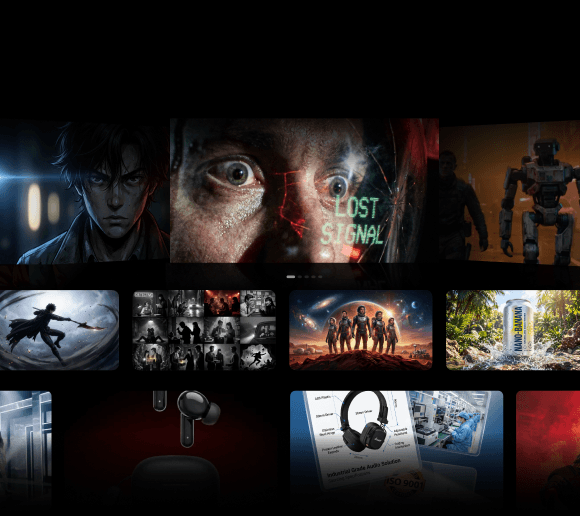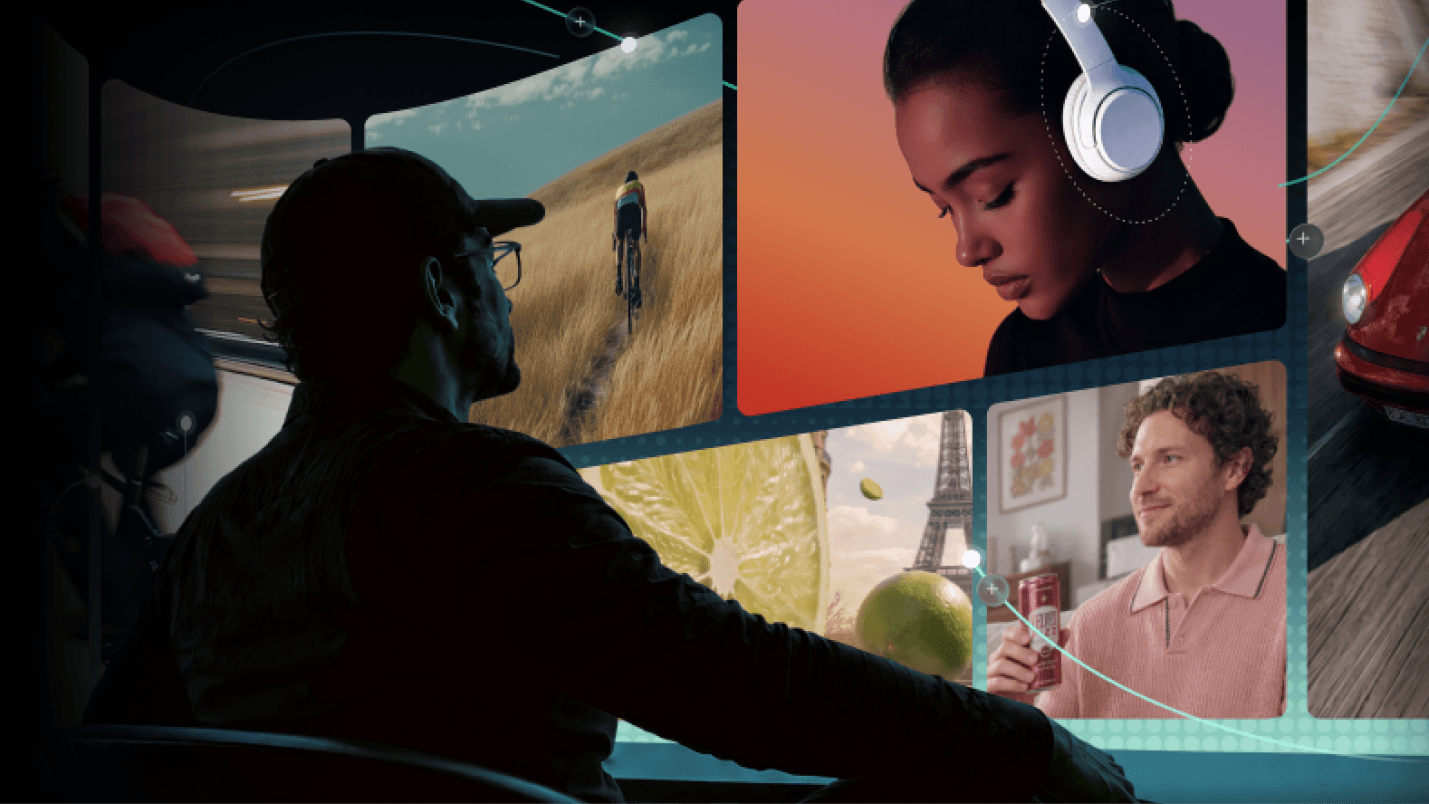
Short-form video creation is becoming increasingly AI-powered, but the workflow is not always seamless. You may still generate visuals in one tool, compare results in another, and then move everything into a separate editor. Many AI short-form video generator tools address only one part of this process, but not with Filmora.TV.
Filmora.TV takes a more integrated approach by combining AI generation, visual planning, asset comparison, collaboration, and timeline editing in one creative workspace. This review explores how Filmora.TV works and where it fits among today’s AI video tools.
What Is an AI Short-Form Video Generator?
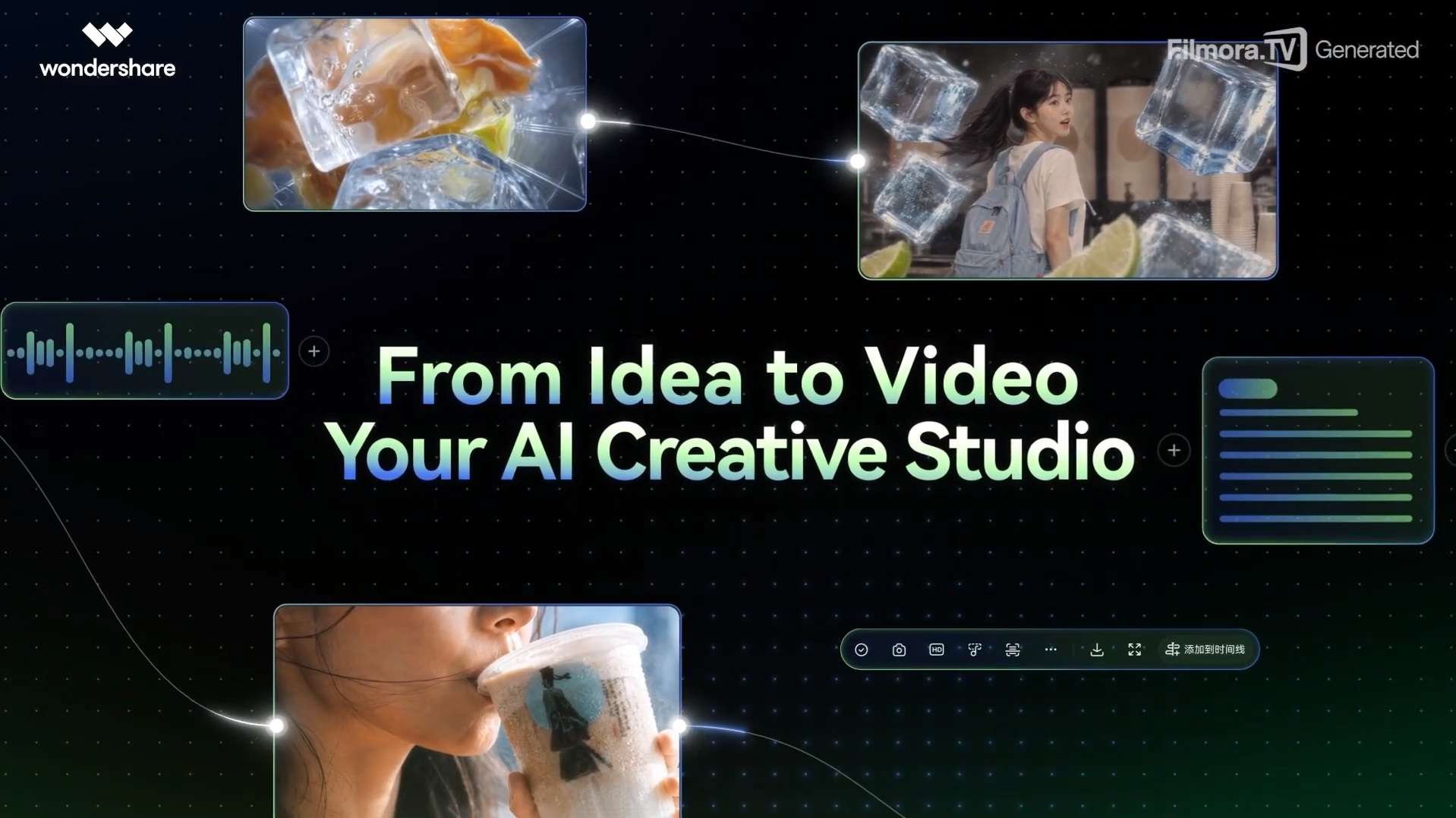
An AI short-form video generator is a tool that uses artificial intelligence to create or assist with producing short videos for platforms such as TikTok, Instagram Reels, and YouTube Shorts. Some tools generate individual clips from text or images, while others support a broader workflow that includes visual planning, shot selection, timeline editing, and final export.
However, not every AI short-form video generator works in the same way. Here, you can find the differences between each tool.
| Type | What It Does | Typical Starting Point | Best For |
|---|---|---|---|
| Long-to-short AI clipper | Finds highlights and turns long videos into shorter clips | Podcast, webinar, interview | Repurposing |
| Script-to-video generator | Automatically builds a video from text | Prompt or script | Faceless/social videos |
| Generative video tool | Creates individual AI video shots | Text/image/reference | Cinematic visuals |
| AI-powered video editor | Uses AI to accelerate editing | Existing footage | Polishing and finishing |
| AI creative workspace | Combines ideation, generation, asset organization, and editing | Idea, assets, references | Multi-step AI creation |
What Should You Look for in an AI Short Form Video Generator?
Before choosing an AI short-form video generator, consider which parts of the creative process you want the platform to handle.
- AI generation capabilities: Check whether the tool can create the type of content you need, such as images, video clips, or complete scenes from text and visual references.
- Creative control: Look for tools that let you adjust important details such as camera angle, lighting, movement, composition, and visual style.
- Asset comparison: AI often produces several possible results. A useful platform should make it easy to compare different versions and choose the strongest ones.
- Editing capabilities: Generating clips is only one part of the process. You may also need tools to trim, arrange, and combine those clips into a finished short-form video.
- Workflow efficiency: A good AI-powered short-form video generator should reduce unnecessary steps. Constantly downloading files and moving between different platforms can make the workflow slower and harder to manage.
- Collaboration: For teams, agencies, or freelancers working with clients, shared assets, comments, and permission controls can make feedback and revisions easier.
- Export options: Check whether the final video can be exported directly or transferred to another editing program when more detailed editing is needed.
Filmora.TV AI Short-Form Video Generator: What Makes It Different?
Filmora.TV is an AI-native creative workspace developed by Wondershare. Rather than focusing only on video generation or editing, it brings planning, asset creation, comparison, collaboration, and final editing into one platform.
| Features | Details |
|---|---|
| Item | Filmora.TV |
| Developer | Wondershare |
| Product Type | AI-native creative workspace and video studio |
| Core Interface | Infinite visual canvas + basic timeline |
| Best For | Original AI short videos, ads, cinematic Shorts, story-based content |
| Inputs | Text, images, videos, references, existing assets |
| AI Creation | Image and video generation |
| Editing | Built-in multi-track timeline (trim, split, manage audio, playback speed adjustment, etc.) |
| Collaboration | Teams, shared assets, comments, permissions |
| Output | Finished video + professional project handoff |
| Main Differentiator | Canvas-to-final-cut workflow |
Infinite Canvas: Explore Ideas Before Locking Into an Edit
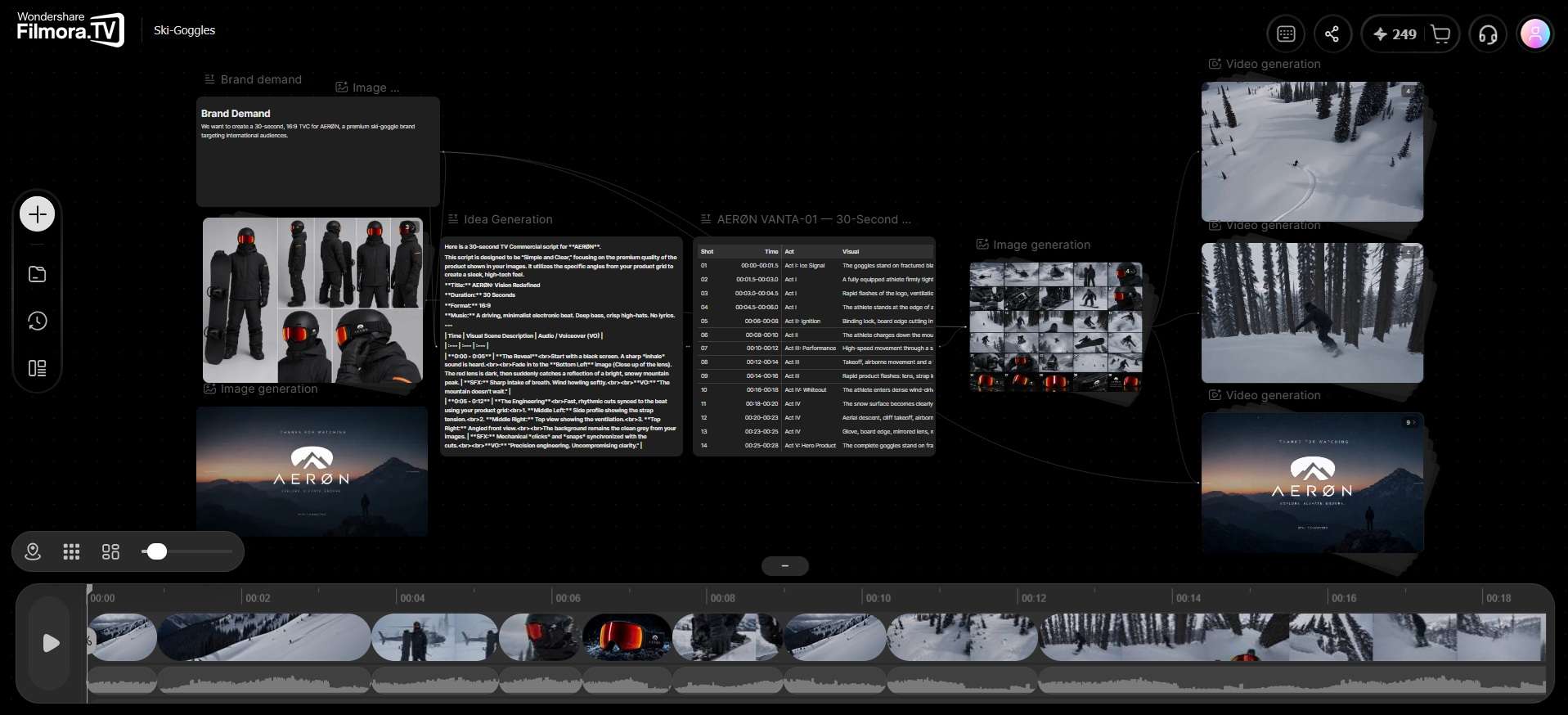
The main workspace in Filmora.TV is an infinite visual canvas. You can place scripts, prompts, images, video clips, references, and different ideas freely instead of arranging everything on a timeline from the beginning.
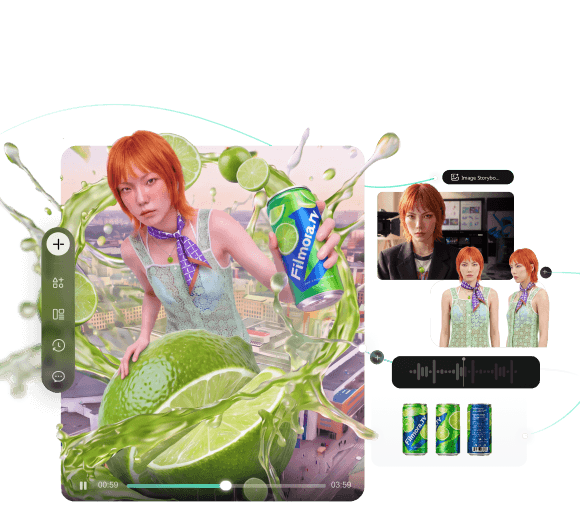
Text Nodes can be used for scripts and prompts, while Image Nodes provide tools for tasks like image generation, upscaling, background removal, and object editing. You can use them to explore several creative directions before making the final cut and refine the assets without constantly moving files between separate apps.
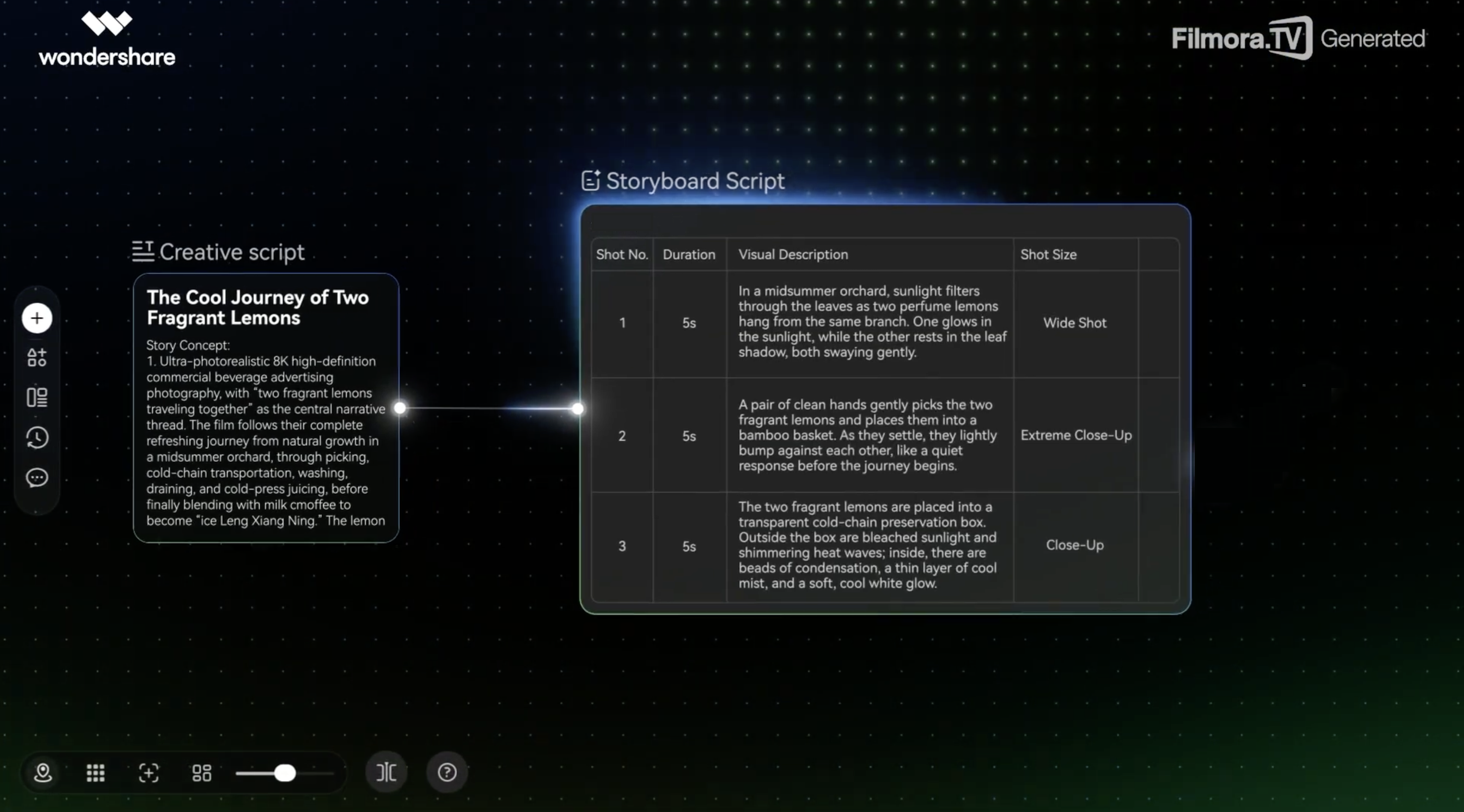
Storyboards, Character Sheets, and Product Views
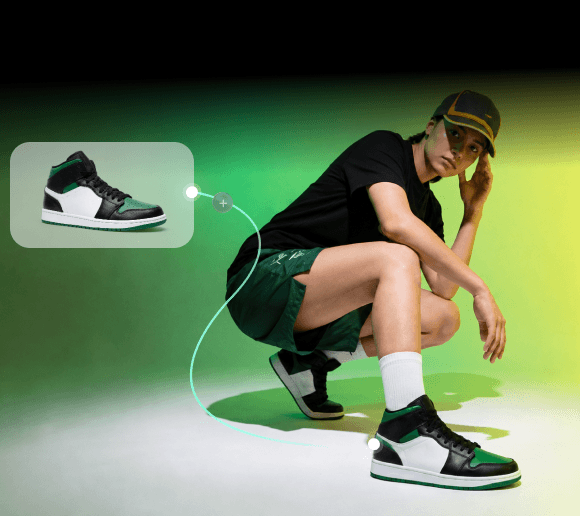
As a short-form video generator AI, Filmora.TV also includes tools designed for projects that need more visual consistency. These include 9-grid storyboards, 25-grid continuity frames, character turnaround sheets, product multi-view sheets, and cinematic lighting variations.
For AI cinematic Shorts or micro-dramas, these tools can help plan scenes and keep characters more consistent across different shots. Product creators can use multi-view sheets to explore different angles, while brand teams can compare visual directions before moving into production.
From Infinite Canvas to Multi-Track Timeline
One of Filmora.TV’s main difference is that the workflow doesn’t stop after generating content. A typical AI video workflow may look like this:
Generate → Download → Import → Edit
With Filmora.TV, selected assets can move directly from the canvas into its built-in multi-track timeline:
Generate → Select → Timeline → Edit
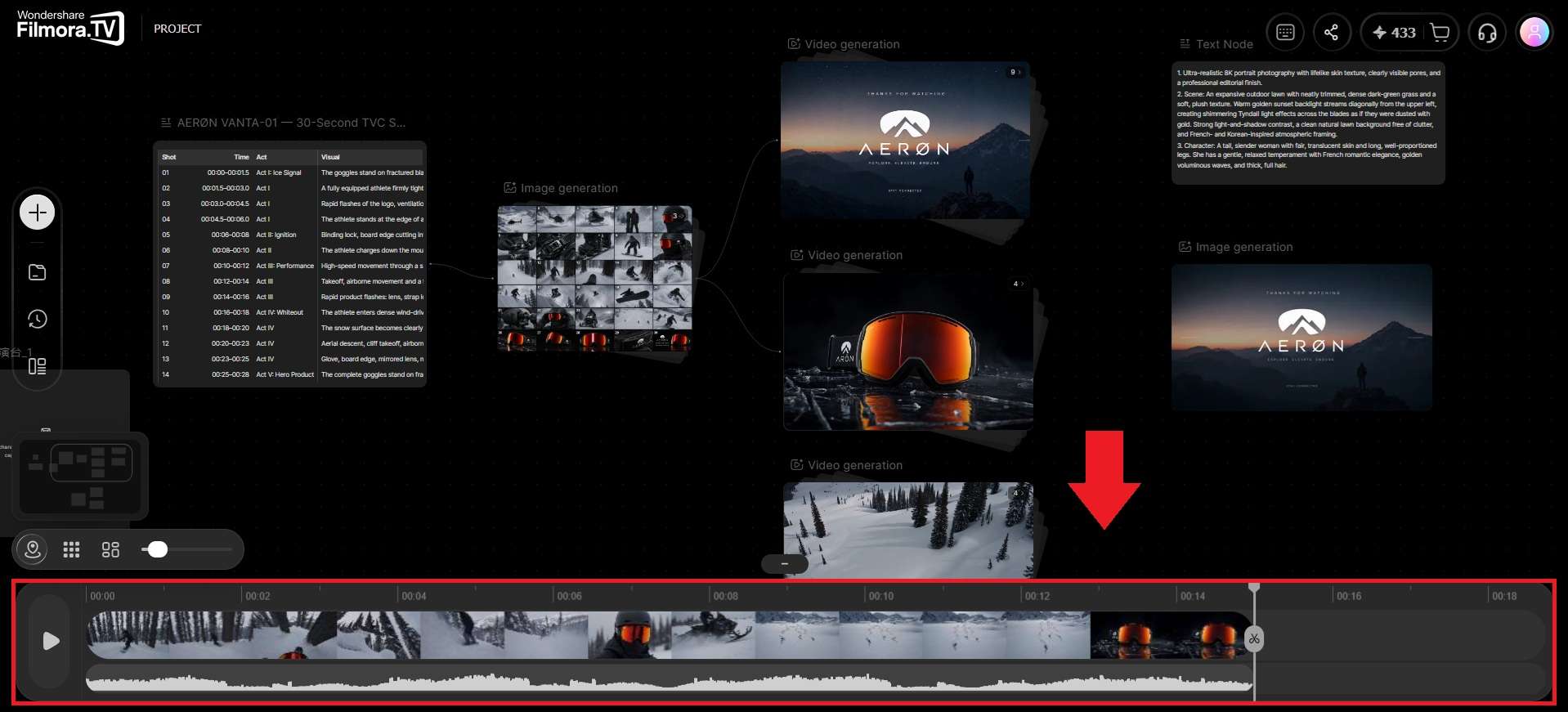
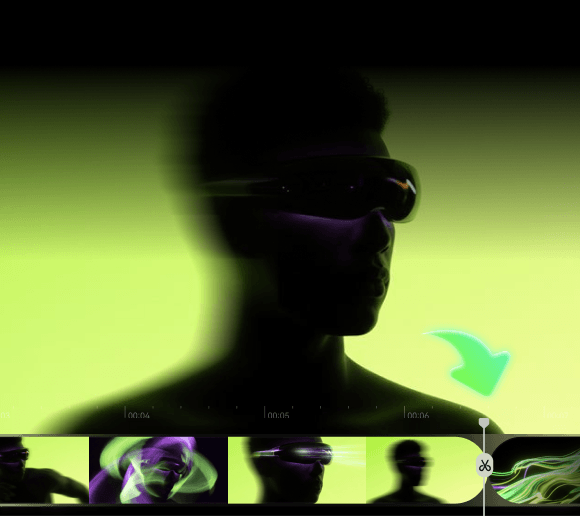
You can then arrange clips, trim or split them, adjust speed, work with audio and subtitles, and build the final sequence on the same platform. This canvas-to-timeline workflow is especially useful for an AI-powered short-form video generator, because creators often need to test many ideas before deciding which shots belong in the final video.
Is Filmora.TV AI Short-Form Video Generator Free?
Filmora.TV AI short-form video generator uses a combination of subscription access and AI credits. Here is the current Filmora.TV pricing:
| Plan | Price | AI Credits | Cloud Storage | Team Seats |
|---|---|---|---|---|
| Basic | $200/year | 200/month (2,400/year) | 5GB | 3 |
| Plus | $1,000/year | 1,060/month (12,720/year) | 50GB | 10 |
| Pro | $2,000/year | 2,160/month (25,920/year) | 150GB | 20 |
| Premium | $5,000/year | 5,750/month (69,000/year) | 500GB | Unlimited |
All plans include features such as infinite canvas creation, one-click templates, watermark-free exports, commercially licensed assets, team seat management, a shared team credit pool, and a team project asset library.
So, while Filmora.TV is not positioned as an unlimited free AI short-form video generator, its subscription model is designed for creators and teams that need regular AI generation, asset management, collaboration, and editing in one workflow.
How to Make a Short-Form Video With Filmora.TV
Since Filmora.TV uses a flexible canvas rather than a fixed timeline as the starting point, there are many ways to begin creating a short-form video. You can start with a script, visual idea, reference image, or generated clip, and then build out the project using connected nodes.
The exact starting point is up to you, but the main steps typically look like this.
-
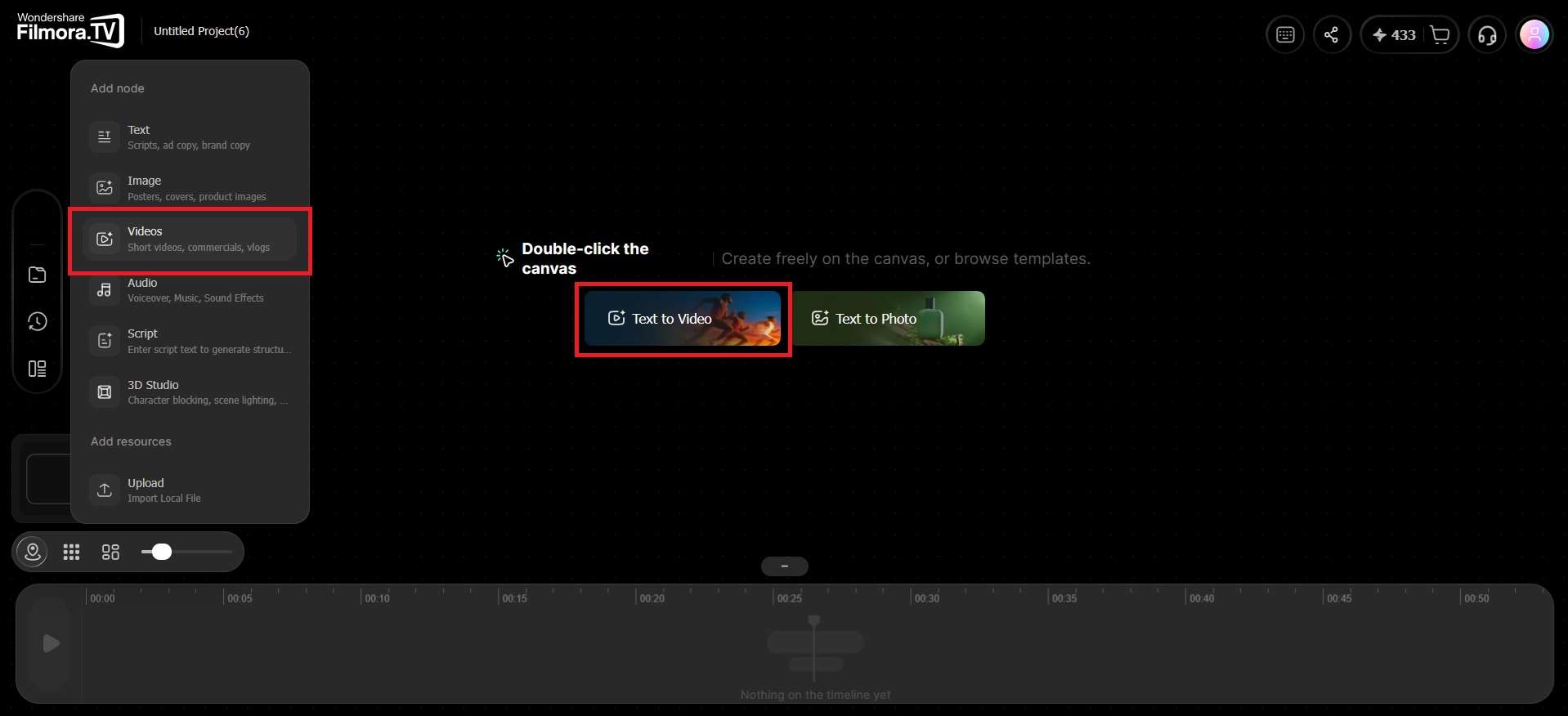
Step 1Add a Video Node
On the canvas, click Add (+) and choose Video Node from the menu. You can also start directly by selecting Text to Video.
-
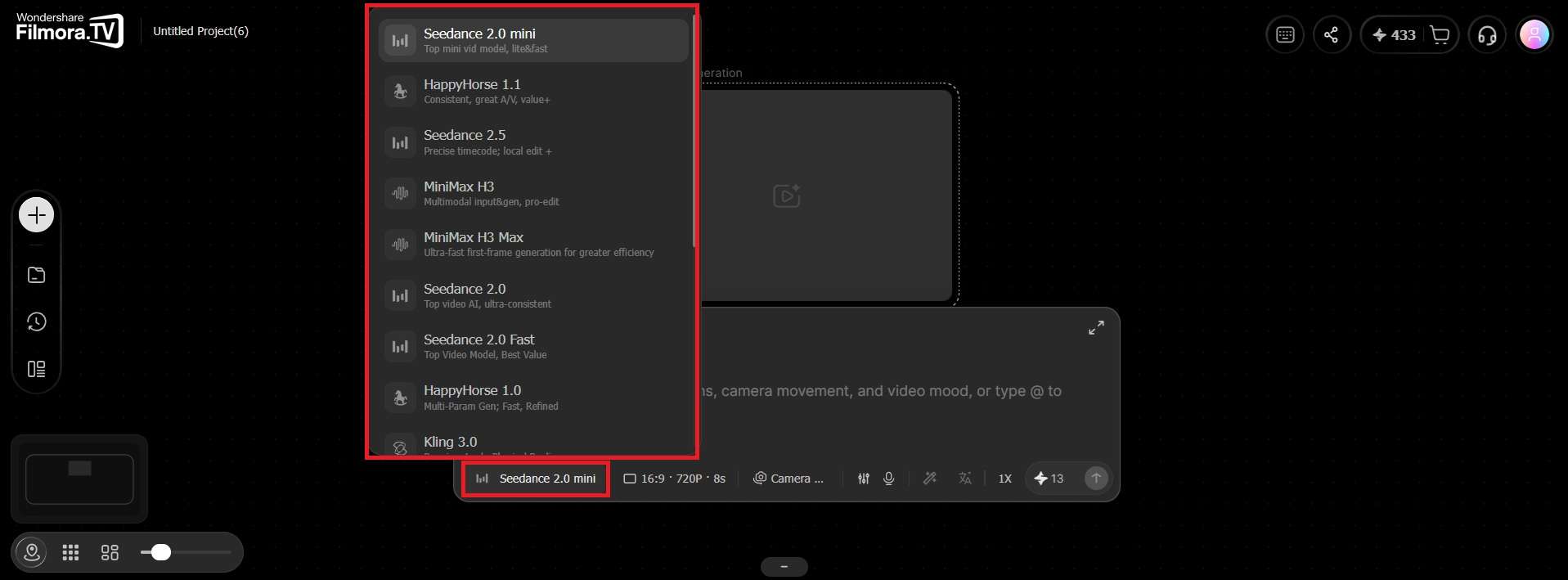
Step 2Choose a Generation Method and AI Model
Filmora.TV gives you four ways to create a video:
- Text-to-video
- Image-to-video
- First-and-last-frame
- All-in-one reference
Depending on the method you choose, you can select from models such as Seedance 2.5, HappyHorse 1.1, Kling Omni 3.0, or Veo 3.1-Lite.
-
Step 3Add a Reference Image or Media (Optional)
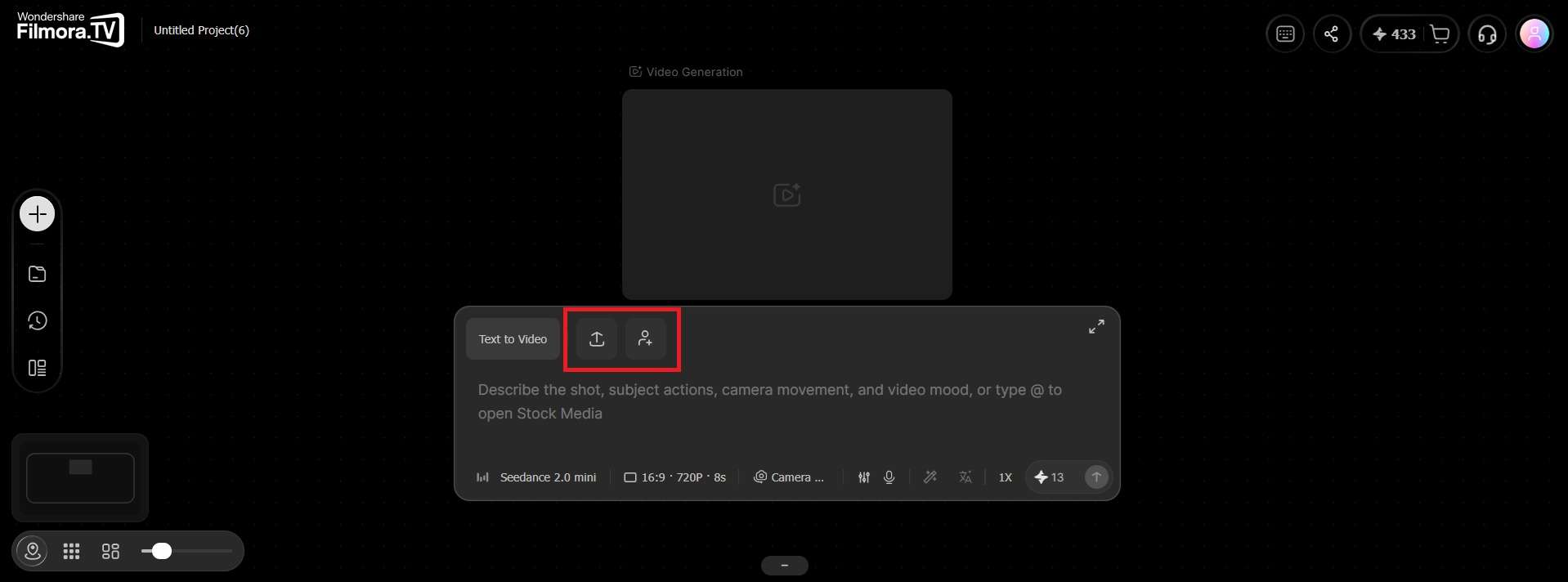
You can provide your own visual reference by uploading an image or video. Click the Add Media icon to select an existing asset from your Asset Library.
-
Step 4Write Your Prompt and Configure the Camera
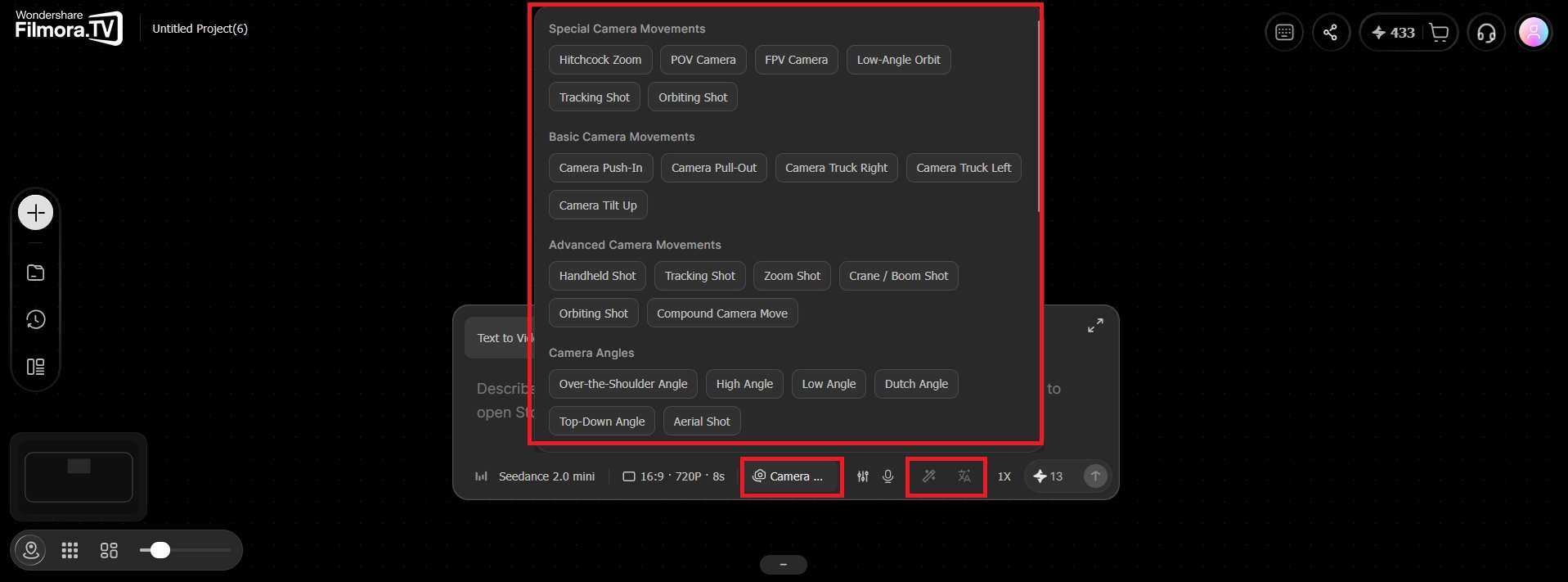
Enter your prompt to describe the video you want to create, or use voice input instead. For more control over the shot, Filmora.TV provides camera control presets that can be added to your prompt automatically.
Tip: Use Prompt Optimization and Prompt Translation to refine your instructions.
-
Step 5Configure the Output and Generate
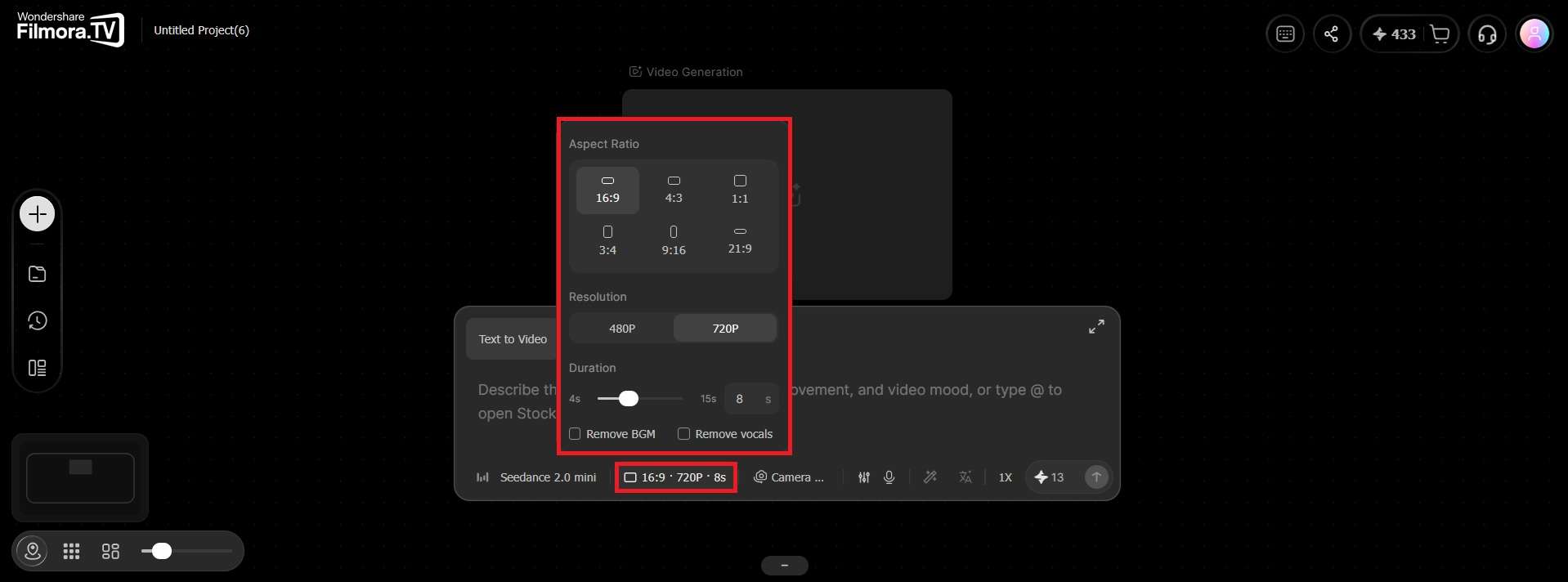
Before generating, choose your preferred aspect ratio, duration, and video quality. The available options depend on the AI model you select. When ready, start generating.
-
Step 6Compare Generated Takes and Select Your Best Shots
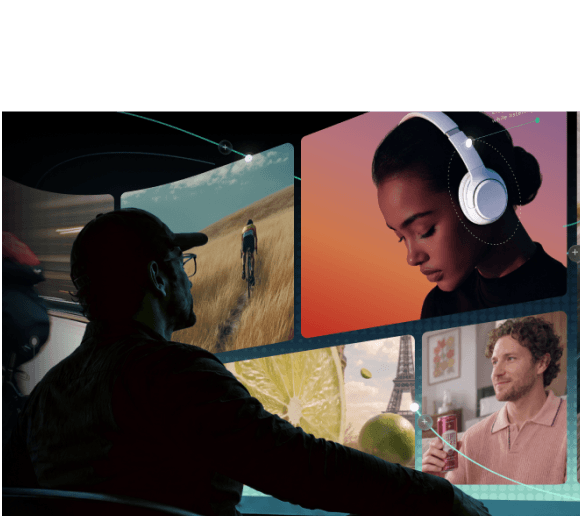
Once your clips are generated, review the results on the infinite canvas. Compare different camera angles, movements, and visual styles to find the shots that best support your story.
Keep your preferred takes together so you can build a consistent sequence instead of treating each generated clip as a separate video.
-
Step 7Assemble and Edit Your Short-Form Video
Move your selected clips from the canvas to Filmora.TV's built-in timeline. Arrange the shots in the right order, trim unnecessary footage, adjust the pacing, and add audio or subtitles where needed.
Before exporting, watch the complete sequence to make sure the visuals, transitions, and timing work together.
Want to explore the process in more detail? Follow this
AI video creation workflowto see how individual AI-generated shots can become a complete video.
Is Filmora.TV the Best AI Short-Form Video Generator for You?
Filmora.TV may be the best AI short-form video generator for creators who want to manage more of the video-making process in one place. It’s recommended for:
- AI short-film and cinematic creators who need to generate several shots, compare different versions, and build them into one sequence.
- UGC and ad creators who often test multiple creative directions or produce different versions of the same campaign.
- YouTubers experimenting with AI for B-roll, Shorts, thumbnails, and other supporting visuals.
- Anime and micro-drama creators who may benefit from storyboards, character sheets, and tools that support visual consistency.
- Small agencies and creative teams that need shared assets, comments, permissions, and a clearer review process.
Things to Consider
Beyond those needs, users can consider these factors before using Filmora.TV.
- Combines planning, AI generation, comparison, and editing in one workspace
- Infinite canvas helps organize ideas and creative variations
- Includes tools for storyboards, character consistency, and product visuals
- Built-in multi-track timeline reduces the need to switch to another editor
- Supports team collaboration and shared project assets
- May be more than you need if you only want to turn long videos into short clips
- Generating many variations can use AI credits quickly
- The canvas-based workflow may take some time to learn
- More advanced finishing may still be easier in a dedicated video editor
Conclusion
Filmora.TV goes beyond generating individual AI clips by connecting visual planning, AI generation, asset comparison, and timeline editing in one workspace. Creators can explore multiple shots on the canvas, select the strongest takes, and assemble them into a complete short-form video without constantly switching between tools.
It may not be the right choice for users who only need simple clipping or basic editing. However, for those producing original AI videos, ads, cinematic Shorts, or story-based content, Filmora.TV AI short-form video generator gives you a practical way to manage more of the creative process without constantly switching between different tools.
FAQs
-
What is the difference between Filmora.TV and Wondershare Filmora?
Filmora.TV is an AI-first creative workspace, while Wondershare Filmora is a traditional video editor with AI features. Their licenses and AI credits are separate, though your Filmora.TV projects can be handed off to Filmora through XML export.
-
Can I use an AI short-form video generator online?
Yes. Filmora.TV works online and lets you generate, compare, and edit short-form video content in one workspace.
-
Can Filmora.TV create videos for TikTok, Reels, and YouTube Shorts?
Yes. Filmora.TV lets you generate AI video clips, compare different takes, and arrange selected shots on its built-in timeline. You can adjust pacing, add audio or subtitles, and export short-form videos for platforms such as TikTok, Instagram Reels, and YouTube Shorts.
-
Can an AI short-form video generator create a complete video from multiple clips?
Yes, if the tool supports video assembly and editing. With Filmora.TV, you can generate multiple shots, compare the results on a visual canvas, and combine selected clips on a timeline to create a complete short-form video. This is particularly useful for story-driven Shorts, AI-generated ads, and videos that require several connected scenes.