
What Is Filmora.TV?
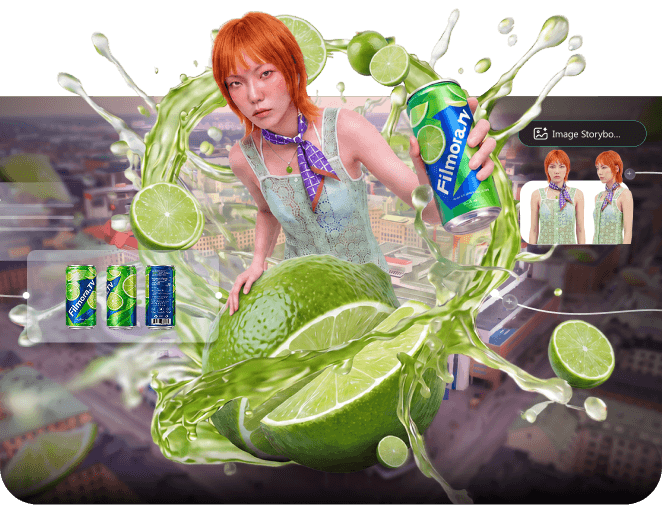
Filmora.TV is a web-based, AI-powered video creation and collaboration platform designed for TV commercials (TVCs), branded content, and narrative video projects. It provides a unified workspace where creative teams can develop ideas, generate visual assets, review concepts, edit footage, and deliver finished videos.
Unlike general-purpose AI tools that focus on generating a single image or video, Filmora.TV is built around the complete creative workflow. It connects planning, production, collaboration, and post-production in one place, helping creators turn early ideas into deliverable video assets more efficiently.


Practice each step from this guide directly in Filmora.TV.
In this article
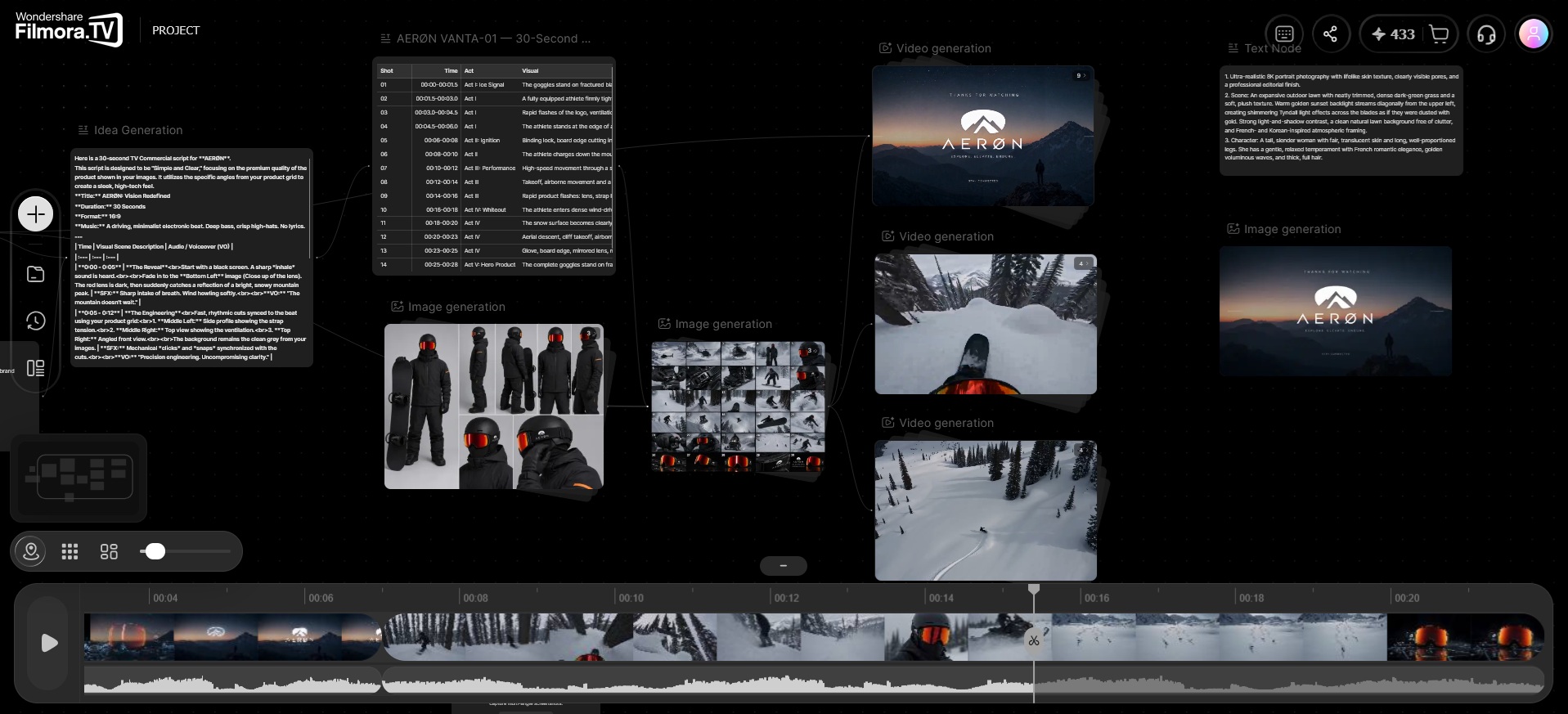
From AI Canvas to Multi-Track Editing
Filmora.TV goes beyond idea generation and rough visual exploration. Once assets are created on the canvas, they can be moved into a multi-track editing workflow for further refinement.
Creators can edit video, audio, and subtitle tracks, adjust timing and speed, review the overall sequence, and prepare the project for delivery. This creates a continuous workflow from creative development to final editing, reducing the need to move between multiple disconnected tools.
For professional teams, the ability to export project information such as XML files can also make it easier to continue post-production in other editing environments when needed.
Built for TVC and Brand Content Teams
Filmora.TV is designed primarily for professional creators, including:
- TVC production companies
- Brand advertising and marketing teams
- AI video studios
- Directors, producers, writers, and visual designers
Its purpose is not simply to automate video generation. Instead, it supports the creative decisions behind a commercial or branded story, including concept development, script planning, visual exploration, production review, and final delivery.
A More Efficient Creative Experience
Filmora.TV also focuses on making AI creation practical for professional workflows. Features such as batch image generation and multi-view comparison help creators evaluate multiple visual directions quickly. Grid alignment keeps the canvas organized, while Markdown support makes long prompts and text-based content easier to read and maintain.
An immersive history experience allows users to revisit previous generations and compare creative results without losing track of the process.
In Summary
Filmora.TV is an AI-native video creation workspace for turning creative ideas into finished TVC and branded videos. Its visual canvas supports flexible ideation and asset generation, while its multi-track editing tools provide a path to final production.
By bringing scripting, storyboarding, AI generation, collaboration, review, editing, and delivery together, Filmora.TV offers a new way for creative teams to move from concept to completed video in one connected workspace.
FAQs
-
1. Do I need to write a script before generating a video, and do I need to write it myself?
Not necessarily. You can generate a video directly from a text description, or first use a text node to let AI create a script, storyboard, character setup, or product selling points, then connect that content to image or video nodes as reference. For ad videos, story videos, or multi-shot content, preparing a storyboard first usually helps the result stay more coherent. -
2. Can I batch-generate multiple storyboard images or multiple video results to choose from?
Yes. Before generating an image or video, you can adjust the generation count to produce multiple results for comparison and selection.
For complete storyboards or multi-shot content, we recommend organizing the script and storyboard first, then generating and filtering by node so you can control quality and consistency more effectively. -
3. Which models does Filmora.TV support, and can I switch between them?
Filmora.TV lets you switch between different generation models in image and video nodes, so you can choose the right model based on style, clarity, video length, and output quality.
Available models currently include Seedance 2.0, Kling 3.0, and HappyHorse. The available model list is updated continuously; please refer to the product for the latest options and capabilities. -
4. How can I improve consistency across people, products, or brand elements in multi-shot content?
Start with stable reference materials such as storyboard scripts, actor images, product images, brand logos, or packaging images. Then connect those nodes to the video node and use @ in the prompt to make the intended reference role explicit.
For people and products, you can also generate character turnarounds, product three-views, or multi-angle reference images first to help keep later shots visually consistent. -
5. Can I perform local image editing, erasing, cutout, or expansion in the product?
Yes. Filmora.TV supports further editing on an existing image, including image expansion, redraw, erase, cutout, crop, and parsing. You can modify local areas, remove unwanted elements, extract the subject, or expand the image content as needed.
Was this guide helpful?