
What Happens After
the Prompt?
AI can generate a great-looking clip in seconds.
But turning it into a video people can actually use takes more than a prompt.
Here's how to move from a single shot to a story worth sharing.

The Same Idea, Organized Into A Story and a Video People Can Use.
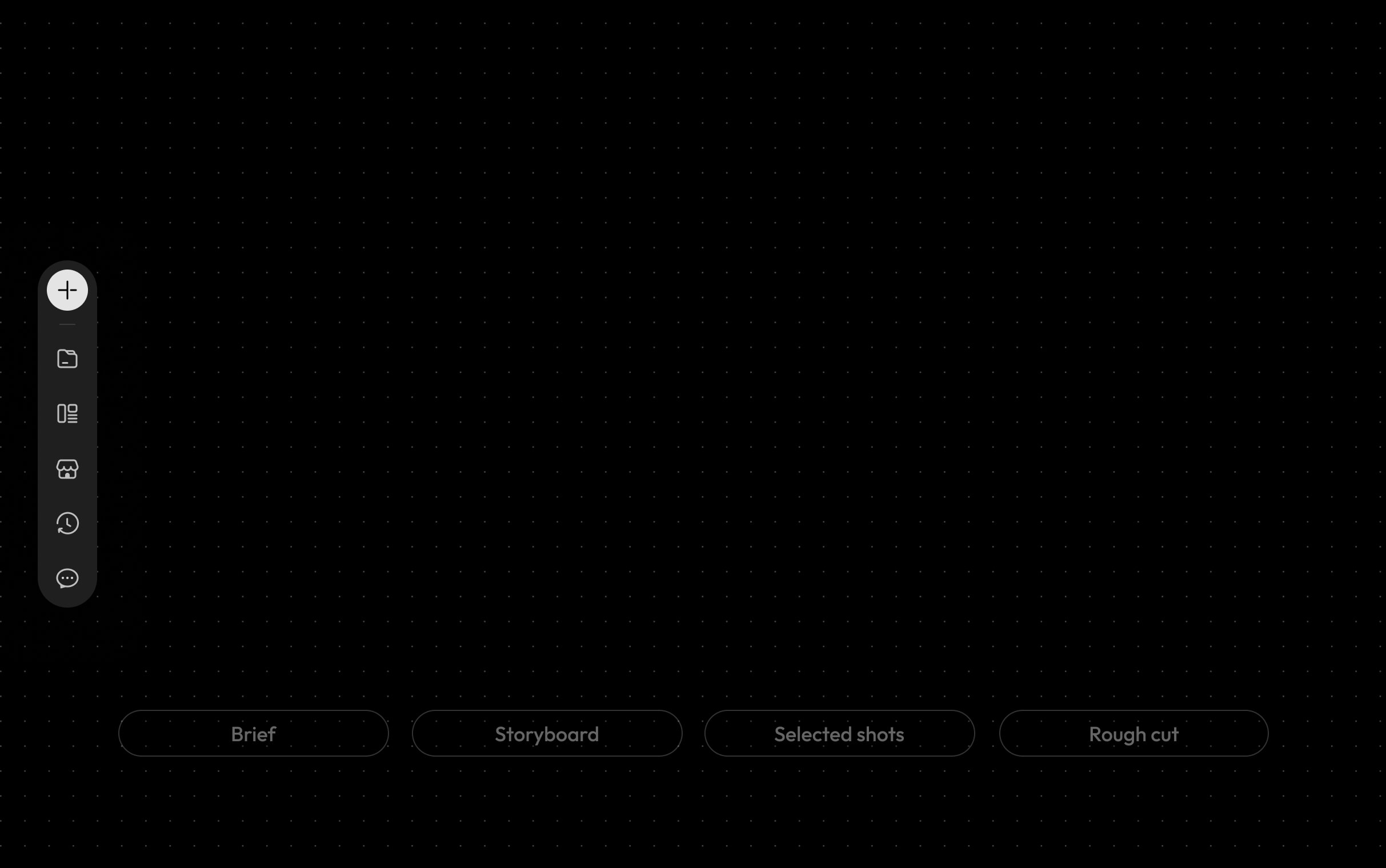
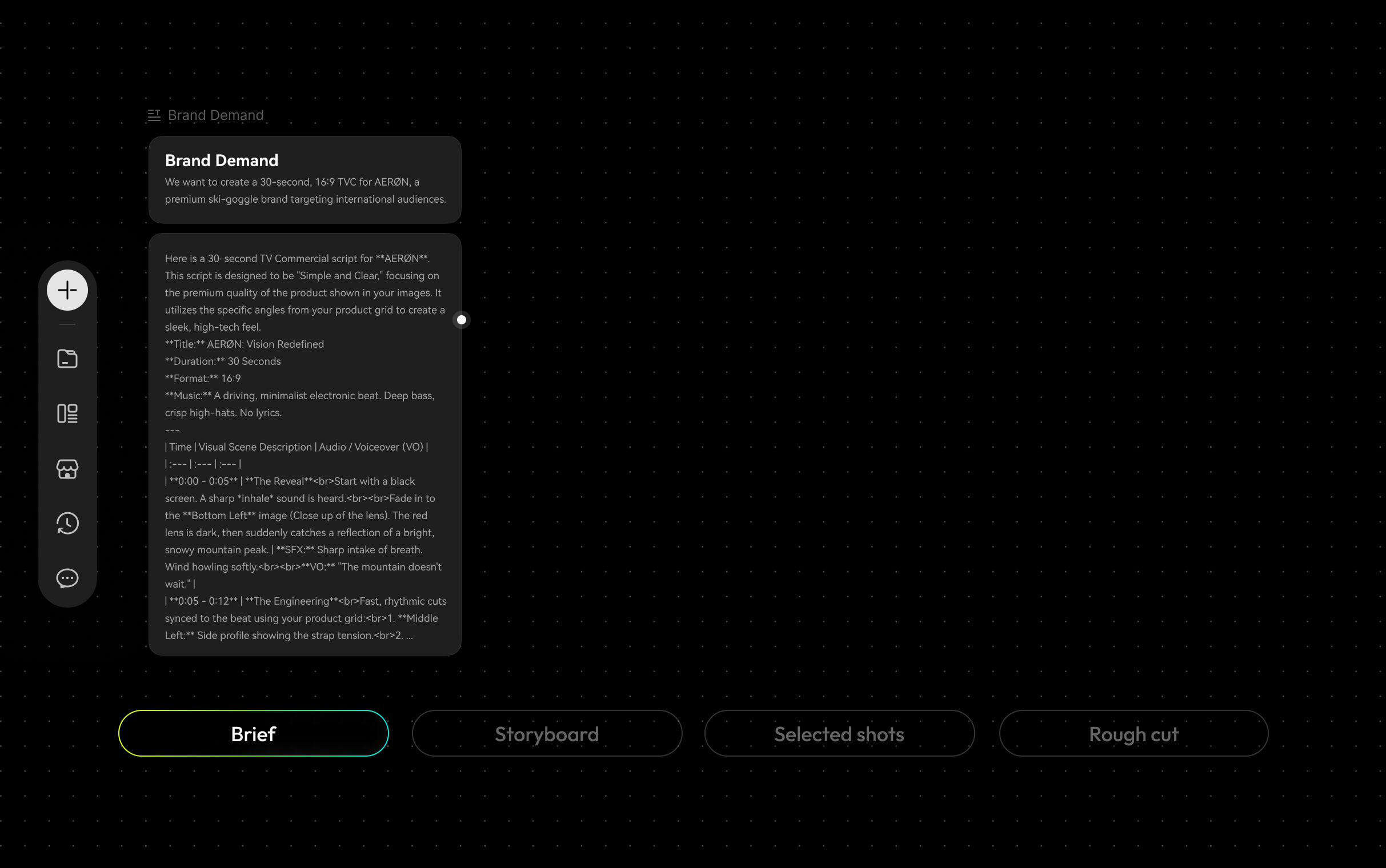
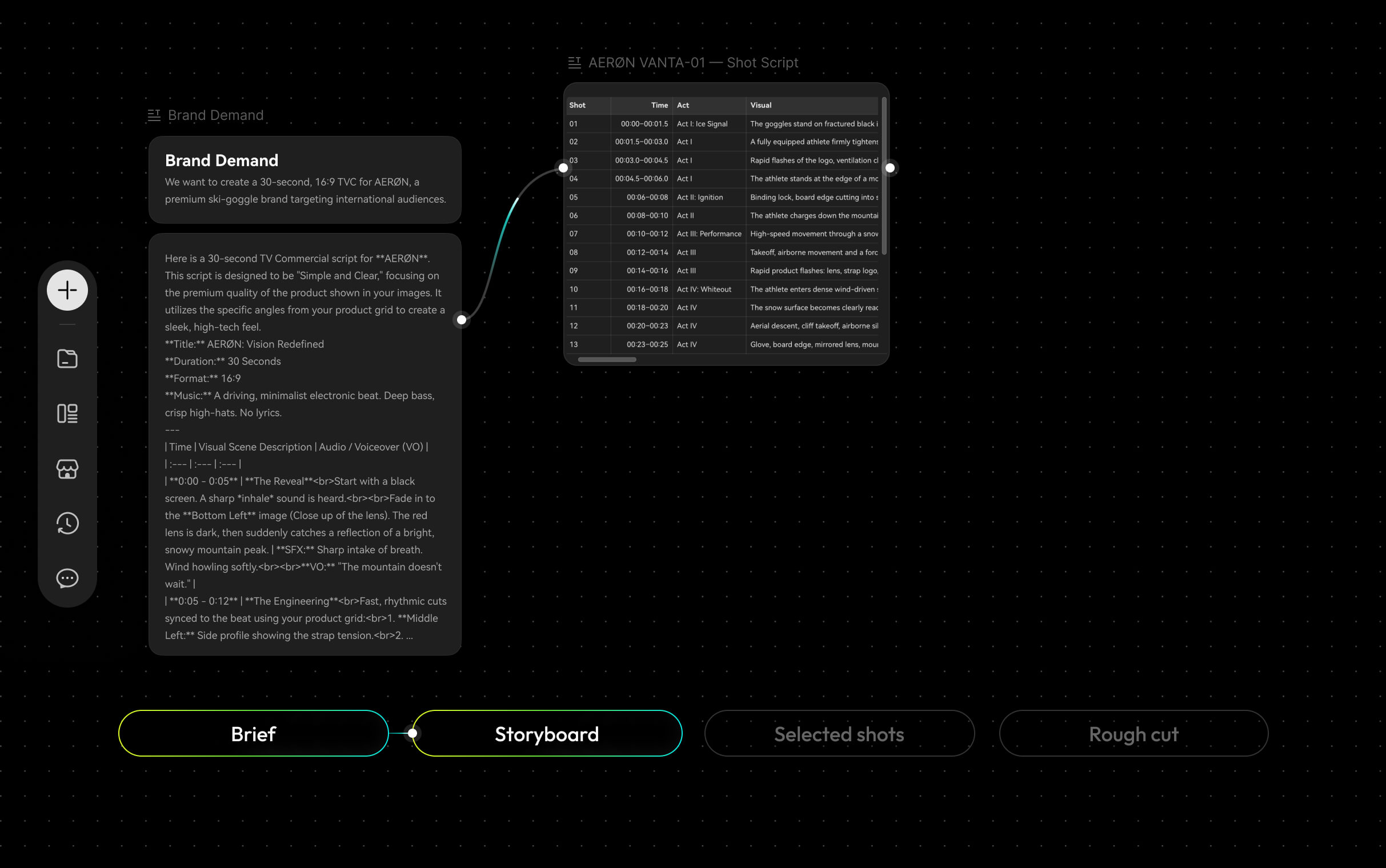
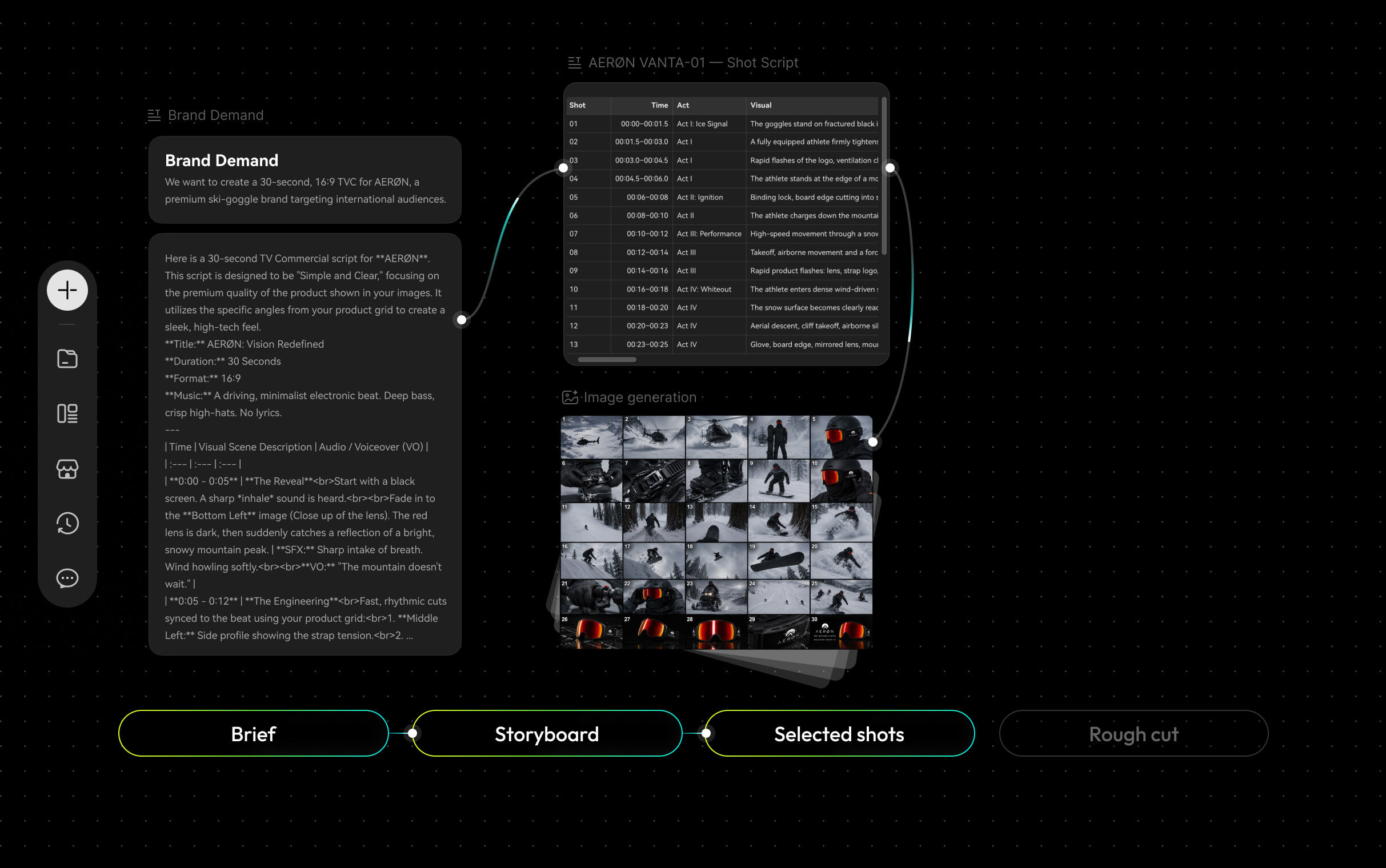
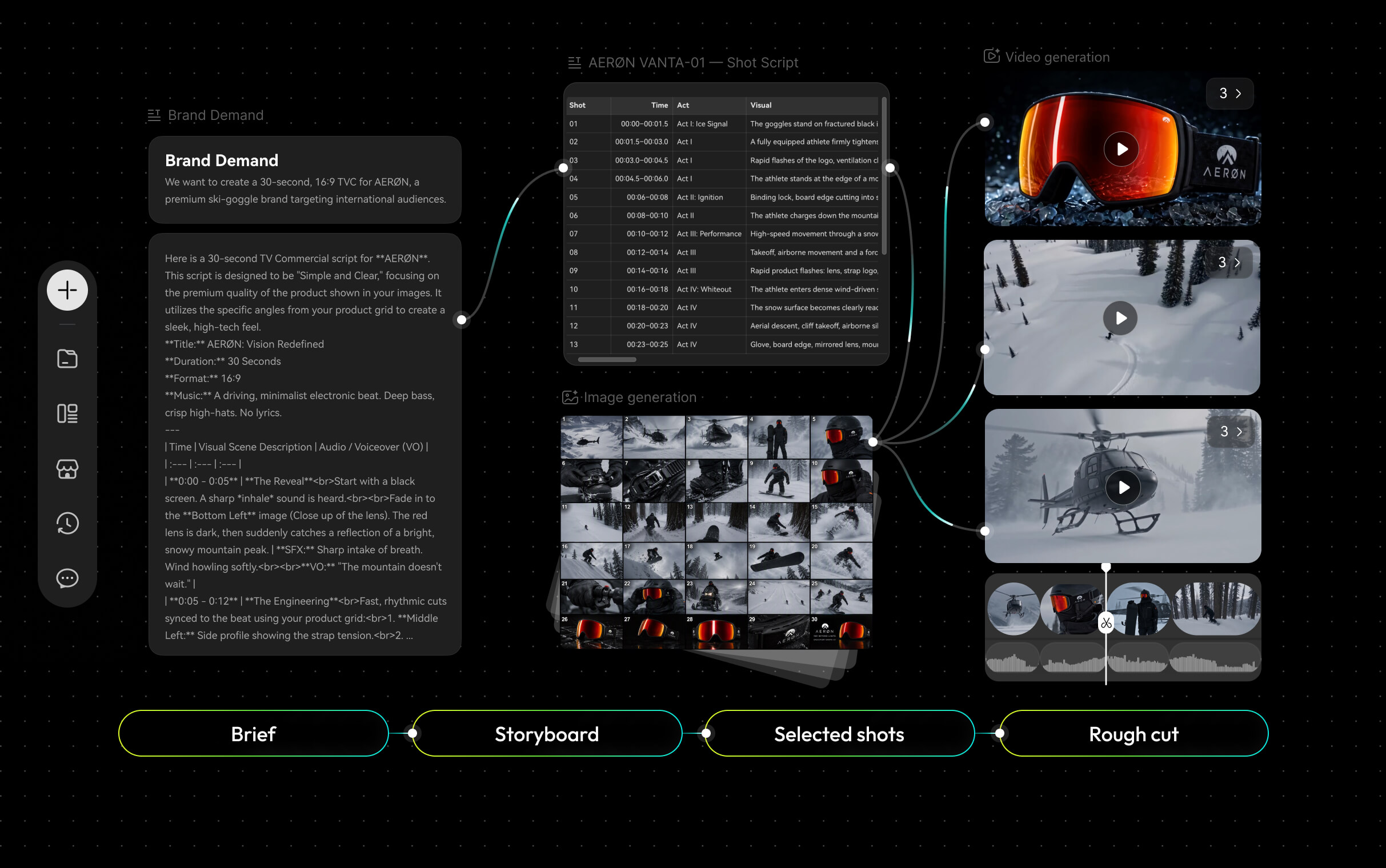
The Same Idea, Organized Into A Story and a Video People Can Use.
A Clip Is Not a Production.
Generated shots have gotten genuinely good. But a video people can use still needs continuity, pacing, context, and a format that fits where it's going.
A Good Shot Is Not a Story.
One beautiful shot can't tell you what comes before it, what comes after it, or why anyone should care.

More Generations Aren't More Control.
Generating variations is easy. Keeping characters, lighting, and visual direction consistent across multiple shots takes planning and iteration.

The Last Step Isn't Another Prompt.
If you've rewritten the same prompt for the fourteenth time, you already know: at some point, the work needs to move into a timeline.
Generation is the fast part. Everything around it is where videos get made — or quietly abandoned.

From One Idea to
a Video Worth Sharing.
How do you turn AI-generated shots into a product video? Using the AERØN VANTA-01 performance goggles concept, we'll
explore how a product brief becomes a visual story — from snowy landscapes and action shots to a rough cut in Filmora.TV.
From a Product Concept to an Alpine Adventure Ad.
Explore how a performance goggle concept takes shape through mountain landscapes, snowboard action, product visuals, and a rough-cut timeline.

01. Start With a Product Brief.
Define the product, audience, and creative direction for an AERØN VANTA-01 performance goggles campaign.
Filmora.TV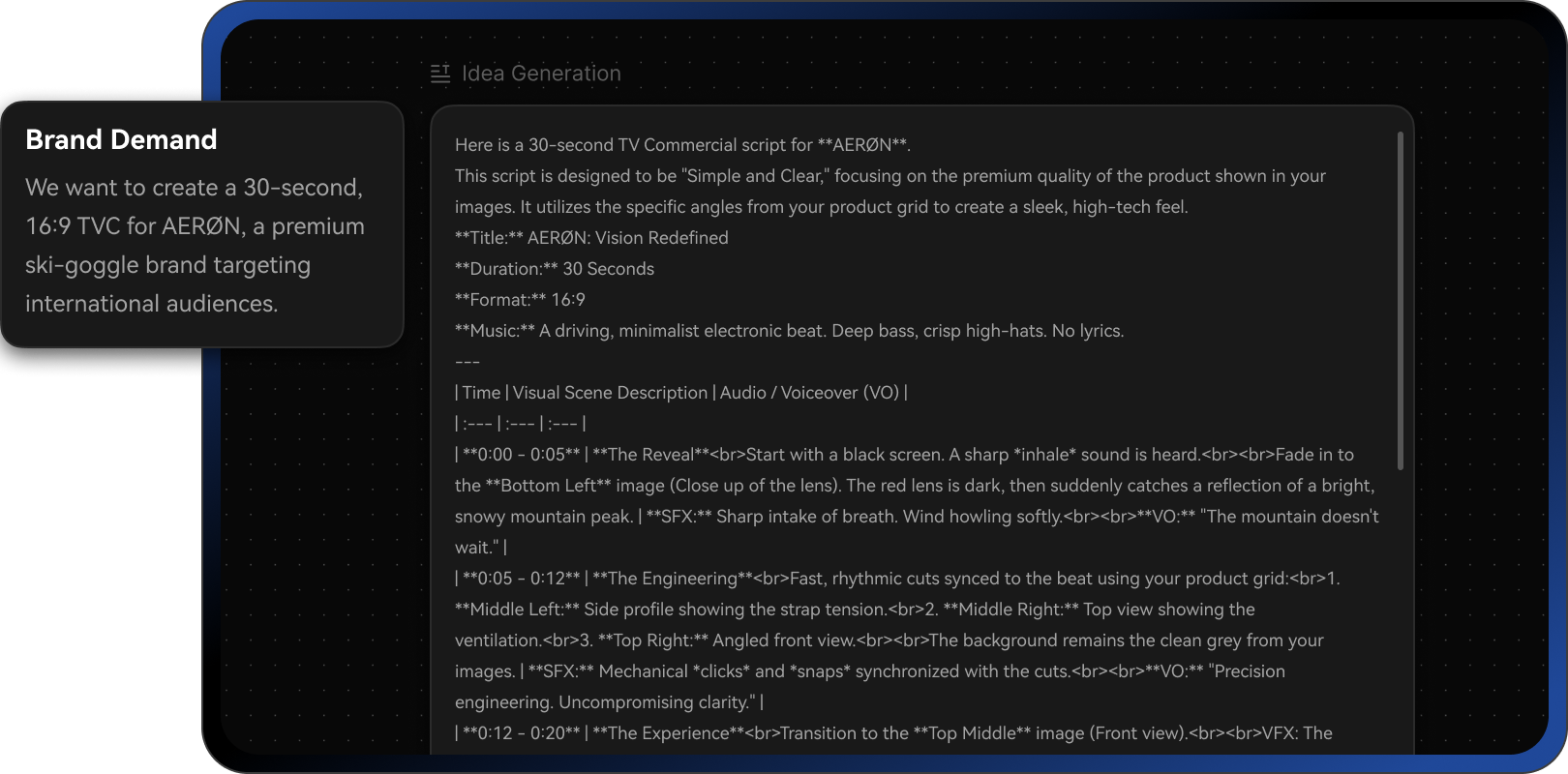
02. Plan the Visual Story.
Turn the brief into a shot plan, bringing together snowy landscapes, product details, and action sequences.
Filmora.TV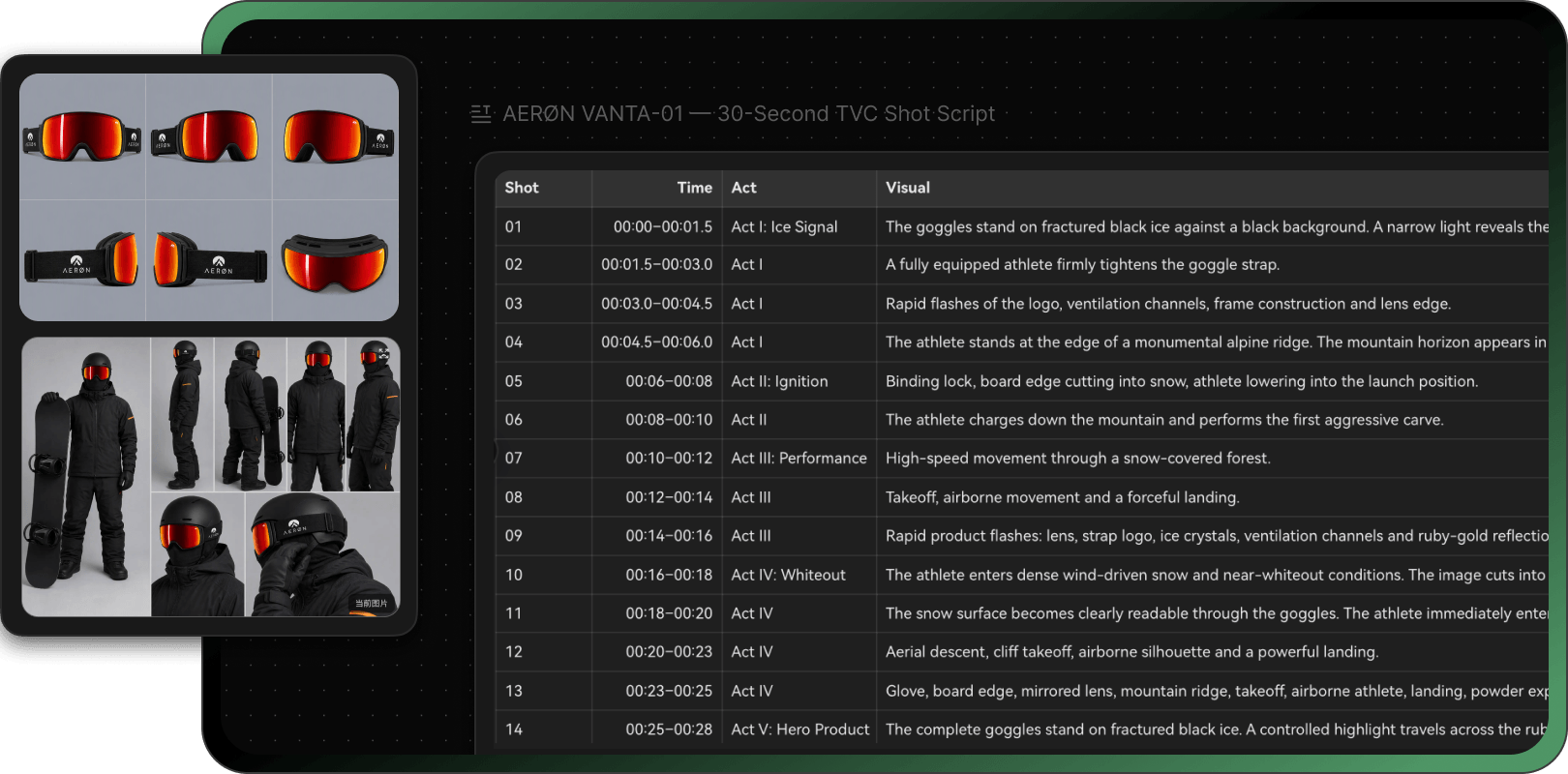
03. Generate and Compare Shots.
Explore different scenes, camera angles, and visual styles on the canvas. Generate shots from text prompts or reference images, compare the results, and refine the direction.
Filmora.TV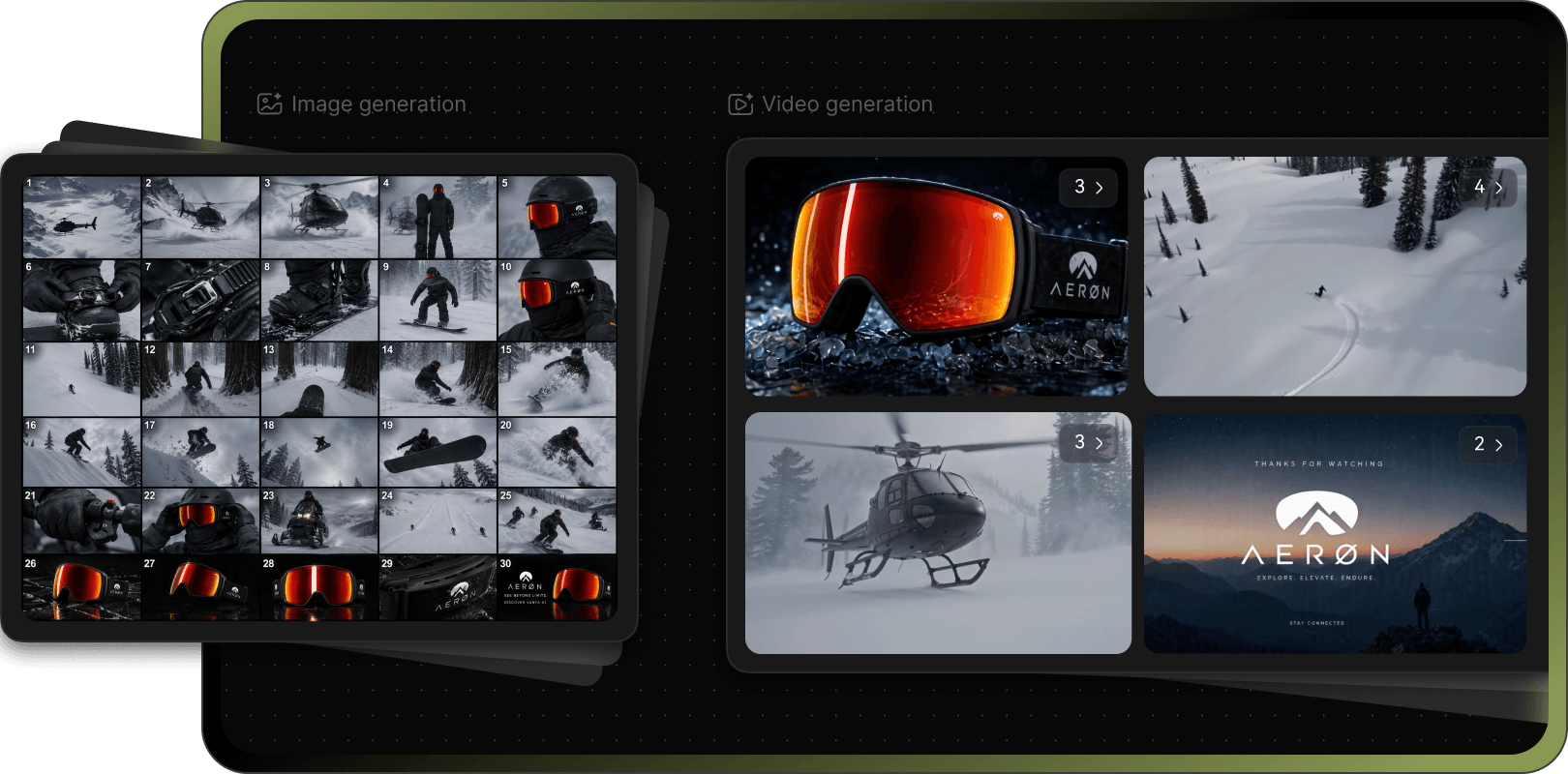
04. Assemble a Rough Cut.
Bring selected shots into Filmora.TV's built-in timeline, arrange the sequence, and shape the story.
Filmora.TV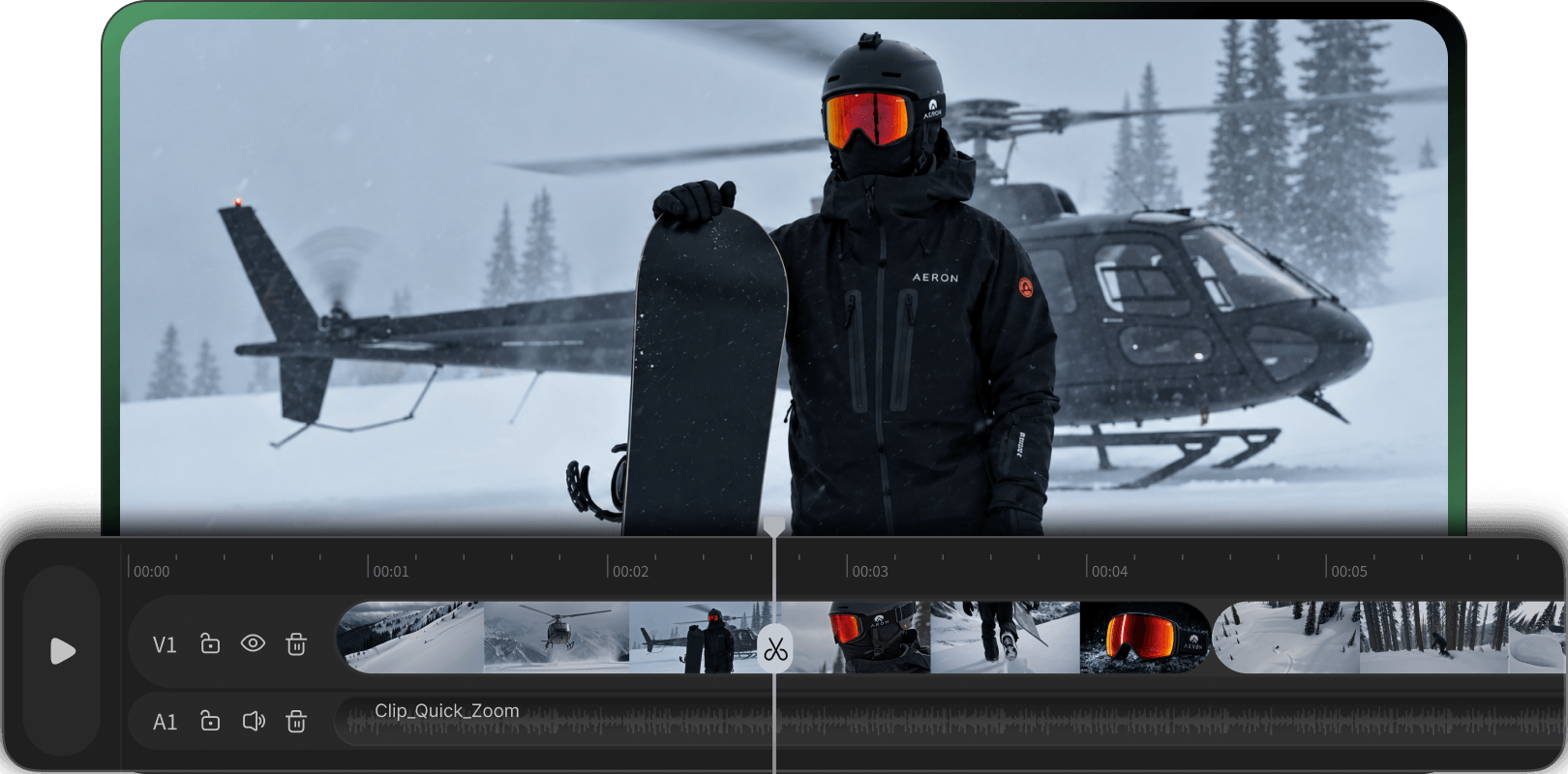
05. Prepare the Video for Delivery.
Review the sequence, make the final adjustments, and export the video for its intended use.
Filmora.TV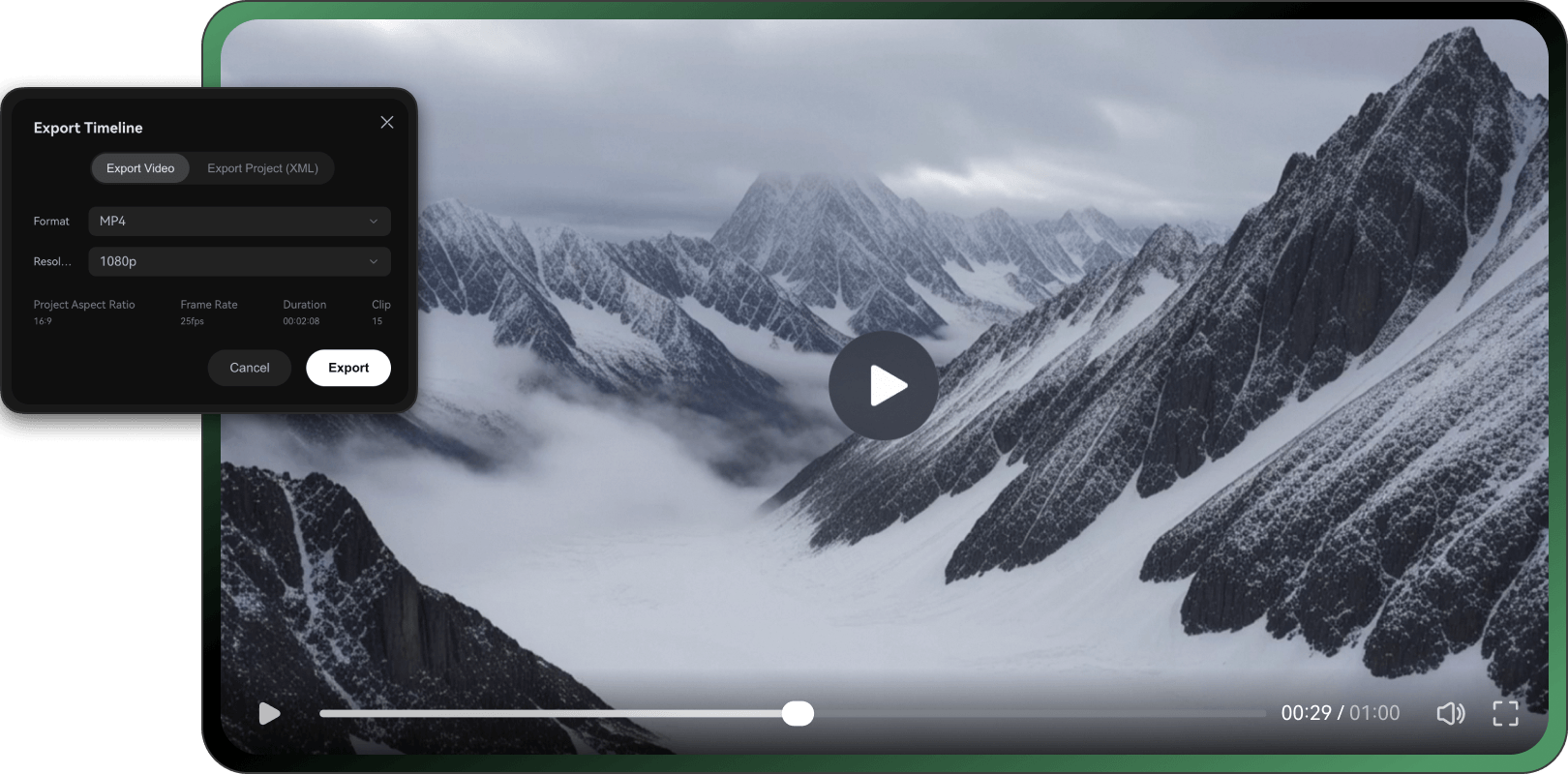

Three Moves Around
the Prompt.
Filmora.TV gives a good idea somewhere to go —
from the plan, through visual exploration, into an
editable sequence.

Give the Idea a Sequence.
Turn a rough brief into a script, storyboard, and shot plan before spending time on generations.

Refine the Direction.
Adjust the visual approach, compare earlier results on the canvas, and choose shots that best serve the story.


Build the Cut Where
the Shots Already Live.
Move selected shots onto Filmora.TV's built-in timeline, organize their order, and shape a cut ready for review or export.
The Payoff Isn't
One AI Clip.
A great shot gets attention. A well-crafted sequence tells the story. Bring your best AI-generated footage together, shape the pacing, and create a video ready to share.
One Idea. A Video Worth Sharing.
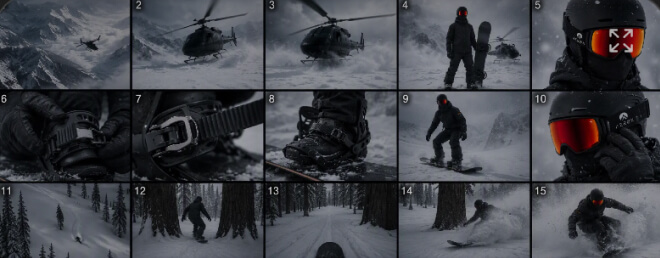
Generated Shots
Explore different scenes and visual directions
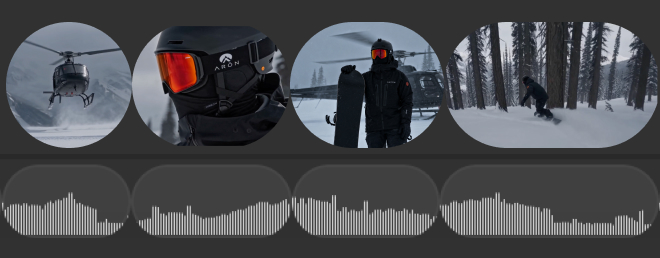
Rough Cut
Arrange selected shots on the timeline
Take Your Video Further with
Filmora 16.
Already have a finished video from Filmora.TV? If you want more precise control over your final edit,
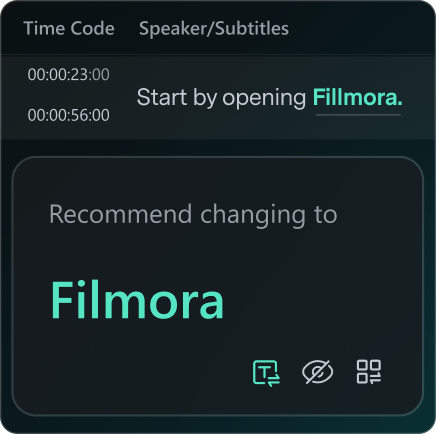
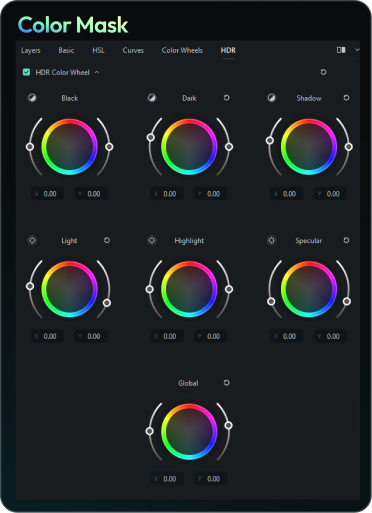
bring your exported video into Filmora 16 to fine-tune timing, color, audio, and captions.
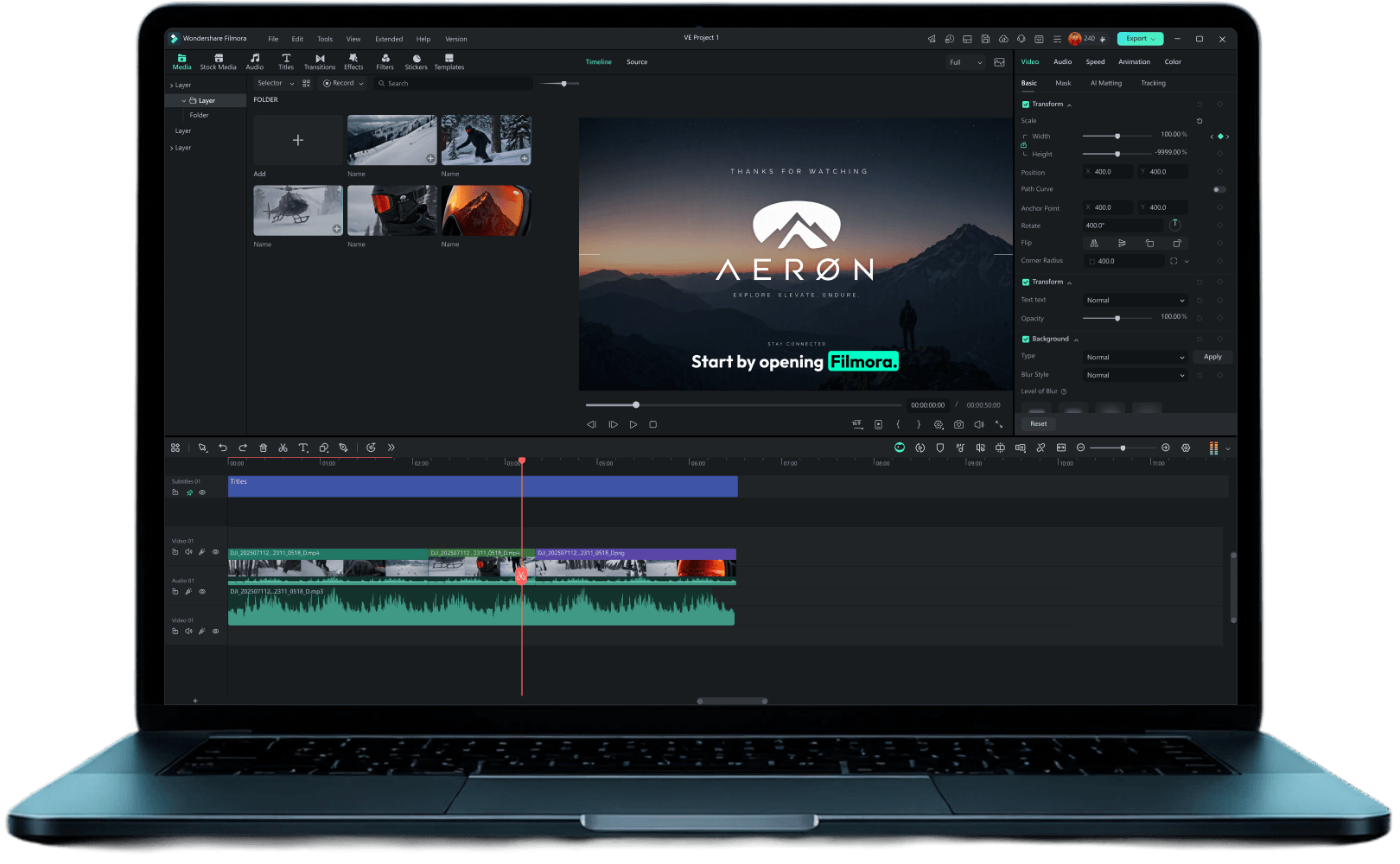
EDIT
Fine-Tune the Edit
Adjust timing, transitions, and pacing with more precise timeline controls.
POLISH
Polish Picture and Sound
Refine color, clean up audio, and add captions to prepare your video for its audience.

Ready to See What Your Idea
Can Become?
Turn your ideas into videos with Filmora.TV. Plan, generate, and assemble your shots in one creative workspace,
then take your edits further with Filmora 16 when you need more control.