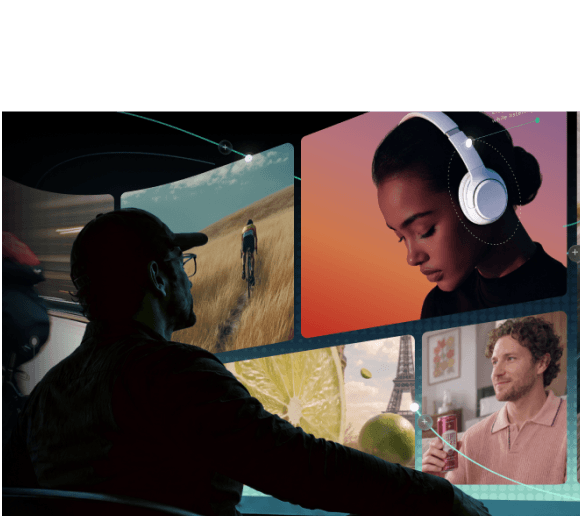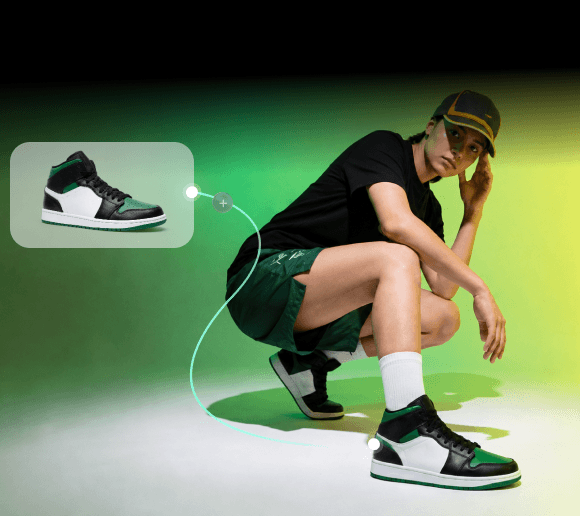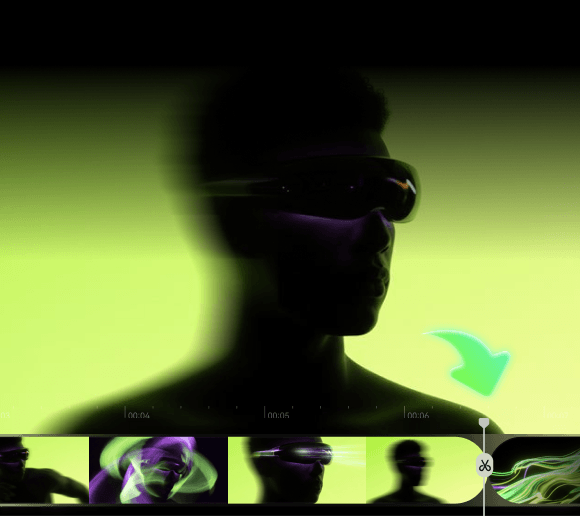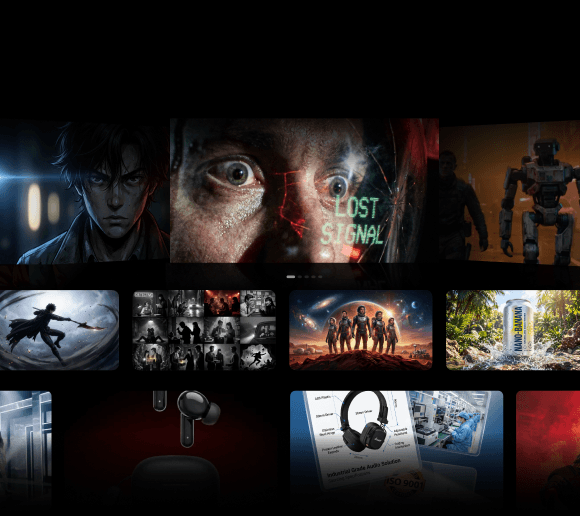
Video projects rarely involve just the editing process. You may need to create footage using AI, organize assets, refine the timeline, and send drafts to teammates for feedback. When you handle these steps with multiple tools, collaborative video editing software can help you from creating content to collaborating on the final cut.
Depending on the tool you use, you can co-edit projects, work on the same timeline, review changes, or combine AI-powered content creation with video editing. We’ve rounded up the five best collaborative video editing software options for different team sizes, workflows, and editing needs!

What Is Collaborative Video Editing?
Collaborative video editing means multiple people work on the same video project. One person may handle the footage, another may work on captions or graphics, and someone else may review the latest cut. But instead of working in isolation and passing files back and forth, collaborative editing brings these tasks into a shared workflow.

Depending on the tool, teams can:
- Edit together: Work on footage, timelines, and project elements.
- Manage assets: Share and organize videos, images, audio, and other files.
- Review drafts: Leave comments, suggest changes, and track revisions.
- Plan projects: Organize ideas, scenes, and creative assets in a shared workspace.
Collaborative Video Editing Tools at a Glance
The tool for collaborative video editing can work in different ways. Before we get into the details, check out a quick comparison of the best five tools we are about to cover.
| Platform | Pricing | Limitations | Best for | |
|---|---|---|---|---|
| Filmora.TV | Web-based | Starting at $20 for 200 credits | New product, with features and workflows still being improved and updated | AI video creation, asset exploration, organization, and editing |
| Kapwing | Web-based | Free; Pro from $16/member/month billed annually | Free exports include a watermark and are limited to 4 minutes/720p | Real-time online video editing and team collaboration |
| Descript | Web, Windows, Mac | Free; paid plans from $16/editor/month | Free plan has limited transcription, AI credits, and export capabilities | Collaborative editing for podcasts, interviews, and talking-head videos |
| Adobe Premiere | Windows, Mac | From $22.99/month for individuals | Subscription-based; team collaboration uses Adobe's shared project workflows | Professional video editing and larger production teams |
| DaVinci Resolve Studio | Windows, Max, Linux | $295 one-time purchase | Steeper learning curve; cloud collaboration can add storage costs | Professional post-production and multi-user editing |
5 Best Collaborative Video Editing Platforms
Collaborative video editing tools come in different forms. Some focus on real-time team collaboration, while others combine editing with AI creation or professional post-production features. Here, we compare five options based on their collaboration features, editing capabilities, pricing, and ideal use cases.
1. Filmora.TV
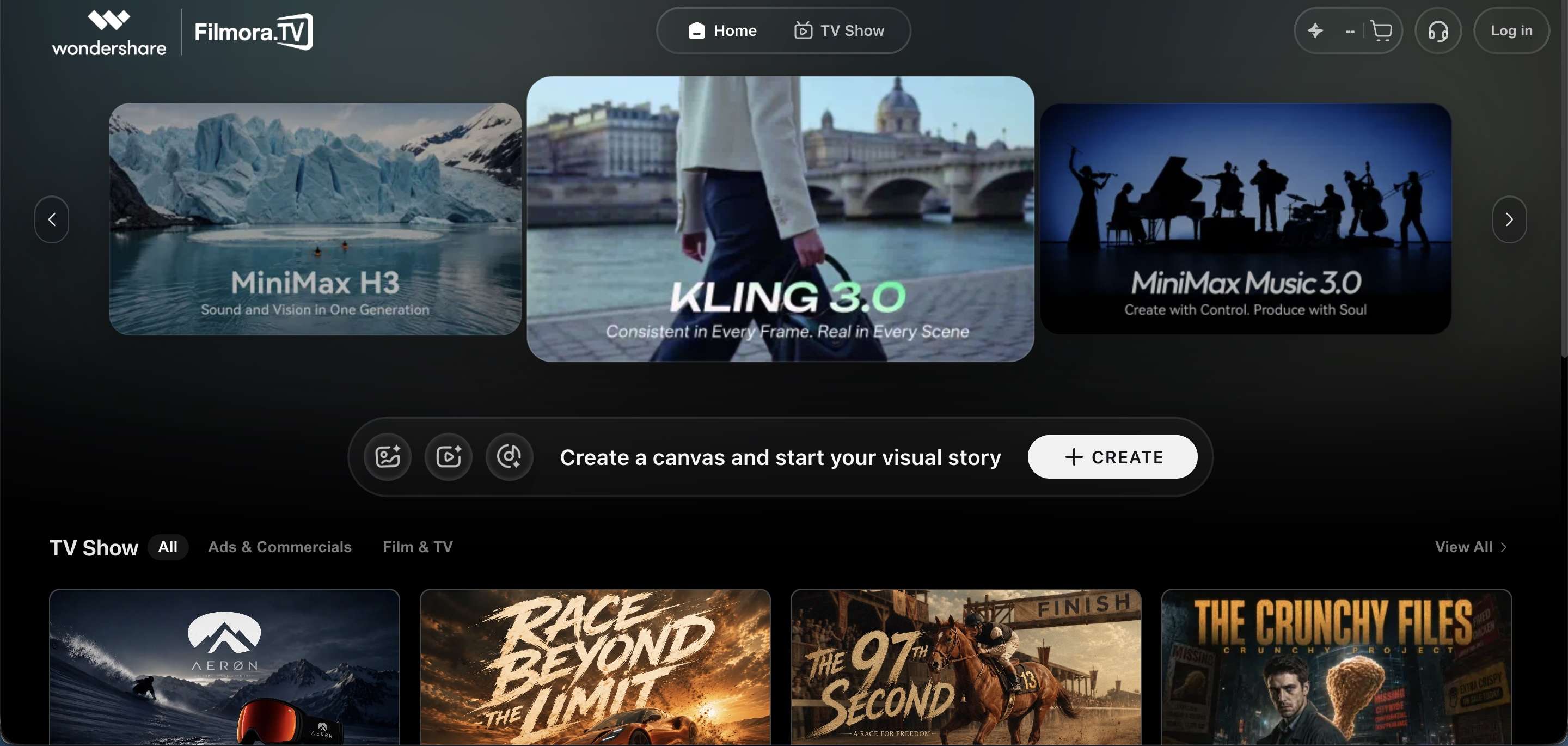
Filmora.TV is a web-based AI video workspace that combines collaborative video editing, AI content generation, and visual asset organization. It uses a canvas-based workflow, which lets you explore ideas, generate and compare video assets, organize shots, and move selected content into a timeline for editing.
When working, you can set up a team workspace and bring your whole team in. Everyone gets their own role-based access, and a shared asset library keeps all the clips, shots, and generated content in one place. Feedback can be given through comments right on the canvas.
Platform: Web-based
Key Features
- Infinite canvas for organizing ideas, text, images, videos, and other assets
- AI image generation and editing
- Text-to-video and image-to-video generation
- Storyboard and shot-planning templates
- Shared team asset library
- Multi-track timeline editor
- Team spaces with role-based permissions
- In-canvas commenting for feedback and review
- Team-wide AI credit management
- XML export for further editing in Wondershare Filmora
Best For
- AI cinematic shorts
- AI micro-dramas and anime
- Commercial and TVC concepts
- UGC ad production
- Brand content teams
- Creative teams managing multiple AI-generated assets
Pros and Cons
- Combines AI generation, creative exploration, collaboration, and editing in one workspace
- Canvas-based workflow makes it easier to organize and compare multiple assets
- Includes a multi-track timeline for turning selected assets into finished videos
- Supports shared assets, team roles, comments, and review workflows
- XML export enables further editing in dedicated video editing software like Filmora
- A newer product, with features and workflows still being improved and updated
- Canvas-based editing may take some adjustment for users familiar with traditional timeline-based editors
Pricing
Filmora.TV currently offers four plans, with 200 to 5,750 credits per month. You can also purchase extra credits if your monthly allowance runs out.
- Basic: $20/month, 200 credits/month
- Plus: $100/month, 1,060 credits/month
- Pro: $200/month, 2,160 credits/month
- Premium: $500/month, 5,750 credits/month
- Credit Top-up: Starts at $20 for 200 credits
Top-up credits are valid for 1 year and can be used in addition to the credits included in your plan.
2. Kapwing
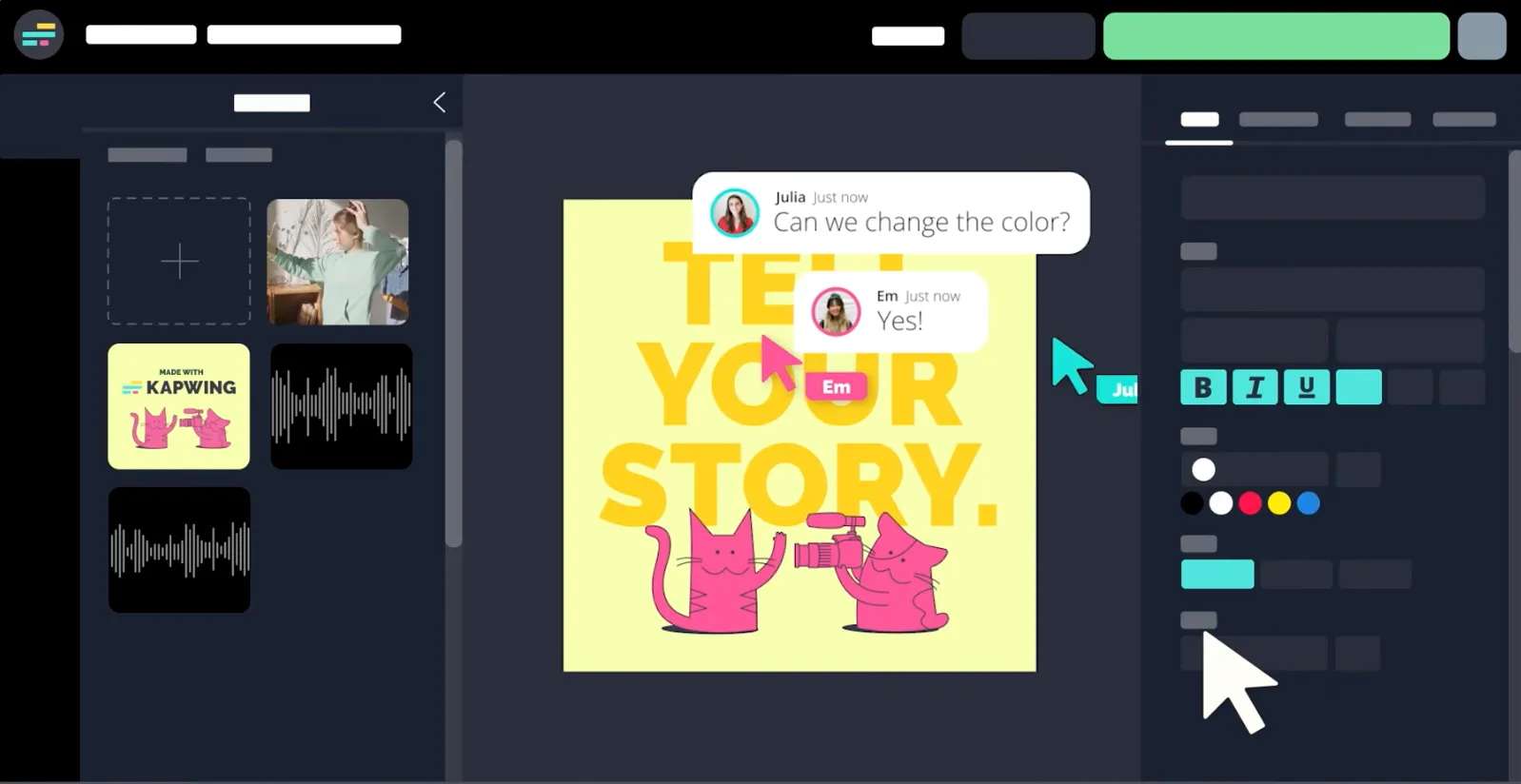
Kapwing is an online collaborative video editor that lets teams work on video projects from a shared browser-based workspace. Its collaborative workspace supports simultaneous editing, shared assets, comments, and feedback, making it a convenient option for social media and marketing teams.
Platform: Web-based
Key Features
- Shared workspaces let your whole team access and work within the same project
- Shared media assets available to everyone on the team.
- Real-time comments for the teammates to flag issues or suggest changes
- The Brand Kit stores logos, colors, and fonts so every export stays consistent
- AI video tools handle tasks like generating clips or making quick edits
- Automatic subtitles generate captions for you
- Templates that give you a starting point for common video formats
Best For
- Social media teams
- Marketing teams
- Agencies
- Remote creative teams
Pros and Cons
- Multiple users can work on the same project
- Browser-based workflow makes projects easy to access
- Shared assets and brand tools support team workflows
- Comments simplify review and feedback
- Free exports include a watermark
- Free exports are limited to 4 minutes and 720p
- Some advanced collaboration and AI features require paid plans
Pricing
- Free: $0; 10 lifetime credits; 4-minute maximum export; 720p; watermark
- Pro: $16/member/month billed annually, with 1,000 monthly credits, 4K exports, and up to 2 hours projects
- Business: $50/member/month billed annually, with 4,000 monthly credits. Additional credits can be purchased
- Enterprise: Custom pricing and credit allocation
3. Descript
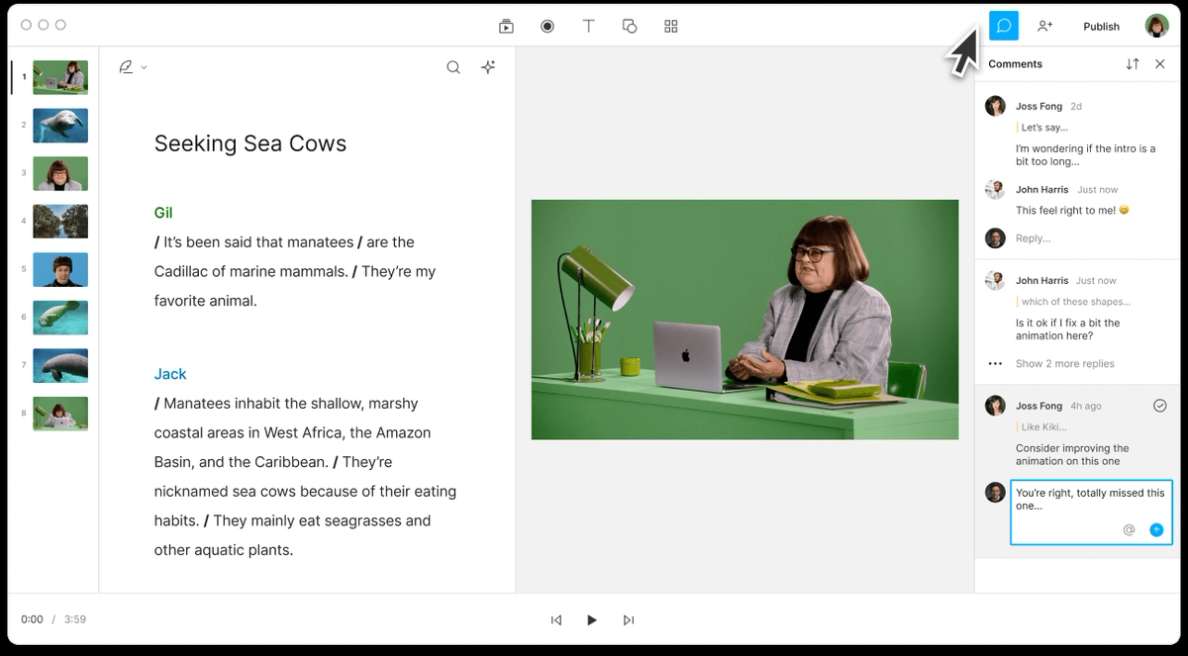
Descript is collaborative video editing software that combines transcript-based editing with shared projects and team feedback. Instead of working only from a traditional timeline, editors can modify a video's transcript to change the corresponding footage, while teammates can comment and review the project.
Platform: Web / Windows / Mac
Key Features
- Text-based video editing that lets you cut or rearrange footage by editing the transcript
- Shared projects with real-time collaboration to let your team access and work on the same file
- Comments to let teammates leave feedback tied to a specific part of the project
- Project permissions to let you control who can view, edit, or manage each project
- Version history that lets you look back at earlier edits or restore a previous version
- Shared media that is shared across the whole team
- Automatic transcription to convert spoken audio into text
- AI editing tools, such as removing filler words or cleaning up pauses automatically
- Remote recording that lets you record interviews or conversations with people in different locations
Best For
- Podcasts
- Interviews
- Talking-head videos
- YouTube content
- Remote content teams
Pros and Cons
- Transcript-based editing works well for dialogue-heavy content
- Comments simplify project review and revision
- Shared projects and media support team workflows
- Available on desktop and web
- Less suited to complex cinematic editing
- Free and lower-tier plans have limits on transcription, AI usage, and exports
Pricing
- Free: $0; 1 media hour/month, 100 AI credits, 720p export, and limited access to AI features
- Hobbyist: $16/person/month when billed annually; 10 media hours/month, 400 AI credits/month, and 1080p export
- Creator: $24/person/month when billed annually; 30 media hours/month, 800 AI credits/month, and 4K export
- Business: $50/person/month when billed annually; 40 media hours/month, 1,500 AI credits/month, and team-focused features
4. Adobe Premiere
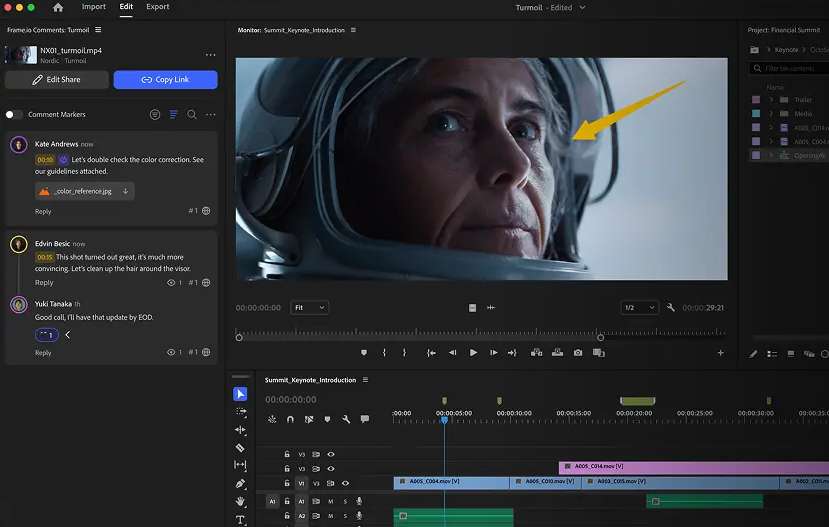
Adobe Premiere Pro is professional video editing software with collaboration features through Team Projects. It lets multiple editors work on shared projects and collaborate on sequences and timelines, making it an ideal option for professional video teams handling more complex productions.
Platform: Windows and macOS
Key Features
- Team Projects let multiple editors collaborate on the same project
- Shared cloud projects to keep the working file accessible to every team member
- Collaborative timeline workflows, where you can divide sequences and combine your work into one final timeline
- Productions for larger projects
- Professional video editing tools cover advanced trimming, sequencing, and multi-camera editing
- Effects and motion graphics to add visual polish and animated elements
- Frame.io integration
Best For
- Professional editors
- Production teams
- Agencies
- Remote post-production teams
- Complex video projects
Pros and Cons
- Professional-grade editing tools
- Supports collaborative editing through Team Projects
- Strong integration with the Adobe ecosystem
- Suitable for larger and more complex productions
- Subscription-based
- Steeper learning curve than browser-based editors
- Collaborative workflows require more setup
Pricing
- Premiere: $22.99/month, annual plan billed monthly
- Premiere for teams: $37.99/month per license, annual plan billed monthly
- Free trial: 7 days with the full version of Premiere
5. DaVinci Resolve Studio
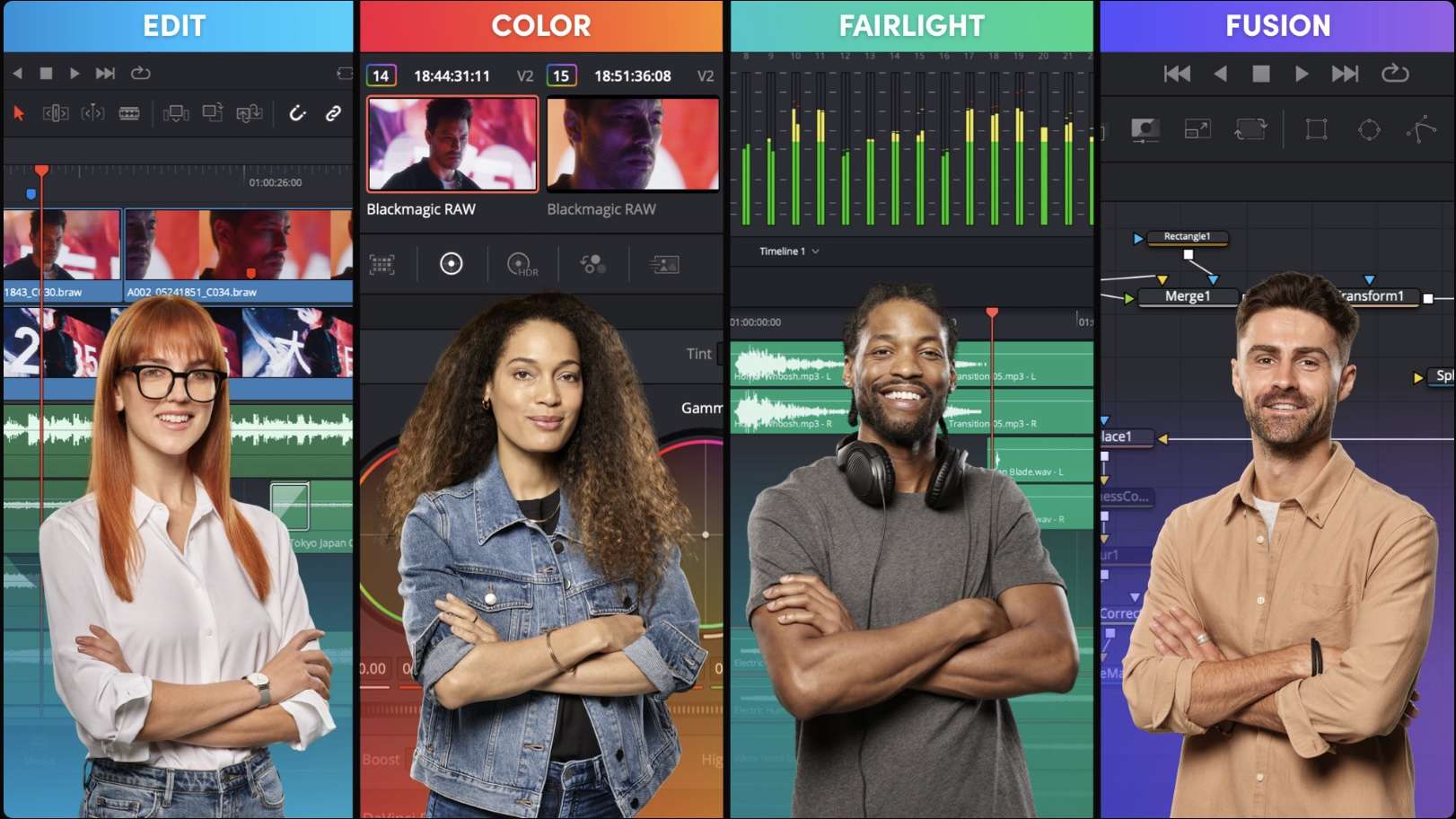
DaVinci Resolve Studio is professional collaborative video editing software that includes editing, color grading, visual effects, and audio post-production in one application. Its multi-user collaboration tools enable specialists from various fields to work on the same project, which is why it’s often used by professional post-production teams.
Platform: Windows / macOS / Linux
Key Features
- Multi-user collaboration that lets several people work on the same project
- Shared project libraries to keep assets and project files centralized
- Bin and clip locking prevents two people from editing the same clip at the same time and accidentally overwriting changes
- Shared markers to let teammates flag specific timeline moments
- Video editing tools that cover the core cutting and sequencing work
- Color grading tools to let you adjust and finesse the footage look at a professional level
- Fusion visual effects and motion graphics that handle compositing and animated elements
- Fairlight audio post-production that covers mixing, cleanup, and sound design without switching to separate audio software
Best For
- Professional post-production teams
- Film and TV projects
- Editors working with colorists, VFX artists, and audio teams
- Complex collaborative productions
Pros and Cons
- Combines editing, color, VFX, and audio in one application
- Supports multiple users working on the same project
- Free version also supports multi-user collaboration
- Strong option for professional post-production
- Steeper learning curve
- More complex setup than browser-based editors
- Studio requires a separate purchase for its additional professional features
Pricing
- DaVinci Resolve: Free
- DaVinci Resolve Studio: $295 one-time purchase
- The free version already supports multi-user collaboration through Blackmagic Cloud
Which Collaborative Video Editor Should You Choose?
The right collab video editor depends on how your team works and the type of content you create.
- Filmora.TV fits teams that want collab video editing with AI. You can generate visuals, organize assets, plan shots, leave feedback, and edit videos in one workspace.
- Kapwing works well for online video collaboration, especially for social media and marketing teams that need to edit, share, and review videos in a browser.
- Descript is a good match for podcasts, interviews, and talking-head videos. Its transcript-based editor makes shared video editing easier for dialogue-heavy content.
- Adobe Premiere Pro is designed for professional collaborative video editing workflows, with advanced editing and post-production tools for complex projects.
- DaVinci Resolve Studio suits teams handling different stages of post-production, including editing, color, VFX, and audio.
How to Make a Collaborative Video
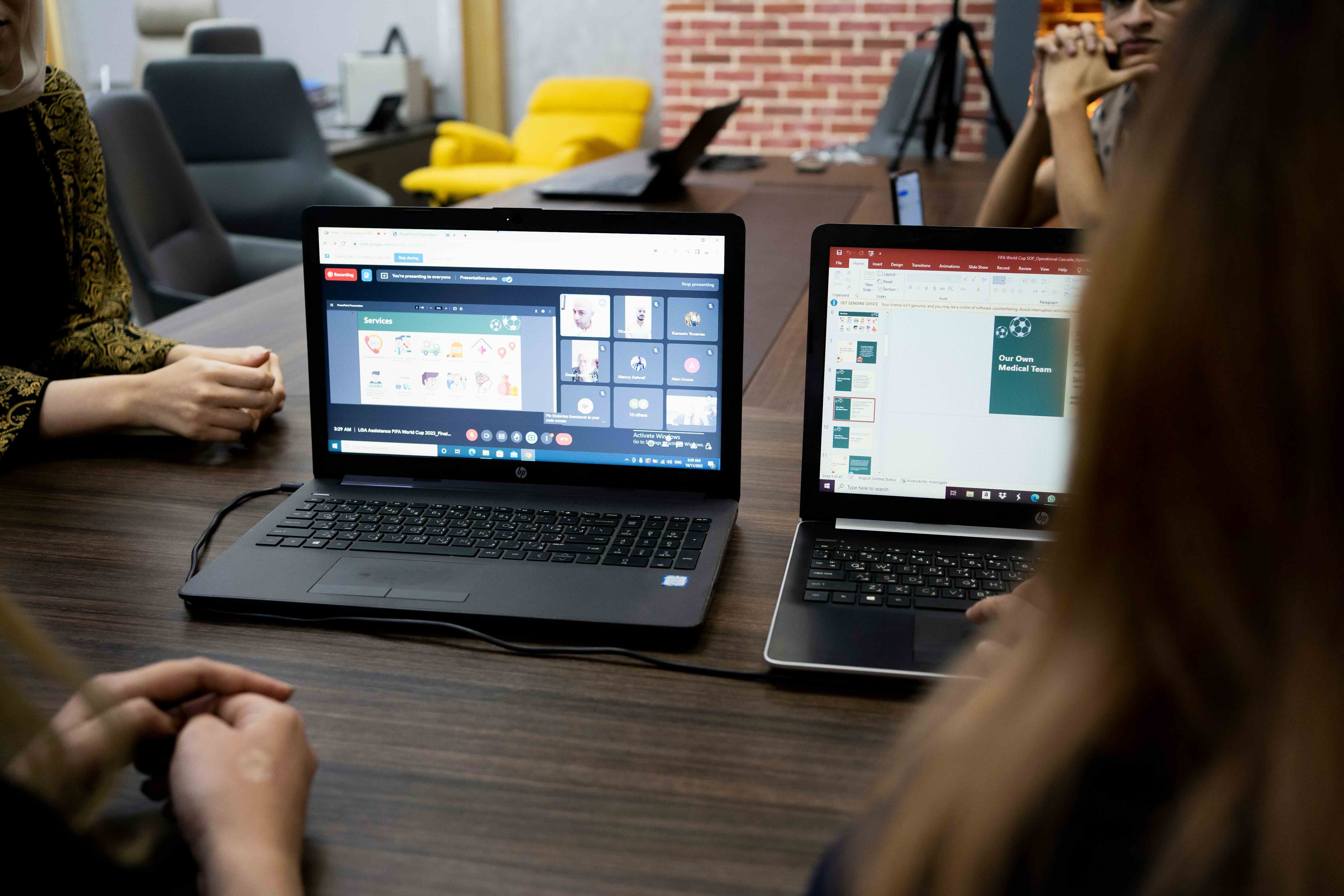
Making a collaborative video is easier when everyone knows what they need to do and where the project files are located. Follow these five steps to keep the collab video editing process organized.
1. Plan the Video Concept
Decide on the video's topic, format, target audience, and overall style. Assign roles to each team member, so everyone knows who is handling the script, footage, editing, graphics, or review.
2. Gather or Generate Your Assets
Collect the footage, images, music, sound effects, graphics, and other files you need. For AI-based projects, you can also generate visuals or video clips before moving into the editing stage.
3. Organize the Project
Put your assets, ideas, and editing files in one shared workspace. Use clear file names and folders so team members can quickly find what they need during collab edits.
4. Review the Draft Together
Share the first cut with your team and collect feedback in one place. Use comments or timestamped notes to point out specific changes, such as trimming a clip, changing text, or adjusting the audio.
5. Export and Share
Apply the final edits, check the video for errors, and export it in the format and resolution you need. Once it’s ready, share the finished collaborative video on your chosen platform.
Conclusion
A collab video editor should do more than let multiple people open the same project. It should streamline the process from concept to finished video without losing track of assets, edits, or feedback. Kapwing and Descript keep online collaboration simple, while Premiere Pro and DaVinci Resolve give professional teams more advanced editing control.
If you also rely on AI to create video assets, Filmora.TV lets you generate visuals, plan shots, organize assets, collaborate with teammates, and move selected content into a timeline for editing. The right choice depends on how you actually create videos and where your current workflow gets stuck.
FAQs
-
Is there free collaborative video editing software?
DaVinci Resolve and Kapwing offer free options with collaboration features. However, free plans may restrict exports, storage, AI tools, or other features. -
What is the difference between collaborative video editing and a collab video?
Collaborative video editing is about how a video is made, with multiple people working on the editing process. A collab video is simply a video made by two or more creators and does not require them to edit together. -
How do I share a video editing project with a team?
Choose a collaborative video editor with shared projects or team workspaces. Upload the project, invite your teammates, and give them the right permissions. You can then edit, review, and share feedback from the same project.