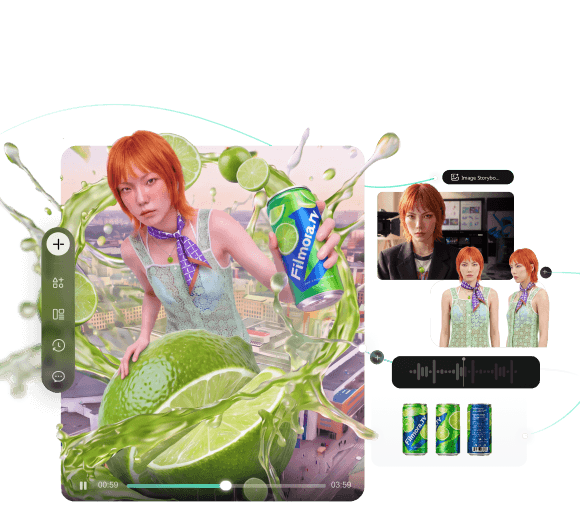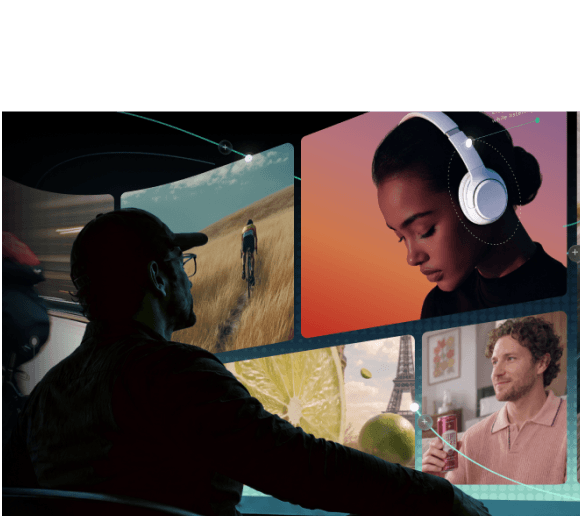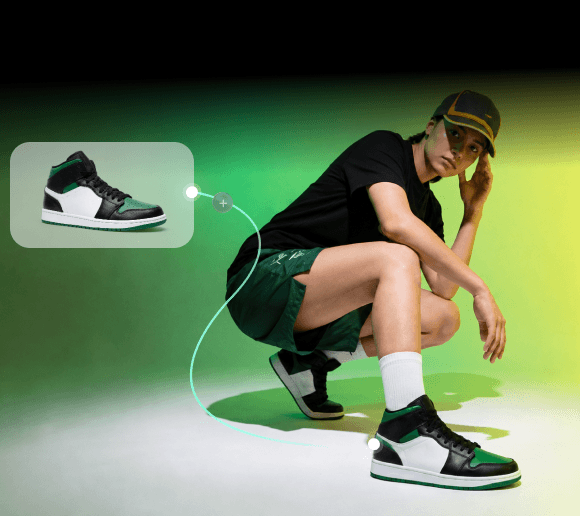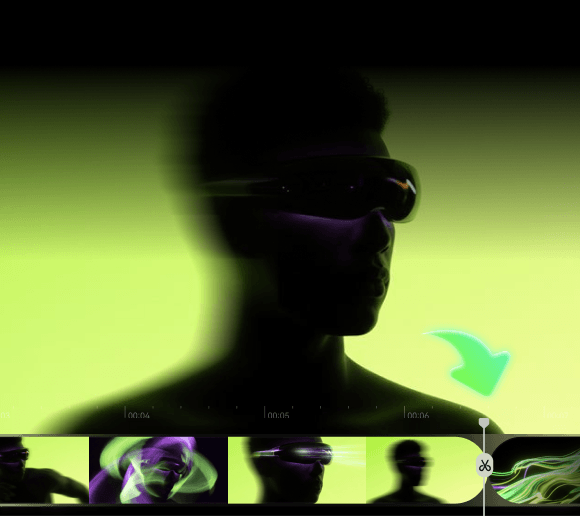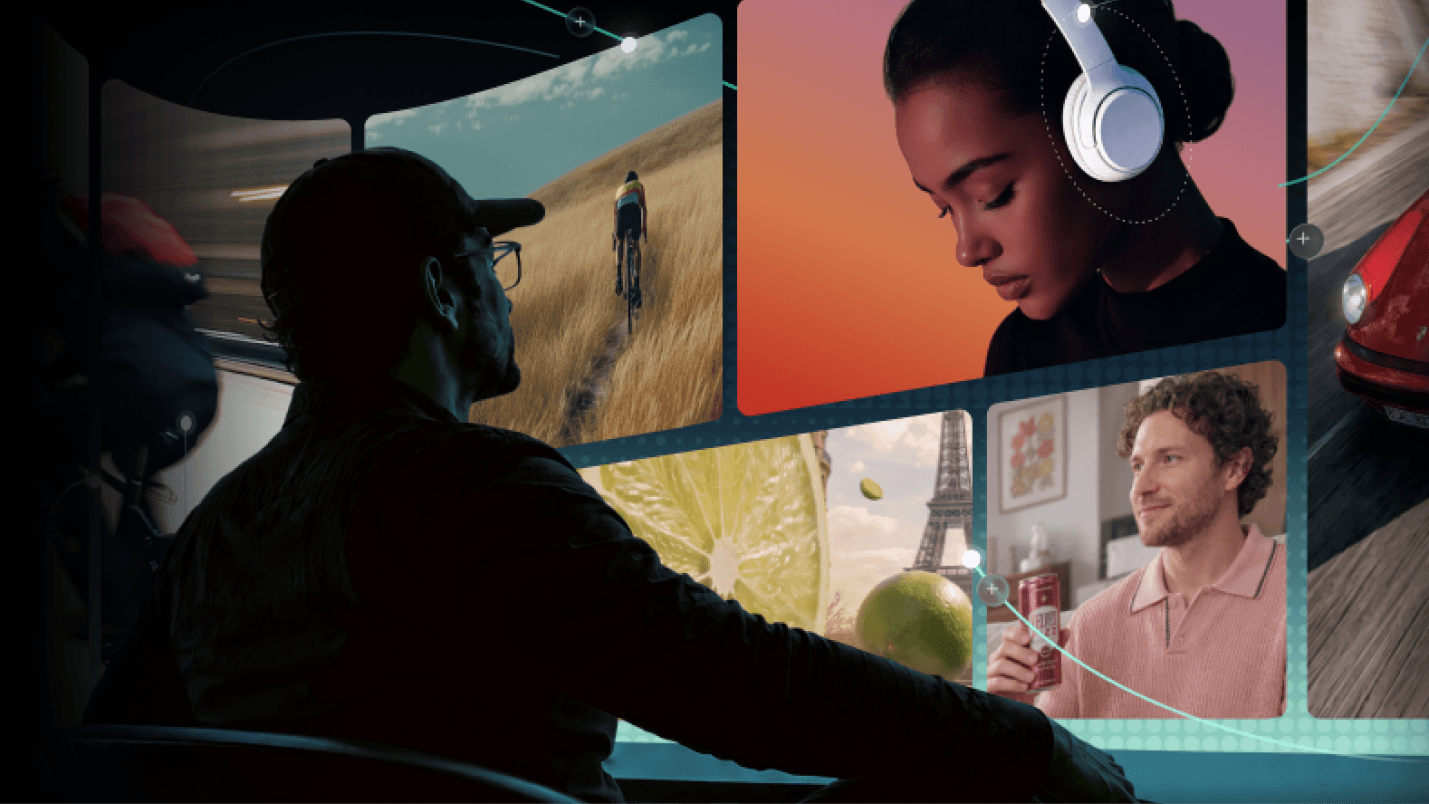
A product video ad can now be made without a camera, a studio, or a single product on set. What you need is an AI product video generator to feed a photo of what you’re selling, and it builds the footage around it.
What is an AI product video generator?
An AI product video generator uses text prompts, product images, or visual references to create video footage for product demos, advertisements, and e-commerce content. For marketing campaigns, creators can combine generated shots with editing, branding, and platform-specific formatting to produce videos for different channels.
Among available AI tools, Filmora.TV is one of the best AI product video generators that goes beyond just spitting out clips. See what it can actually do and how you can use it to create product videos below.
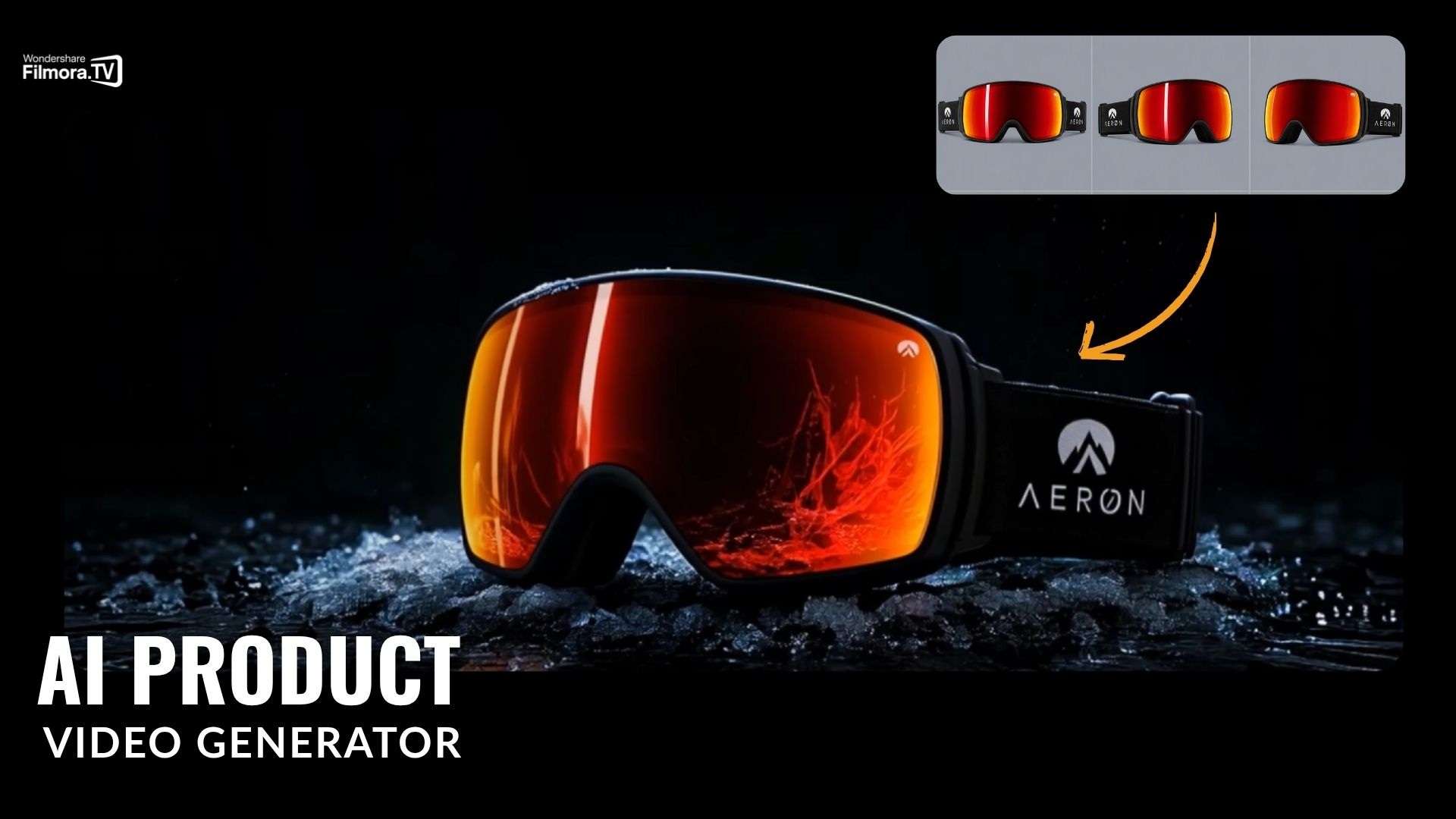
Filmora.TV – Best AI Product Video Generator
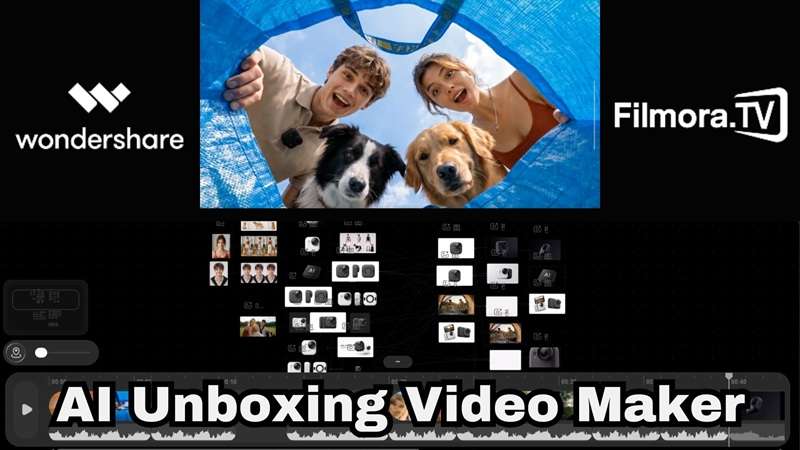
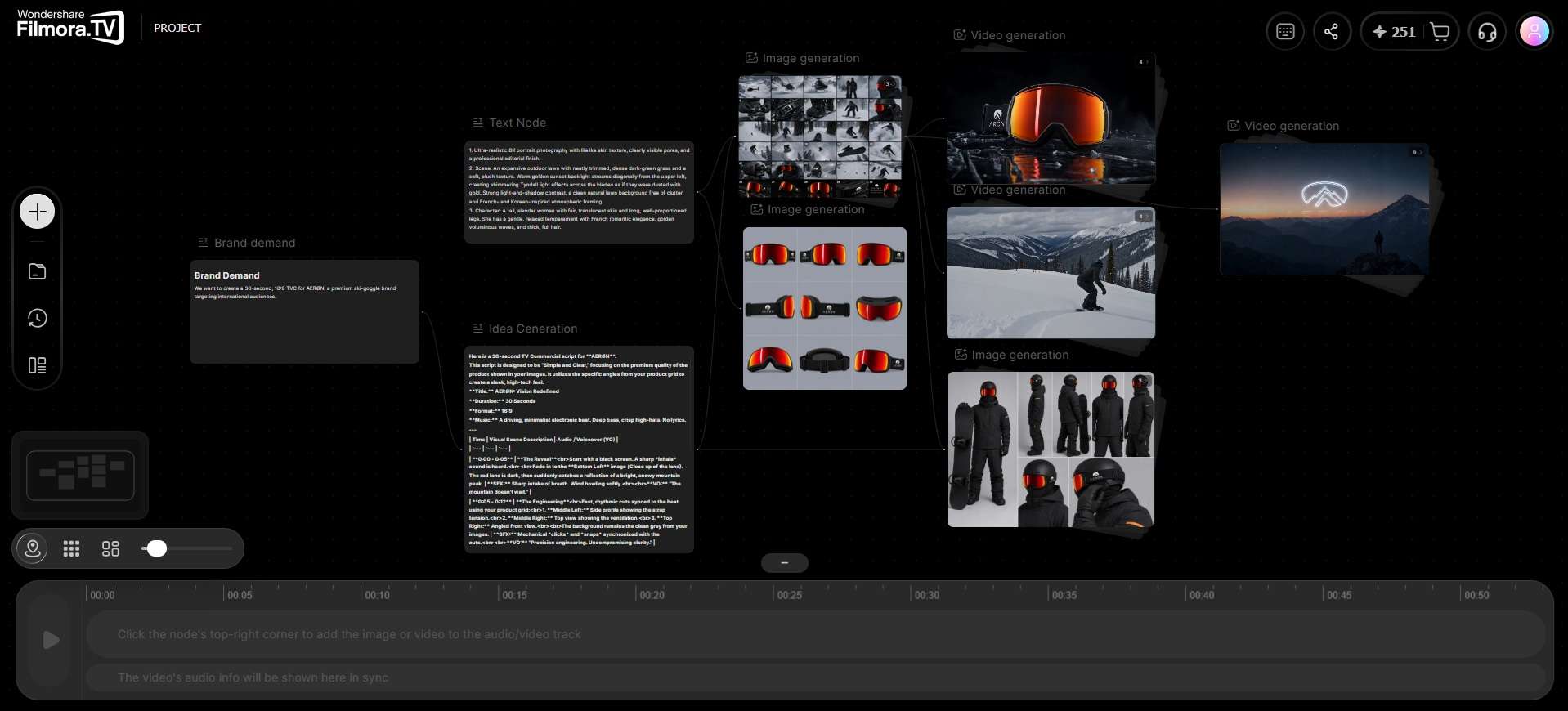
Filmora.TV is Wondershare’s AI creative workspace, built around an infinite canvas where you can generate, compare, and edit AI video from text or image prompts. It uses a node-based layout that works almost like a mind map, where you can drop down a Text, Image, Video, or Audio node, connect them to each other, and build out a whole product video without leaving the canvas.
For product videos, you can start with a script and a product image, describe the scene you want, and generate AI product showcase videos around it. From there, you can create additional takes, try different visual directions, and move the clips you like into Filmora.TV's built-in timeline to make the final cut.
Why Use AI Product Video Generators?
AI product video generators like Filmora.TV can make the production process considerably simpler, especially in areas where traditional product shoots can take more time and resources:
- Speed: Allows you to generate an AI product video from an image without filming
- Cost: No studio, model, or crew needed.
- Scale: Batch-produce variations for different platforms (TikTok, Amazon, Shopify) from the same source assets.
- Consistency: Reuse the same product image and prompt structure to keep a visual style consistent across a whole product line.
- Format range: One tool can output explainer videos, UGC-style clips, 3D product spins, 360-degree views, and other promotional formats.
The exact quality and consistency will still depend on the AI model, source image, prompt, and scene type you generate. But Filmora.TV’s canvas makes it easier to look through different takes and spot anything that looks off before you add the clips to your final edit.
Features to Make AI Product Showcase Videos
Part of what makes Filmora.TV a good AI product video generator is the set of features behind the canvas. Below is what each one brings to a product video project.
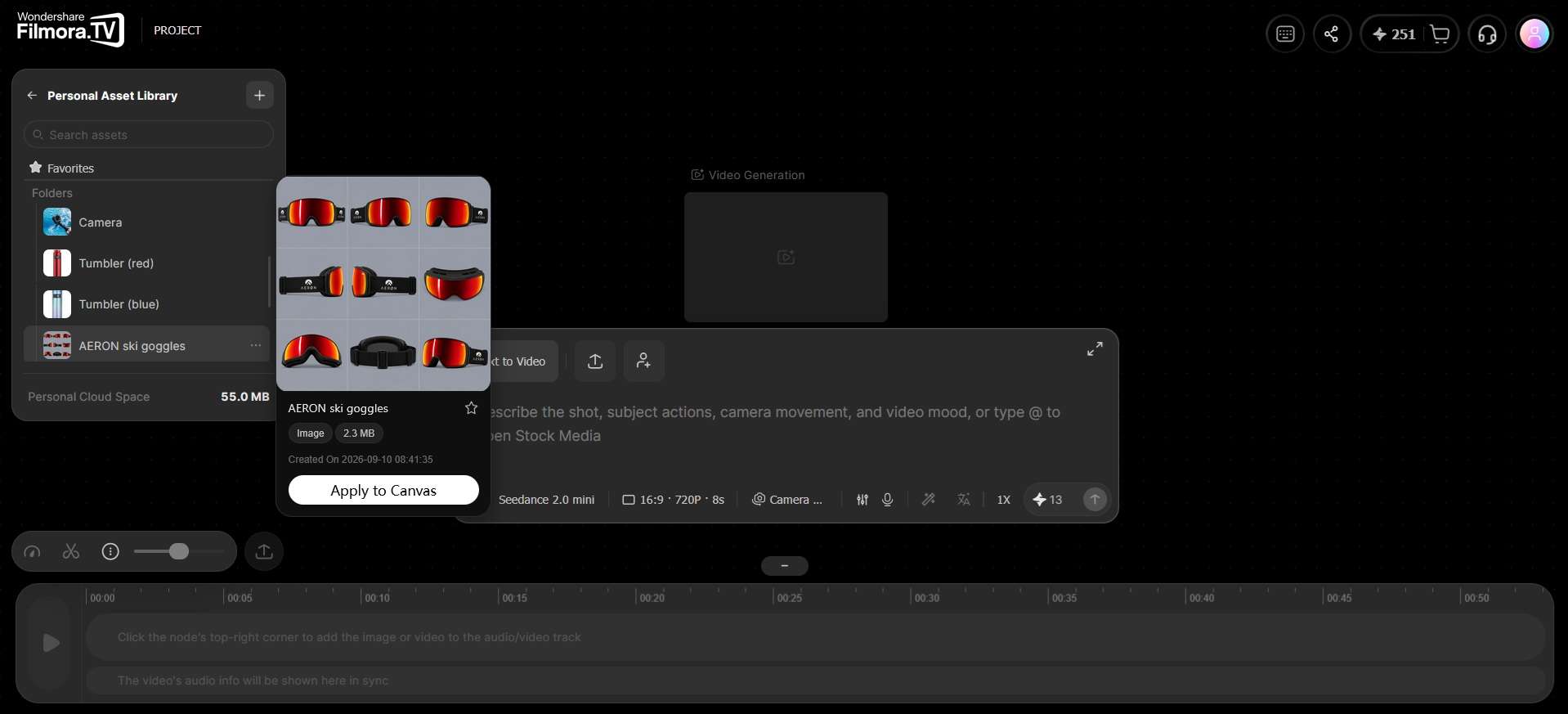
Assets Library
The Assets Library gives you a place to keep the visual elements used in your project. You can save scenes, characters, objects, visual styles, and sound effects there, so you don’t have to upload or add the same assets every time you create a new shot.
Generative AI (Smart Nodes)
Like many AI-powered tools, Filmora.TV works as an AI product video generator from images and text, allowing you to turn prompts and reference images into video content. The difference is how those generations fit into its canvas and node-based workflow. It also supports multiple AI models, with different options available depending on the content you want to generate.
Team Collaboration
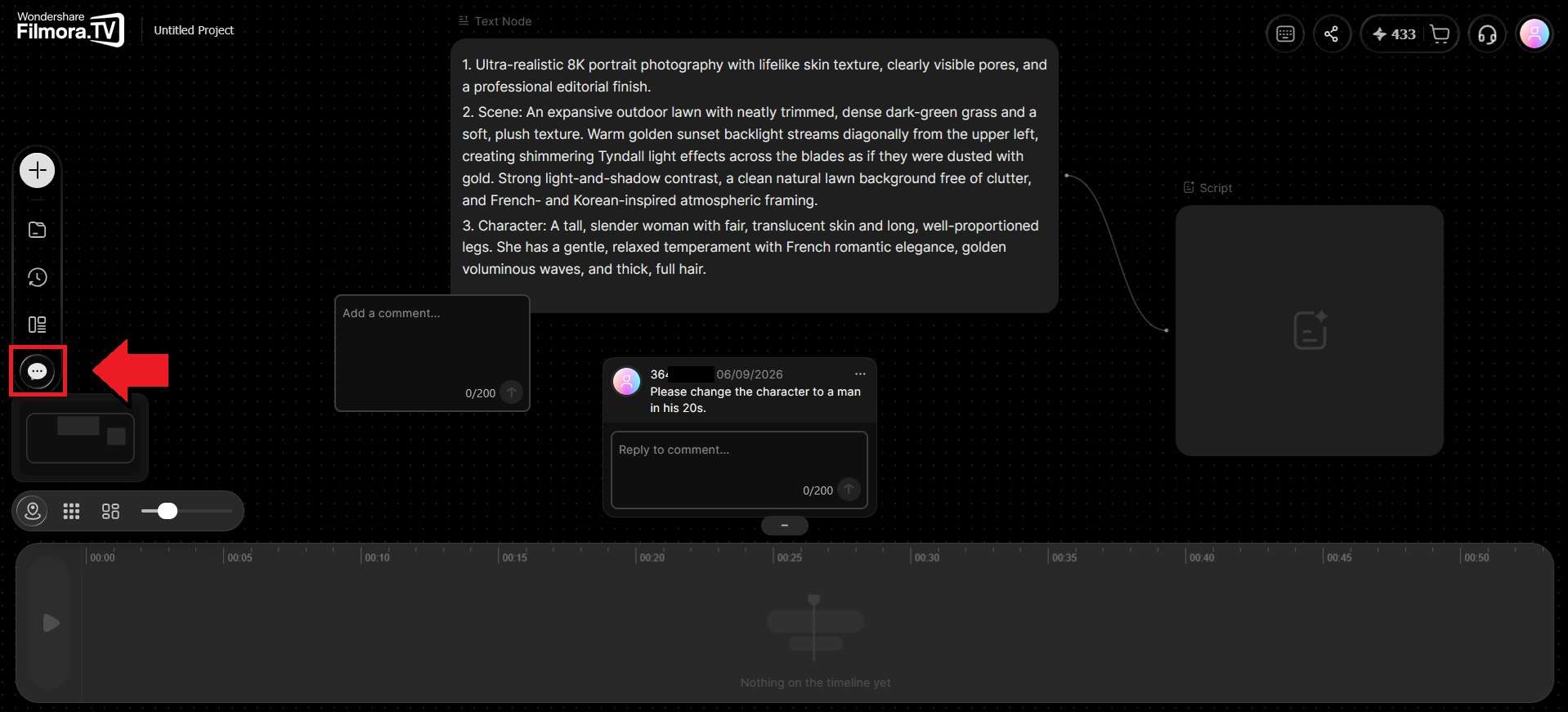
Product marketing projects often involve more than one person. Filmora.TV supports team workspaces where members can work with shared projects and assets. The canvas also supports comments and replies that you can use to leave feedback directly on specific parts of a project.
Templates
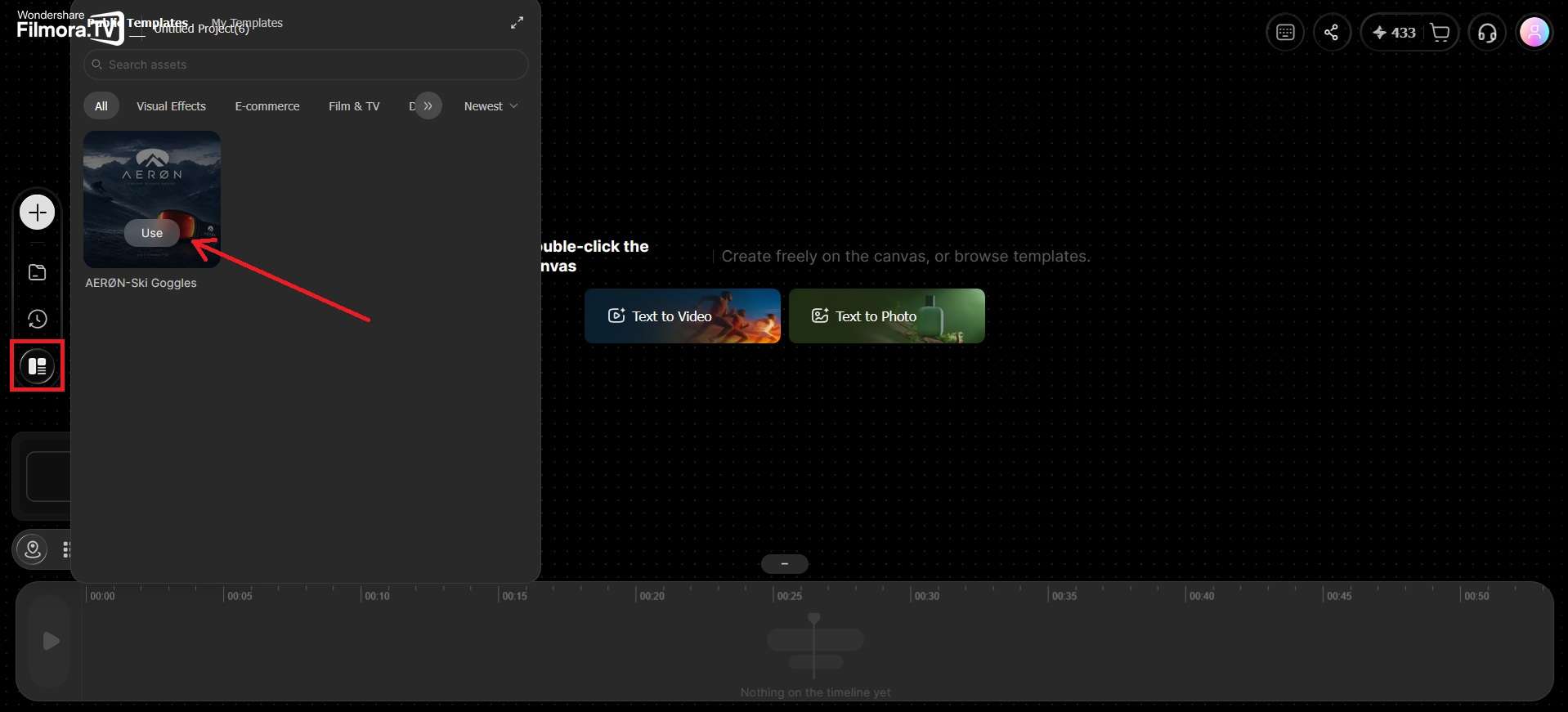
No need to worry if you are new to node-based workflows. Filmora.TV’s templates can give you a starting point for your product video, with an existing structure you can adjust to fit your project. If there’s a template that catches your eye, you can build from that structure rather than figuring everything out through trial and error.
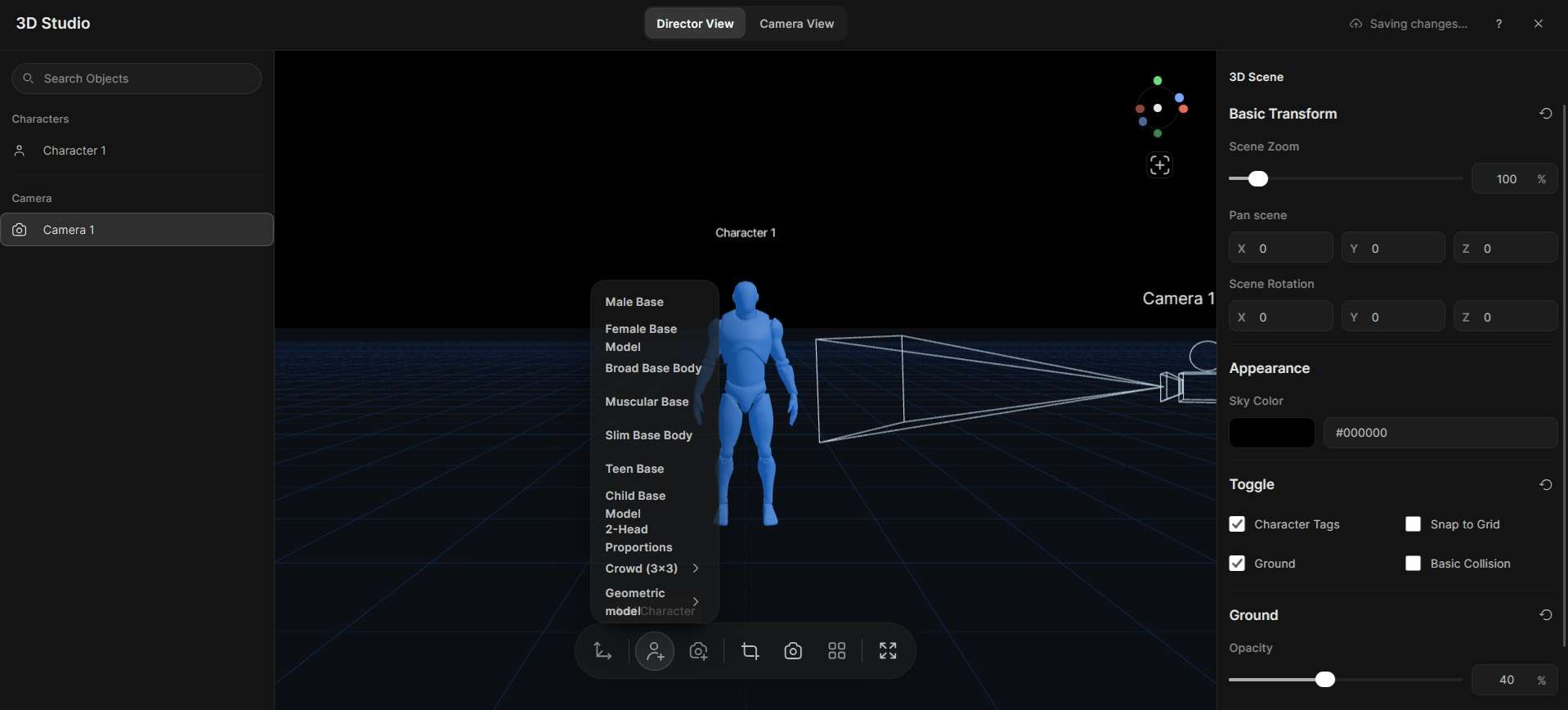
3D Studio
When you need a reference for a product shot, you can use 3D Studio to set up the scene before generating the video. You can pose 3D characters or geometry objects and control the camera with presets. Once you have the shot you want, capture it as a screenshot and add it to the canvas as a new node.
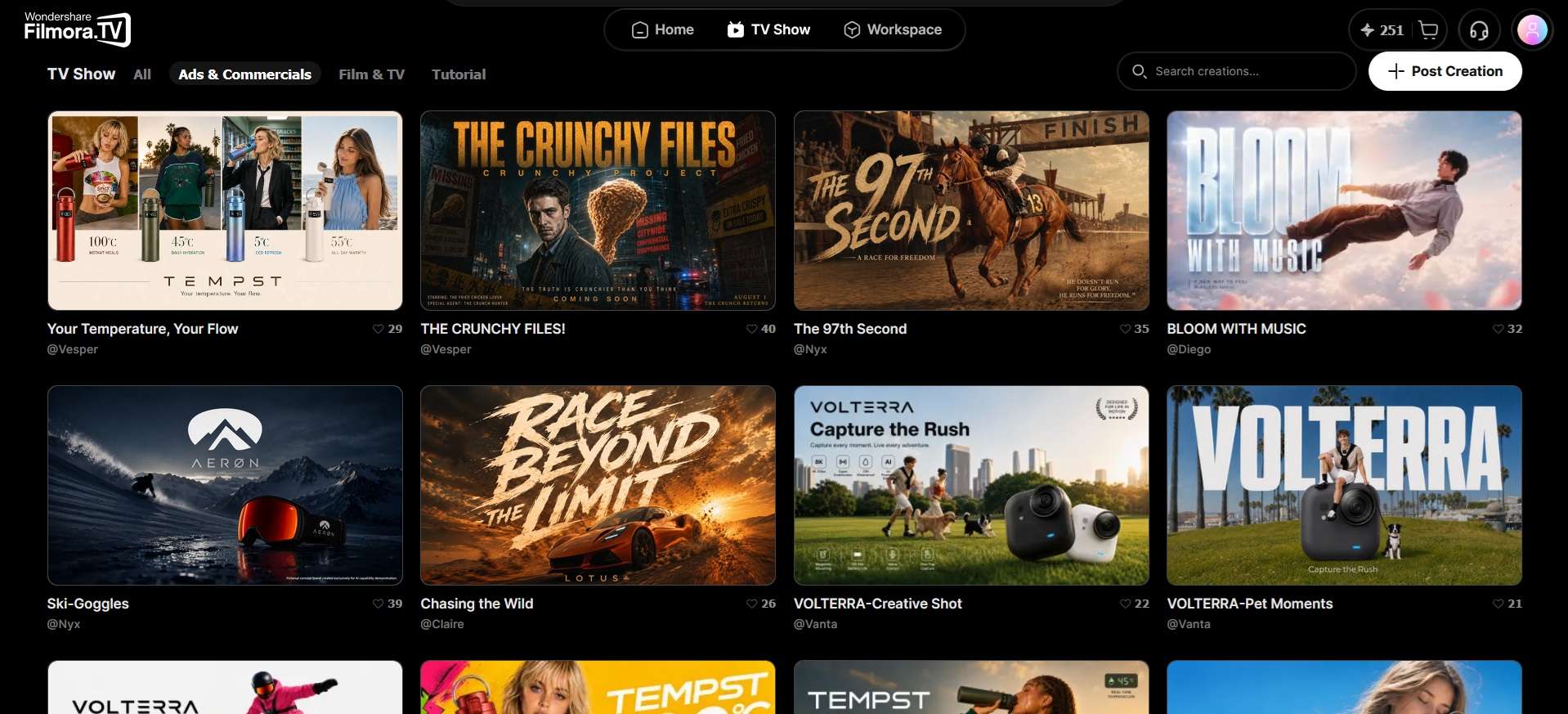
TV Shows
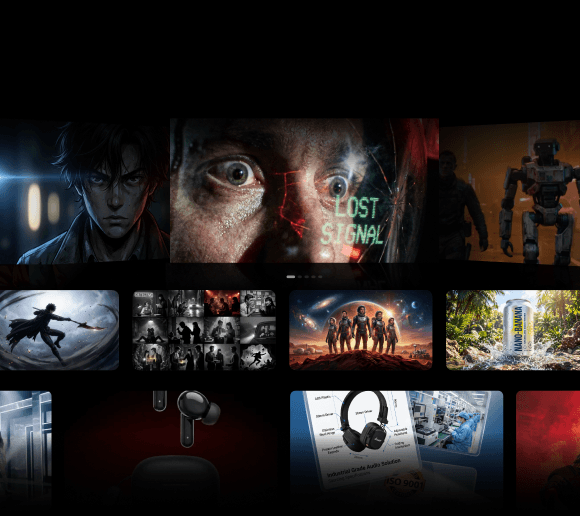
TV Shows is a community library where you can browse projects created by other users for ideas and inspiration. If you find a project that fits your needs, you can also duplicate it and adapt its structure, scenes, and creative direction to your own product video.
How to Use Filmora.TV to Create AI Product Video
To get a feel for how Filmora.TV AI product maker works, you can jump straight into creating a product video. Creating an AI product video in Filmora.TV starts with an idea, then moves through scripting, visual generation, and editing.
-
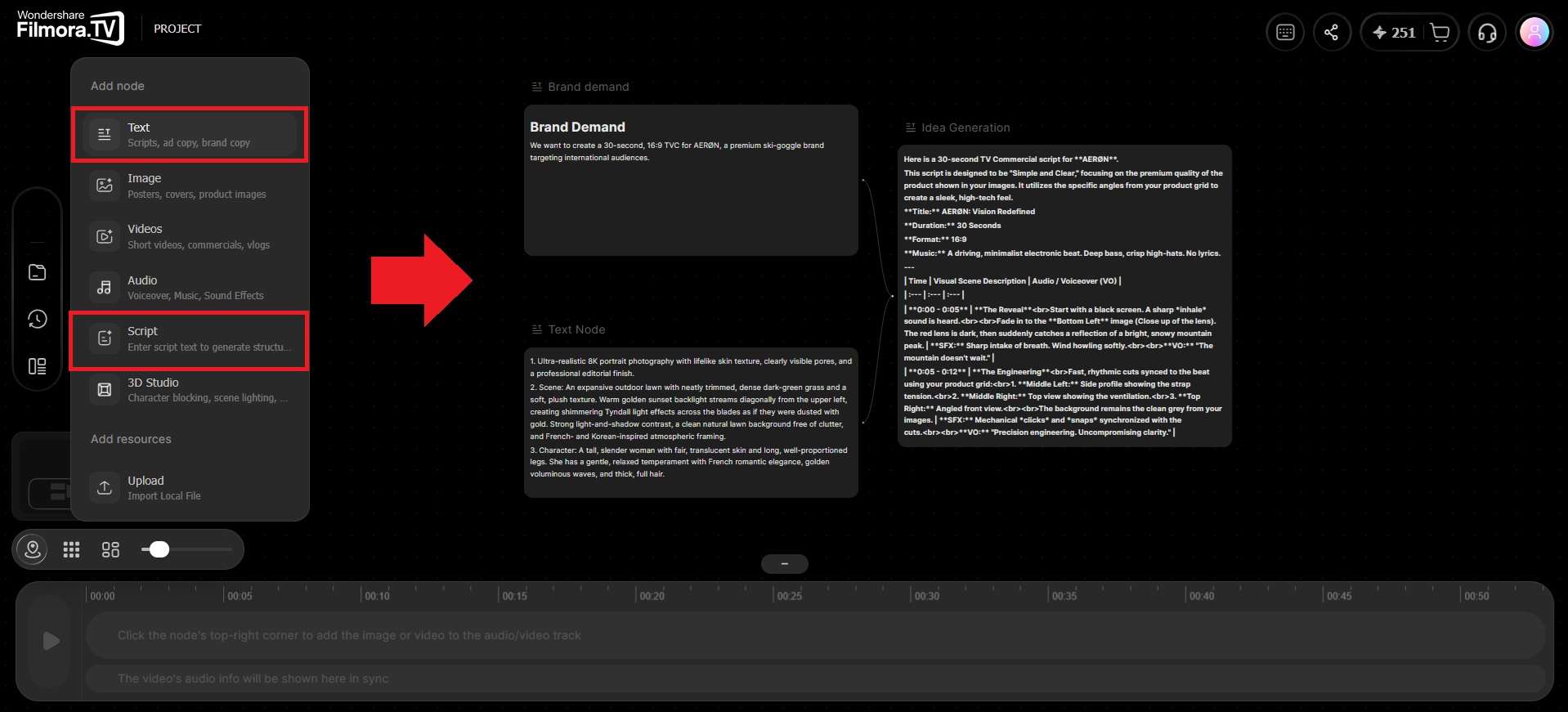
Step 1Brainstorm Your Product Video Idea
Start with a Text Node to brainstorm ideas for your product video. Describe your product, target audience, or the type of video you want to make, and use the generated ideas to develop a concept. You can also use a Script Node to turn the concept into a script for the video.
-
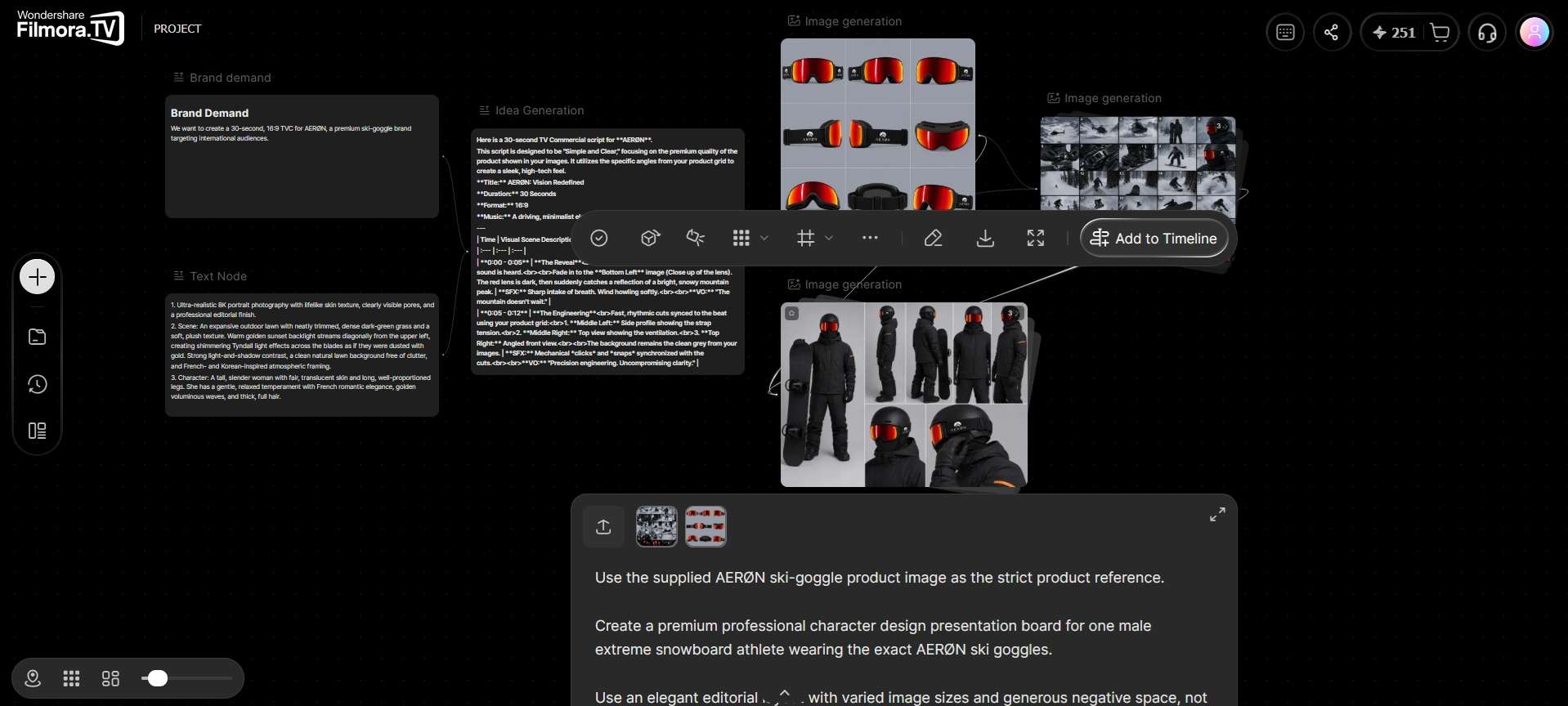
Step 2Add Your Product Image
With your concept and script ready, add an Image Node to the canvas and upload your product photo or choose one from the Asset Library. This image will act as the visual reference.
-
Step 3Generate Your Product Scenes
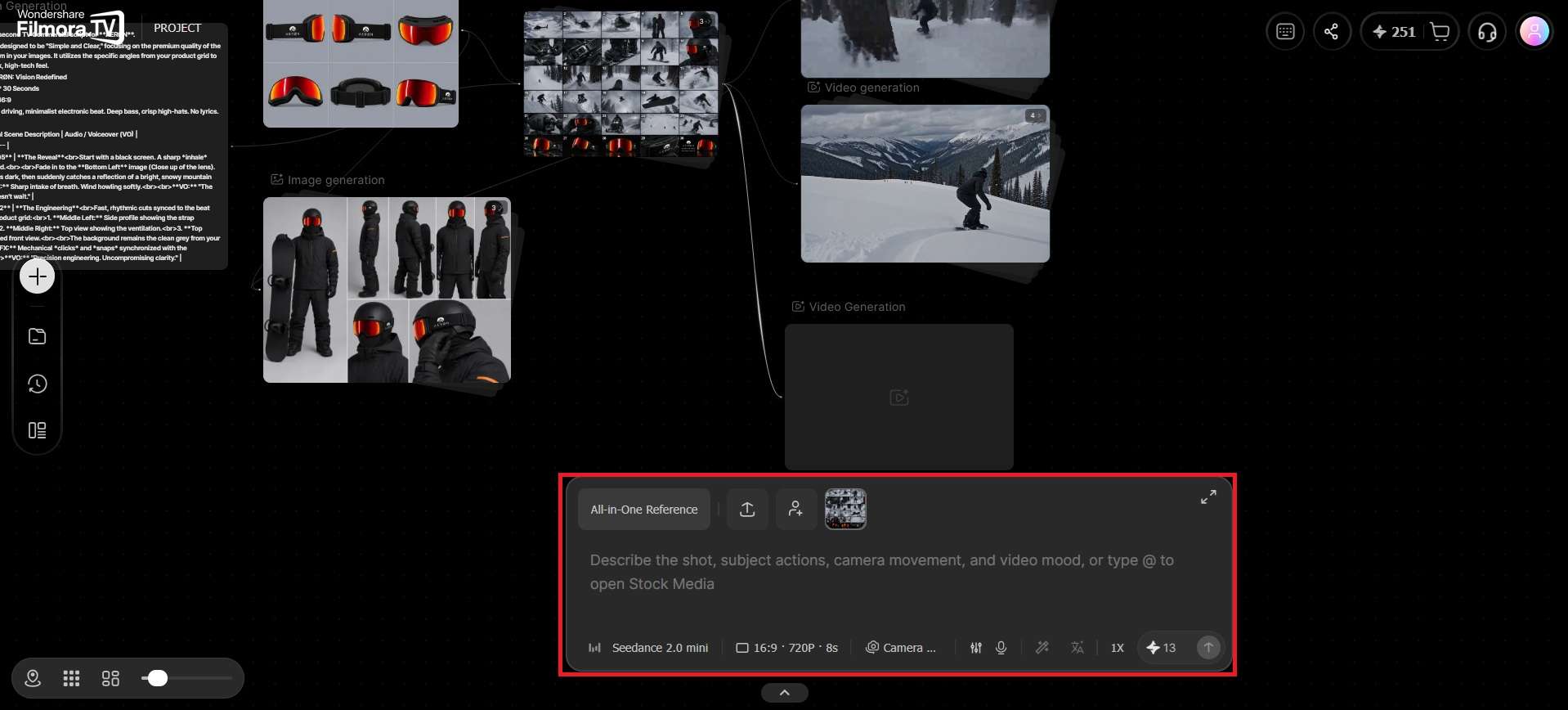
Connect the Image Node to a Video Node by dragging the connection from the Image Node’s edge to the Video Node. Then, describe the scene, action, and camera movement you want in the prompt.
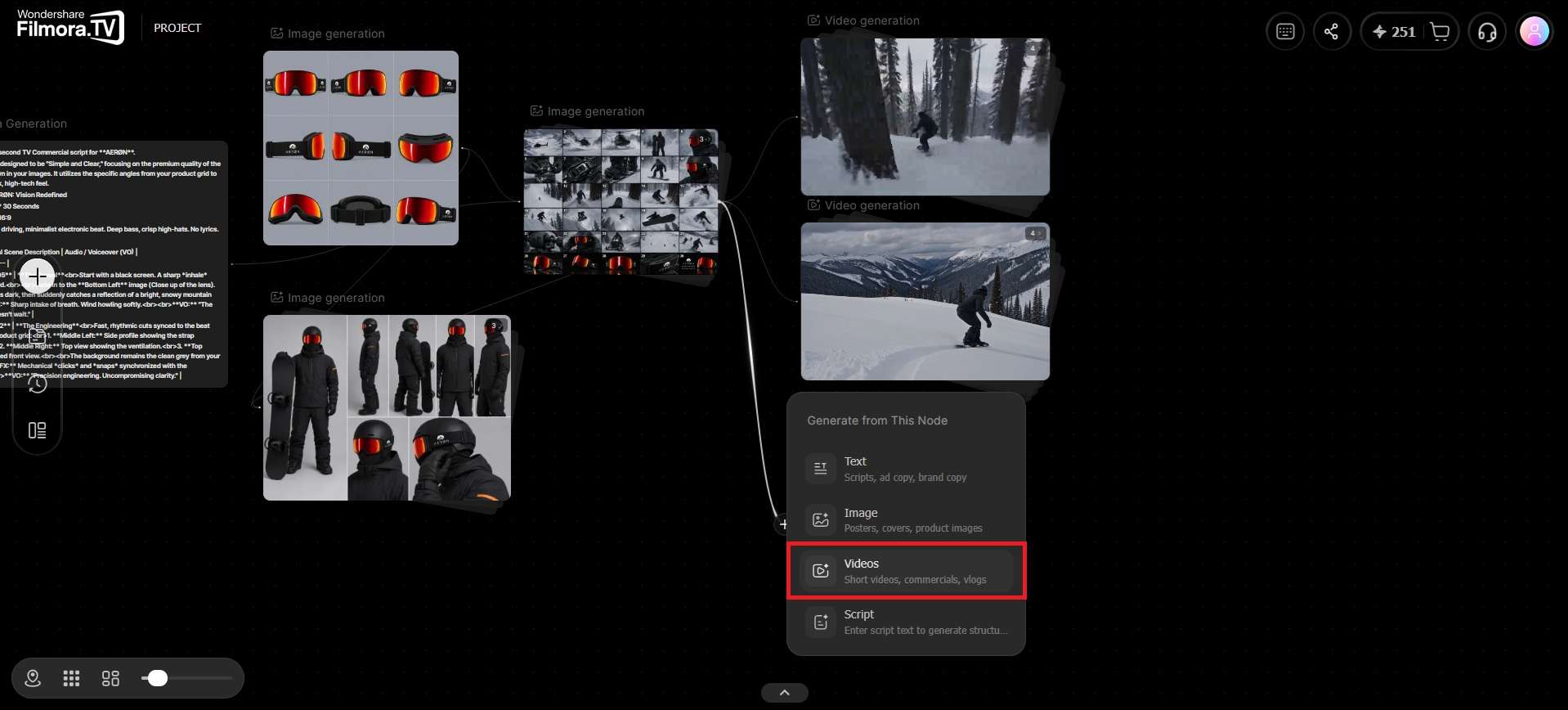
For the AI product showcase video generation, choose an AI model that fits the type of product video you want to create and adjust the available video settings before generating the clip. Filmora.TV also provides Prompt Optimization if you need help refining your prompt.
-
Step 4Edit and Review Your Product Video
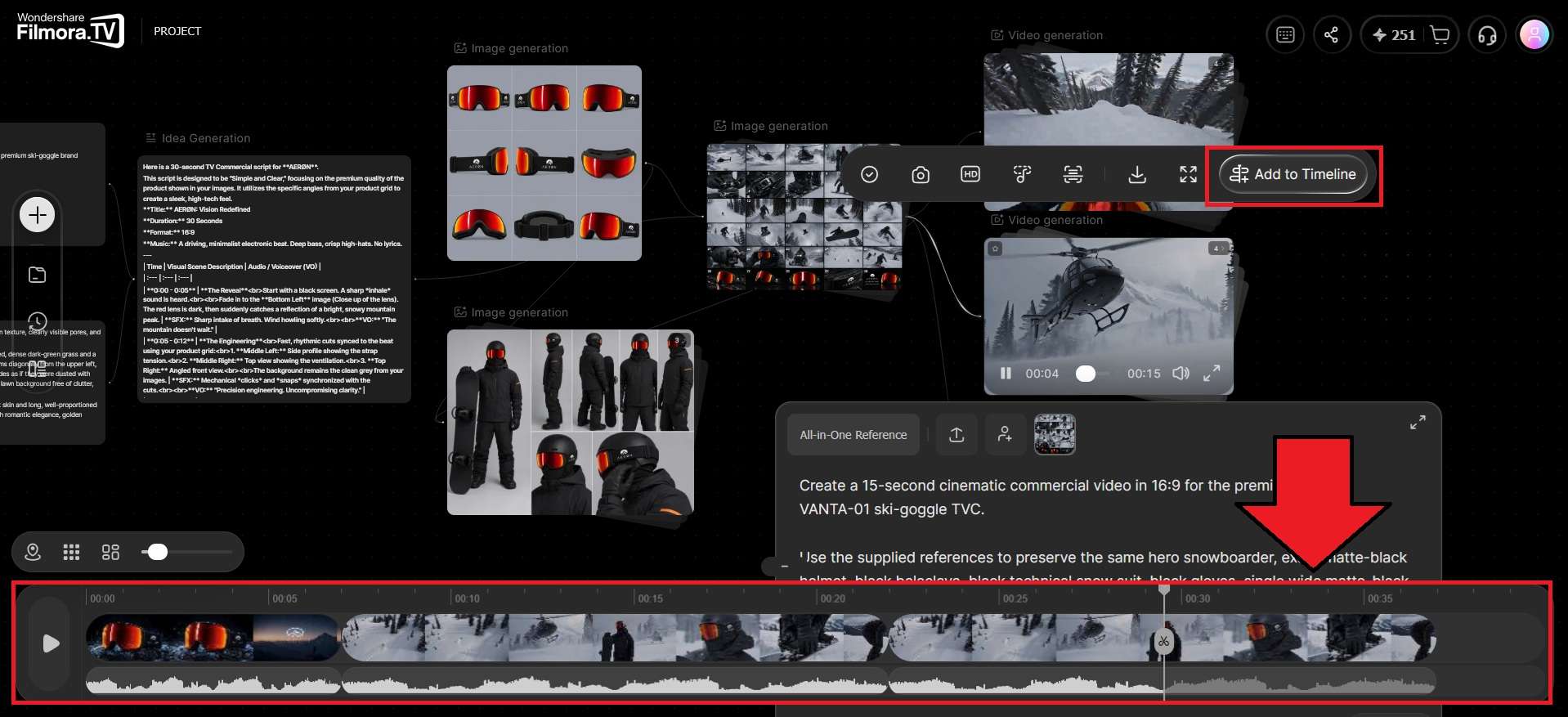
Move your selected clips into Filmora.TV's built-in timeline and arrange them into a complete product story. Trim unnecessary footage, adjust the pacing, and add audio to strengthen your message. Before exporting, review the sequence to check product details, visual consistency, and whether the video communicates its key selling points clearly.
Types of AI Product Videos You Can Create
Once you're comfortable with the node workflow, you can create any type of product video depending on what you need for a campaign. For example:
- AI Product Demo Videos: Show the product in use by starting with a product image and adding motion, context, or a specific setting around it.
- AI Product Explainer Videos: Combine a Script Node with generated visuals to explain what the product does and how it works, which can work well for landing pages or onboarding content.
- UGC-Style Product Videos: Create casual, handheld-style clips that resemble user-generated content commonly seen in TikTok and Instagram ads.
- AI 3D Product Animation: Use 3D Studio to build 3D references for products or characters, explore different angles and perspectives, and visualize how they could appear in scenes that may be difficult to capture in real life.
- 360° Product Spins: Create a rotating view that shows the product from different sides, which can be useful for e-commerce product listings on platforms such as Amazon or Shopify.
From One Product Video to a Multi-Channel Ad Campaign
Creating a product video is just the first step in a marketing campaign. A single product launch may need a 30-second promotional video, a 15-second paid ad, and a vertical teaser for social media.
With Filmora.TV, you can use the same product references to explore different hooks, generate alternative scenes, and assemble your preferred shots into a rough cut. For more precise branding, captions, audio, and platform-specific versions, you can continue editing in Filmora 16.
Explore the complete
video creation workflow for marketing teamsto see how one campaign moves from the initial brief to AI-generated concepts, refined edits, and channel-ready videos.
Pros and Cons of AI Product Video Generator
Using an AI product video generator like Filmora.TV can be helpful for a lot of people, but there are some considerations that you need to know first.
- Cuts production time from days to minutes for a first draft
- No studio, crew, or physical product shoot required
- Easy to produce multiple format variations from one source image
- Multiple AI models available in one workspace, so you're not locked into a single generation style
- With built-in editing tools, you don’t need a separate video editor to make basic cuts
- Product details can change between generations, including shape, color, and proportions
- Text, logos, and packaging details may not render accurately
- Specific shots or product interactions may require several attempts
- AI-generated footage may not accurately represent a product’s physical details
- Generated clips still need editing and other finishing work before they are ready to use
For product ads that require more precise editing and branded finishing, Filmora.TV supports XML project export to Wondershare Filmora. You can develop the concept, generate product scenes, and create a rough cut in Filmora.TV, then continue in Filmora 16 to refine the pacing, color, audio, captions, and final presentation.
Conclusion
AI product video generators like Filmora.TV can cut down the time and resources needed to create product content, especially when you need multiple concepts or variations. Its node-based workflow keeps your ideas, assets, and AI clips organized on one infinite canvas, giving you a clear view of how each part of the video fits together.
When most tools in this space stop once they’ve generated a clip and leave you to finish the video somewhere else, Filmora.TV lets you compare AI models, refine a result, and edit the final cut all in the same workspace. Try Filmora.TV and see how quickly you can turn a product idea into a complete video!
FAQs
-
1. What is the best free AI product video generator?
Some AI product video generators that let you generate for free include Descript and Kling. However, free plans usually come with limitations such as watermarks, limited generations, lower export quality, or restricted access to certain AI features.
-
2. Is there an AI product video generator without a watermark?
Filmora.TV subscription includes watermark-free exports and a commercial license that covers the use of your generated content for commercial projects.
-
3. Can I create a UGC-style product video with AI for free?
It’s possible on tools that include a free tier or offer free credits, though the number of generations and available models is usually more limited than on a paid plan.
-
4. How can I create multiple product video ads from one product image?
Start with a clear product image and develop different advertising hooks or scene concepts. With Filmora.TV, you can reuse the product reference, generate alternative shots, and compare different creative directions on the canvas. Then select the strongest clips and assemble them into video variations for your campaign.
-
5. Do I need Filmora 16 to finish a product video created with Filmora.TV?
No. Filmora.TV includes timeline editing tools for arranging clips, adjusting pacing, and preparing a video for export. If your campaign requires more precise editing, advanced color and audio adjustments, branded titles, or multiple channel-specific versions, you can continue the project in Filmora 16.