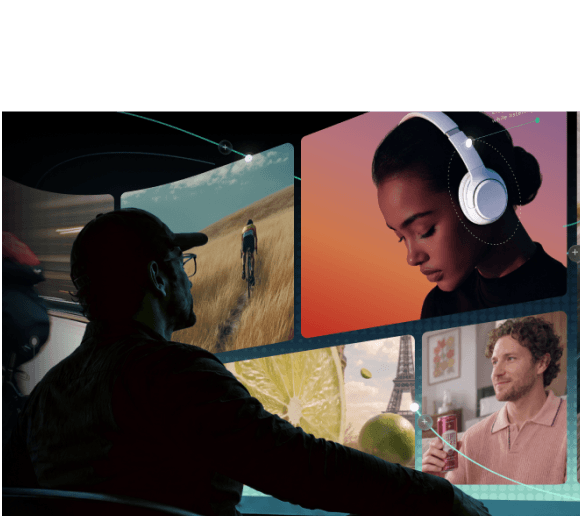
Every AI video generator that shows up promises a faster way to turn ideas into videos, but not every tool actually matches the way you want to develop and edit your ideas.
For creators who want more control over the process, an AI video generator like Filmora.TV offers a more flexible approach with its canvas-based workflow. You can generate different assets from text or images, compare the results as you build a project, and brainstorm or arrange your ideas however you like.
Get a closer look at Filmora.TV’s approach to AI video generation, and decide if it’s the right AI video generator for you.
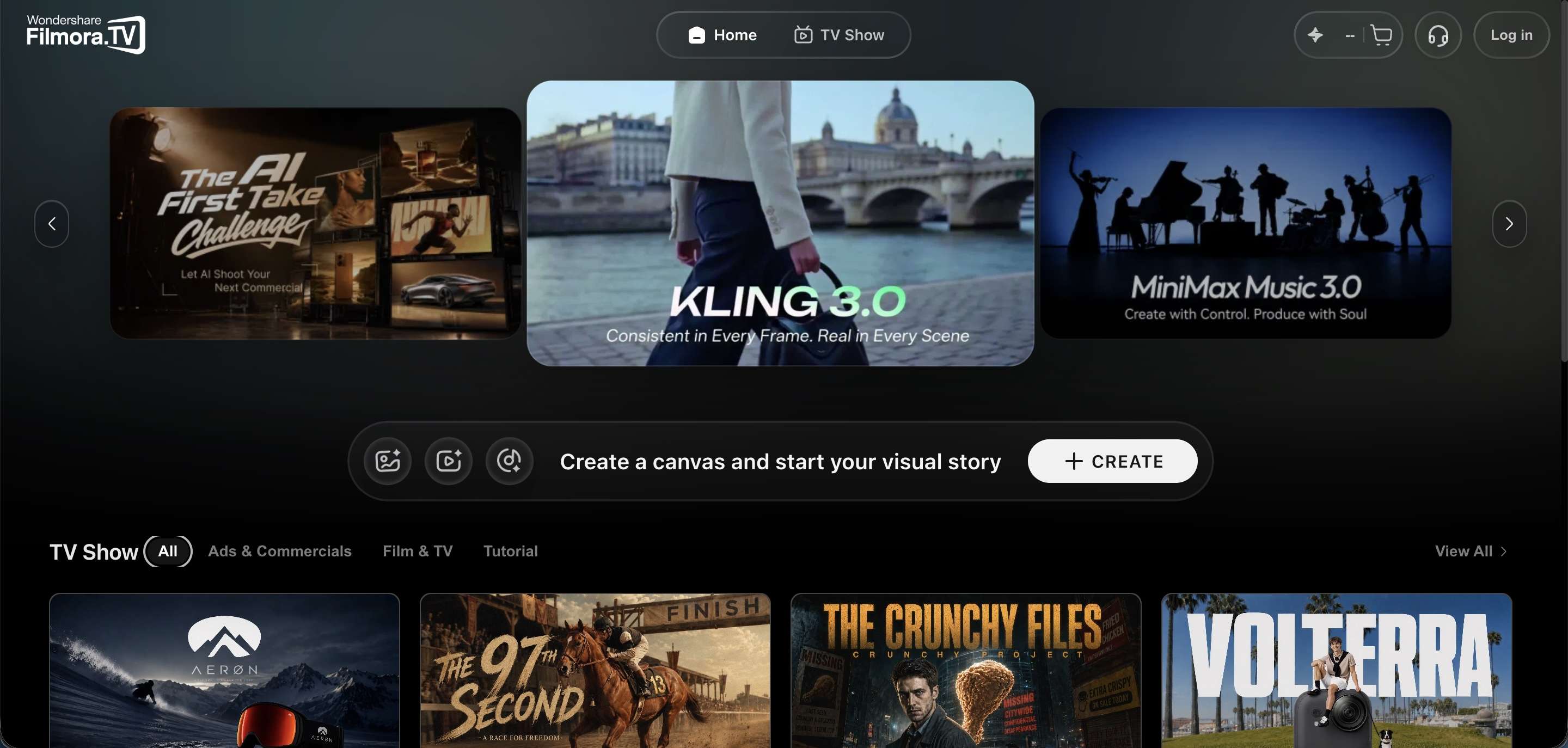
Introducing Filmora.TV AI Video Generator
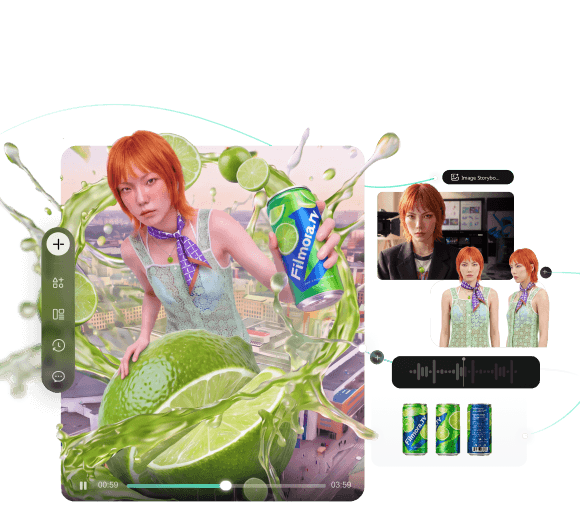
Filmora.TV is Wondershare’s AI video creation platform for turning ideas and visual references into video. Its canvas lets you arrange prompts, images, generated clips, and other assets as you develop a project. You can generate videos from text, images, first and last frames, or multiple references, then move the results into the timeline for editing.
The workflow is ideal for projects with multiple shots, creative variations, and AI-generated assets.
What’s Filmora.TV Best for:
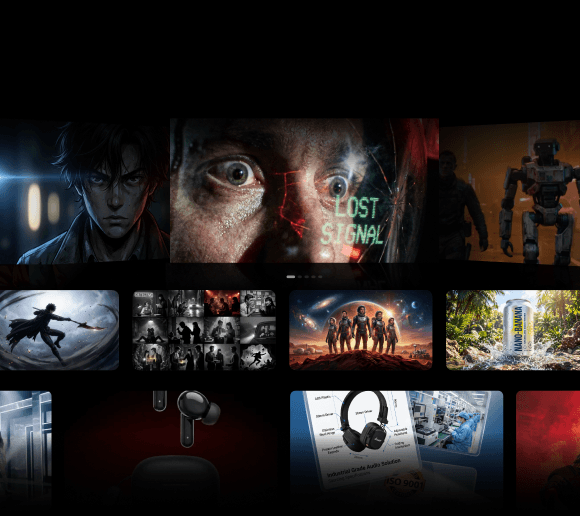
- AI short films: Generate and compare multiple shots before assembling the final sequence.
- TVC and ad concepts: Develop storyboards, product visuals, and video variations in one project.
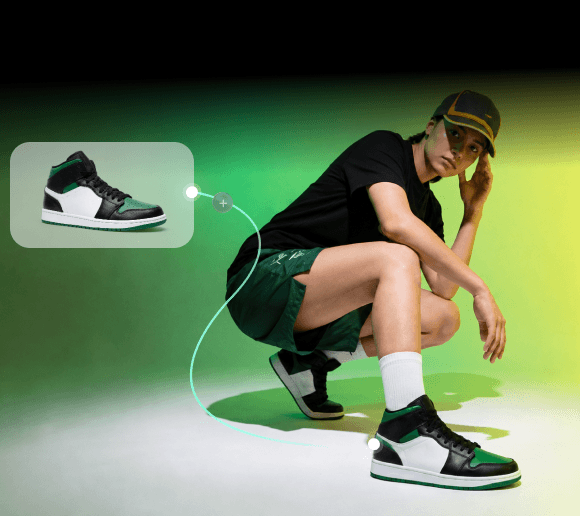
- Image-to-video projects: Turn character artwork, product images, or other references into video.
- AI content creation: Create social videos from text prompts and visual references.
- Creative team projects: Keep generated assets and project development together for review and iteration.
How Filmora.TV AI Video Generator Works
Filmora.TV starts with a visual canvas where you can develop an idea before turning it into a finished sequence. You can create and organize various assets, test AI generations, and then move the results to the timeline for editing.
1. Start Freely on the Canvas
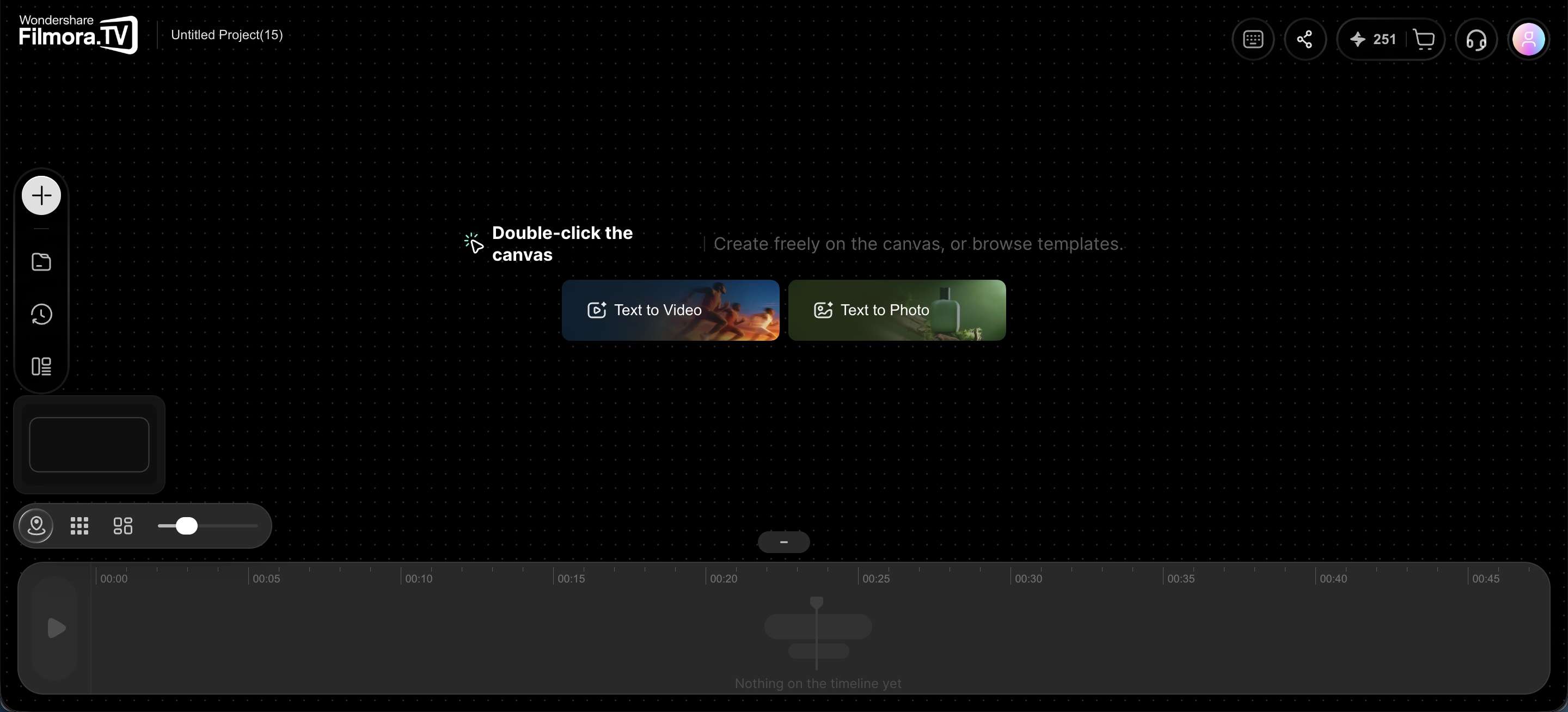
From the Filmora.TV workspace, the canvas gives you a space to build the creative context for your project. Using a node-based format, you can organize references, connect related ideas, and develop different visual directions in one place:
- Add references: Place text, images, scripts, and other assets on the canvas.
- Connect related ideas: Link nodes to keep prompts, references, and generated assets organized.
- Compare directions: Arrange different ideas and visual variations side by side.
- Keep context visible: See your creative references and project direction as you develop the video.
The canvas isn’t limited to visual assets, either. With AI music and sound generation, Filmora.TV can also work as an AI music video generator, where you can build the visuals and audio within the same workspace.
2. Generate Videos From Text or Images
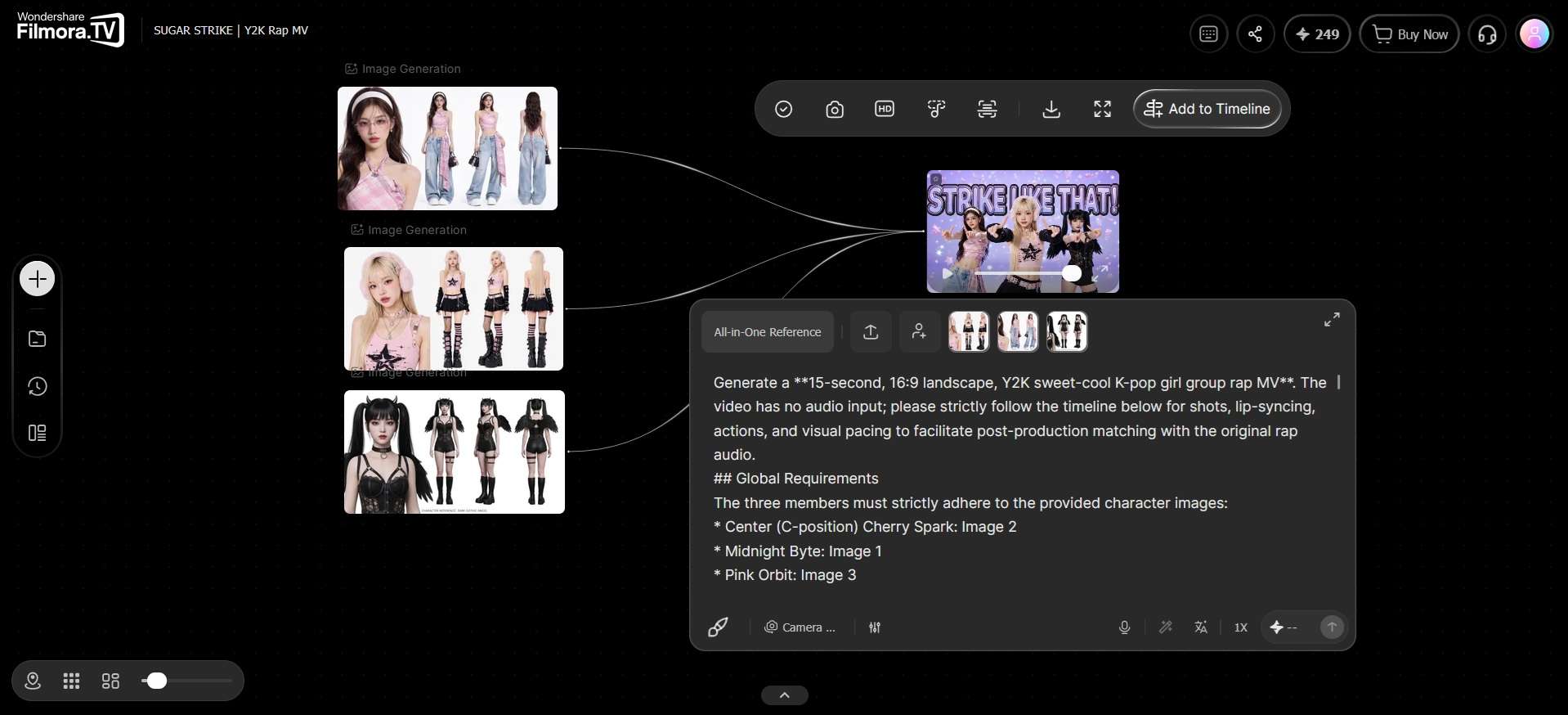
Filmora.TV supports several video-creation methods, making it useful as both an AI video generator from images and an AI video generator from text.
- Use Text-to-Video to generate a video from a written prompt.
- Use Image-to-Video to turn an image reference into moving footage.
- Use First-and-Last-Frame to define a shot's starting and ending visuals.
- Use All-in-One Reference to combine text, images, and other reference materials.
Available settings and parameters depend on the AI model you choose.
3. Explore Different AI Models
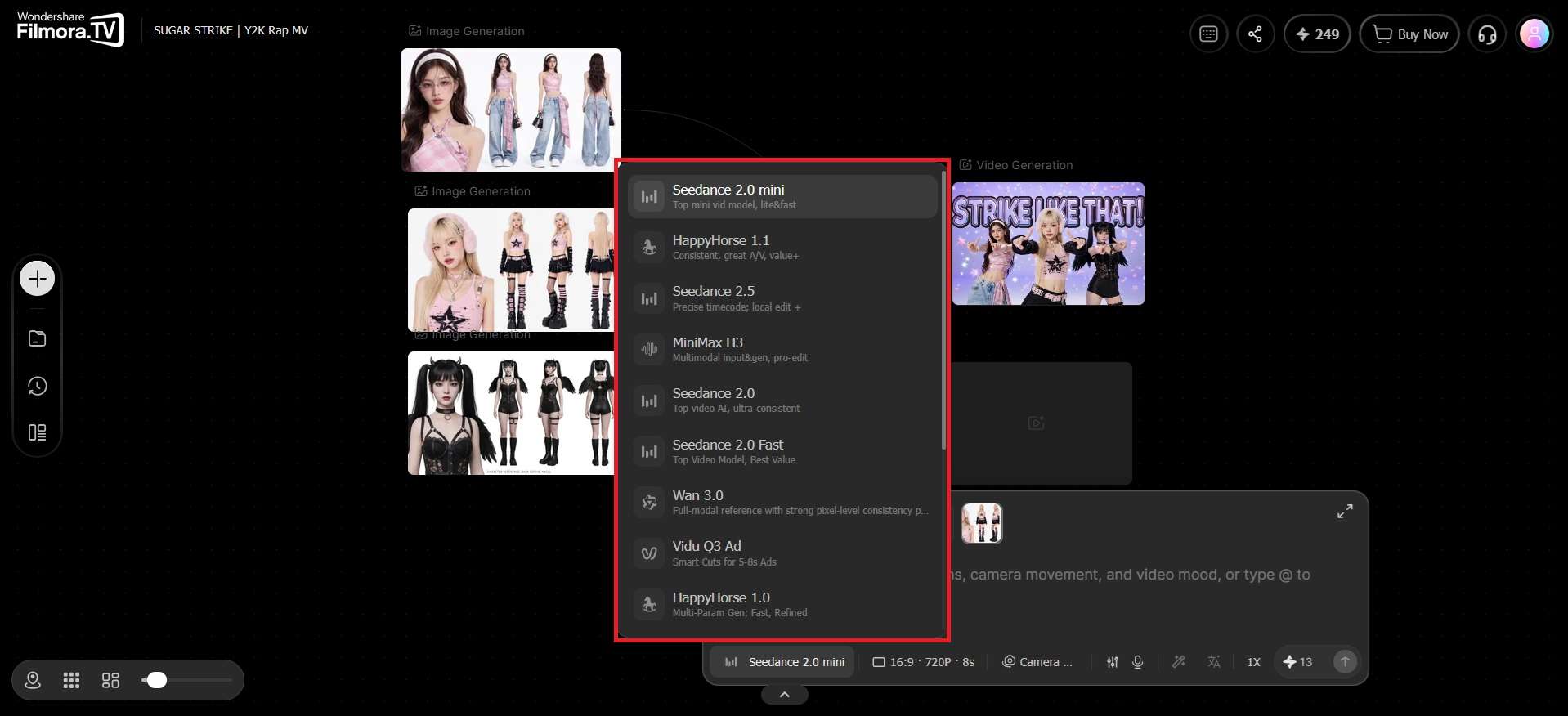
Filmora.TV lets you choose from the AI models available in its generation tools, so you can explore different approaches without moving the project between platforms.
- Select a supported model directly from the generation panel.
- Compare how different models handle the same prompt or visual direction.
- Switch models when you want to experiment with different visual results.
Keep in mind that model availability and generation parameters can change as Filmora.TV updates its AI lineup. Currently, the available models include:
| AI Model | Versions |
|---|---|
| Seedance | Seedance 2.0, Seedance 2.0 Fast, Seedance 2.0 mini, Seedance 2.5 |
| HappyHorse | HappyHorse 1.0, HappyHorse 1.1 |
| MiniMax | MiniMax H3, MiniMax H3 Max, Hailuo 2.3 |
| Wan | Wan 3.0 |
| Kling | Kling 3.0, Kling Omni 3.0 |
| Gemini Omni Flash, Veo 3.1, Veo 3.1-Fast, Veo 3.1-Lite | |
| Vidu | Vidu Q3, Vidu Q3-Mix, Vidu Q3-Ad |
4. Connect Ideas and Compare the Results
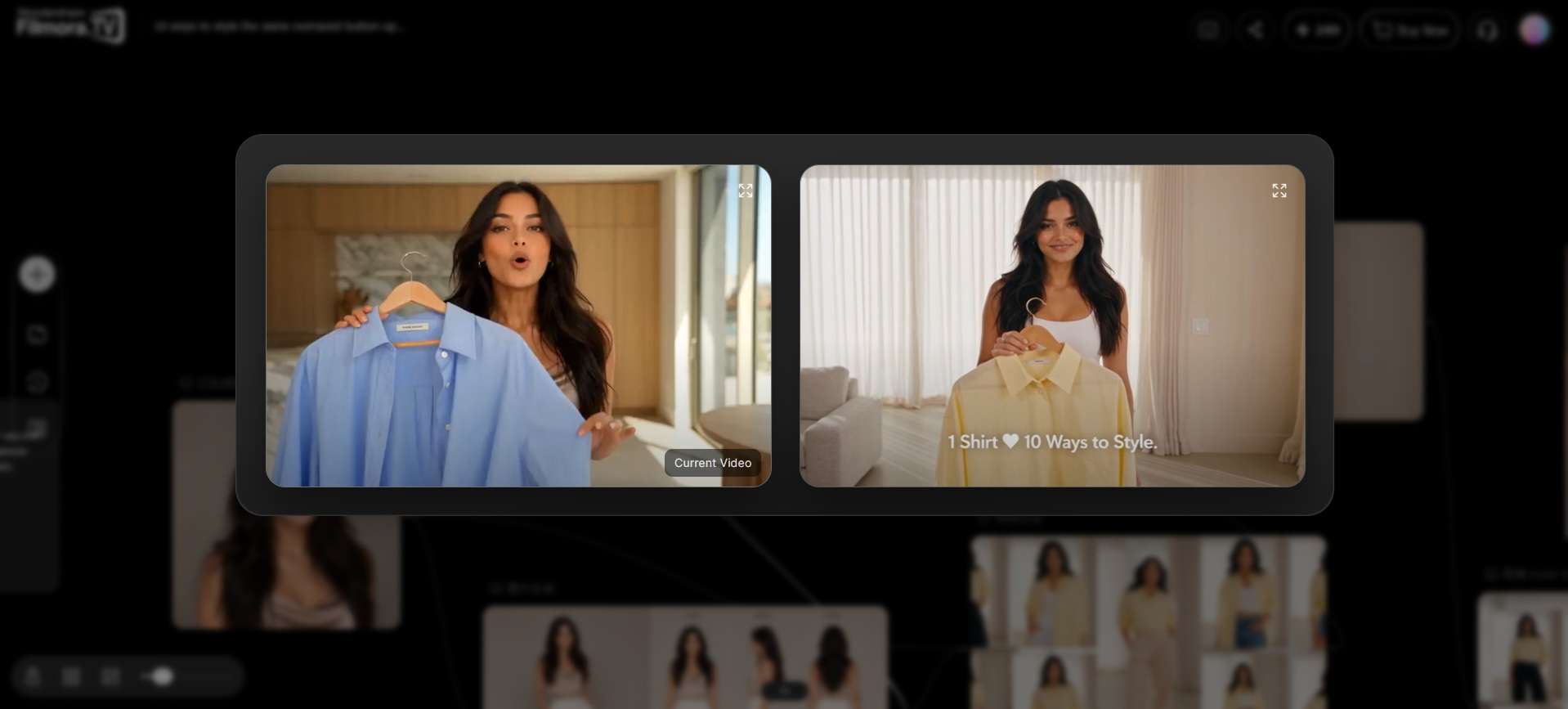
This canvas becomes even more useful when you create multiple variations, rather than relying on just a single generated result:
- Connect ideas: Link prompts with reference images and generated videos to keep their creative context together.
- Compare versions: Keep different outputs side by side so you can evaluate and refine them.
- Organize scenes: Group related assets and variations as you build a sequence.
- Trace your process: Follow generated assets back to the prompts and references that shaped them when revisiting an idea.
This setup works well for an AI video generator from a photo workflow where one reference image may lead to several video variations.
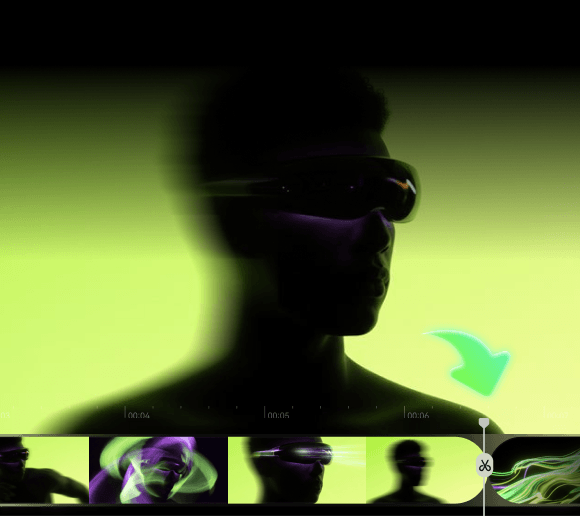
5. Move From Canvas to Timeline and Build the Sequence
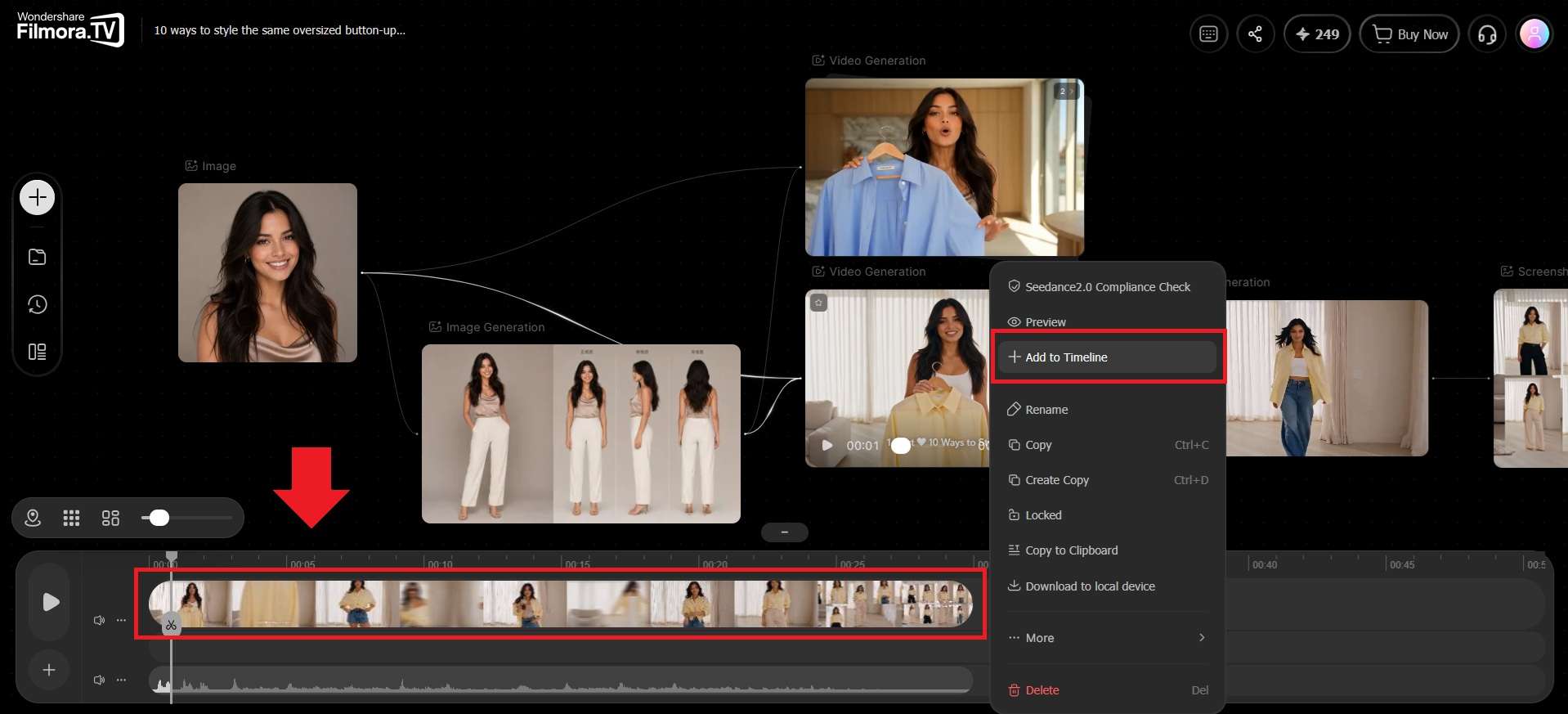
Once you have the shots you want, Filmora.TV lets you continue editing them in the timeline within the same project:
- Add selected clips: Bring your generated videos into the timeline when you’re ready to use them.
- Build the sequence: Arrange, trim, and adjust clips to shape the flow of your video.
- Keep editing: Make further edits to the generated footage without switching tools.
- Finish the video: Turn your selected generations into a complete video instead of treating each clip as a separate result.
Is Filmora.TV AI Video Generator Free?
Filmora.TV is not a fully free AI video generator. It uses a subscription model with monthly AI credits, where higher plans offer more credits, storage space, and team user quotas.
Filmora.TV Pricing
| Plan | Price | Credits/Month | Cloud Storage | Team Seats |
|---|---|---|---|---|
| Basic | $20/month | 200 | 5GB | 3 |
| Plus | $100/month | 1,060 | 50GB | 10 |
| Pro | $200/month | 2,160 | 150GB | 20 |
| Premium | $500/month | 5,750 | 500GB | Unlimited |
The included credits cover both AI image and video generation. For example, 200 credits can produce approximately 200 images or 100 videos, depending on the model and settings. All plans also include the infinite canvas, watermark-free exports, and team collaboration features.
Additional credit packs start at $20 for 200 credits and remain valid for one year. The Basic plan is the most affordable option, while Pro and Premium suit teams with higher-volume AI production needs.
How Good is Filmora.TV AI Video Generator? Review
Filmora.TV is more than an AI video generator. Its key strength is connecting AI generation with visual planning and timeline editing within a single workspace. It supports text-to-video, image-to-video, first-and-last-frame, and all-in-one reference generation.
Ease of Use
Filmora.TV is fairly easy to use once you understand its canvas-based workflow:
- Add prompts, images, and references to the canvas.
- Generate different video variations from the same project.
- Move selected clips directly to the timeline for editing.
- Use different generation modes depending on the type of video you want to create.
Verdict: ★★★★☆
Easy for creators who want generation and editing in one place, though it may take some time to get used to the canvas.
User Experience
The canvas makes Filmora.TV useful for projects with multiple shots and variations. You can keep related assets together, compare generations, and continue working on selected clips in the timeline. You can also analyze an existing video into storyboards, shot information, and prompts.
Verdict: ★★★★½
Best suited for projects with multiple shots rather than simple one-off AI clips.
Control and Customization
Filmora.TV gives you several ways to control AI video generation, including different generation modes, model selection, and model-specific parameters. The available controls may vary by AI model.
- Text or image references
- First-and-last-frame control
- Multiple reference materials
- Different AI models
- Timeline editing after generation
Verdict: ★★★★½
Good control for experimenting with different visual directions without moving between multiple platforms.
Value for Money
Just like any other AI photo-to-video generator, Filmora.TV uses AI credits for generation, so the overall value depends on how often you create and regenerate content. The credit system is worth checking before subscribing, especially if you expect to generate many variations.
Verdict: ★★★★☆
Good value for creators and teams that need AI generation, creative planning, and editing in one workflow.
Pros and Cons of Filmora.TV AI Video Generator
Filmora.TV AI video generator stands out when a project involves more than generating a single AI clip. You can develop the visual direction, create different shots, and edit the selected results in the same project. However, it has a few limitations to consider, especially for frequent generations or projects that require highly specific controls.
- Filmora.TV supports AI video generation from text and images, along with first-and-last-frame and all-in-one reference workflows
- The visual canvas helps you organize prompts, references, and generated clips in the same project
- You can explore multiple supported AI models and compare their results without switching platforms
- Generated clips can be moved to the built-in timeline for trimming and arranging
- Video analysis can turn existing footage into storyboards, shot details, and prompts for further creative work
- AI video generation uses credits, which means frequent regeneration can increase your usage costs
- Generation settings and available controls vary depending on the AI model you choose
- The canvas-based workflow may take some time to learn if you are more familiar with traditional timeline editors
Conclusion
If you need more than a tool for making quick, one-off clips, Filmora.TV is worth considering as one of the best AI video generators. Its canvas gives you the space to develop ideas, compare AI-generated shots, and keep visual references organized before moving the best results into the timeline.
It supports both AI video generator from text and AI video generator from photo workflows, making it suitable for a wide range of projects. If you are working on ads, short films, or multi-shot content, Filmora.TV offers a practical workflow that takes an AI-generated idea from the first visual concept to a more polished final video.
FAQs
-
Can I generate a video from an image with Filmora.TV?
Yes. Filmora.TV works as an AI photo-to-video generator, where you can use a still image as a visual reference and turn it into a video. It also offers First-and-Last-Frame and All-in-One Reference modes for projects that need more control over the generated shot.
-
What AI models does Filmora.TV use for video generation?
Filmora.TV provides multiple AI models for video generation, with the available options changing as the platform updates. You can select a supported model when generating a video, though the available settings and parameters may vary between models.
-
How can I get better results from an AI video generator?
Start with a clear prompt that describes the subject, action, setting, camera movement, and visual style. For image-based generation, use a clear reference image and explain the movement you want to see. If the first result doesn’t match the direction, try another model or adjust the prompt instead of changing several elements at once.