AI has changed the way people create and edit videos. You can now generate clips in seconds and even make edits using simple text prompts, but one of the newer ideas getting attention is the infinite canvas for AI video. If you are new to this space, you may have heard the term AI video canvas without really knowing what it means or how it works.
So, scroll down as we break down everything you need to know about using an AI canvas for video creation, what makes this workspace so unique, and the best tools to try out today.
Unpacking the AI Video Canvas: How It Actually Works
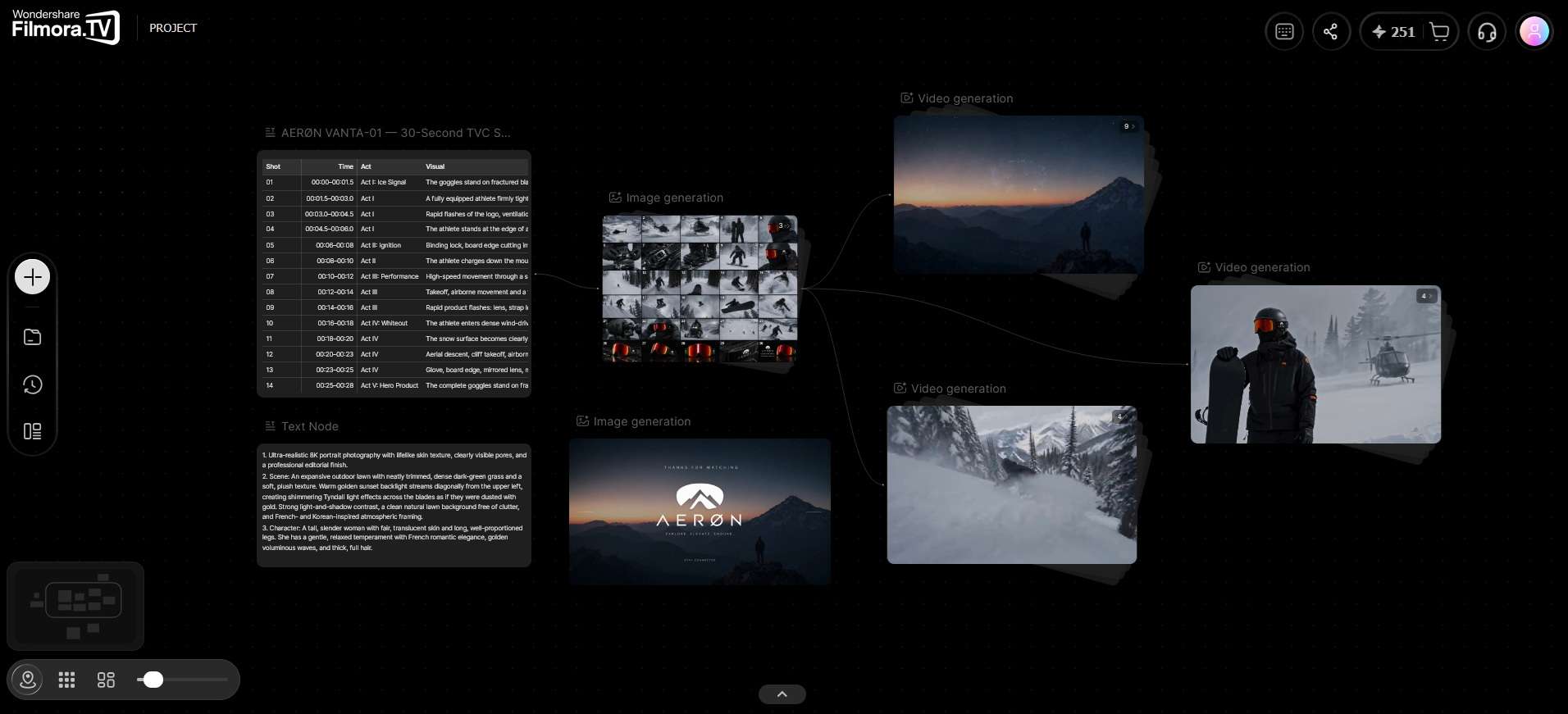
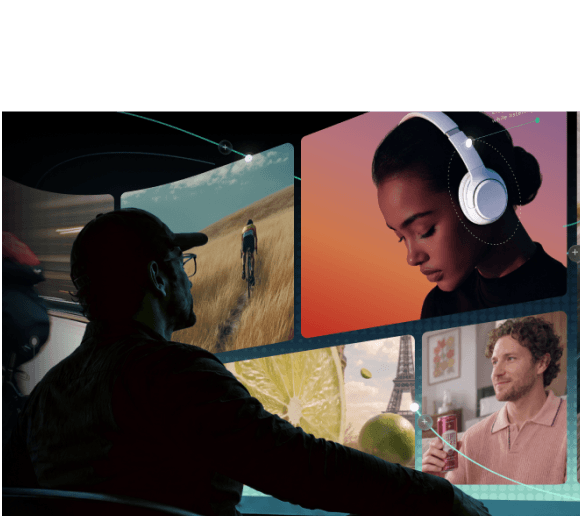
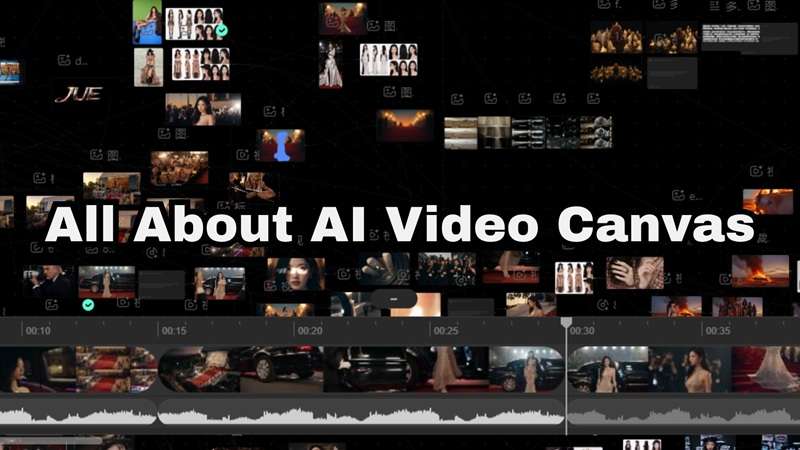
The easiest way to understand an AI video canvas is to compare it with a giant whiteboard. You can place a text prompt over here, drop a reference photo next to it, and render a generated clip right beside them without losing track of your thoughts.
The workflow is designed to give you a large workspace that can expand as your project grows, which is why you’ll often hear the term AI video infinite canvas when discussing this topic. Everything stays visible on the same surface.

What makes an infinite canvas video so powerful is the way it handles your creative process using nodes and visual connections. The core concepts of an AI video canvas include:
- Input Nodes: Hold your original script, character photos, or style references.
- Generation Nodes: Take those inputs and render fresh video clips using AI prompts.
- Branching Paths: Allow you to take one base clip and test three different lighting styles or camera angles side-by-side.
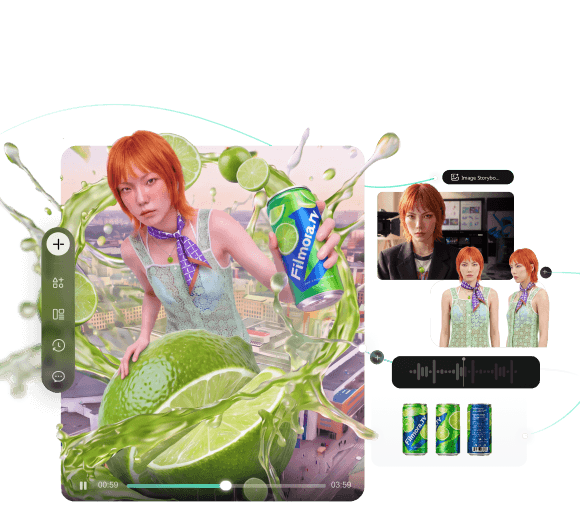
The nodes act as building blocks you can snap together. Each one holds a single piece of your workflow, such as a text prompt, a reference image, a generated clip, or an audio track. When you connect them with lines, you’re mapping out exactly how each piece feeds into the next.
If a clip comes out wrong, you just need to trace the connection back, swap out the node that’s causing the issue, and regenerate from that point forward.
AI Video Canvas vs. Traditional Video Editing: Key Differences
The way AI canvas for video creation works is pretty different from timeline-based editing, the method most people already know. Here’s a quick comparison.
| Feature | Timeline Editing | AI Video Canvas Workspace |
|---|---|---|
| Structure | Linear, time-based (left to right) | Visual, non-linear (spatial 2D board) |
| Asset Origin | Works mostly with pre-recorded or imported files | Generates fresh clips and visuals on the spot |
| Workflow Style | Strict assembly and fine-tuning | Flexible brainstorming and concept testing |
| Comparing Options | Stacking tracks or switching between hidden tabs | Side-by-side visual mapping across the board |
| Strength | Better for precise timing, trims, and locking a final edit | Better for exploring concepts and connecting scattered ideas |
| Best For | Precise pacing, audio mixing, and final cuts | Storyboarding, style consistency, and prompt testing |
One thing to note, though, is that neither approach replaces the other. They're suited to different stages of making something. A canvas is where a project figures out what it wants to be, while a timeline is where it gets finished.
Who Would Benefit Most from an AI Video Canvas?
At its core, the whole point of an AI video canvas is cutting down the tedious, back-and-forth grind that traditional video editing can turn into. Because of that, a handful of specific groups tend to get the most out of switching to this kind of workflow. Let’s break it down!
1. Content Creators

For solo creators pumping out regular content, AI video canvas is a fast way to test a hook, a visual style, or a scene idea without committing to a full edit first. You can generate a handful of variations side by side and only build out the one that actually lands.
2. Creative Agencies

Agencies juggle multiple client concepts at once, often with several stakeholders weighing in before anything gets finalized. A shared canvas gives everyone a single visual space to review directions and leave feedback, instead of chasing approvals across scattered files and email threads.
3. Marketing Teams

Marketing work is built around variations; different hooks, different visuals, different angles for the same core message. AI video canvas lets a team generate a batch of options together, compare them at a glance, and pull the strongest ones forward for A/B testing without redoing the setup each time.
4. AI Filmmakers

Anyone building a longer AI-generated story benefits from a space that tracks characters, settings, and scene connections across a whole project. Branching is especially useful here, letting a filmmaker explore two different tones or plot directions from the same starting scene before picking one.
Essential Features Every Good AI Video Canvas Should Have
If you start searching online, you will notice a handful of platforms jumping on the AI video canvas trend. But before picking one, you should know what separates a genuinely useful canvas from one that's just a fancy-looking board.

What to Look for in AI Video Canvas
- Direct Prompt Generation: You should be able to spawn text-to-video and Image-to-video generation nodes anywhere on the board with a single click.
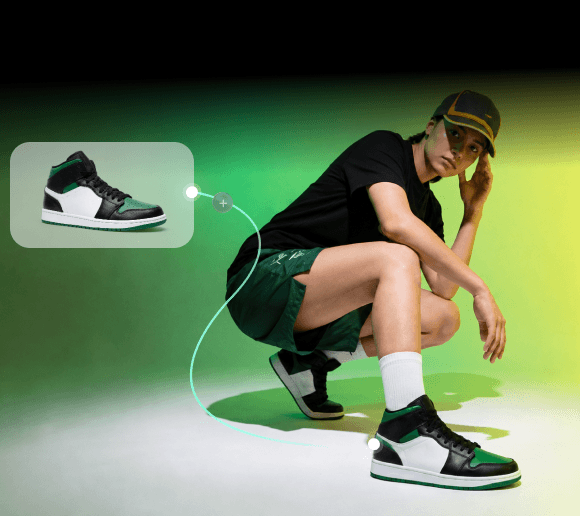
- Visual Input Pinning: Look for the ability to pin anchor images, like a specific character face or brand asset, directly beside generation nodes to keep visual styles consistent.
- Connected Node Pipelines: The workspace must let you chain actions together, such as feeding an AI-generated image straight into a motion node without exporting first.
- Branching Variations: A great canvas lets you duplicate a shot and render alternative angles or lighting moods right next to the original clip for quick comparison.
Exploring Filmora.TV: The Best AI Video Canvas Tool for Creators
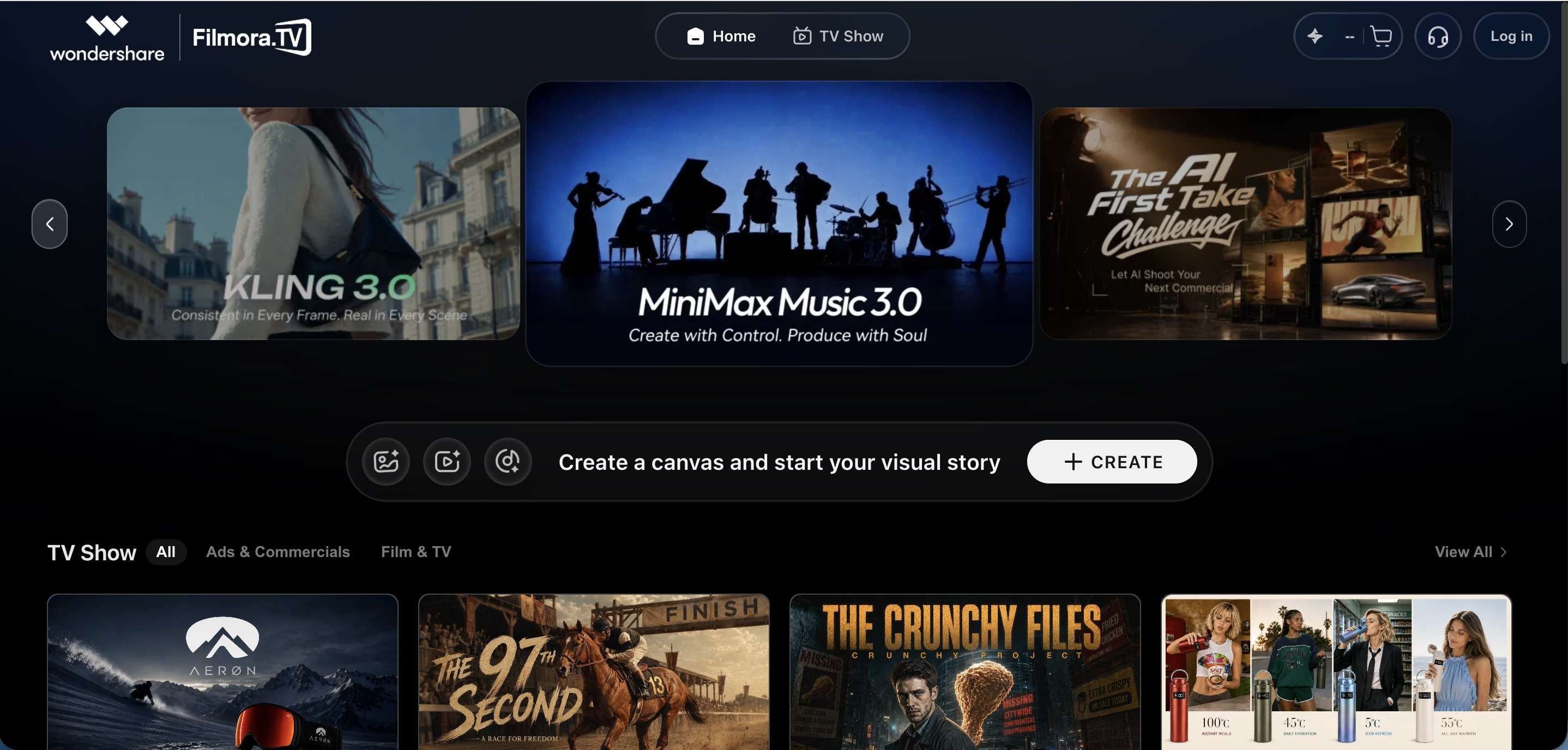
When it comes to putting all these features together seamlessly, Filmora.TV stands out as a top-tier choice for creators wanting to try AI canvas for video creation.

Filmora.TV AI canvas space is built specifically to take commercial ideas, scripts, and visual prompts and turn them into a cohesive storyboard, then a deliverable video ad, without anything getting lost in a maze of file folders along the way.
Why Filmora.TV Is Worth Trying
1. Instant Canvas-to-Timeline Dragging
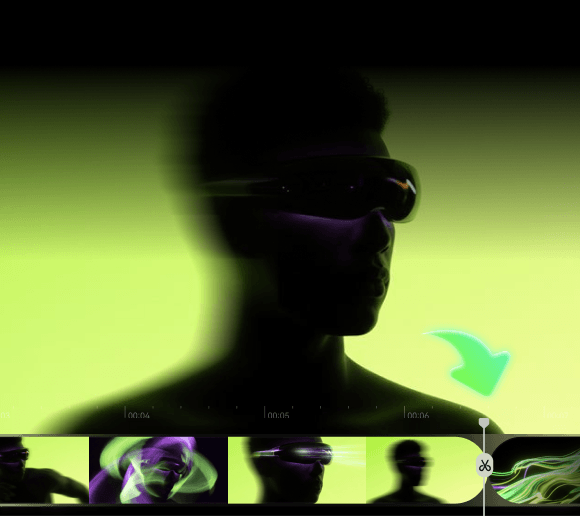
Filmora.TV keeps a full video editor built right into the bottom of the screen, so once you've settled on the clips you like from the canvas, you just drag them straight down onto the timeline to start assembling your cut. No exporting and re-importing between separate apps.

2. Multiple AI Models in One Workspace
Rather than locking you into a single generation engine, Filmora.TV's canvas lets you route different nodes through different AI models depending on the job, so you're not forced to leave the workspace just because one model isn't the right fit for a particular shot.

3. Fast Batch Editing for Ads
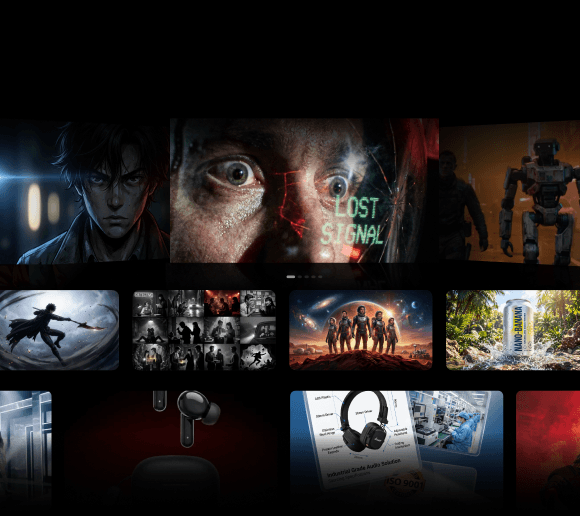
Marketers can generate several asset variations at once directly on the canvas, then pull the strongest ones into the timeline to quickly produce multiple distinct ad cuts for A/B testing, all within a matter of minutes instead of a full production cycle.

4. Shareable Boards for Review
Filmora.TV AI canvas can be shared with teammates or clients for feedback before anything gets locked into a final cut, which matters a lot for agency workflows where sign-off happens before production wraps, not after.

Conclusion
An AI video canvas gives creators a different starting point when working on a project. It allows you to spread out prompts, references, generated clips, and scene ideas, then explore different directions before settling on a final cut. For creators, agencies, and marketing teams juggling multiple directions at once, that extra room to explore can save a genuinely significant amount of back-and-forth.
If you're looking to actually try this style of workflow rather than just read about it, Filmora.TV is worth a look. Its infinite canvas for AI video lets you explore and generate content, while also providing a real editing timeline in the same platform. So, your ideas generated on the board can go straight into a finished, exportable video without ever leaving the workspace.
FAQs
-
Can an AI video canvas help me create longer videos?
Indirectly, yes. Most AI video canvas tools are built around short, connected clips rather than one continuous long-form take, so the way you get to a longer video is by generating and linking several scenes together on the board, then pulling that whole chain into a timeline for final assembly. -
Can I collaborate with other people on an AI video project?
In most modern canvas tools, yes. Since the board lives in the cloud rather than on one person's hard drive, teammates can usually open the same canvas, add their own prompts or references, and leave feedback right on the board itself. -
Can I export an entire infinite canvas layout as a complete video file, or do I export individual clips?
You can do both. In a canvas-based workflow, you generally select the clips and scenes you want, move them into the editing timeline, and create the final video there. For Filmora.TV, the canvas and built-in timeline are designed to work together, so you can move selected clips into the editing area rather than treating the entire canvas as one finished video file.