If you want to create video from images with AI while keeping the entire project organized, Filmora.TV is a tool you should check out.
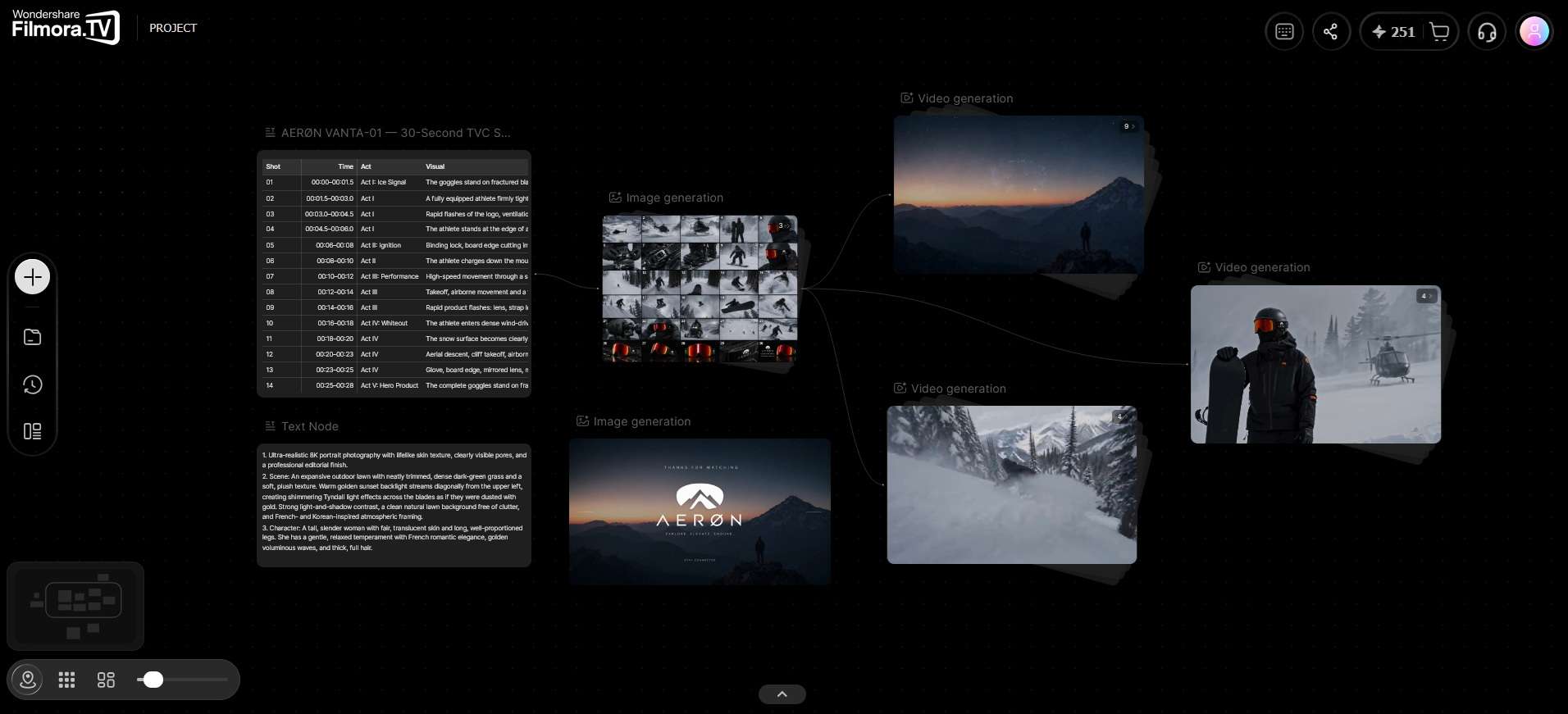
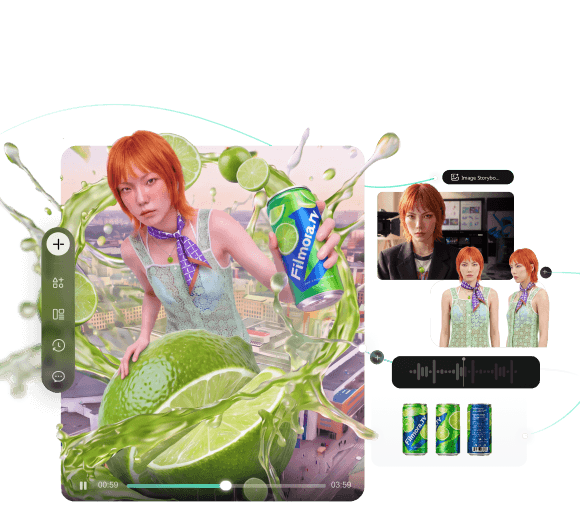
Filmora.TV is designed to turn static images into video, but the AI image-to-video generator is just one part of a larger workflow. You can drop in an image, generate a clip, and keep working on the same infinite canvas. From there, you can compare different takes, branch off into new shots, or connect nodes to build a complete sequence from a single canvas.
We'll walk you through Filmora.TV and see how its canvas-to-timeline workflow handles image-to-video generation in practice.
What Is Filmora.TV?
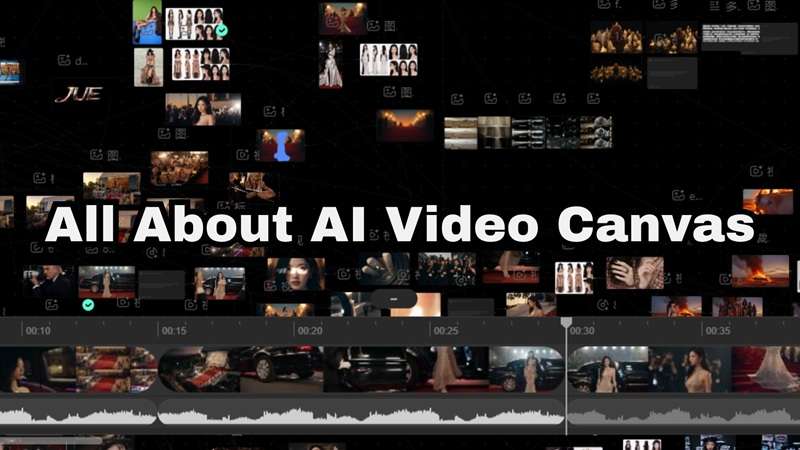
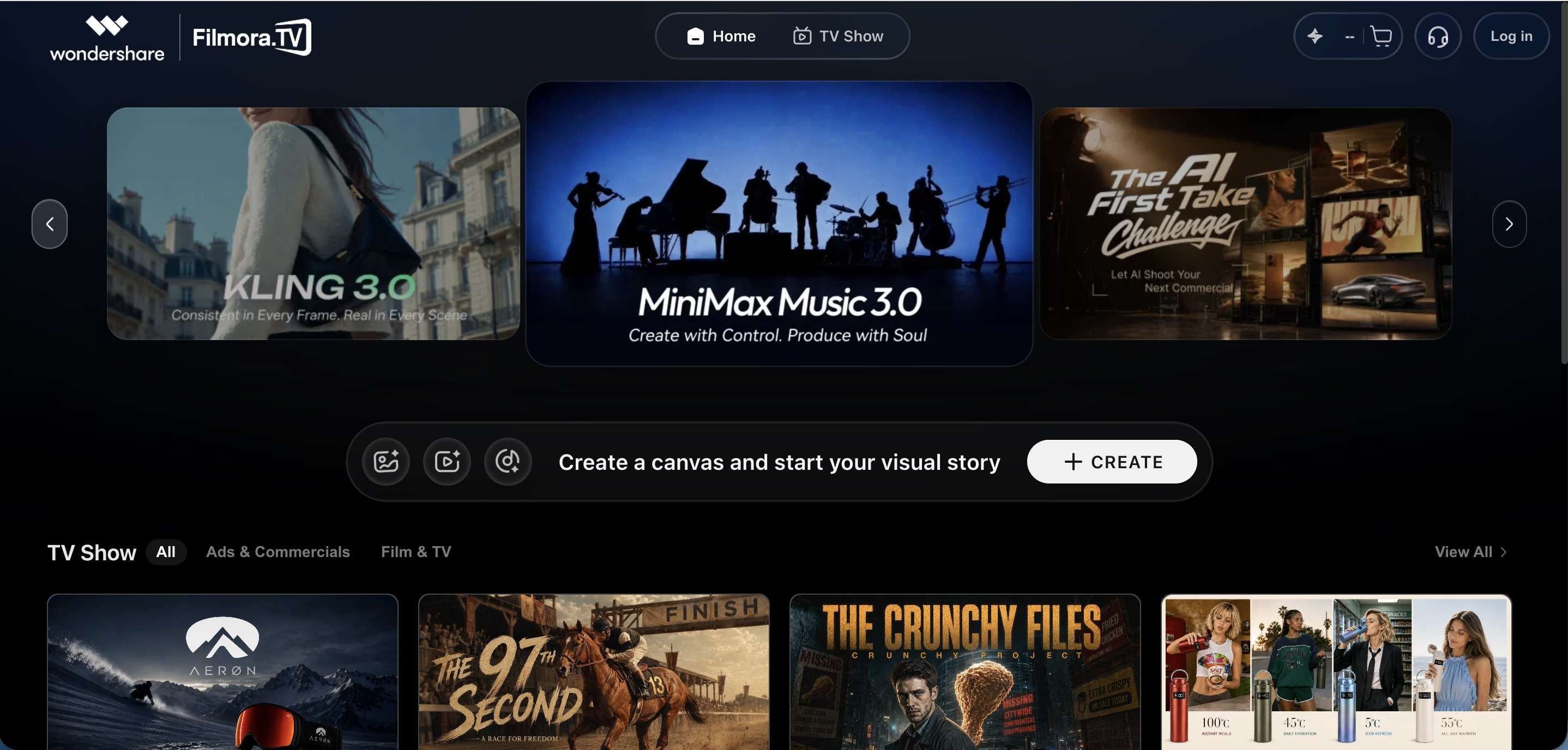
Filmora.TV is an AI-powered video creation and collaboration platform from Wondershare. Its main workspace is an infinite canvas where you can arrange ideas, prompts, images, videos, and AI-generated assets in one project.
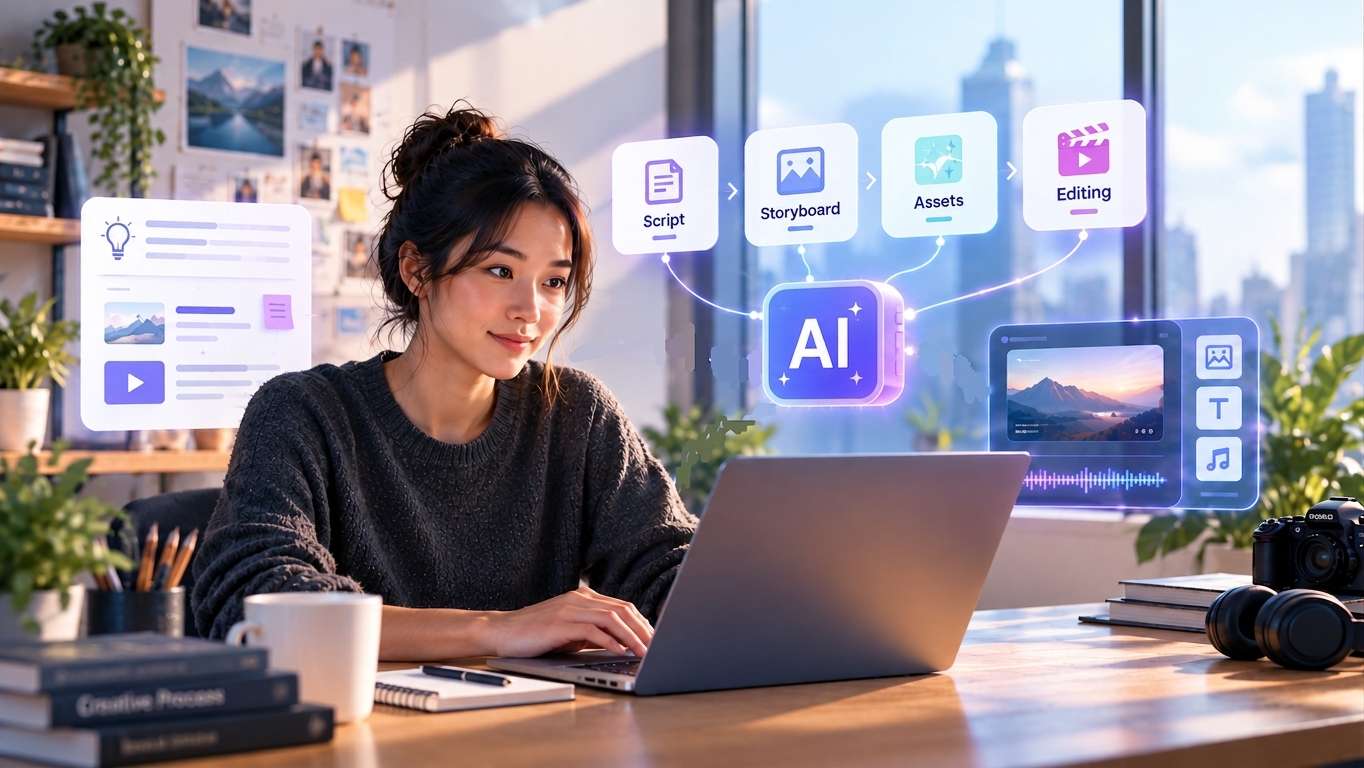
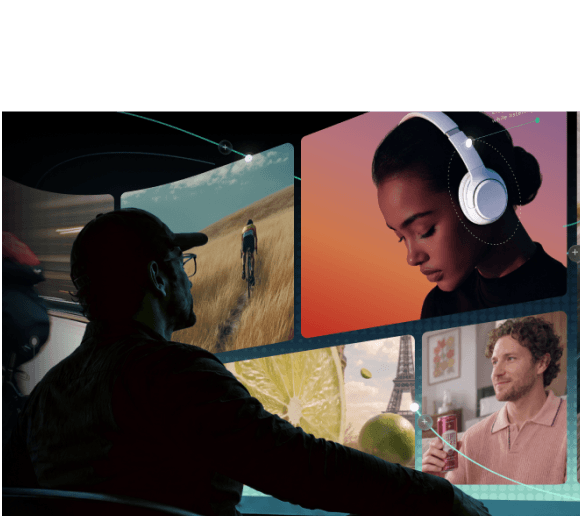
For creators using an AI image-to-video generator, Filmora.TV connects creative exploration with video production. You can generate and compare visual assets on the canvas, organize the best results, and then move selected clips into the built-in timeline to build the final video.
Filmora.TV Features That Support AI Video Creation
- Infinite Canvas – Arrange prompts, reference images, videos, and generated assets freely. This feature is useful when you need to create a video from an image with AI across multiple shots or scenes.
- AI Model Exploration – Filmora.TV AI video generator from photos works through Video Nodes, which also supports text-to-video and multi-reference video generation. Explore and compare different results with different AI models in the same workspace.
- Asset Organization – Keep source images, generated clips, prompts, and other assets together to make larger AI video generator from image projects easier to manage.
- Timeline Editing – Move selected clips into a multi-track timeline for trimming, splitting, speed adjustments, audio, subtitles, and final export.
- 3D Studio – Pose 3D characters and adjust camera angle, position, or preset shots like close-ups or 45-degree high angles. Capture a screenshot to turn it into a new canvas node, and use it as a visual reference before generating a video from an image.
- Camera and Prompt Controls – Set camera type, lens, focal length, and aperture before generating, or use prompt optimization and translation to refine results without leaving the canvas.
How Filmora.TV AI Image-to-Video Generator Works
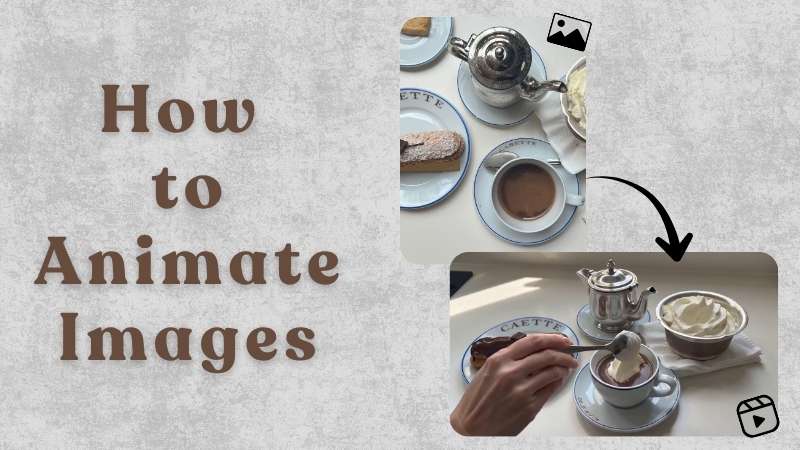
An AI image-to-video generator turns still images into moving video clips using AI-generated motion and visual effects. In Filmora.TV, source images, prompts, and generated clips are organized as connected nodes on an infinite canvas. This allows creators to test different motions, compare generated results, and combine selected clips into a multi-shot video using the built-in timeline.
-
Step 1Start With an Image or Visual Idea
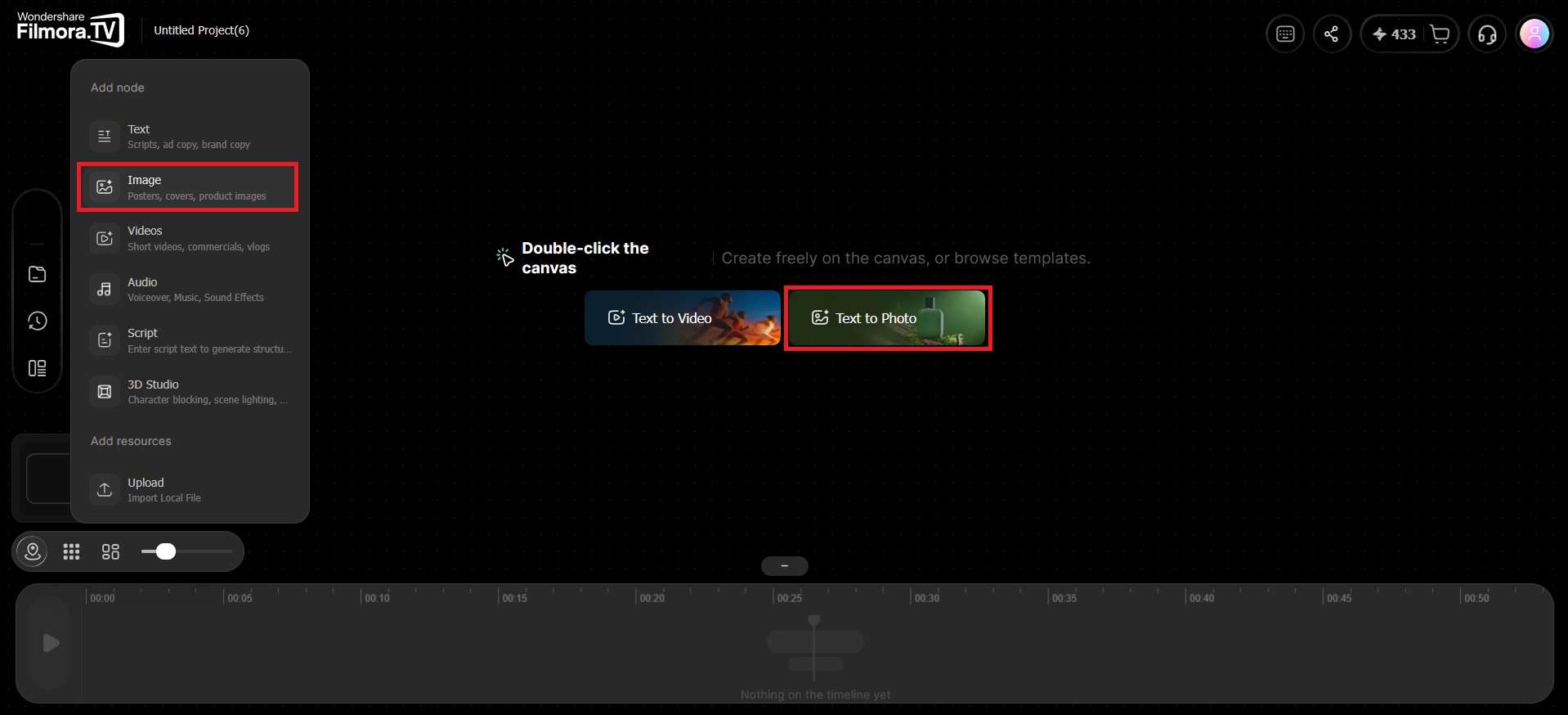
Start by adding an Image Node to the canvas, then upload your own image or pull one from the asset library.
-
Step 2Set Camera and Prompt Direction
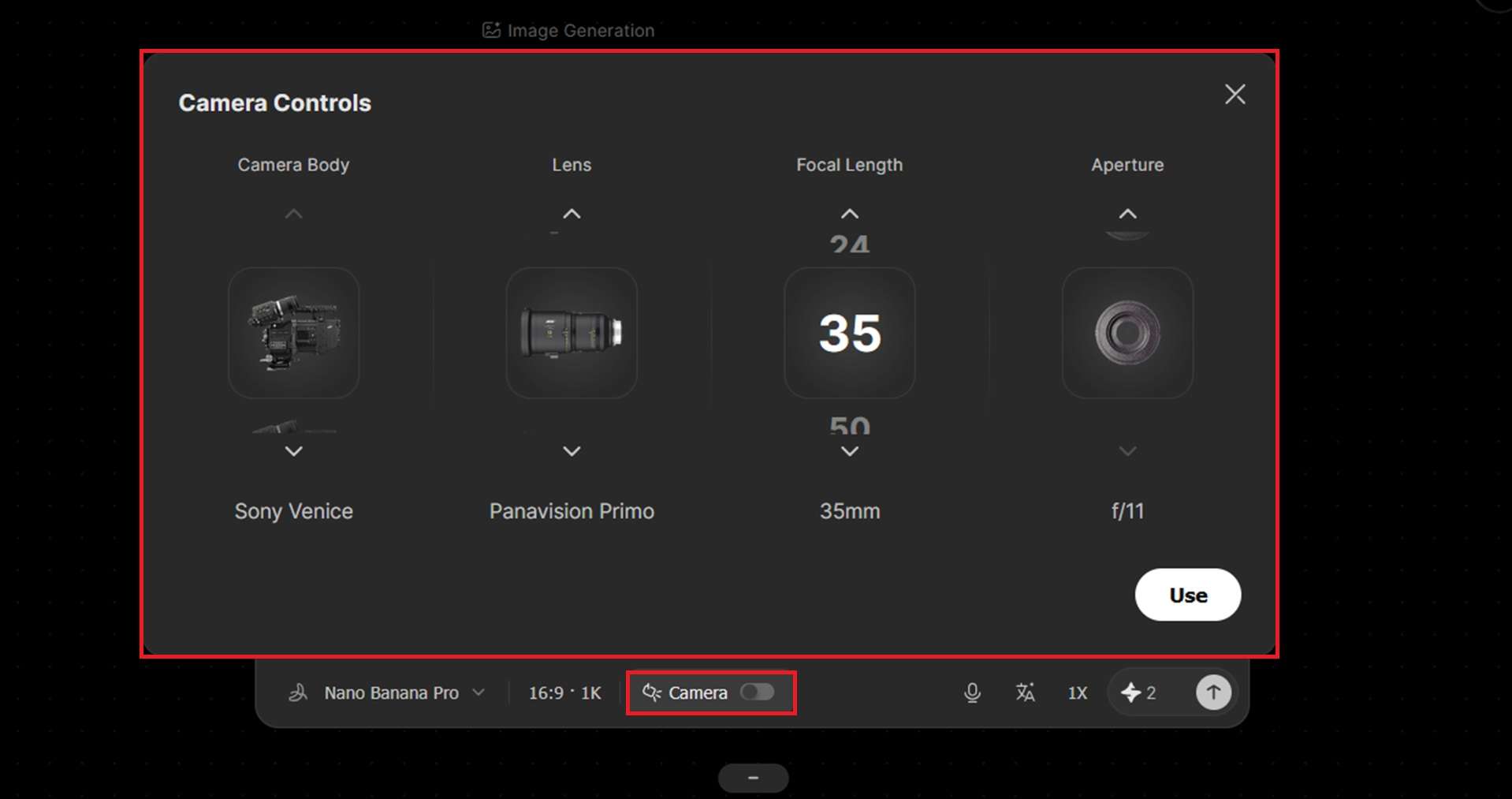
Before generating, you can use camera controls to choose camera type, lens, focal length, and aperture, or write a prompt describing the motion or style you want. Then, describe the scene and motion you want in a prompt, select an AI model, and adjust the settings.
Tip: Prompt optimization and translation are available if you want to refine wording.
-
Step 3Generate and Compare Clips
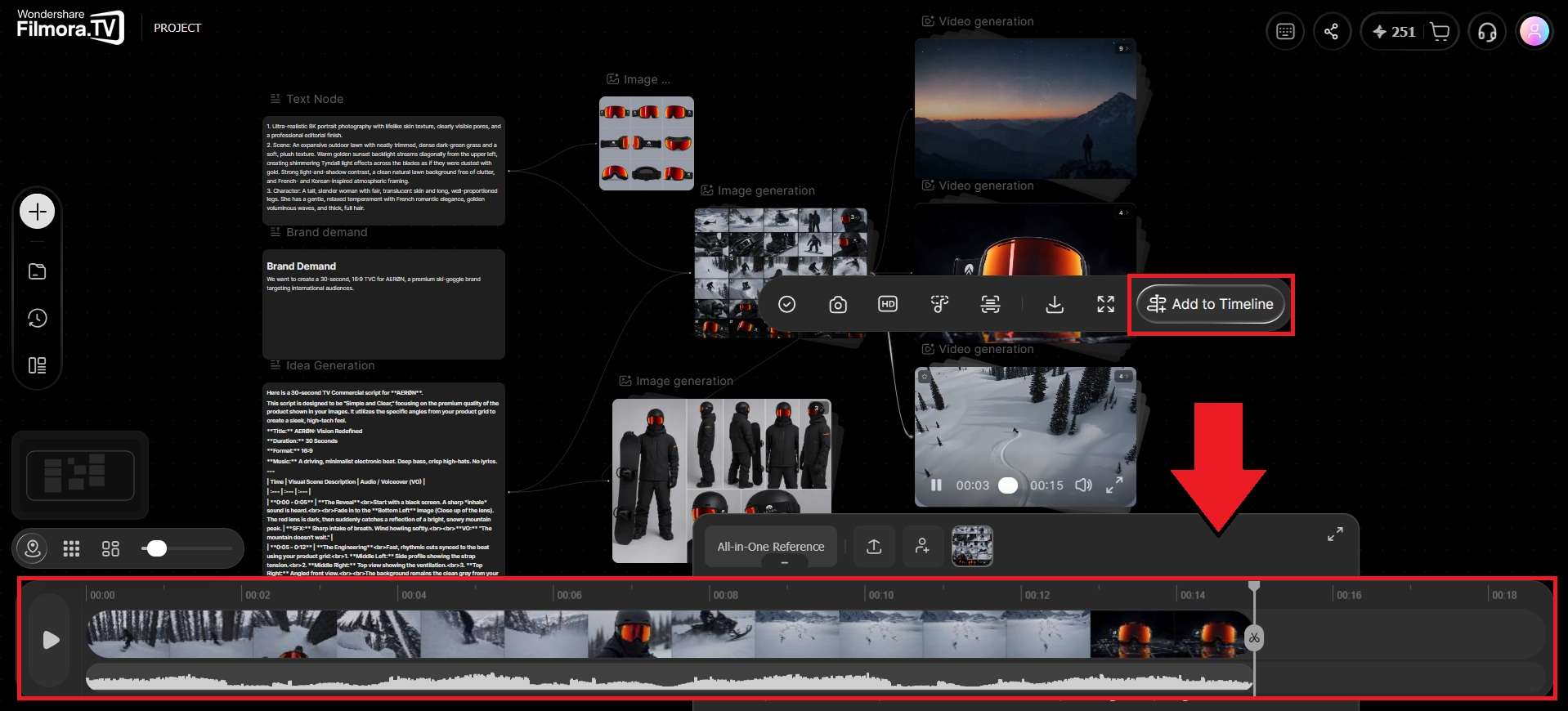
Connect the Image Node to a Video Node to generate a clip. Since the canvas supports branching, you can connect one image to multiple Video Nodes, try different models or settings side by side, and then compare results.
-
Step 4Bring the Best Clips Into the Timeline
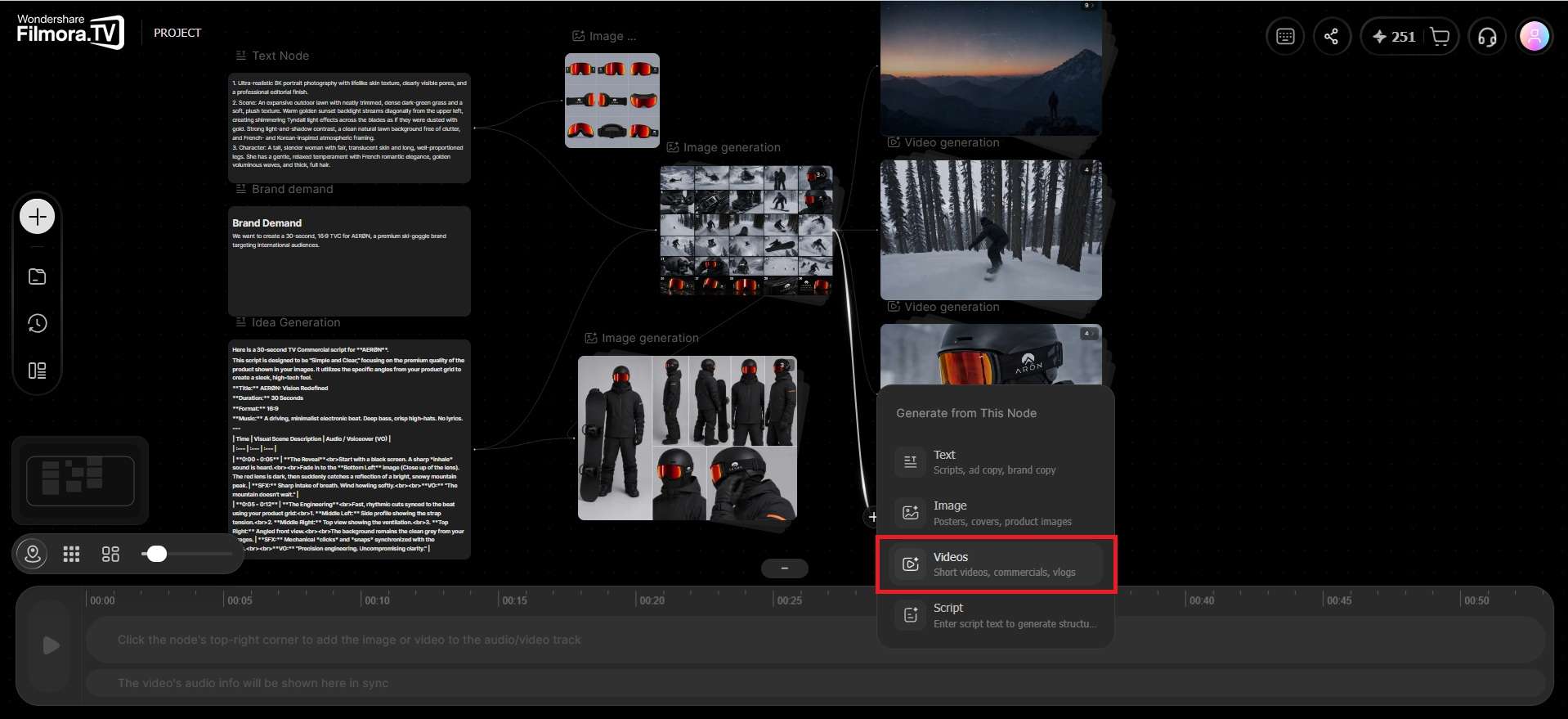
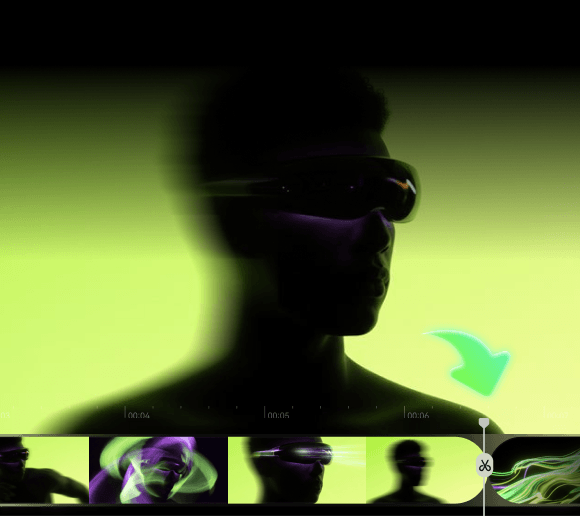
Once you have the clips you want, move them into Filmora.TV’s built-in timeline. It includes tools for trimming, splitting, speed ramping, magnetic snapping, and playback scrubbing. You can also use it to add audio, arrange the clips into a complete sequence, and export the finished video or an XML project for further editing in Wondershare Filmora.
Bring your ideas to life with powerful, easy-to-use video editing software powered by AI.

Is Filmora.TV AI Image-to-Video Generator Free?
Filmora.TV isn’t fully free to use. Like most AI photo-to-video generator platforms, its image-to-video generation and other AI features run on credits, and how far those credits go depends on the model and settings you pick. Check out Filmora.TV’s pricing page for more details.
Testing Filmora.TV With Image-to-Video Projects
To see how Filmora.TV image-to-video generator performs in real workflows, we tested it with three different types of projects. Each test used a different starting point and creative goal.
Character Image to AI Video
Since Filmora.TV keeps an asset library alongside its Image and Video Nodes, building a character-based video means you don't have to hunt down the same reference image twice. We started with a character reference image, pulled it into the canvas from the asset library, then generated multiple shots from that same source using the Video Node.
Product Image to AI Ad
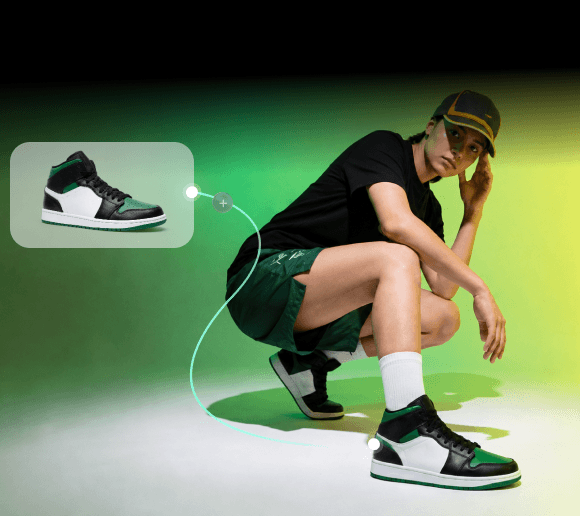
Next, Filmora.TV is also built with ad and UGC creators in mind, so we tested how well it handles turning a plain product image into a professional ad video. The result was pretty convincing, with natural motion and camera movements that made the static product image feel more like a real ad.
Multiple Images to an AI Cinematic Short
To create a short cinematic sequence, start by assigning a purpose to each source image, such as an establishing shot, a character close-up, an action scene, or an ending frame. Generate video clips from these images, compare different takes on the canvas, and select the shots that best fit your story.
Next, arrange the selected clips on Filmora.TV's timeline. Review the sequence for visual consistency, transitions, and pacing before exporting the finished video.
For a complete example, explore this
AI video creation workflowto see how individual AI-generated shots come together into a finished video.
Filmora.TV Pros and Cons
After testing Filmora.TV across several AI image-to-video generator projects, it’s now easier to see where the platform works well and where it has limitations. Its workflow can help with projects with multiple AI-generated assets, though simpler projects may not need all its features.
Pros and Cons
- Filmora.TV gives creators an infinite canvas for organizing ideas, prompts, images, videos, and AI-generated assets in one workspace
- It lets users explore and compare different AI video results within the same project
- Its image-to-video tools make it possible to turn still images into video and test different creative directions
- The built-in multi-track timeline supports trimming, speed changes, audio, and subtitles for final editing
- Collaboration tools make it easier for teams to share assets, manage permissions, and leave feedback
- Users can export finished videos or XML projects for further editing in Wondershare Filmora
- Filmora.TV may offer more features than are needed for simple, one-time image-to-video projects
- The canvas-based workflow may take some time for new users to get used to
- AI video quality and consistency can vary depending on the model, prompt, and source image
- The platform is more useful for projects with multiple assets, shots, or collaborators than quick video generation
Filmora.TV vs. Other AI Image-to-Video Generators
Image-to-video generator AI that works similar to that work similarly to Filmora.TV include TapNow and LibTV. They all bring AI generation into a visual workspace, but their differences start showing once you compare how each one handles asset organization, iteration, and final editing.
The comparison below looks at how each platform handles AI generation, creative exploration, asset organization, iteration, and final video editing.
| Filmora.TV | TapNow | LibTV | |
|---|---|---|---|
| Built for | Brand and TVC production teams needing generation and editing in one place | Solo creators and agencies wanting an AI "director" to help execute ideas | Streamlined production for creators who want scripting through export in one flow |
| Standout feature | Multi-track timeline built directly into the canvas | TapNow Agent, an AI layer that can plan, execute, and iterate across nodes on its own | Script and storyboard generation baked into the same workspace as video generation |
| AI generation | Image-to-video, text-to-video, and multi-reference video generation | Image-to-video, text-to-video, and reference-based video generation | Image-to-video, text-to-video, and image generation |
| Team collaboration | Roles, shared asset library, in-canvas commenting, shared credit pool | Shared team canvas, workspace-level member and credit management, usage tracking | Shared asset library, permission and credit assignment, automatic asset handover on role changes |
| AI models | Seedance, Kling, Vidu, Wan, Veo, Hailuo, MiniMax, and other AI models | Seedance, MiniMax, Wan, FLUX, and other AI models | Seedance, Kling, Wan, Seedream, Midjourney, and other AI models |
Conclusion
For projects that require more than a single animated image, Filmora.TV connects image-to-video generation with visual planning and timeline editing. You can experiment with different motions, compare generated clips, and arrange selected shots into a complete sequence. This makes it a practical option for creating short films, product ads, social content, and other videos that involve multiple scenes.
Filmora.TV may feel like more than you need for a quick image animation, but for larger AI video projects, having everything connected in one workspace can save time and make the creative process easier to manage.
FAQs
-
1. Can Filmora.TV create videos from images with AI?
Yes. Filmora.TV supports image-to-video AI generation, including multi-reference video generation. You can create different versions from your images and compare the results.
-
2. How do I turn multiple images into one AI video?
Upload your images to Filmora.TV and use them as references to generate video clips. Compare different takes on the canvas, select the shots that work best together, and arrange them on the built-in timeline. You can then adjust the pacing, add audio or subtitles, and export the complete video.
-
3. What is the difference between Filmora.TV and Filmora?
Filmora.TV focuses on AI generation, visual exploration, and collaboration through an infinite canvas. Filmora is a timeline-based video editor focused on detailed post-production. Filmora.TV can also export XML projects to Filmora.