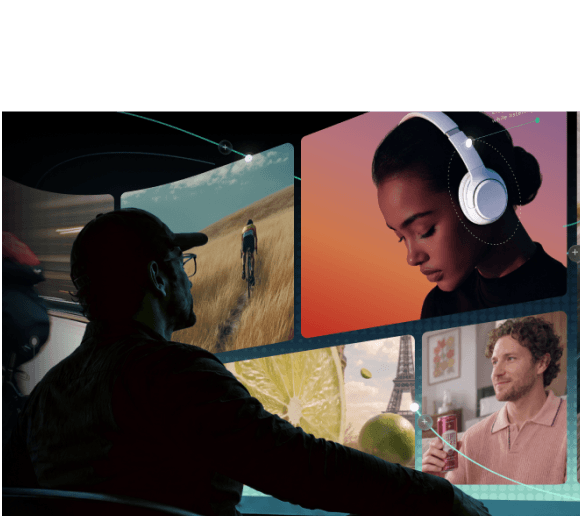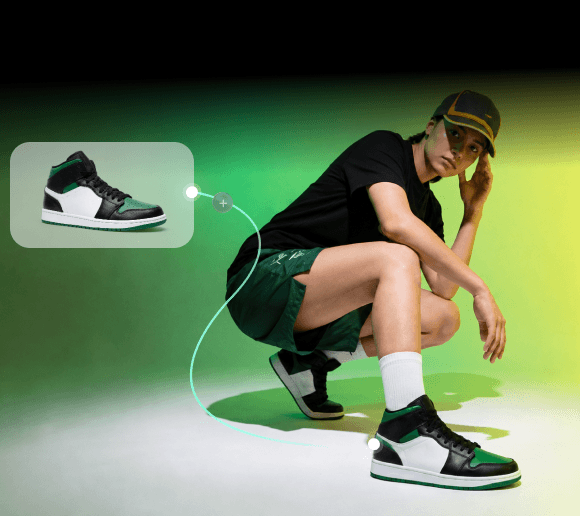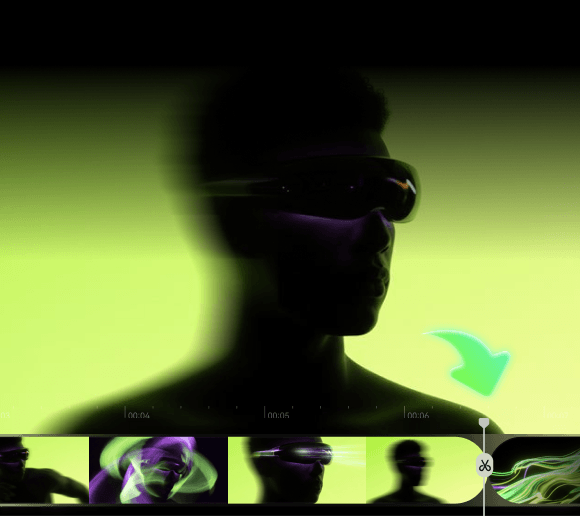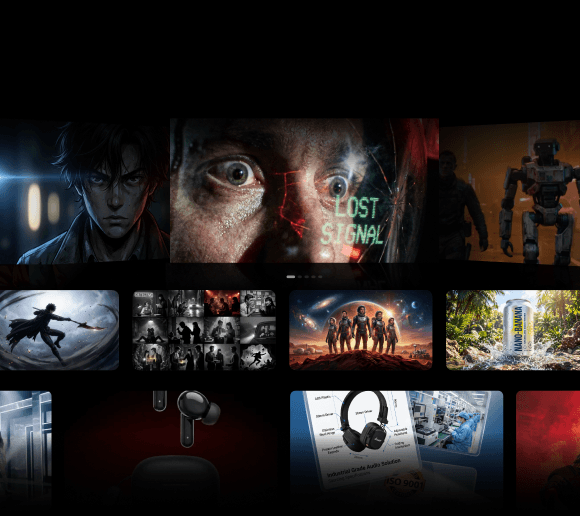
AI video generation doesn’t always have to be a one-prompt process with little control over what happens next. A node-based AI video generator breaks the creation process into separate, visible steps. You can control image generation, motion, camera movement, and audio individually rather than relying on a single box to handle everything.
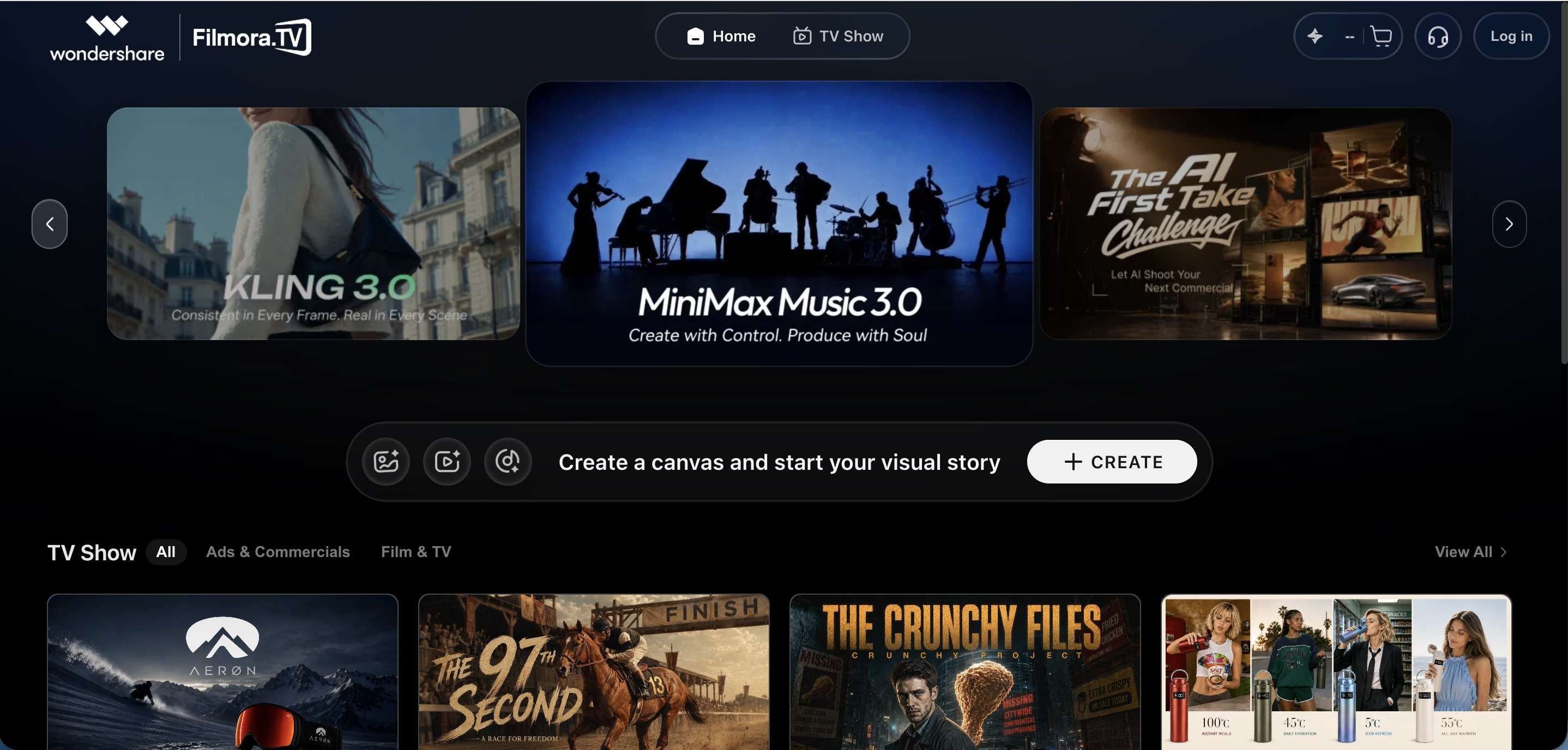
Filmora.TV is one of the best node-based AI video generators that uses a visual canvas where each part of the process has its own connected node. You can adjust individual nodes, change how they interact, and build a video step by step. We’ll break down how it works and walk through the features that make Filmora.TV worth trying.
What is a Node-based AI Video Generator?
A node-based AI video generator is a video creation tool that breaks the generation process into connected steps, called nodes, instead of relying on a single prompt to produce the final result. Each node handles one part of the process, like generating an image or adding motion, and the output of one node feeds into the next.
If you’re familiar with a node-based video editor like DaVinci Resolve, its Fusion page uses a similar structure. But instead of wiring together compositing and visual effects, a node-based AI video generator wires together AI generation steps, each as its own connected block (node) on a canvas.
Node-based vs. Standard Prompt-based Generator
Compared with a standard prompt-based generator, a node-based tool gives you more visibility into how the video is created. You can see the differences more clearly in the comparison below.
| Node-based | Standard Prompt-based | |
|---|---|---|
| Process | Broken into connected, visible steps | One prompt in, one output out |
| Control | Adjust each step individually | Limited to rewriting the prompt |
| Reusability | Save and rerun the same workflow | Re-prompt from scratch each time |
| Models | Can run multiple models on one canvas | Usually one model at a time |
| Best for | Repeatable, multi-step production | Quick, one-off generations |
Best Node-Based AI Video Generator: Filmora.TV
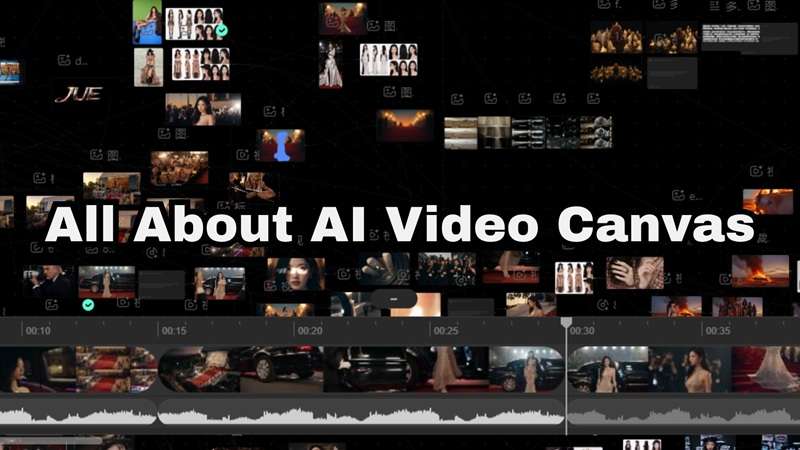
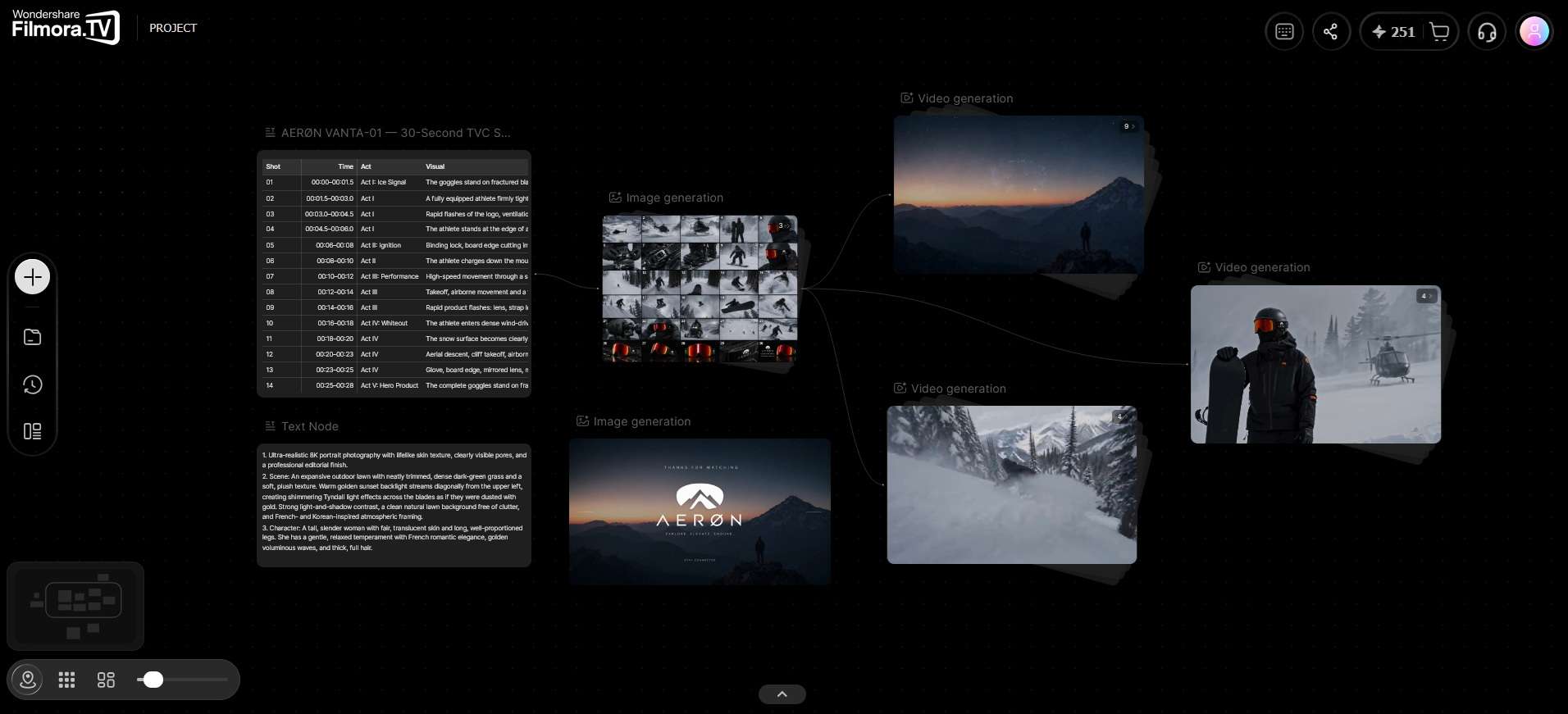
Filmora.TV is one of the best node-based AI video generators that uses an infinite visual canvas to organize your ideas, scripts, images, video assets, and generated content in one workspace. The canvas gives you room to explore different creative directions, generate and compare outputs from multiple AI models, and build your video shot by shot.
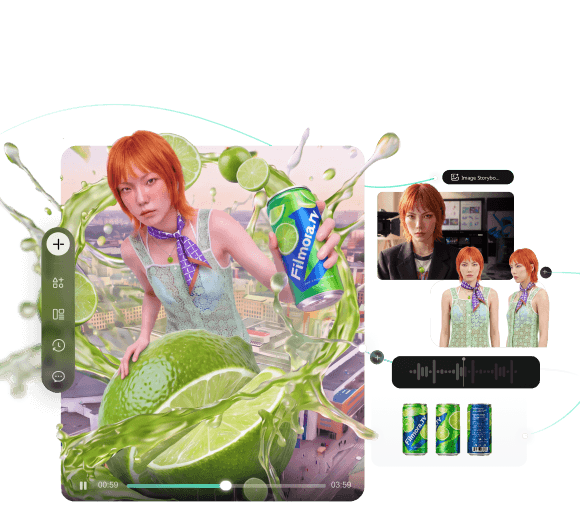
You can also make use of this setup to organize characters and other assets, arrange tasks in sequence, and create a rough cut before exporting the finished video. With everything on one canvas, Filmora.TV works as a node-based AI image and video generator that takes you from idea to finished cut without jumping between multiple tools.
Features of Filmora.TV
- Infinite Visual Canvas: Every asset you create or import, whether it's a script, an image, a video clip, or an audio file, lives on one open canvas as a node. Nodes can be moved, grouped, and connected in any order.
- Multi-model Generation: Each node type gives you a choice of AI models instead of locking you into one. You can generate the same prompt across different models and compare the results side by side.
- Asset Library: Save characters, scenes, images, and other recurring assets to a library you can pull into any node. Use it to keep visual elements consistent across scenes and projects.
- Templates: Browse templates from the canvas panel to jumpstart a project instead of building from a blank canvas. Select any node inside a template to see its prompt and creative direction, then edit it to fit your own concept or generate a different version.
- Team Collaboration: Work on the same canvas with your team through shared roles, in-canvas commenting, and a shared credit pool. Everyone can contribute to the node AI video project without sharing files back and forth.
- TV Shows: Share and showcase your own projects on TV, or get inspired by example projects from other creators, and adapt their node setups for your own workflow.
How to Use Node-Based AI Video Generator
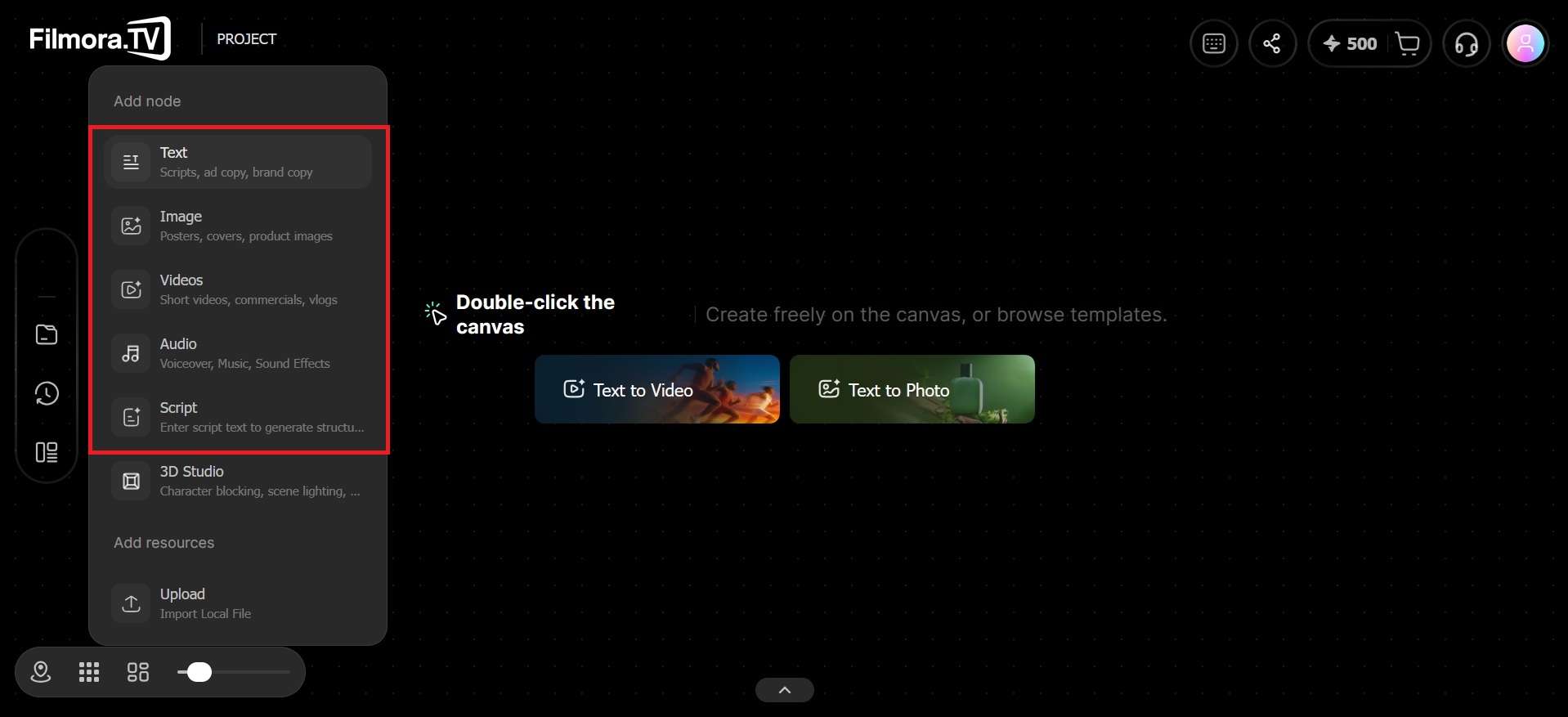
Filmora.TV’s canvas works around five node types: Text, Image, Video, Audio, and Script. You can add as many as your project needs, connect them in any order, and branch a single node into multiple paths. Below is a tutorial on how to use Filmora.TV node-based AI tool for video generation:
-
Step 1Add a Node
Visit the Filmora.tv website and create a new project. On the canvas, click Add (+) and choose a node type, whether it's Text, Image, Video, Audio, or Script, and start building from there.
-
Step 2Pick a Model and Enter Your Prompt
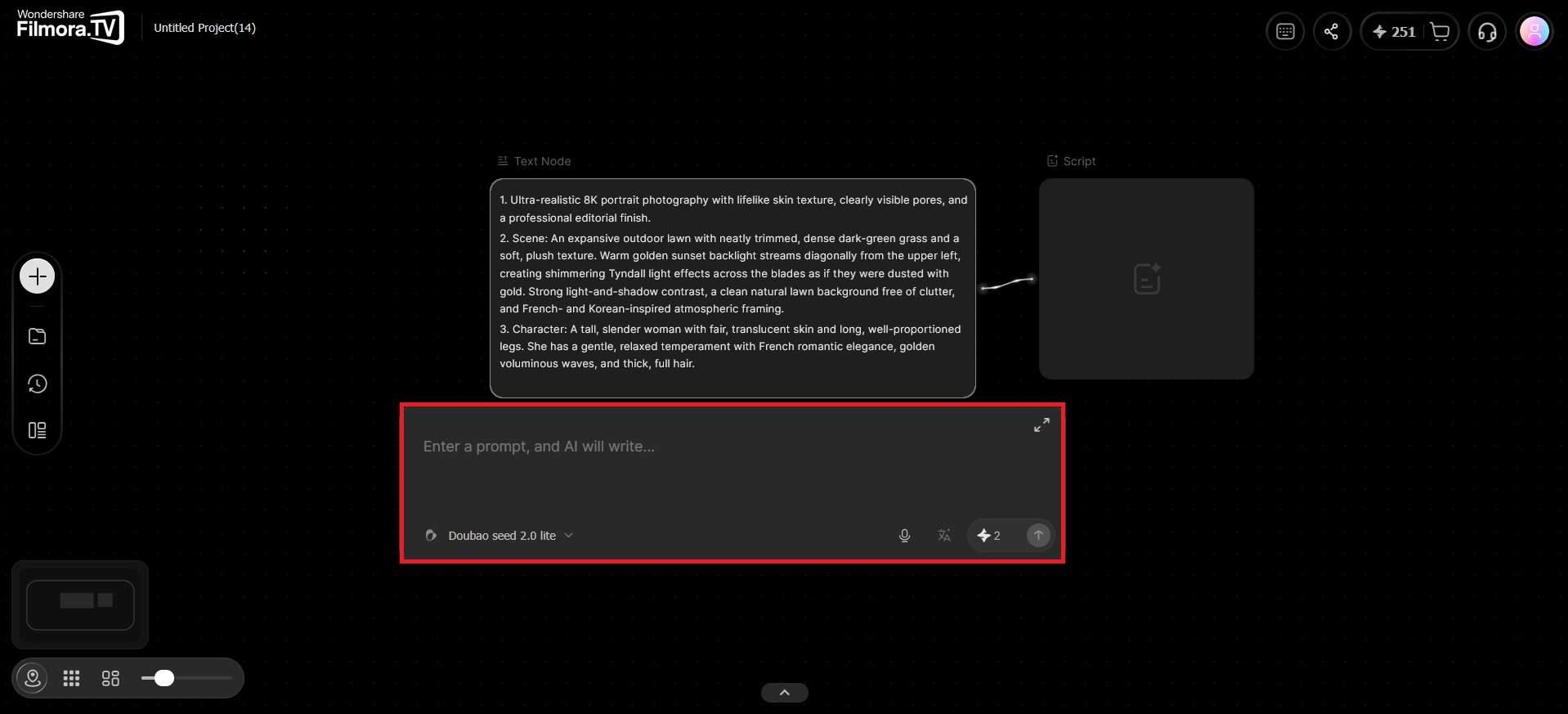
All node types give you a choice of AI models. Select one, type or speak your prompt, adjust the settings, and hit the generate button. For Image and Video nodes, you can also upload a reference image or pull one from your asset library first.
-
Step 3Connect Your Nodes
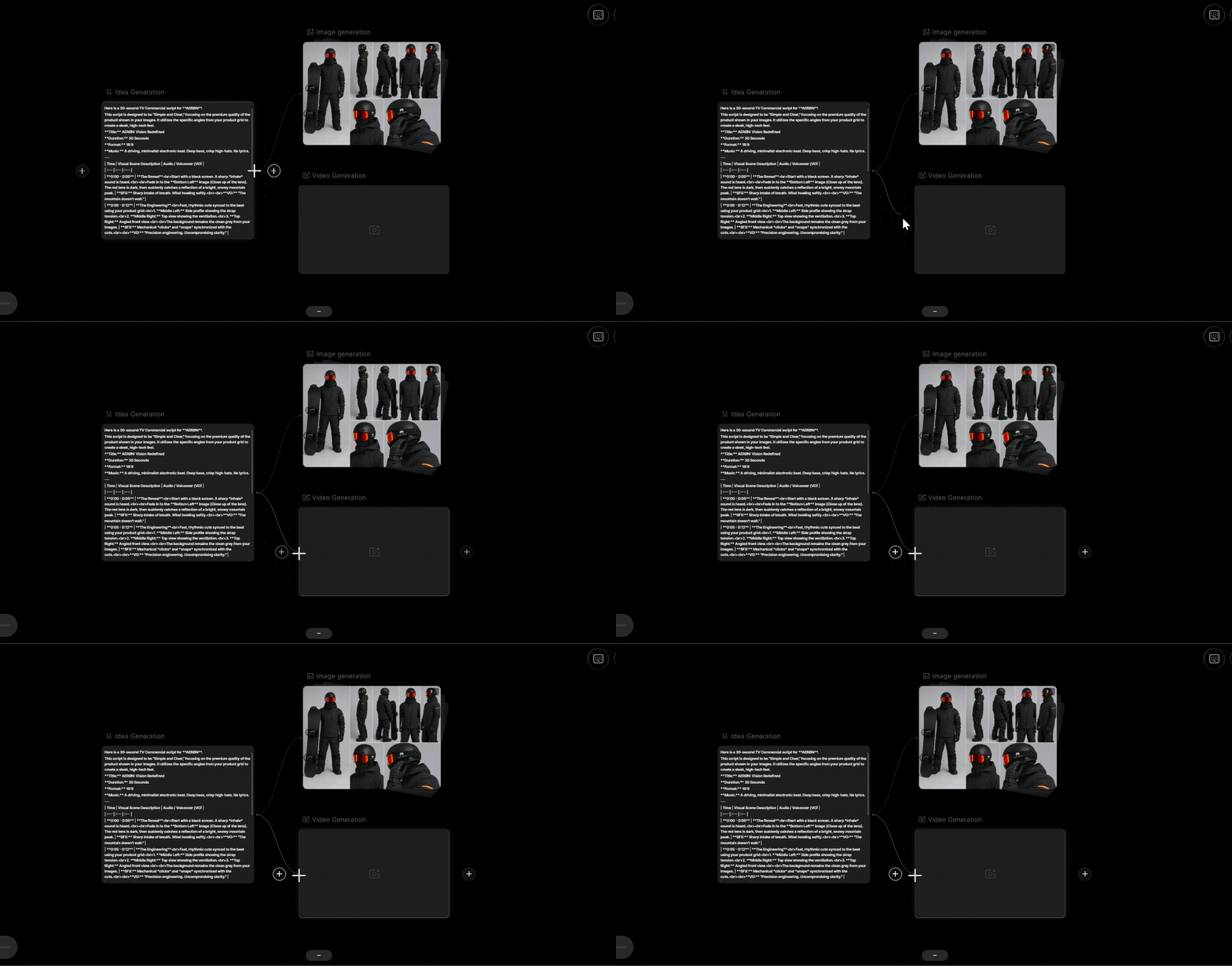
Connect your nodes to build a full sequence by hovering over a node's edge until a + appears, then dragging it to the next node to link them. You can also branch in multiple directions, so one script or image node can feed into several different outputs at once.
-
Step 4Refine and Export
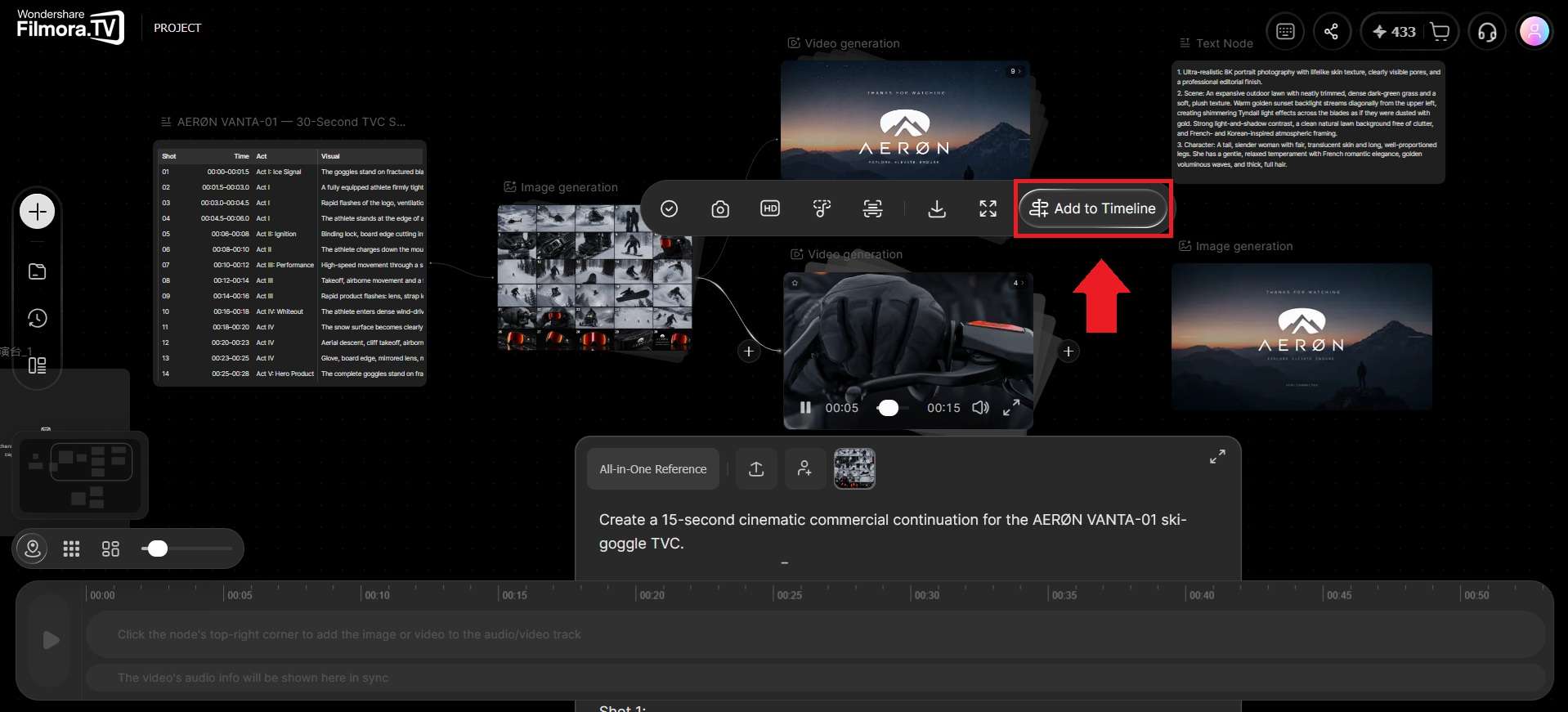
Review your generated results and refine individual nodes when a shot needs improvement. Compare different takes on the canvas, select the clips that best support your story, and move them to Filmora.TV's built-in timeline. Arrange the shots in sequence and adjust their pacing to create a coherent rough cut.
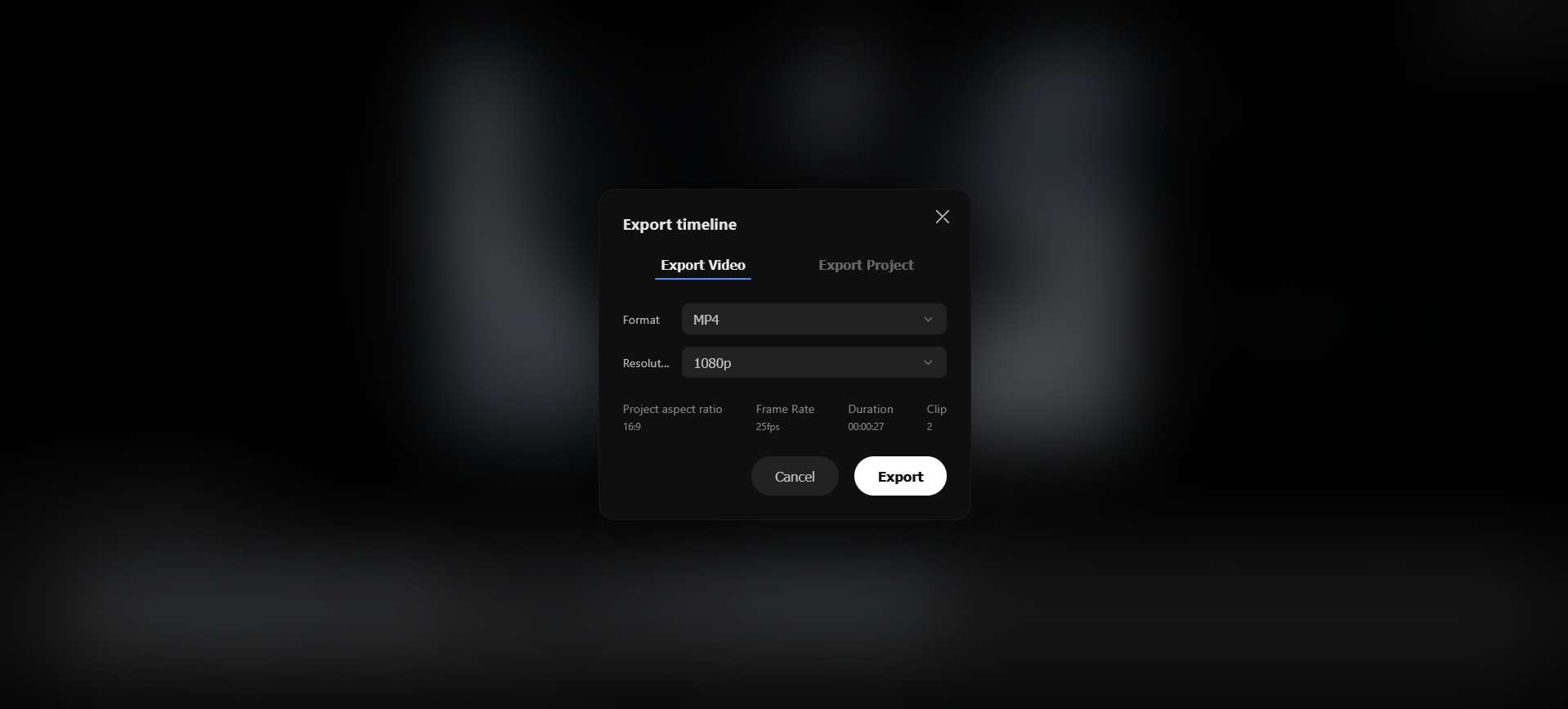
Then, export to download or share your creation, or save it in XML format to bring the project into a video editor like Filmora for more detailed editing.
Want to see how connected nodes support a complete video project? Explore this
AI video creation workflowto follow a product concept from shot planning and AI generation to a rough cut and finished video.
Pros and Cons of Node-Based AI Video Generator
For creators, a node-based AI video editor makes production scalable. You can test different inputs, models, or settings side by side, then keep the version that works best. And after building a workflow, you can also swap out an input node and rerun the same sequence to get a new output without rebuilding the process each time.
But this flexibility comes with a trade-off, mostly around setup time, the amount of work involved, and cost. See the pros and cons below to decide if it's the right fit for you.
- You can see and control what’s happening at every step, not just the final result
- Lets you build a workflow once and reuse it for future projects
- If something's off, you can pinpoint and fix that one step instead of starting over
- Run the same prompt through different AI models and pick the best result
- Handles high-volume production without extra manual work
- Takes longer to learn than just typing a prompt
- Your first output takes more time to set up
- Big canvases with lots of nodes can get messy fast
- Running several models on one project may add up in cost
When to Use a Node-based AI Video Generator
An AI node editor is best used when:
- You’re building a workflow you'll reuse
- You’re running high-volume variations for testing
- You need precise control over each generation step
- You’re producing recurring content with consistent characters or visuals
- You need specific reference shots or camera angles
A single-prompt tool, on the other hand, is still the better call for one-off clips or quick posts.
Conclusion
A node-based AI video generator like Filmora.TV gives you a level of control that a single prompt can't match. You get to see every step of the process, from the script to the final cut, and adjust exactly the part that needs work instead of starting over.
This tool works using a visual canvas, where you connect text, image, video, and audio nodes to build out your project, generate and compare results from different AI models, and then move them to a timeline editor in the same platform.
FAQs
-
What is “node” in an AI video generator?
A node is a single building block in the workflow that handles one specific task, like generating a script, an image, a video clip, or audio. Each node produces an output that can feed into the next node, and connecting several nodes together builds a complete production pipeline.
-
What’s the best free node-based AI video generator?
ComfyUI is the most well-known free option, since it's open-source and doesn't require a subscription. But because it runs locally on your own machine, you’ll need a capable GPU and some technical setup to get it running smoothly.
-
Can I use node-based AI video tools for commercial projects?
Filmora.TV AI node editor allows commercial use of generated content if you're on a paid subscription. Always check which plan you're on and the specific terms tied to it before using content for client work, ads, or monetized platforms.
-
Can a node-based AI video generator also generate images?
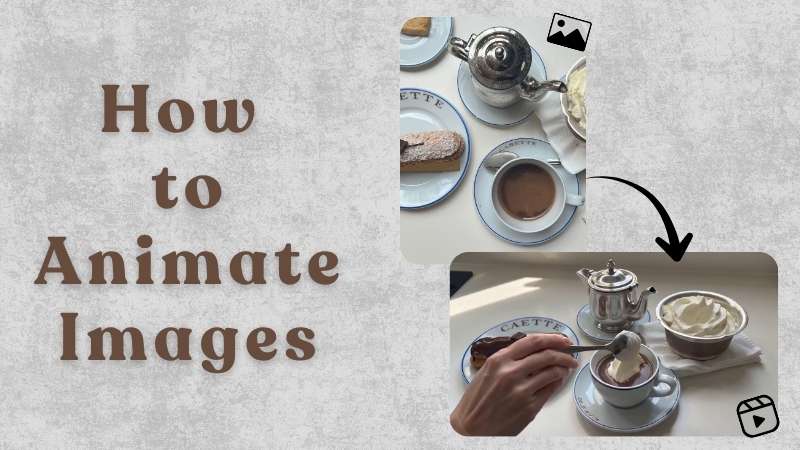
Yes, in most node-based platforms, image generation is built in as its own node type, separate from video. On Filmora.TV, for example, an Image Node generates stills like product shots or posters, and you can connect that output directly into a Video Node to animate it.