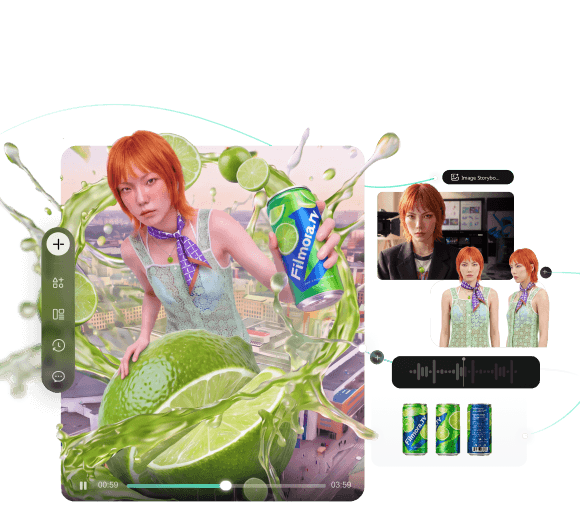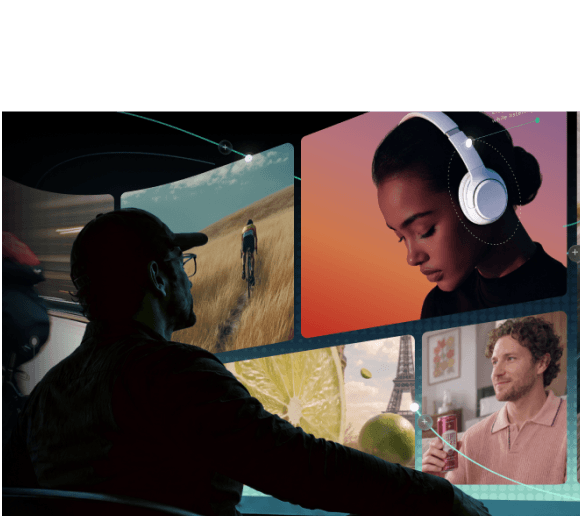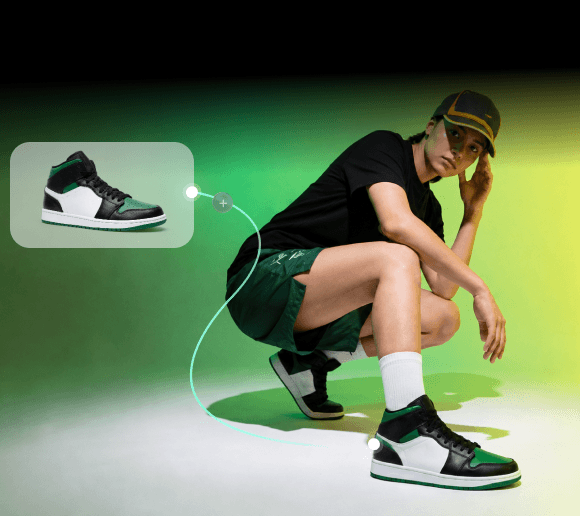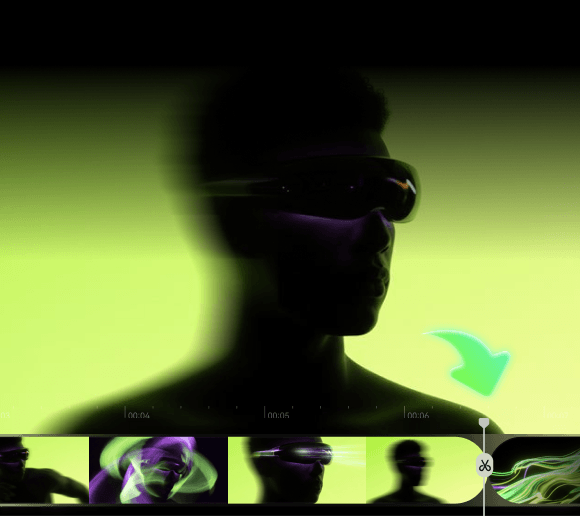
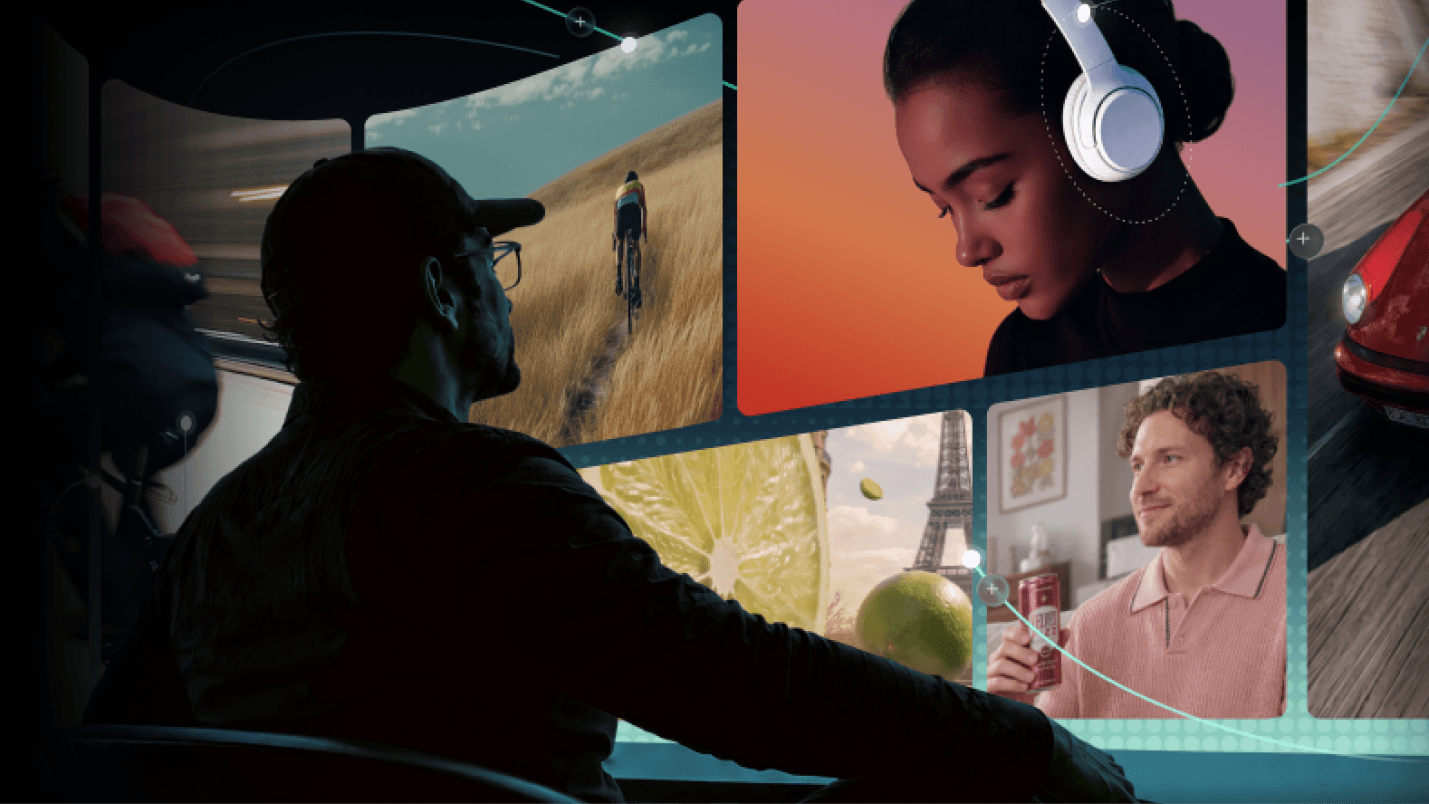
There’s a lot you can create from a single picture, from short videos and social posts to eye-catching visual stories. Plus, video content continues to be in high demand. Wyzowl found that 84% of consumers want to see more videos from brands in 2026.
As technology evolves, you can now use different ways to learn how to animate images without needing advanced editing skills. So, if you've ever wondered, “How do I animate a picture?”, you’re not out of options, even if you’re a complete beginner. So, read along for a simple guide that will walk you through the process, along with the best tools that can make the process much easier.
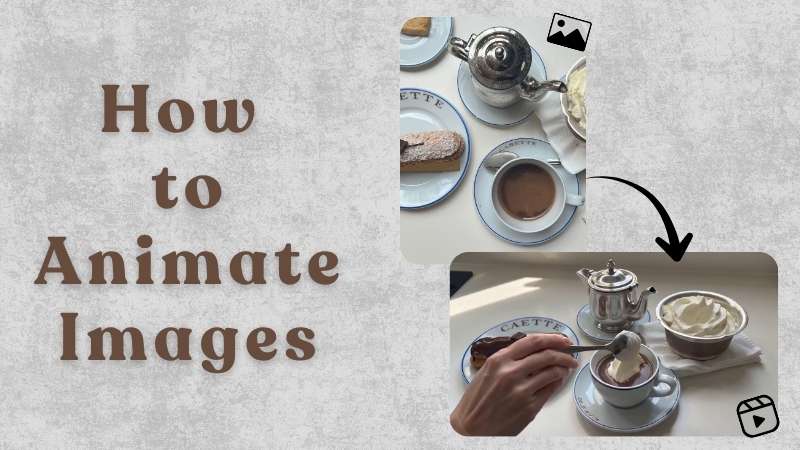
From Still to Moving: Different Ways to Animate Images
There’s more than one way to learn how to animate a picture. You can create simple movement with traditional editing techniques, add depth with layered images, or use AI to generate new motion. Let’s take a closer look at how to animate pictures using these methods.
1. Method 1: Manual Keyframing (The Classic Way)
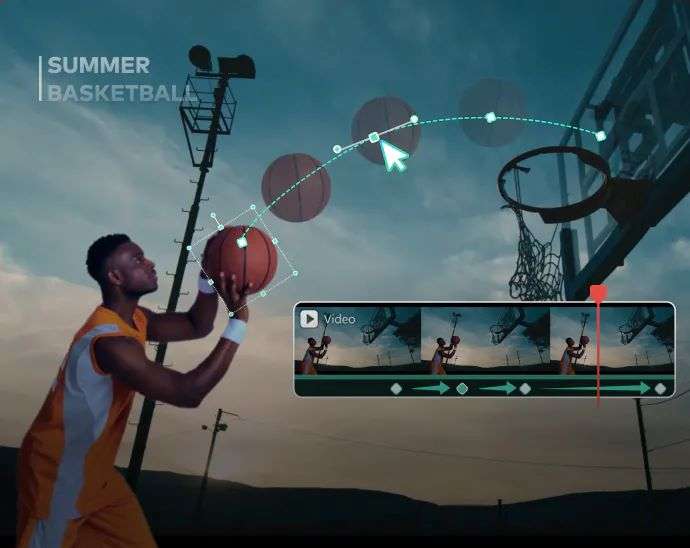
Manual keyframing is one of the simplest ways on how to animate a still image. For example, you can start with the full picture and slowly zoom in on one area. You can also pan from one side of the image to another.
2. Method 2: 2.5D Parallax & Depth Layers
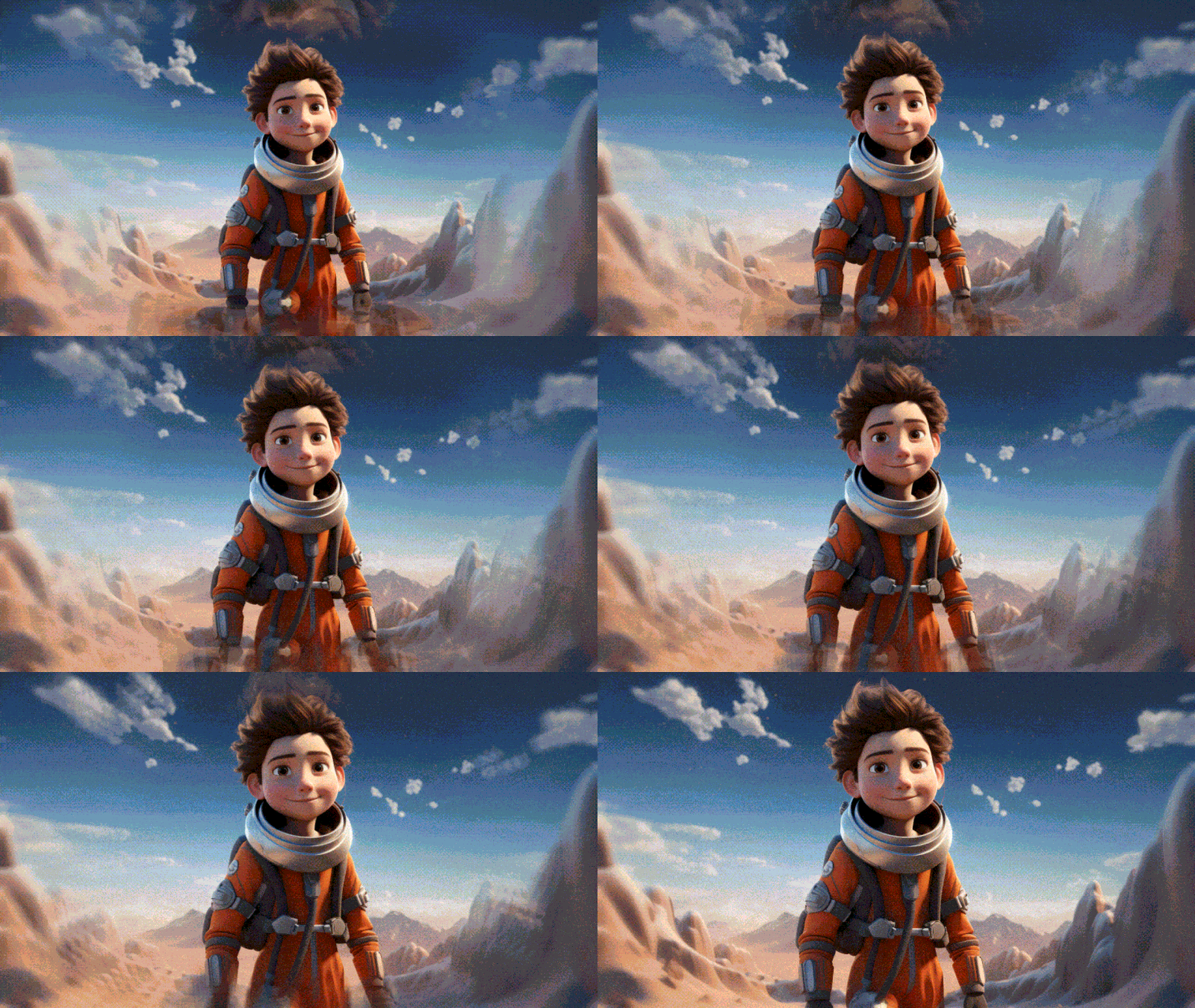
The parallax effect helps give your image a subtle 3D feel by separating the foreground from the background and giving each layer its own movement. Imagine a photo of a person standing in front of a city. You can make the person move toward the camera while the buildings shift slightly to the side.
3. Method 3: Cinemagraph & Looping Masks
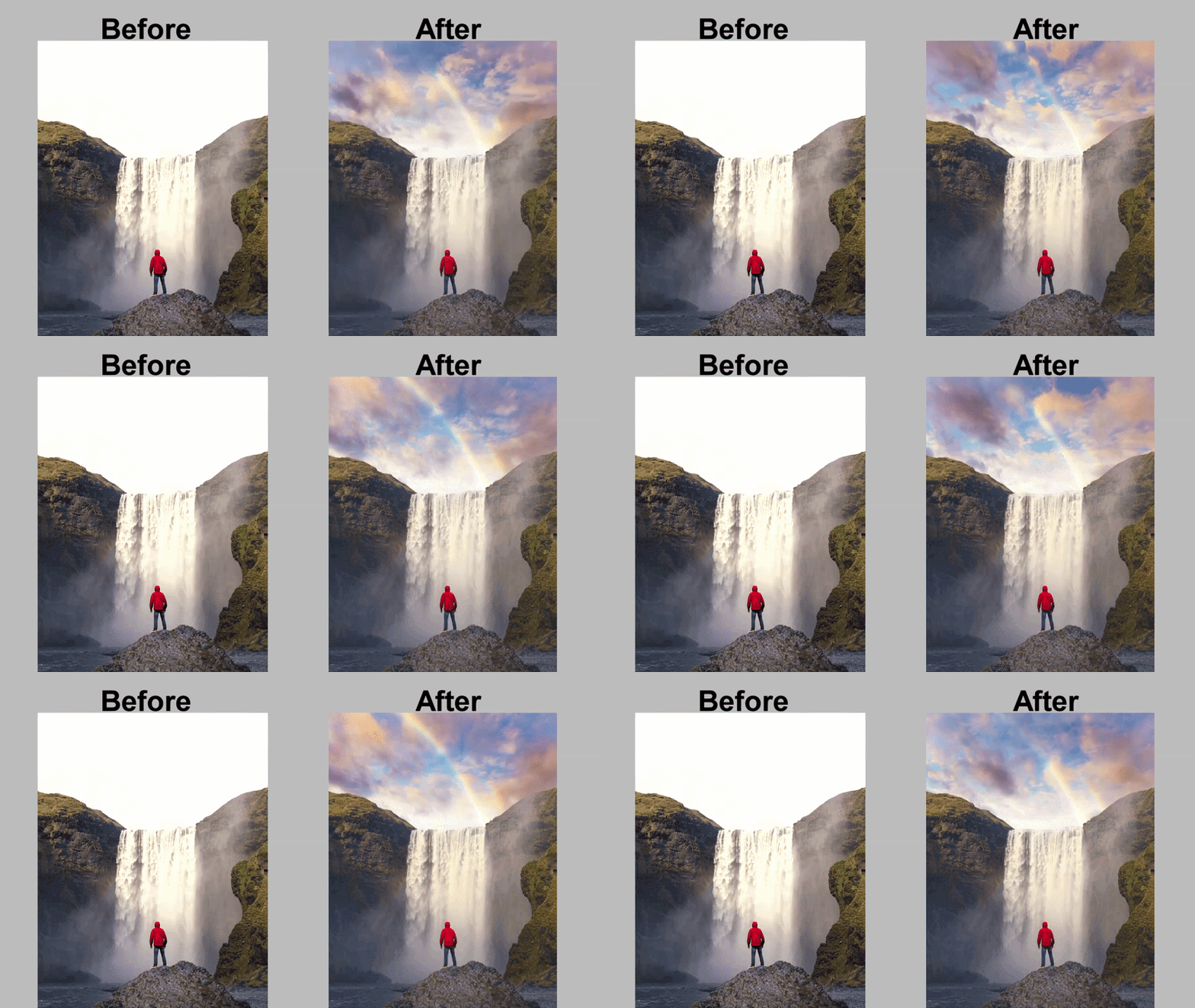
Let’s say you’re learning how to animate a still picture of a waterfall. You can freeze the entire image except for the water. Then, use a looping mask to make the water flow continuously. This gives you a simple cinemagraph effect without changing the rest of the photo.
4. Method 4: AI Image-to-Video (The Modern Way)
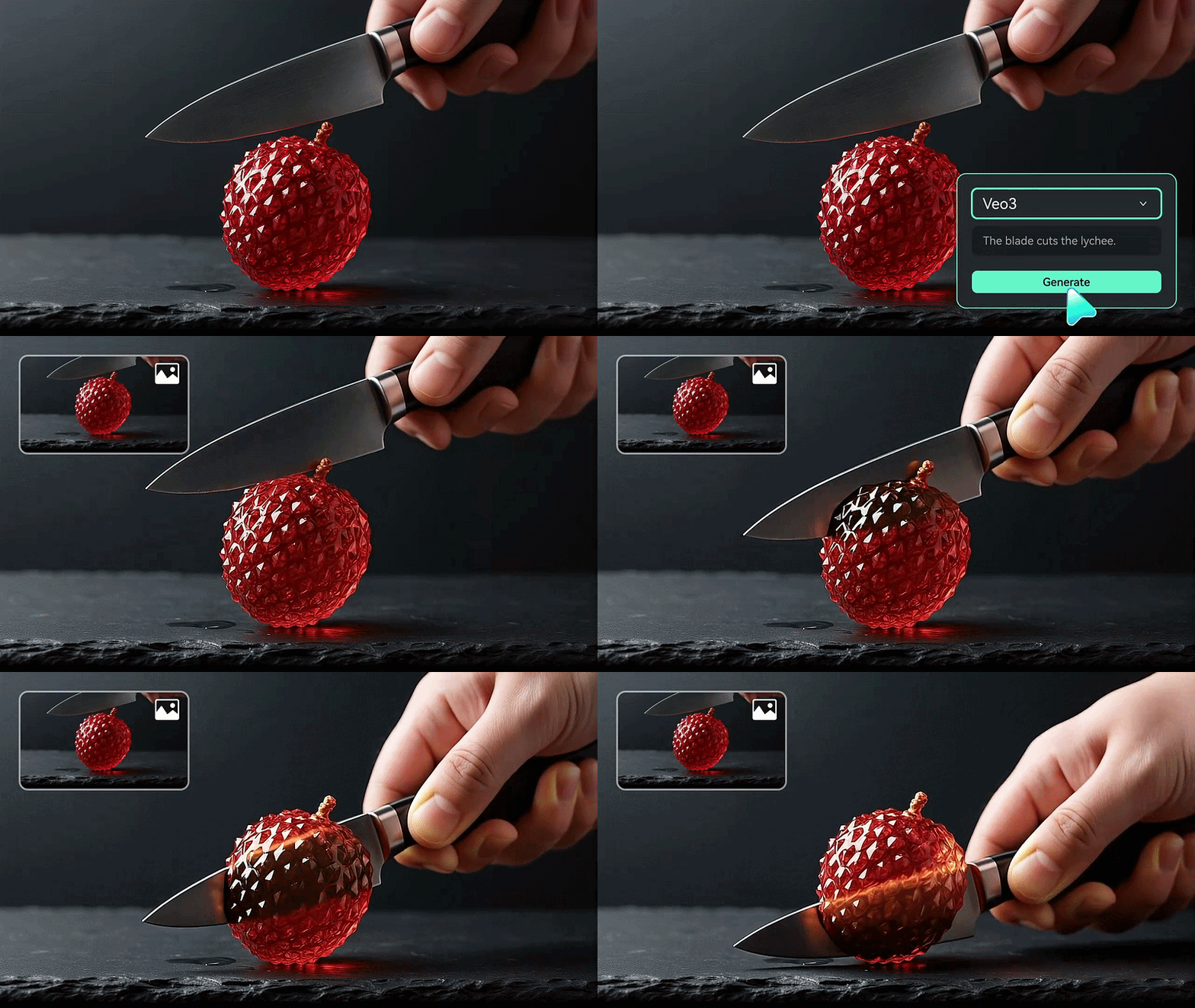
If you’re not familiar with manual editing, AI image-to-video tools can make the process easier. To start, you can upload one image, combine several reference images, or use start and end frames. After that, describe the movement you want, and the AI generates the motion for you.
The Easiest Way to Learn How to Animate Images: Filmora TV
We looked at several ways on how to make still images move. However, AI image-to-video stands out as one of the most practical options. Instead of manually animating every element, you can let AI create the movement for you in much less time.
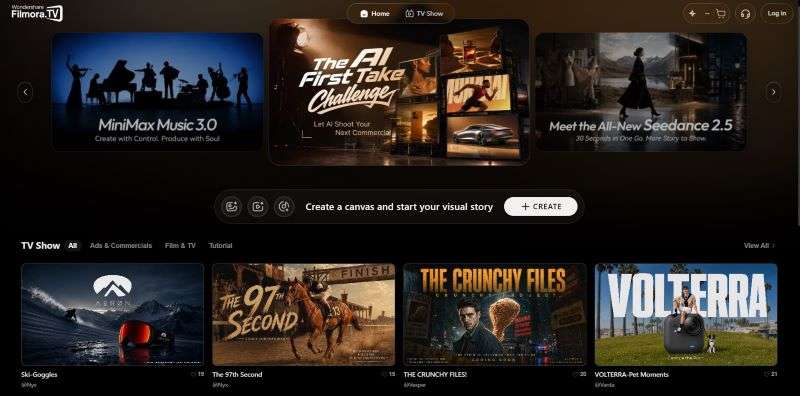
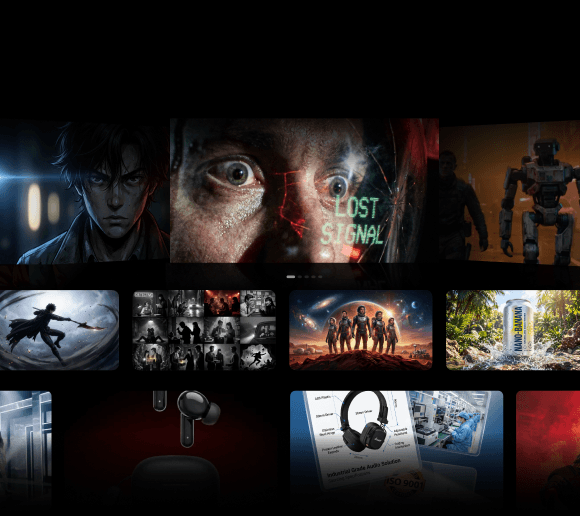
Among the many tools available, Filmora.TV offers a simple way to get started. You can upload an image and use it as the starting point for your animation. Then, the feature follows your prompt to create the animation. You don’t have to build the entire video from scratch, so anyone can learn how to animate an image with ease.
Why Choose Filmora TV to Animate Images?
1. Different AI Models for Different Needs
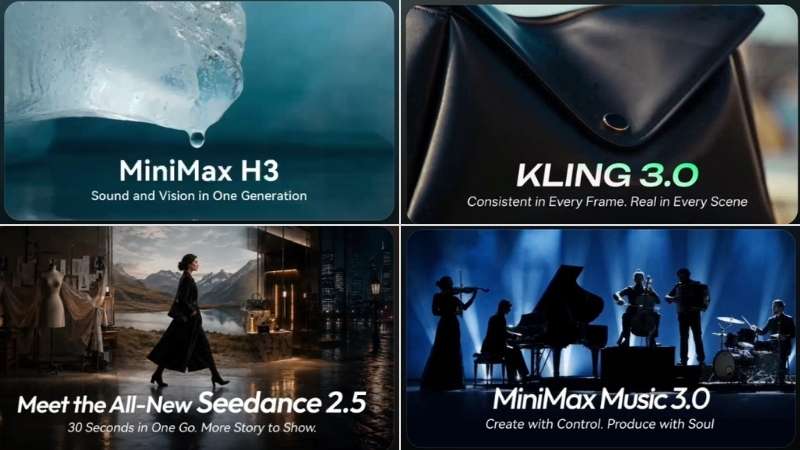
Filmora.TV makes it simple to learn how to make animated videos from photos, with several AI models to choose from. You can also describe details such as the subject action, camera movement, and video mood in your prompt.
2. Maintain Visual Consistency
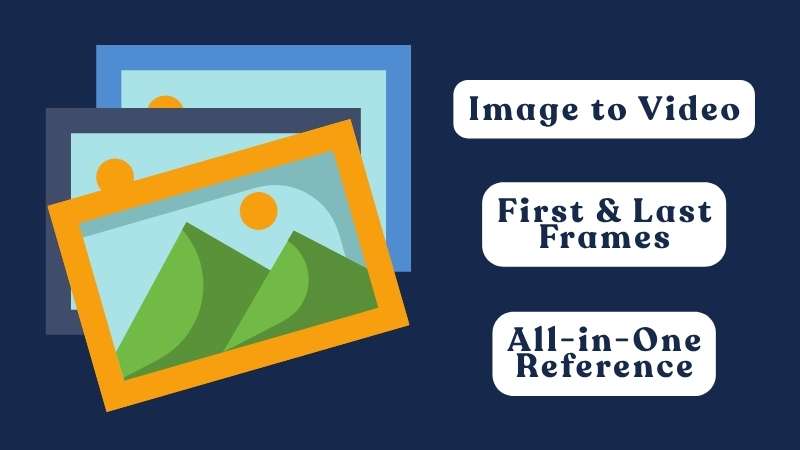
Another advantage of Filmora.TV is its support for reference images. You can use them to guide the AI. It helps keep the subject, appearance, and overall look consistent throughout the video.
3. Easy to Get Started
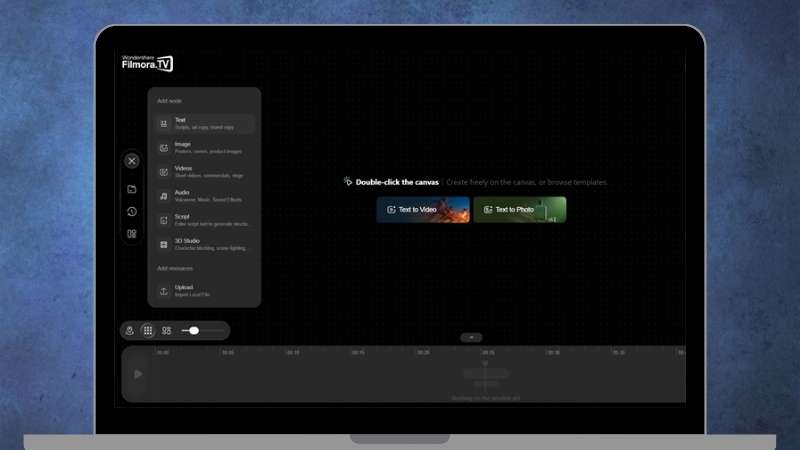
You don’t need much editing experience to get started with Filmora.TV. The interface is clean, with the main tools and settings easy to find and use.
4. High-Resolution Export
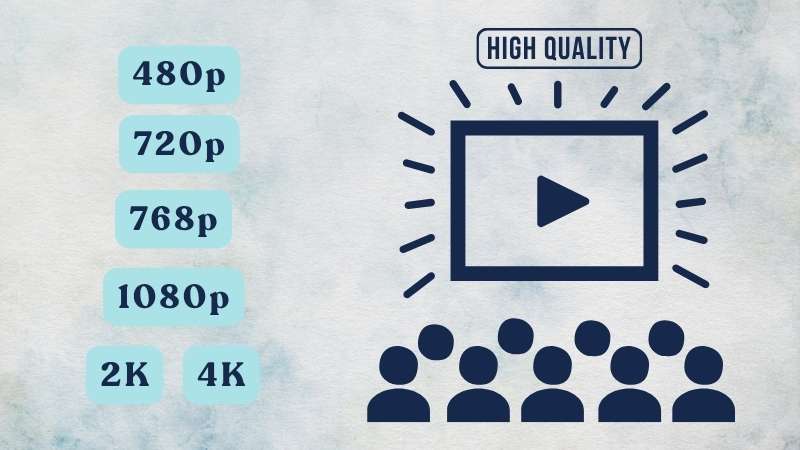
If you ever wonder, “How can I animate a picture while keeping its quality?” Filmora.TV can help you do so without losing control over the final output. Choose the video resolution yourself to get the quality that fits your needs.
5. More Control Over Motion
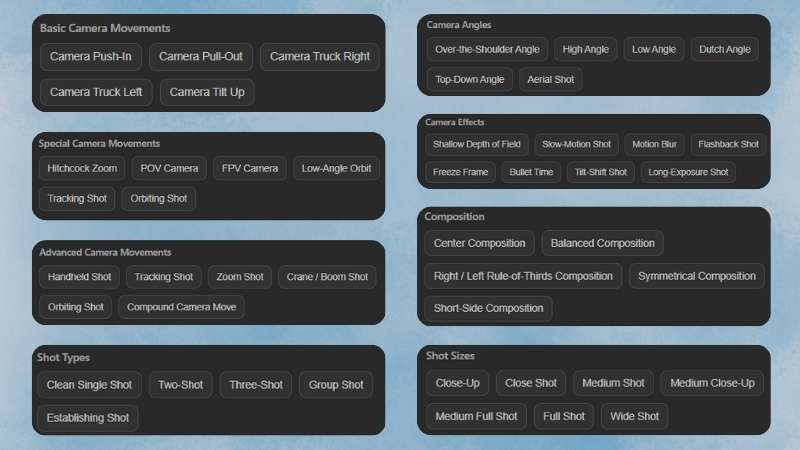
When figuring out how to make a still image move, you may want to control more than just the basic movement. Fortunately, Filmora.TV comes with built-in customization options. You can adjust the motion style, camera direction, and other settings to get the result you want.
How to Animate Images in Filmora TV: Step-by-Step
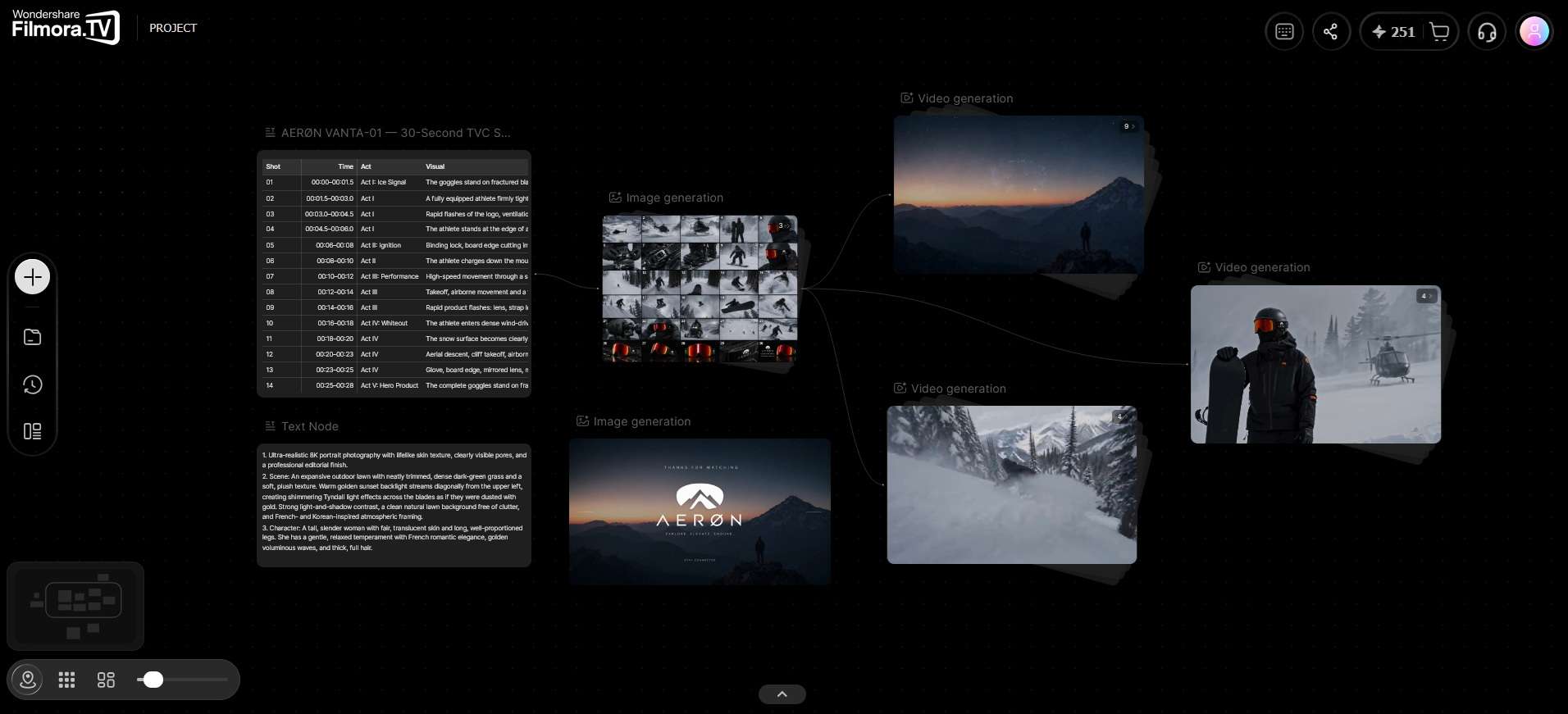
Now, let’s learn how to make a still picture move using Filmora.TV. The platform uses an AI Canvas workflow, where you can connect different nodes to create your video. Each node handles a different part of the process, such as adding an image or generating a video.
If you’re not familiar with this workflow yet, don’t worry. The step-by-step guide below will show you how to use it.
-
Step 1Create a Project in Filmora.TV
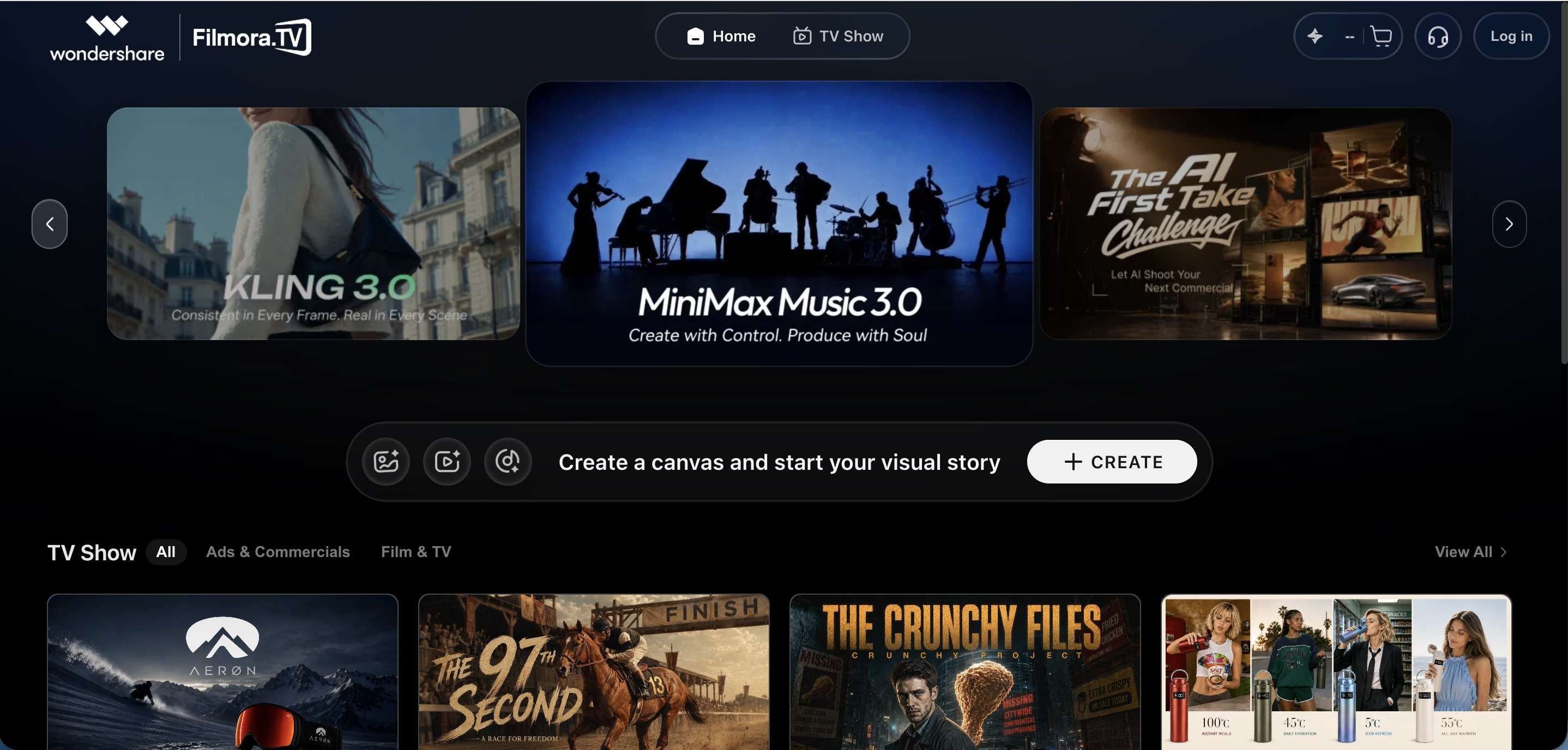
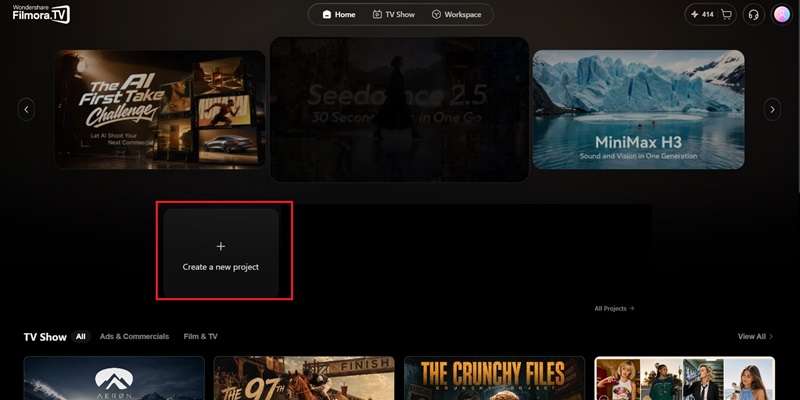
Visit the Filmora.TV website and log in to your account. Select Create a New Project in the center of the page.
-
Step 2Upload Your Image
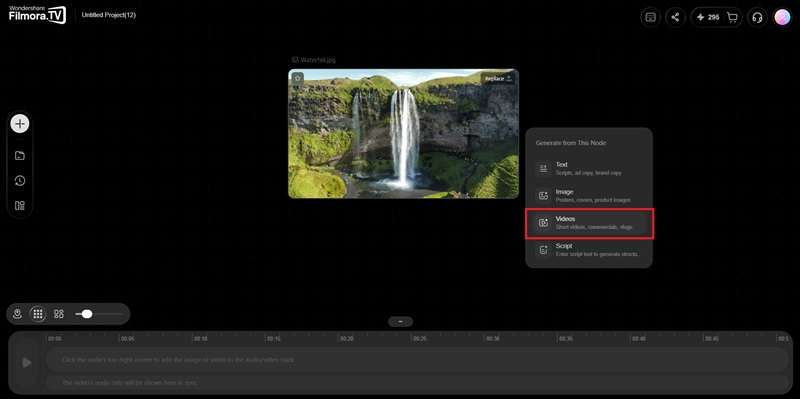
Drag and drop your image into the Filmora.TV workspace. Then, click the + icon next to the image and select Video to access the Video Generator.
-
Step 3Add Your Prompt
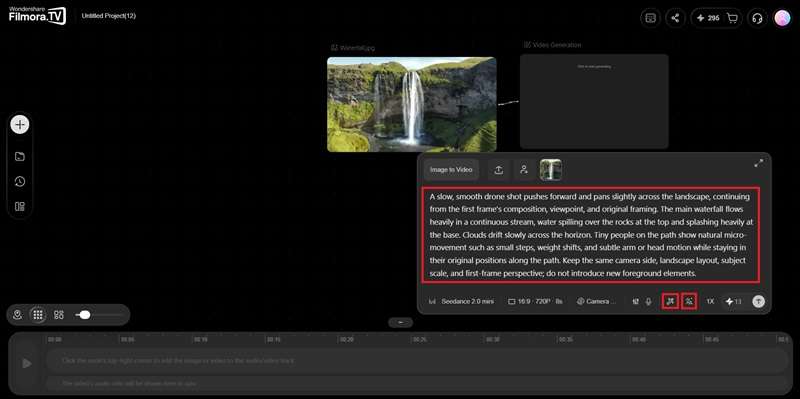
Add a prompt with details about the movement, camera, and scene you want to create. You can also use Prompt Translation or Prompt Optimization to refine your prompt.
-
Step 4Choose an AI Model
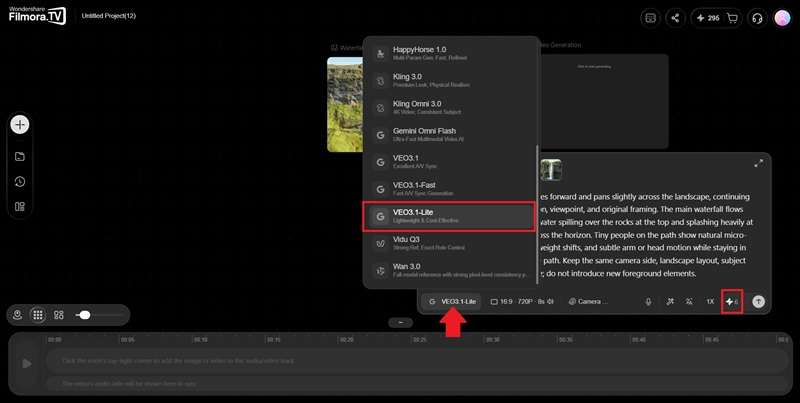
Choose your preferred AI model. The model you select determines how many credits are used for the generation.
-
Step 5Adjust the Video Settings
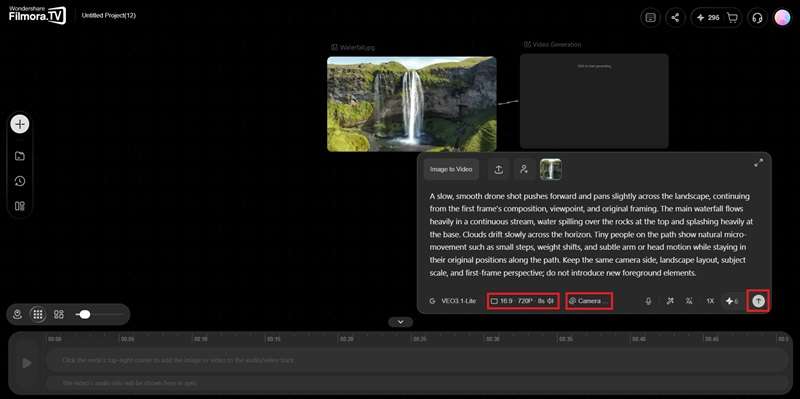
Adjust the video size, quality, and duration. You can also customize the camera and shot settings. Then, click the arrow to generate your video.
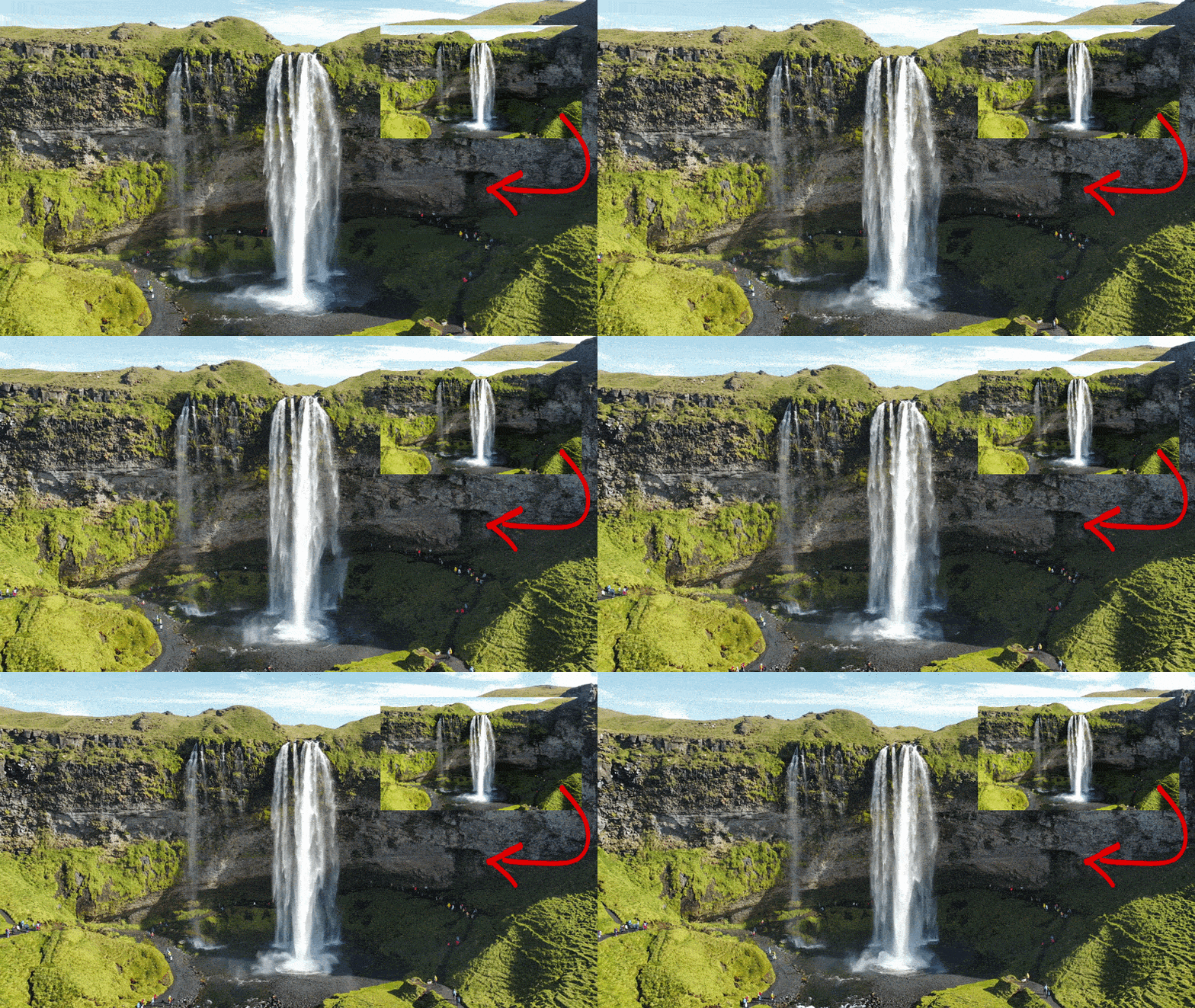
Here is the final result of how to make a still picture move using Filmora.TV. The camera moves smoothly through the landscape like a drone shot, while the waterfall flows naturally.
5 Tips for Making Still Images Move Naturally
You can animate a still image, but making it look natural takes a little more thought. Sometimes, the movement can feel unnatural, the subject may look distorted, or the animation just doesn’t fit the scene.

So, if you're wondering how you can animate a picture more naturally, these tips can help.
- Choose High-Quality Source Photos: If the original image is blurry or low-resolution, the generated movement may also look messy.
- Keep Prompts Specific: Tell the AI what you want to see, such as flowing water, moving hair, or a slow camera zoom.
- Watch out for Face Distortions: Faces can easily look strange when there is too much movement. For portraits, try using facial protection or subtle motion prompts.
- Think About the Subject: A landscape might look better with moving clouds or water, while a portrait could work well with subtle hair or facial movement.
- Combine with Ambient Sound: Pair the animation with sounds that fit the scene. For example, add rain sounds to a rainy image, or wind sounds when the trees or hair are moving.
Content Ideas to Try After You Animate a Picture
Now that you know how to animate with pictures, you can start experimenting with it in several different ways. With a little creativity, even a simple photo or piece of artwork can become more engaging and dynamic. Here are five ideas to get you started.
Idea 1: Bring Old Photos to Life
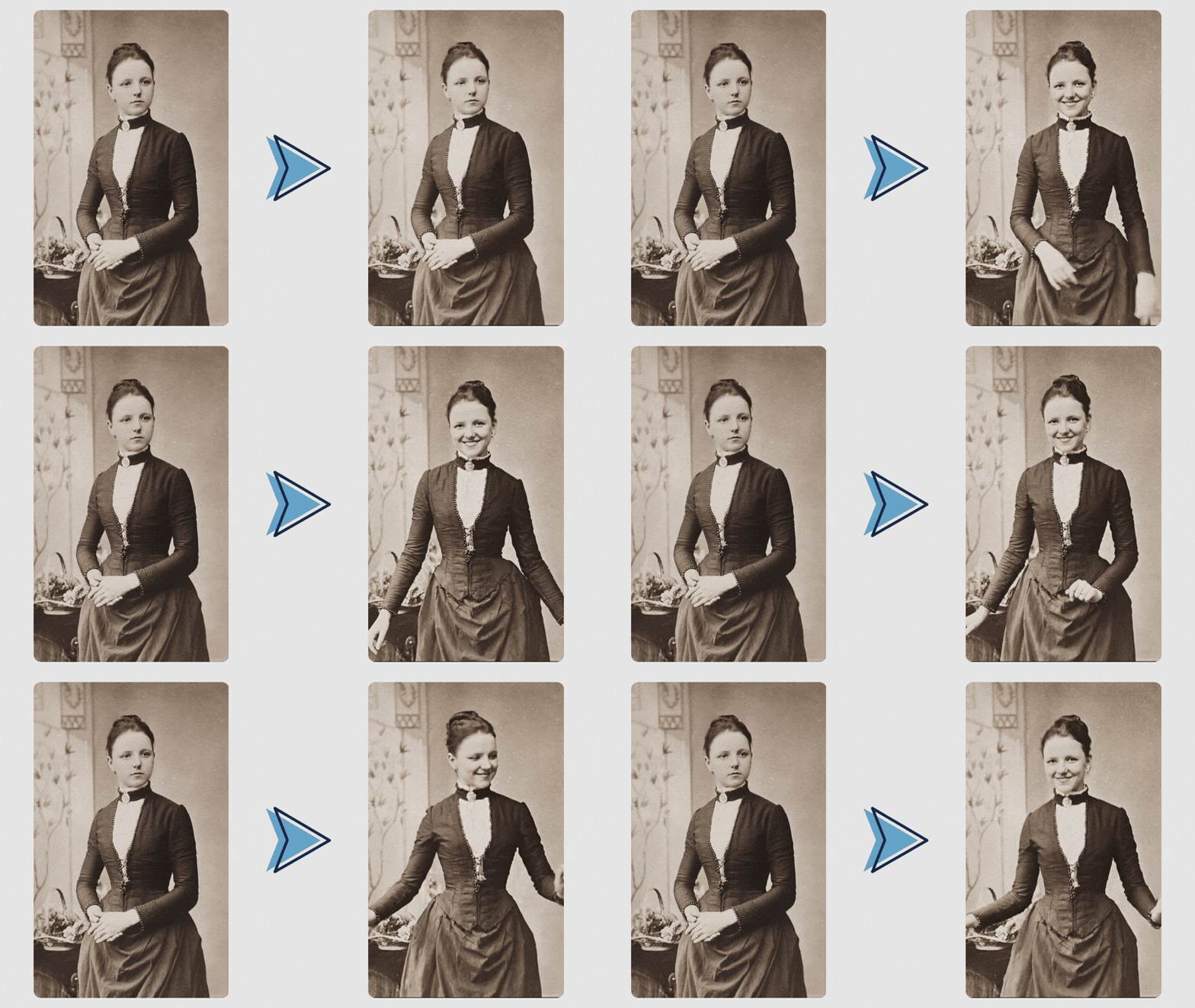
Historical photos and old family pictures can be more than something you look back on. Add simple movements to create short videos for TikTok or Reels.
Idea 2: Make Your Product Shots Stand Out
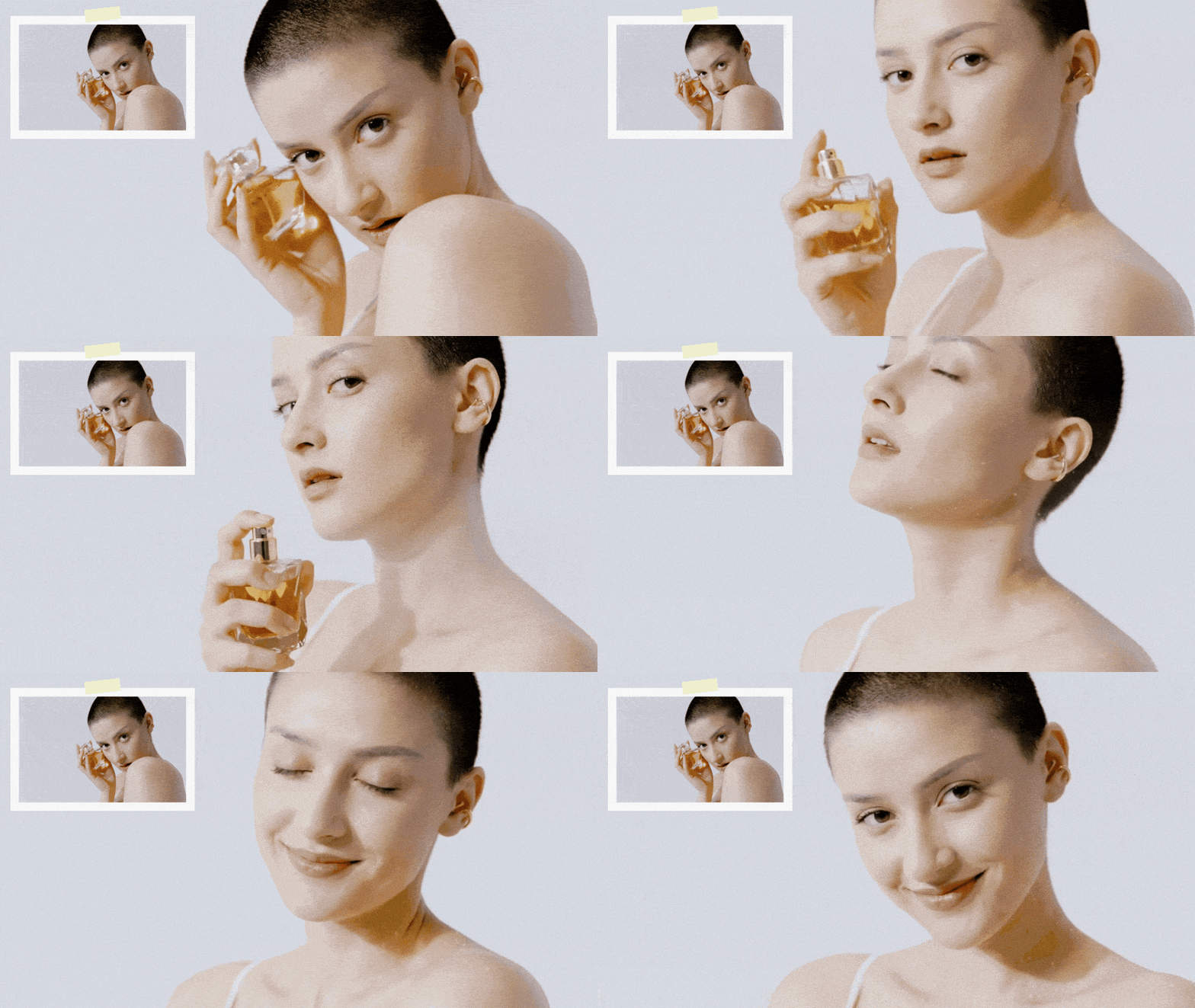
Give your product photos a little movement to make them more eye-catching. You can experiment with camera motion, lighting changes, or animated elements to create short promotional videos.
Idea 3: Animate Your Banners and Cover Graphics
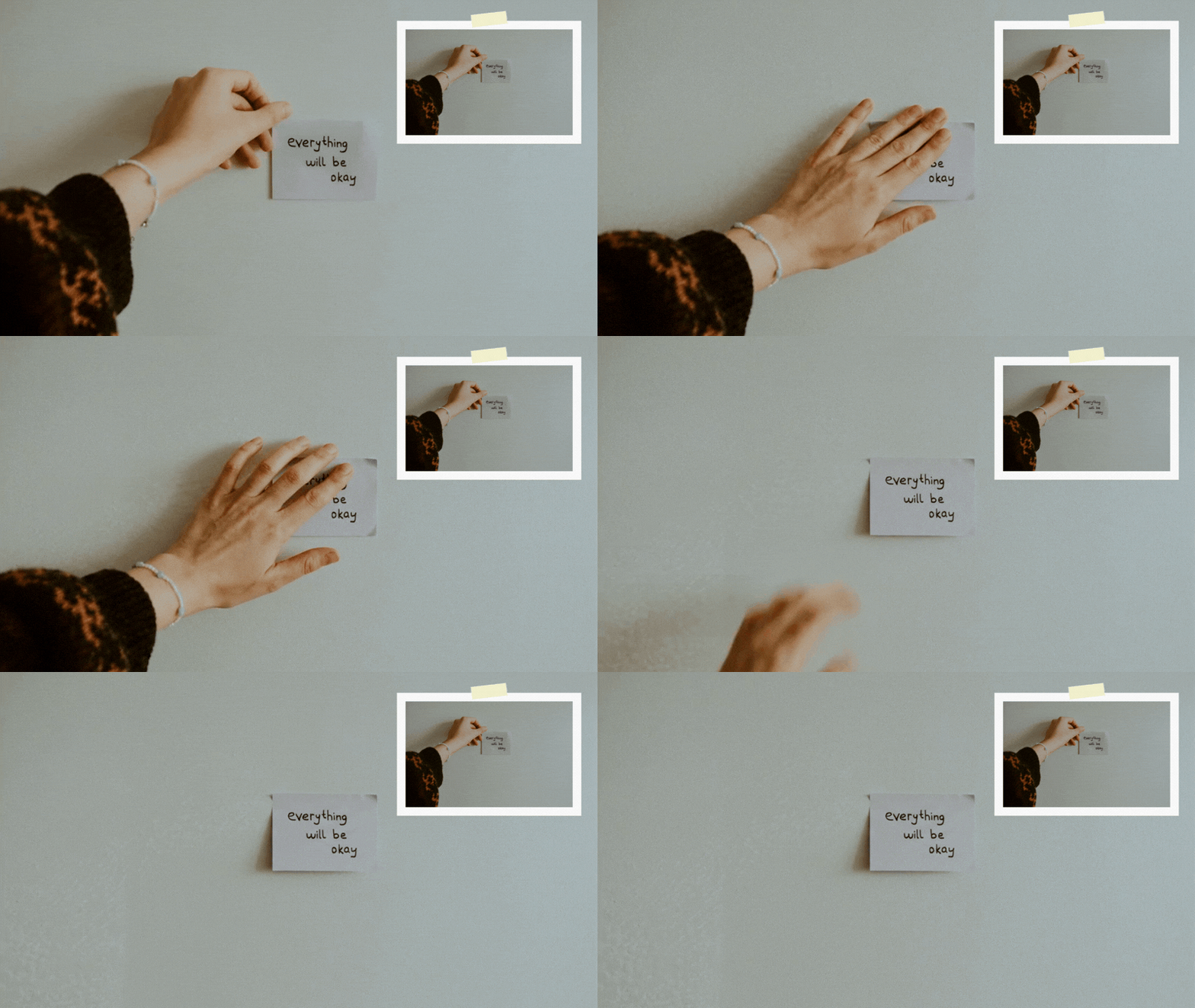
Got a favorite illustration, quote, or graphic you use on social media? Turn it into a short looping video with small movements that repeat naturally.
Idea 4: Create Animated Stories
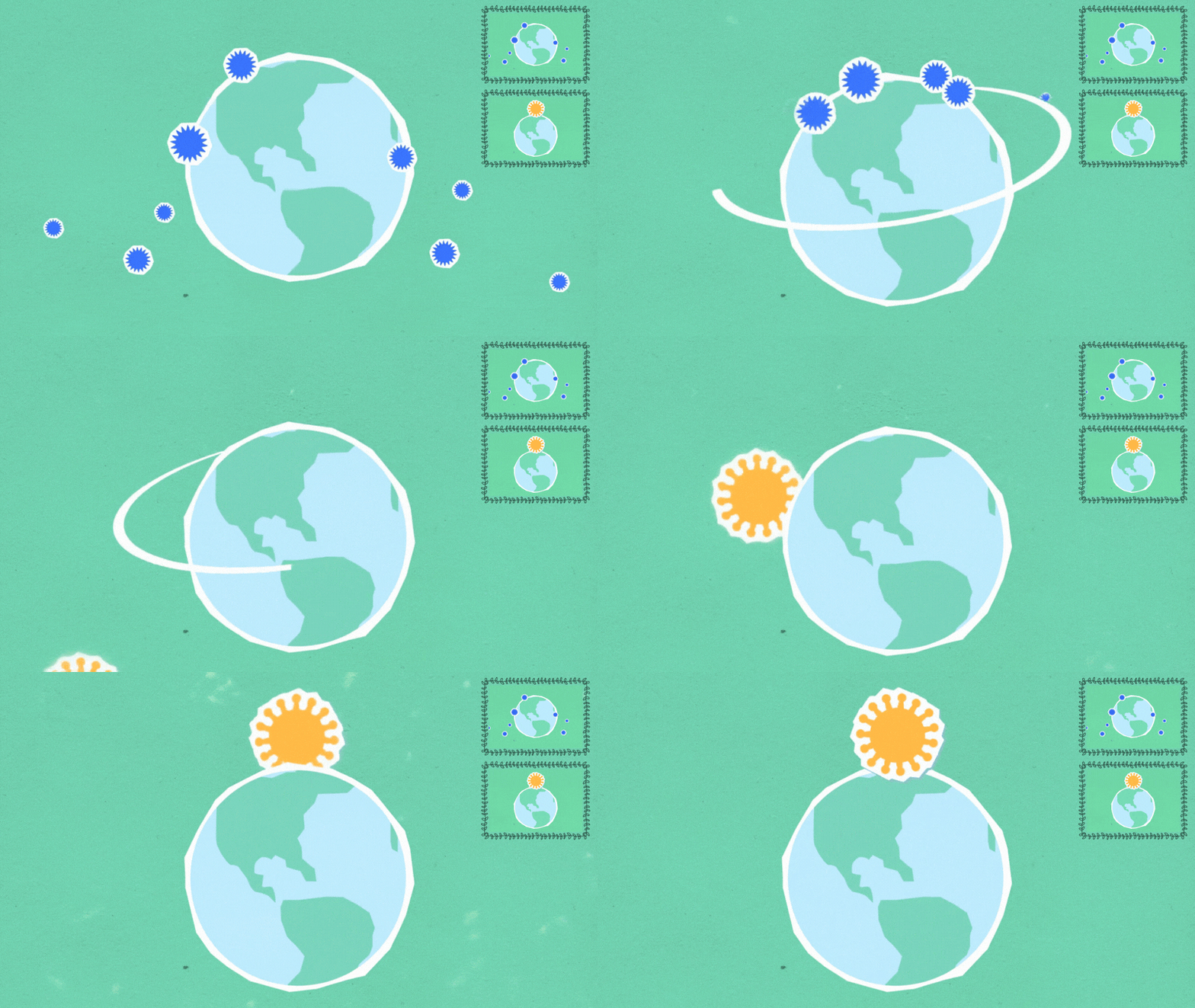
If you have an illustration or comic panels, you can turn them into animated stories. Add subtle movement to the characters, background, or camera to make each scene feel more alive, then combine them into a short video.
Idea 5: Turn Artwork into Music Visualizers
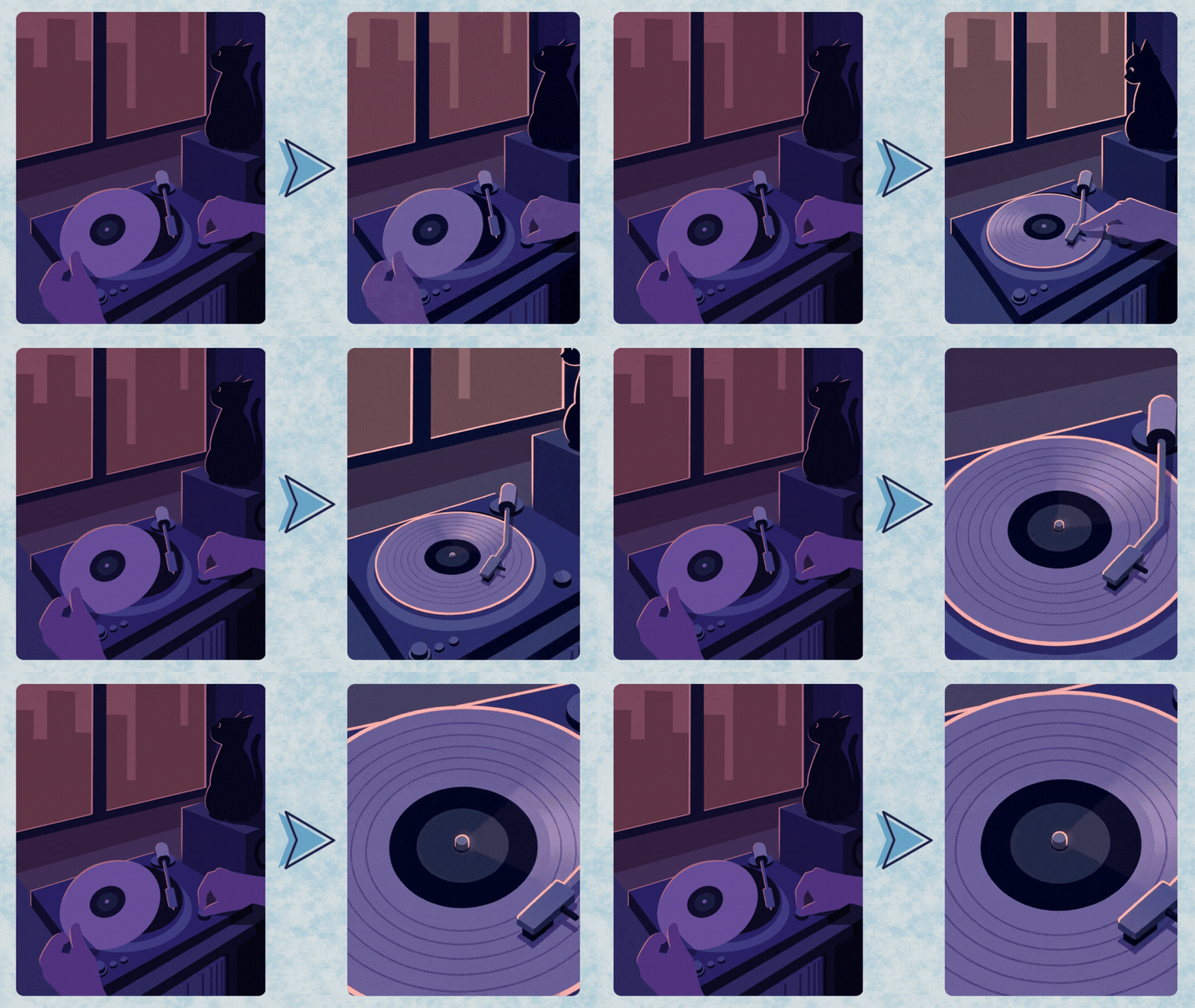
No need to shoot new footage to create visuals for a song or podcast. Use the existing artwork or image, add some movement, and turn it into a looping video that can play alongside your audio.
Conclusion
Learning how to animate images opens up plenty of creative possibilities. Animated images can work for social media content, product showcases, storytelling, digital artwork, and video backgrounds. You can use keyframes and masks, add depth with parallax effects, or use AI to generate movement.
Filmora.TV is a convenient option for AI image-to-video generation. Its AI Canvas workflow lets you connect tools and build your video visually. You can also choose from multiple AI models and adjust settings to guide the animation. This makes it easier to bring your ideas to life.
FAQs
-
1. Does animating an image reduce its original visual quality?
It depends on the tool and settings. With Filmora.TV, you can choose the resolution for your generated video, so you can adjust the output quality based on your needs.
-
2. How long should an animated image clip ideally be?
For simple animations, 5 to 10 seconds is usually enough. If you’re creating a longer story or more detailed scene, you can extend the duration as needed.
-
3. Can I animate multiple pictures in one video?
Yes. You can use multiple images as references to guide the animation. You can also provide a starting image and an ending image to help AI create the movement between them.