
Connect Nodes on Canvas to Build Your Workflow
From the nodes you created, you can connect them to build a complete content generation pipeline. For example, start with a Script Node, connect it to an Image or Video node, and add instructions to generate the visuals based on the script. You can move these nodes freely and connect them in any order.

Try Filmora.TV

AI Creative Studio
Follow Along in Your Workspace
Practice each step from this guide directly in Filmora.TV.
How to Connect Nodes in Filmora.TV Canvas
-
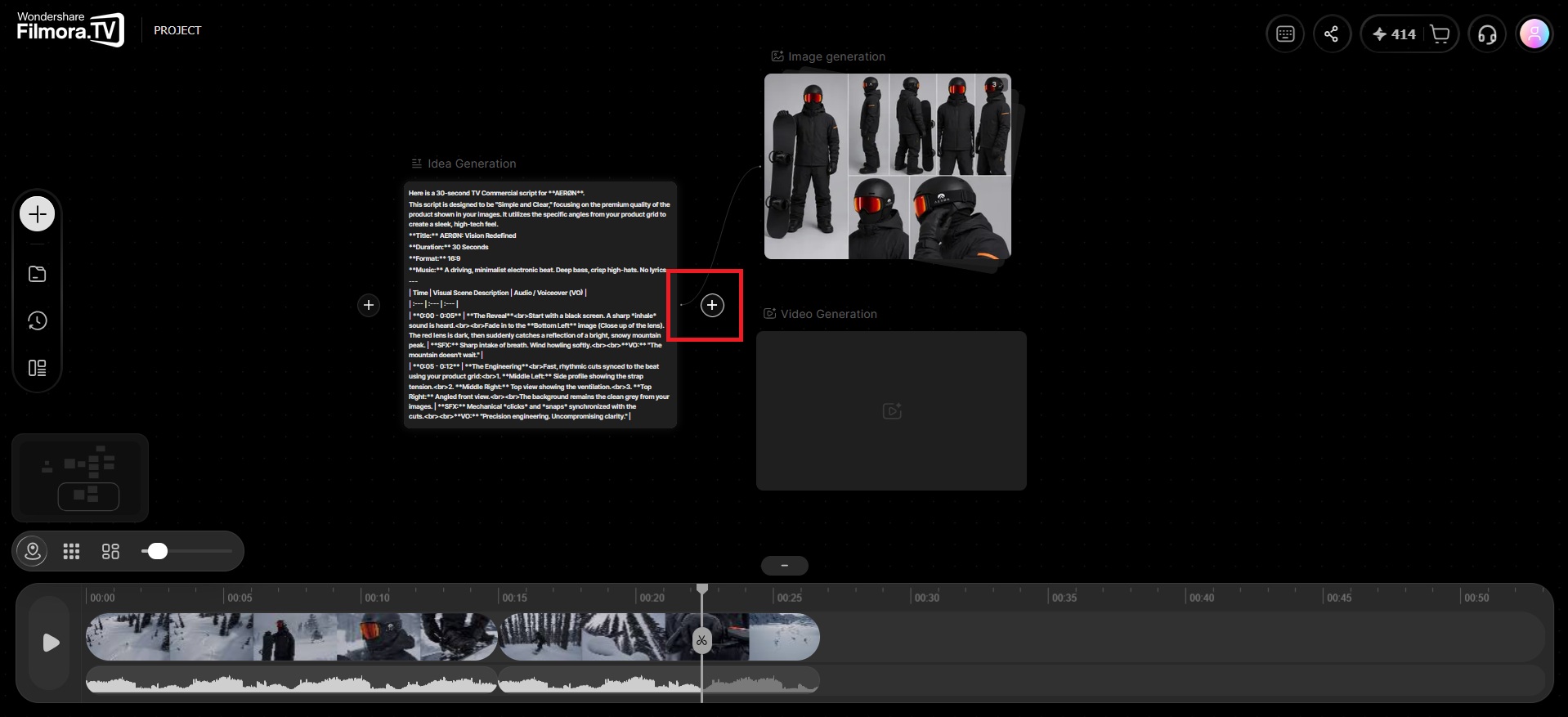
Step 1 Find the Connection Point
Hover over the middle of the node's edge until your cursor turns into a + icon.
-
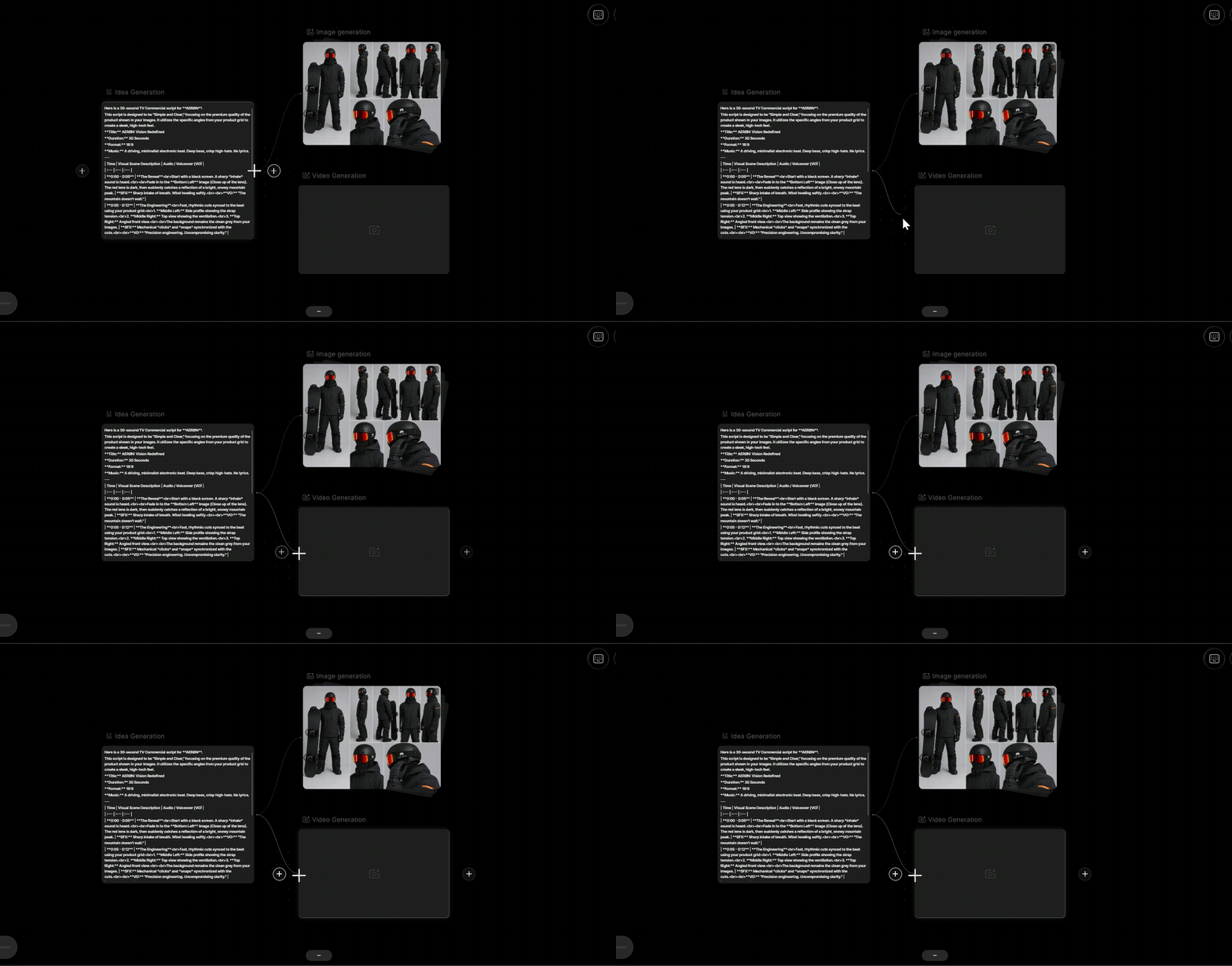
Step 2 Connect to Another Node
Click and drag the connector to the node you want to link it to. You can create multiple branches from a single node.
FAQs
-
1. After uploading local assets, can they be used as references for later AI generation?
Yes. After you upload local files to Canvas storage space, they can be used as reference materials for later AI generation. When using them, you can connect the asset node to an AI generation node, or use @ in the prompt to reference the asset as input for image or video generation. -
2. What is @ asset reference for?
@ asset reference is used to clearly specify the reference relationship of a node or asset in the prompt. For example, you can use @actor image as the character appearance reference and @product image as the product packaging reference, helping AI understand which elements should be preserved in the generated result more accurately. -
3. Do connections between nodes affect later generation?
Yes. Node connections act as contextual transfer: upstream nodes provide scripts, images, videos, or other reference information, and downstream nodes generate or edit based on that context. Properly connecting nodes helps improve continuity across multi-shot content and better reuse reference materials.
Was this guide helpful?