

How to Adjust Video Speed on the Timeline
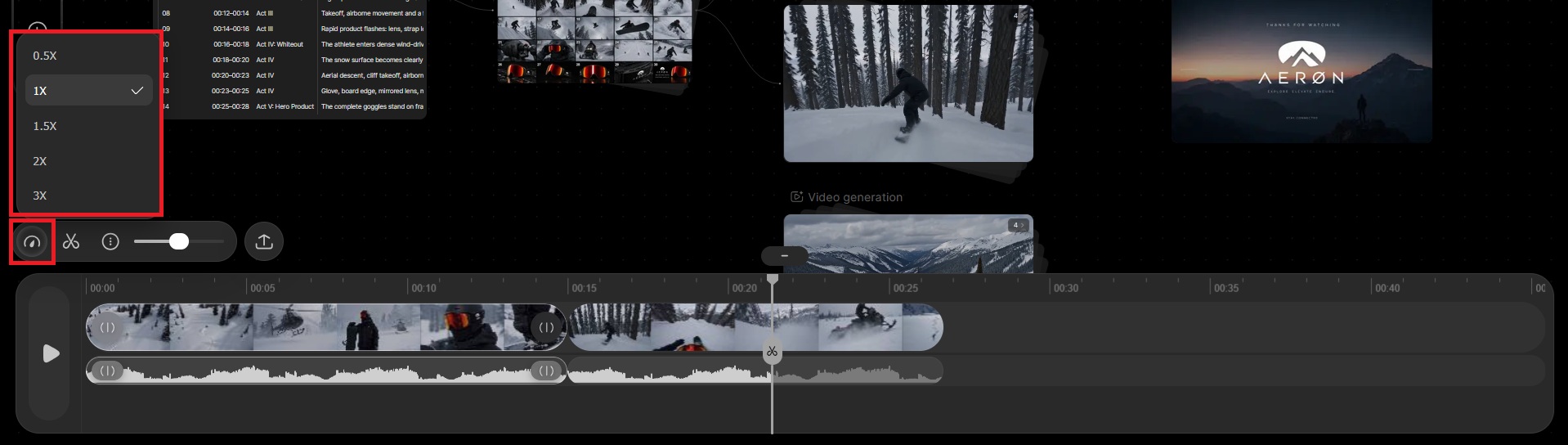
Once your clips are on the timeline, you can adjust their playback speed to control the pace of your video. Filmora.TV lets you slow down or speed up individual clips directly on the timeline using several preset speed options.

Try Filmora.TV

AI Creative Studio
Follow Along in Your Workspace
Practice each step from this guide directly in Filmora.TV.
Want your shot to play faster or slower? You can change the playback speed of clips directly from the Filmora.TV timeline. Select the clip, click the speedometer icon, and choose a speed such as 0.5x, 1x, 1.5x, 2x, or 3x.
FAQ
-
What basic editing adjustments does the timeline support?
The timeline supports basic preview and rough-cut editing, including playhead positioning, clip splitting, reordering, speed changes, audio adjustments, and copy and paste. If the video contains audio, the audio will also appear as a waveform on the audio track in the timeline.
Was this guide helpful?