

Workspace: Manage Personal and Team Projects
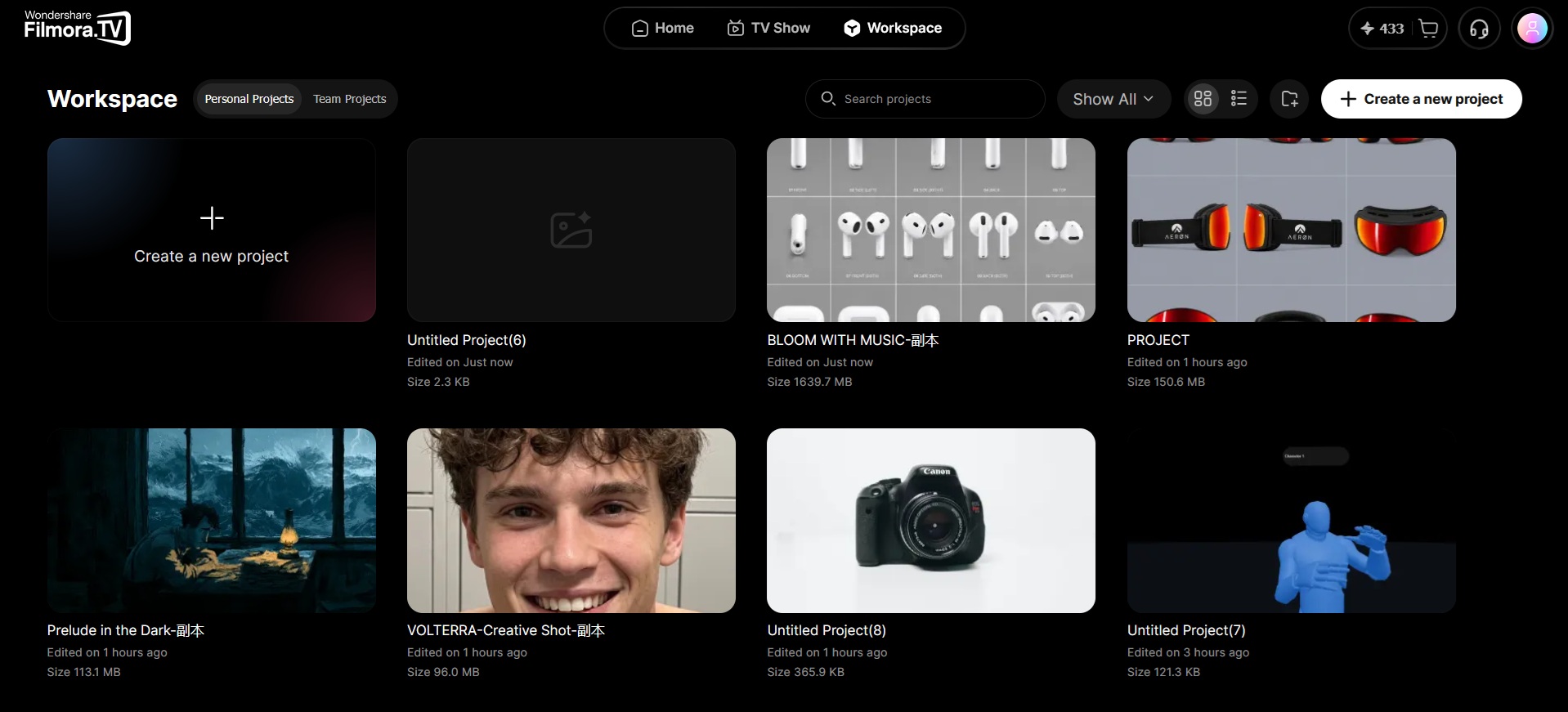
All of your projects made with Filmora.TV can be accessed in the Workspace. The Workspace includes personal projects and team projects. You can create a folder and move the project there, rename, delete, or create a copy of the project.
There are two types of workspaces in Filmora.TV: Personal and Team Project Workspaces. Since Filmora.TV supports team collaboration, it separates your personal projects from shared team projects.


Practice each step from this guide directly in Filmora.TV.
In this article
Personal Project Workspace
A Personal Workspace is a private space for managing your own projects. Projects created here are separate from your team's shared projects and assets. You are the only one who can access and manage the projects in your Personal Workspace.
Team Project Workspace
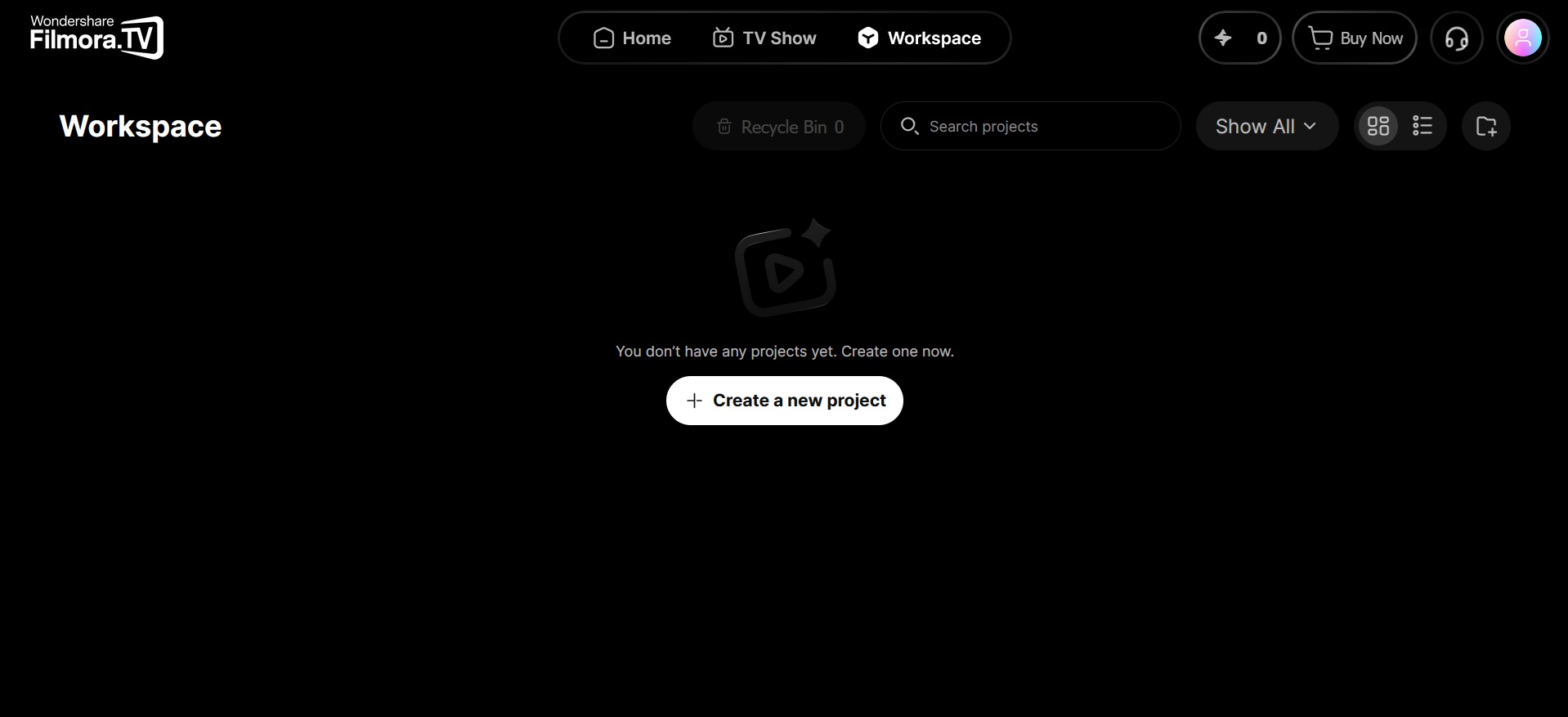
Team Workspace is a shared space for team projects, where members can collaborate on projects, give feedback through comments, and access shared assets and resources based on their assigned permissions. Team members can also use the team's shared AI credits, so credits can be managed and used across team projects.
FAQs
-
1. What is the Cloud Space limit, and how can I expand it?
Cloud Space capacity varies depending on the subscription type or plan you purchased. You can check the Cloud Space included in each plan on the subscription page. If your Cloud Space is full, clean up assets you no longer need based on the in-product prompt, or purchase a separate Cloud Space membership to expand it. -
2. Where can I view account, membership benefits, and Cloud Space information?
You can go to the profile area in the upper-right corner of the page to view your current account information, membership benefits, Cloud Space usage, and related settings.
If you have purchased a membership but the benefits do not appear, first confirm that the account you are signed in with matches the one used for the purchase, then refresh the page and check again. -
3. How are AI credits distributed and refreshed?
Subscription-included AI credits are usually granted and refreshed on the subscription cycle. The current policy is a monthly refresh, and unused subscription credits from the previous cycle do not roll over.
The validity period of AI Credit packs follows what is shown on the purchase page, currently one year.
We recommend checking the plan details before purchase and arranging usage accordingly. -
4. Can I upgrade my subscription after using up the included AI credits?
If the AI credits included in your subscription have been used up, you can purchase an additional AI Credit pack based on the options currently available in the product.
If you already purchased a subscription but want to move to a higher-tier plan, contact support to confirm your current order status, used benefits, and available options. Whether changes, price differences, or refunds are supported depends on your order details and the subscription policy at the time. -
5. Will user uploads and generated results be used for model training, how long are they kept, and can they be deleted?
Filmora.TV does not use your uploaded materials or generated results to train its models. Some AI capabilities may be provided by third-party model services, and the handling of data is subject to the relevant service terms and privacy policies. We recommend reading the privacy notice before use and avoiding the upload of unauthorized, sensitive, or unsuitable content.
You can delete uploaded materials and generated results manually at any time in Personal Settings or the relevant asset management entry.
If you do not delete them yourself, the retention period depends on the account type and activity status: for Starter users, data is kept while the account remains actively used, and if the account is inactive for six consecutive months, the system will automatically clean it up. For subscribers, data is kept throughout the membership period; after the membership expires, the Starter-user policy applies, meaning cleanup will occur after six consecutive months of inactivity.
Was this guide helpful?