

How to Manage Teams in Filmora.TV
Filmora.TV lets you switch between your Personal Projects and Team Projects from the workspace and organize your work across different teams. You can create teams for different projects or groups, invite members, and manage team settings to keep your collaborative work organized.


Practice each step from this guide directly in Filmora.TV.
In this article
Access to Team Project Workspace
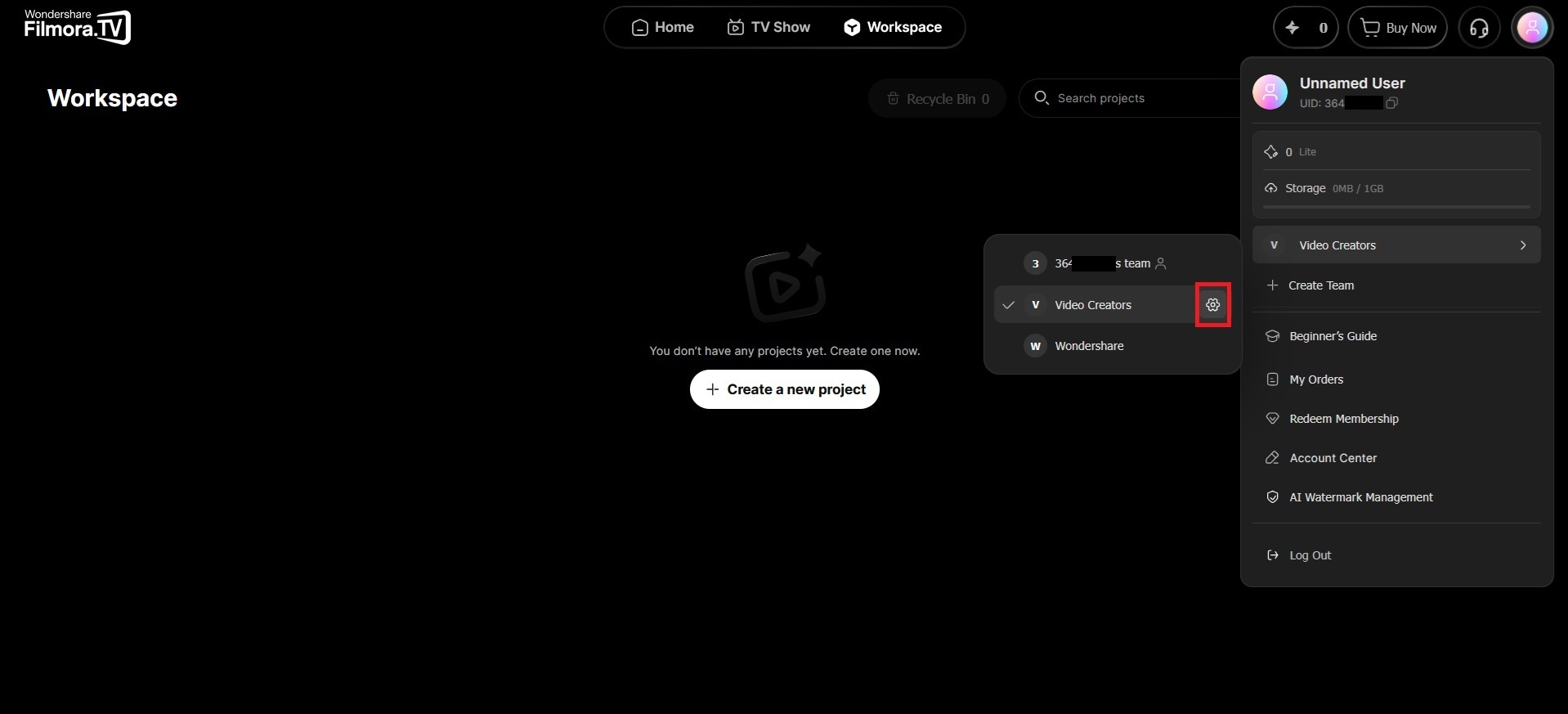
To work on a team project, open your Profile and select the team you want to access.
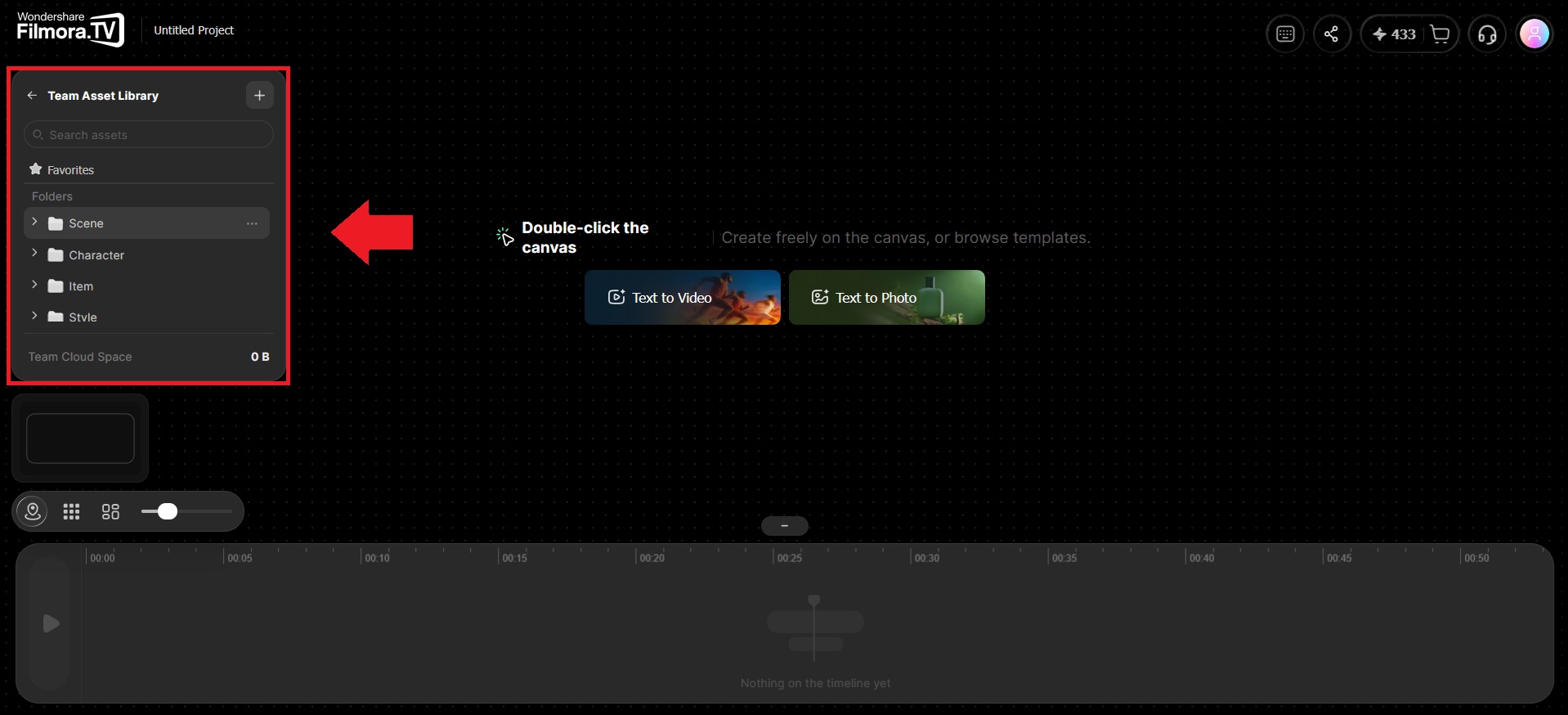
You'll then be taken to the workspace dedicated to that team. Each team has its own workspace, so projects and assets remain separated even when you manage multiple teams.
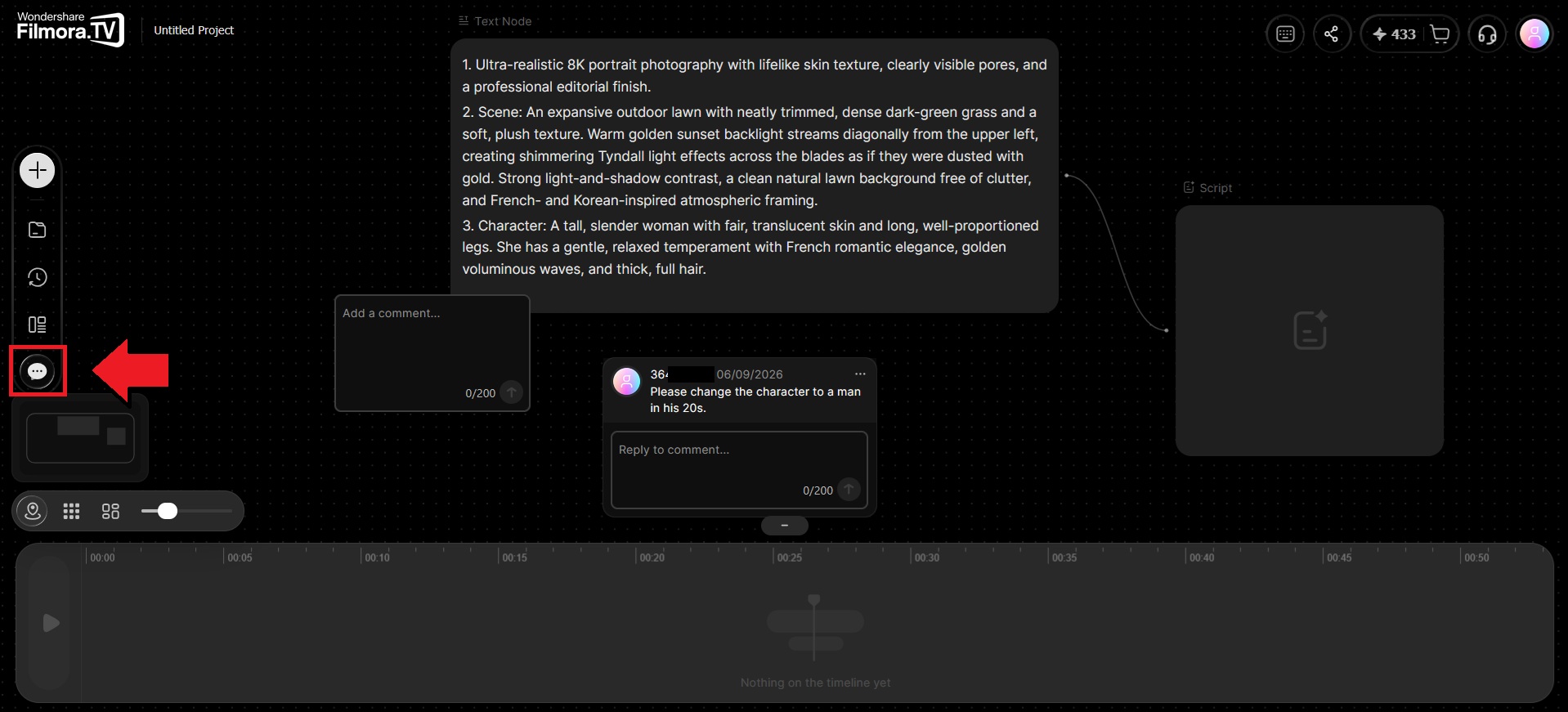
Create and Manage Teams
Within Team Projects, you can create separate teams and organize your work across different projects, clients, or departments, with each team having its own members, projects, assets, and settings to keep different types of work separate. You can also invite members, manage team settings, and control access to each team. The number of members you can invite depends on your Filmora.TV plan.
-
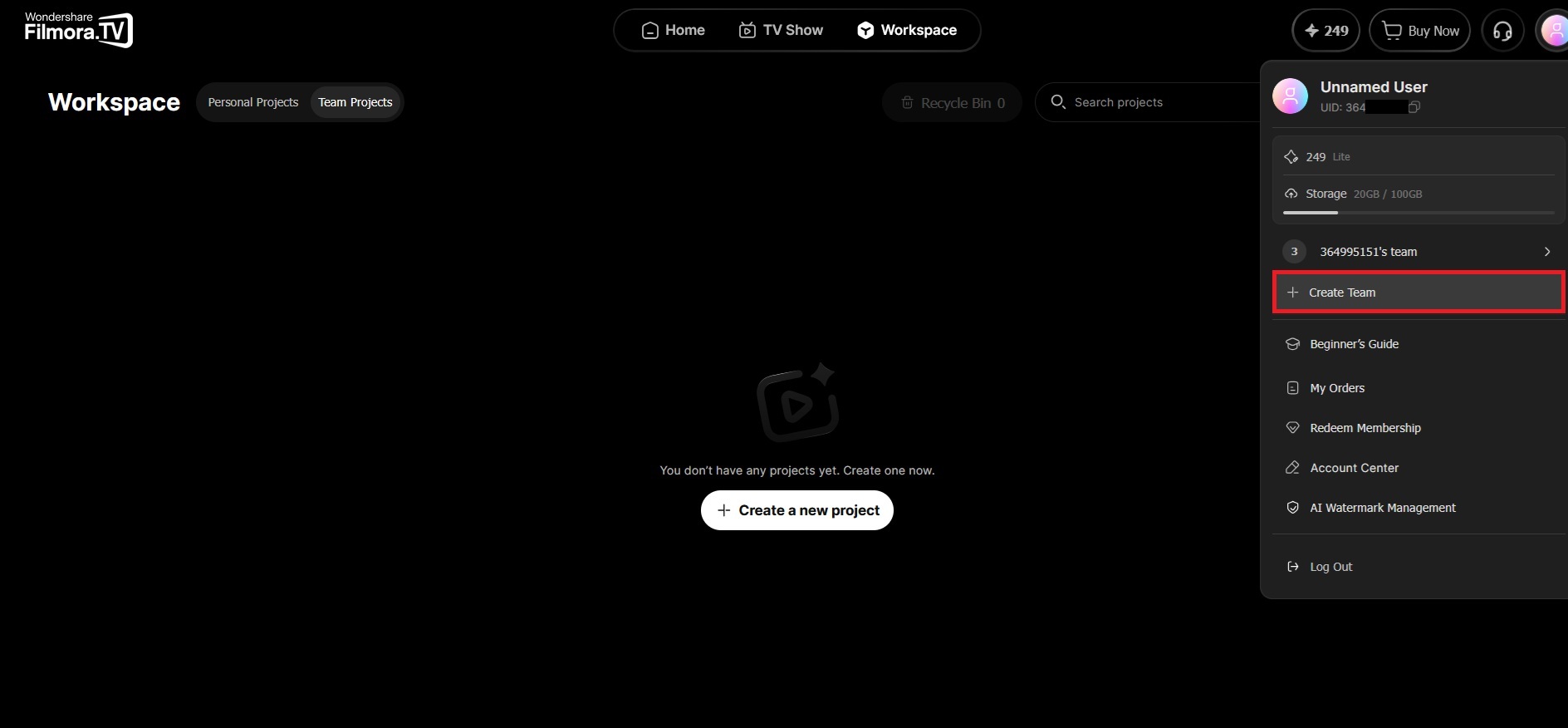
Step 1 Open Your Profile Tab
Select your profile icon and click "Create Team" to start setting up a shared workspace.
-
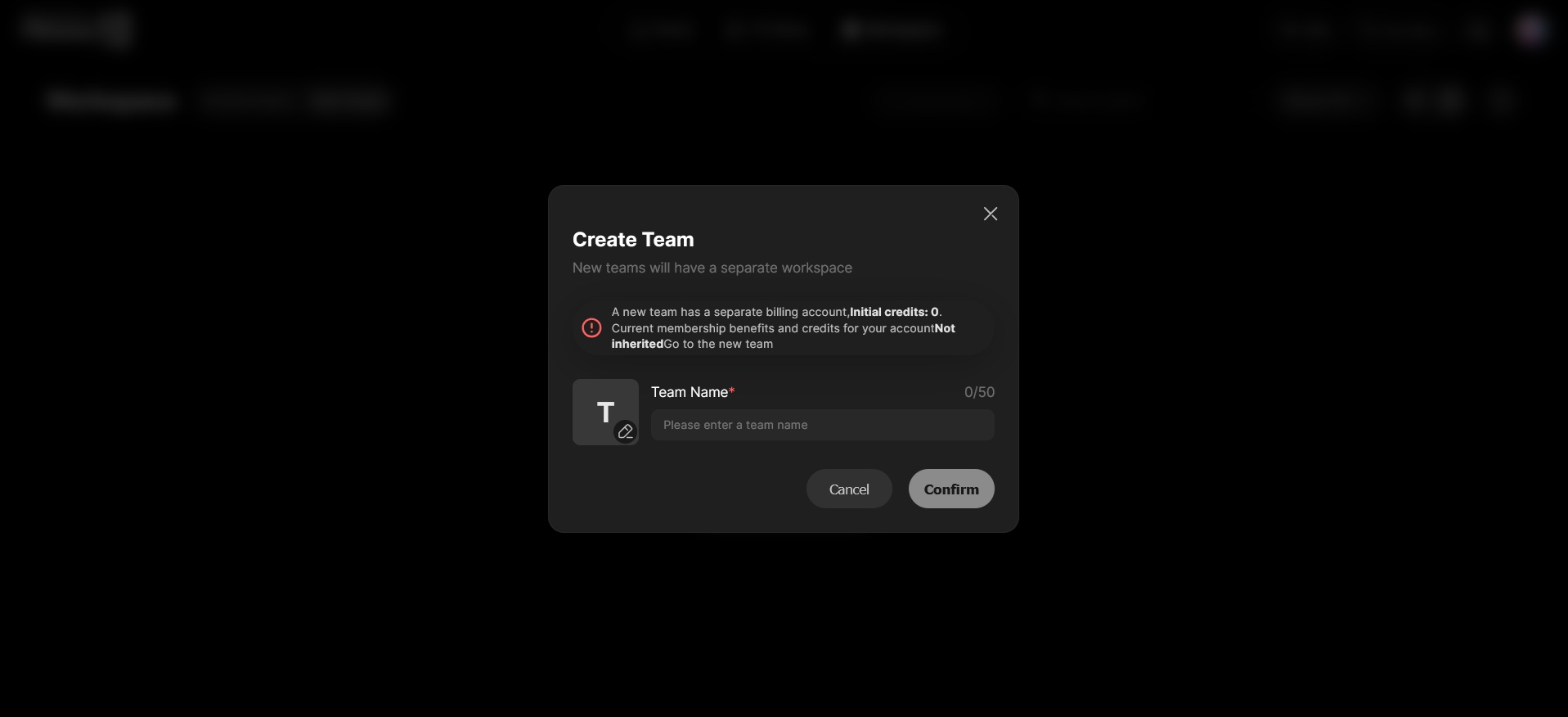
Step 2 Name Your Team
Enter a team name based on your project, company, or group, and then confirm to create the team.
-
Step 3 Invite Your Team Members
Team members can join through an invitation link. Open your profile icon again and select the team you just created. Then, click the gear icon next to the team name to open its settings.
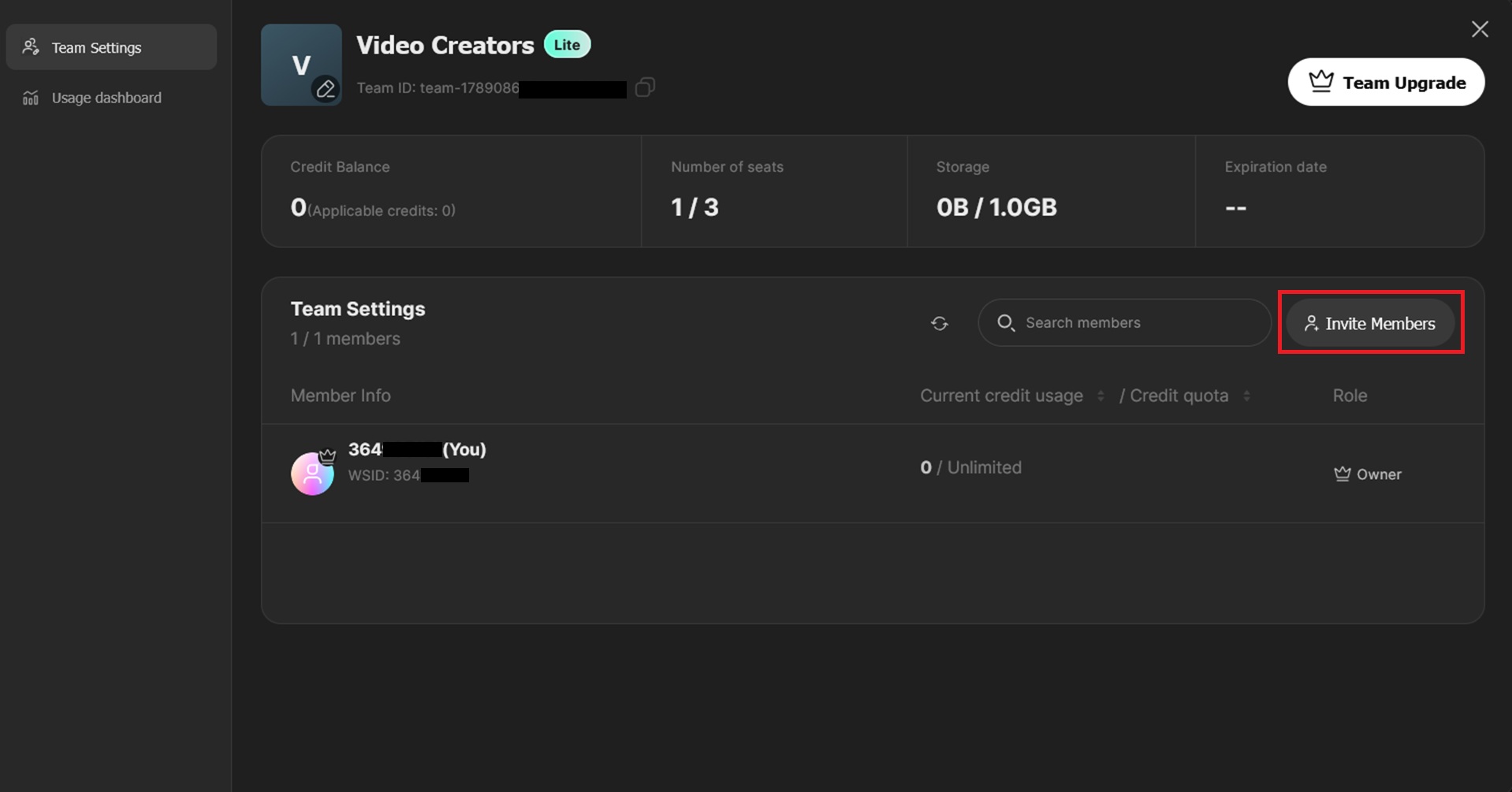
In the settings, select "Invite Members" and copy the invitation link. Share the link with the people you want to add. Then, they can open the link and accept the invitation to join the team workspace.
With your team workspace ready, you can start creating shared projects. The team members will be able to access the workspace, collaborate on projects, and work with shared assets.
Manage Team Projects and Assets
Aside from your own personal projects and assets, Team Projects give members a shared place to store and manage projects and creative assets. Assets saved to the Asset Library are tied to the team workspace where they were added, so members can access the same resources without moving files between individual accounts.
-
Step 1 Create or Upload Assets on a Team Project
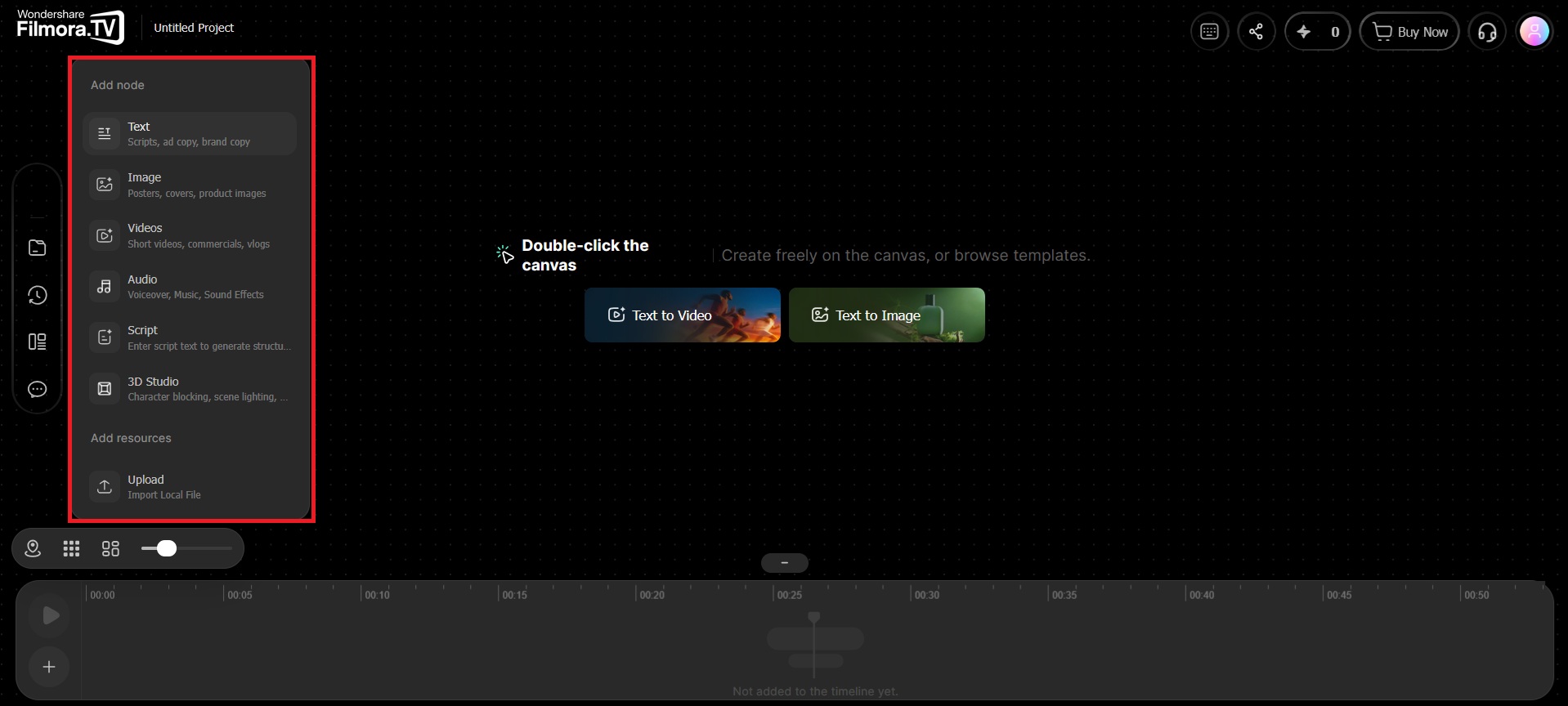
Open or create a project in the Team Workspace. Then, generate assets by adding the appropriate nodes to the canvas, or upload your own files.
-
Step 2 Add Assets to the Asset Library
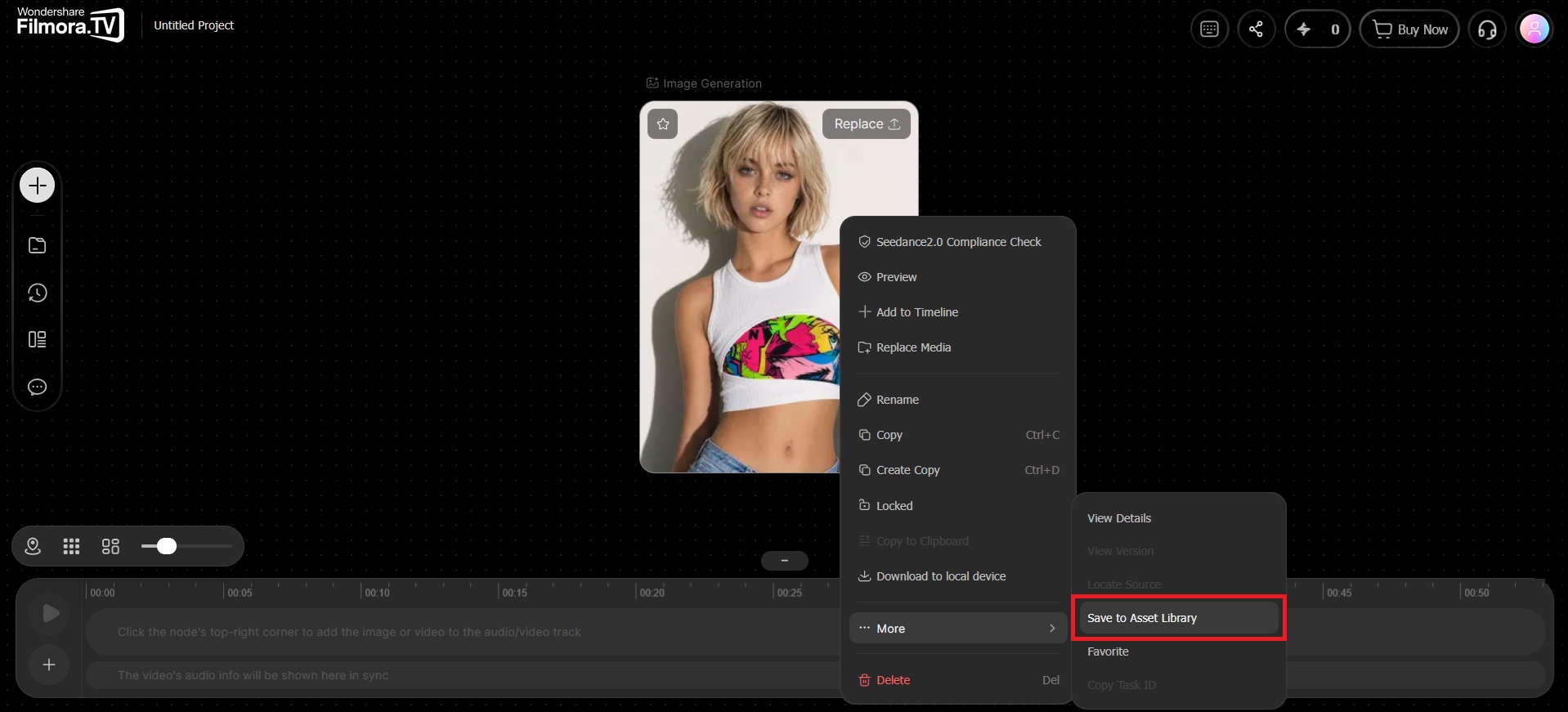
Right-click the asset you want to save and select More > Save to Asset Library. Choose the appropriate folder for storing the asset.
-
Step 3 Access the Team Asset(s)
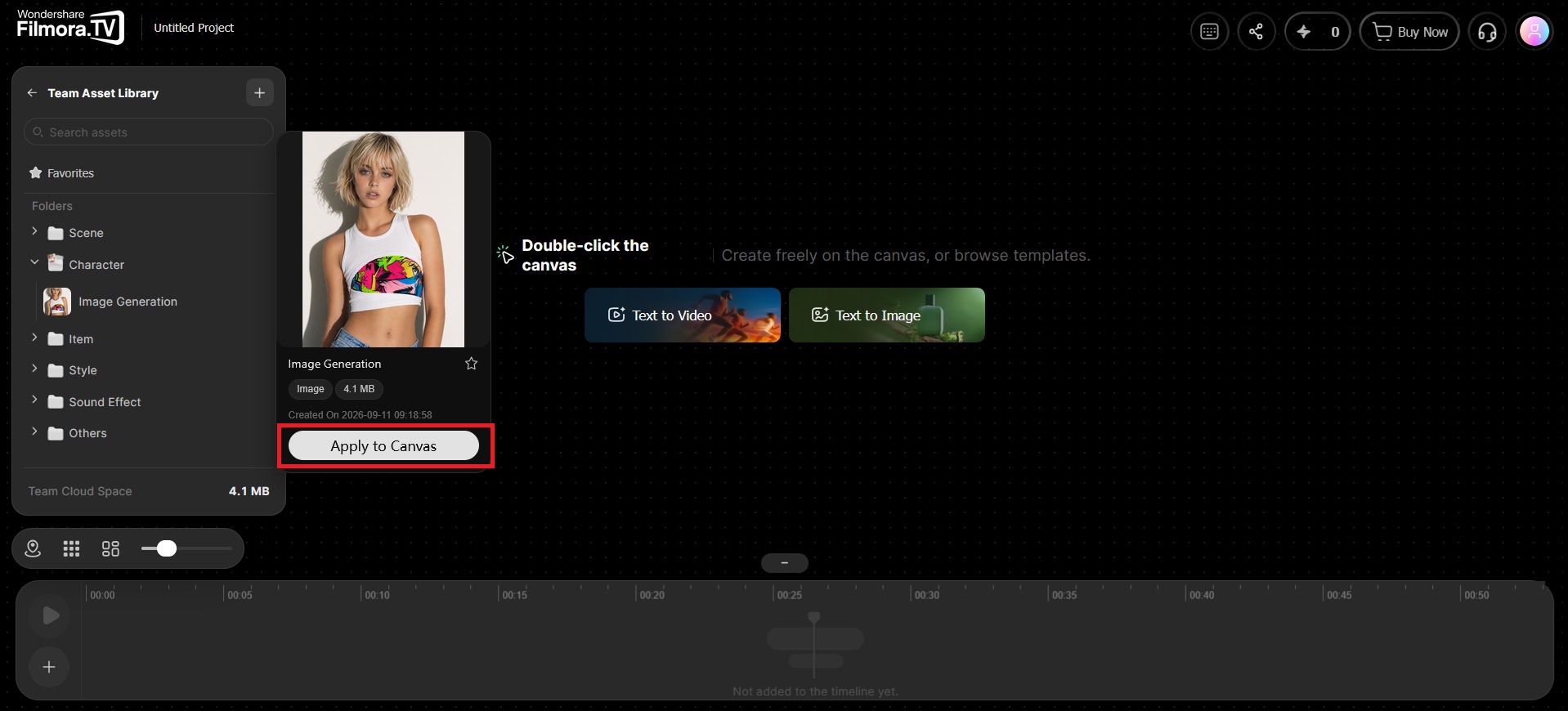
To use the shared asset(s), open the team's Asset Library.
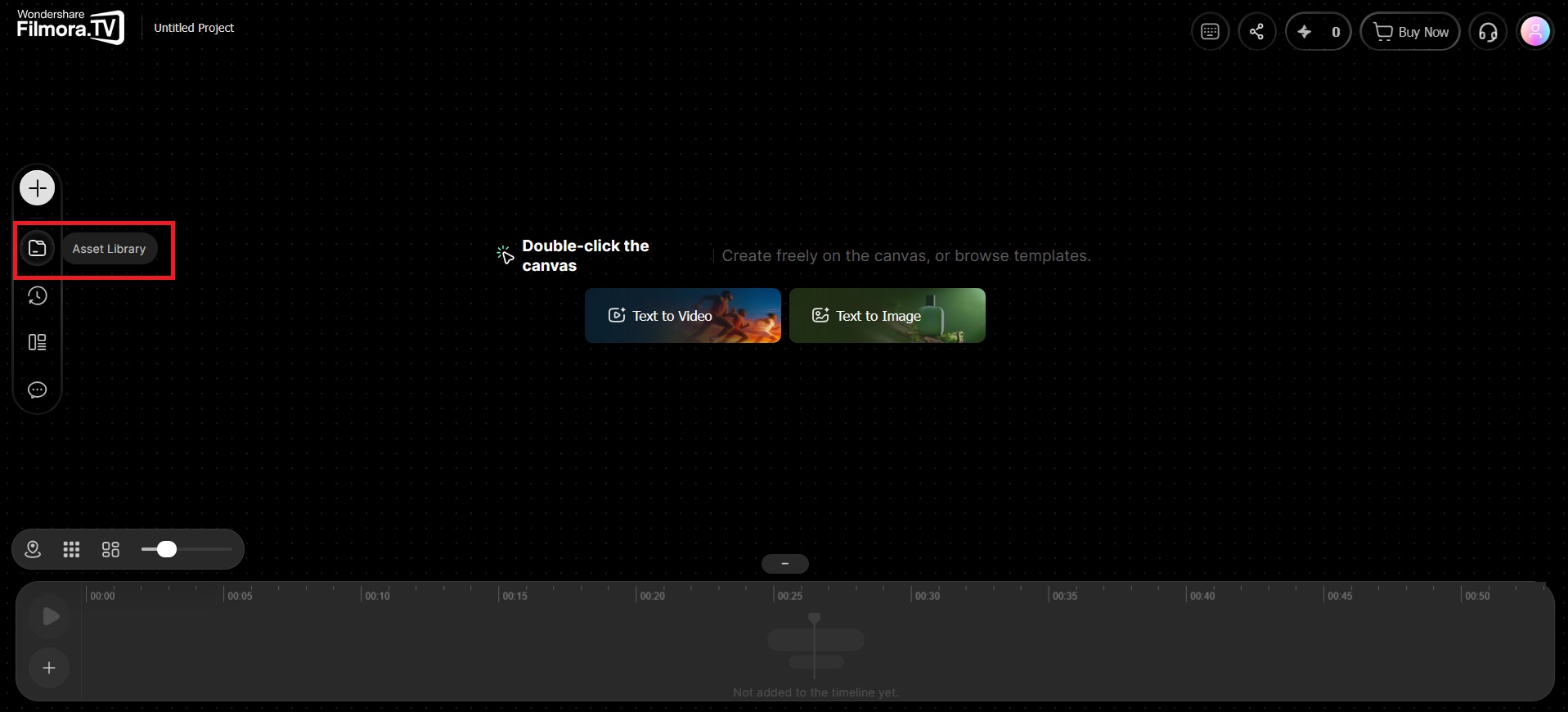
Select the asset you want to add to your project and click "Apply to Canvas" to place it on the canvas. Rename the asset to make it easier to identify and organize.
 Note: You can also access assets from the library when generating new nodes by selecting the Add Media option.
Was this guide helpful?