

Trim and Split
If your generated clips need a little cleanup before they fit the final cut, Filmora.TV gives you two simple ways to adjust clip length: trimming and splitting.

Try Filmora.TV

AI Creative Studio
Follow Along in Your Workspace
Practice each step from this guide directly in Filmora.TV.
1. Trim
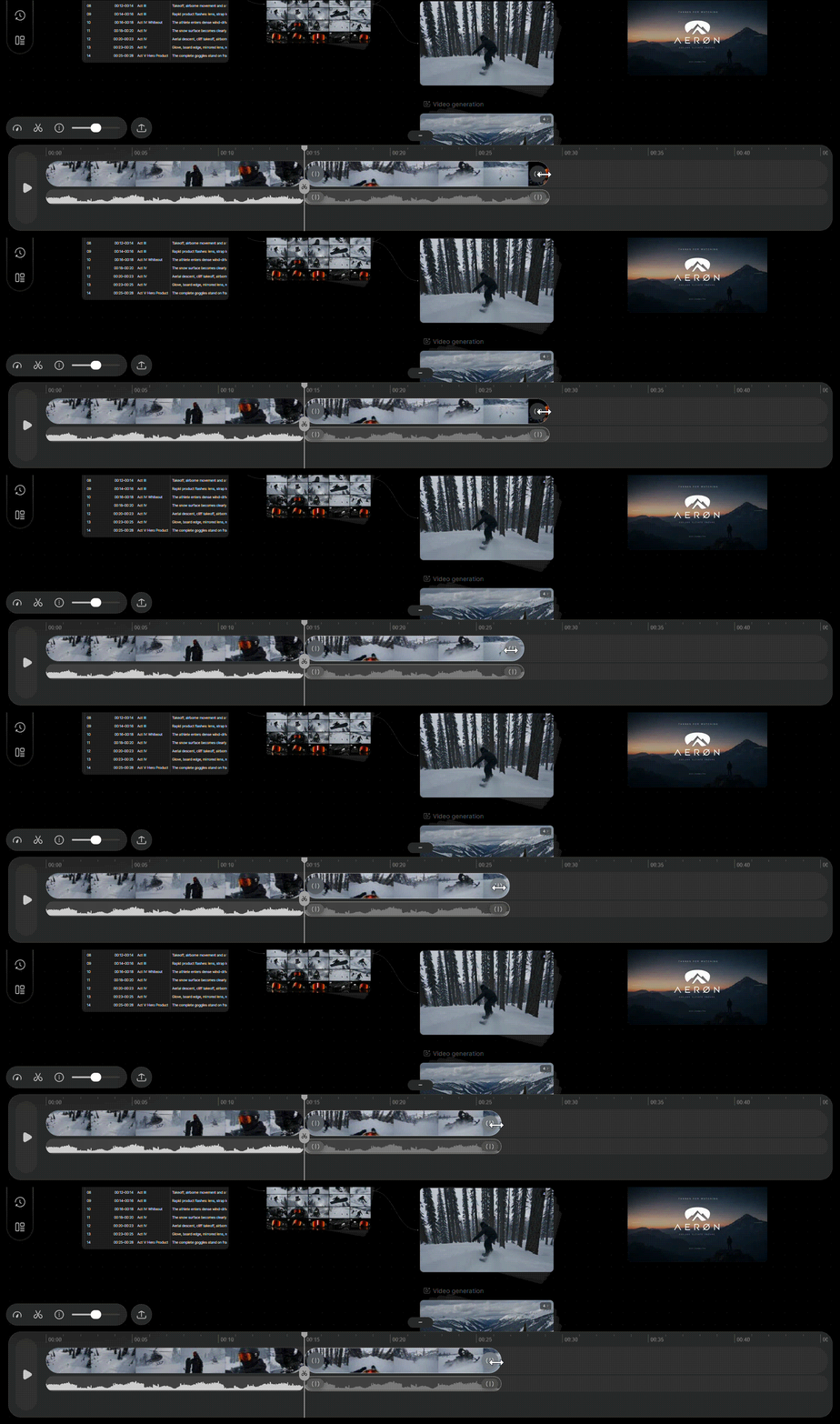
You can shorten a clip on Filmora.TV by trimming or removing footage from the beginning or end. To do it, select the clip on the timeline, then drag its front or end edge to adjust its duration.
2. Split
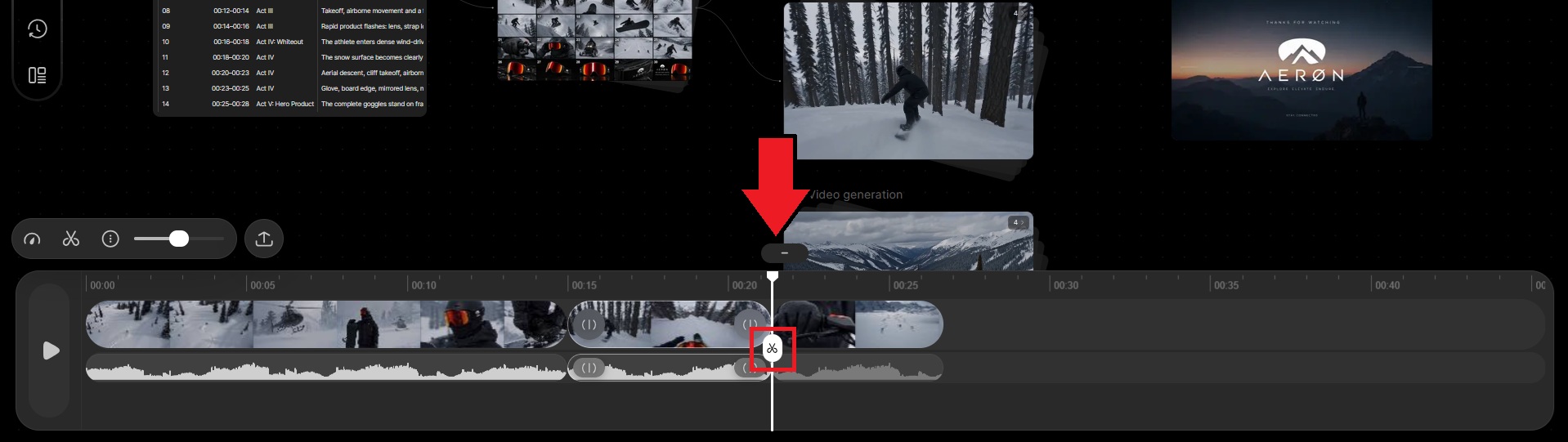
You can divide one clip into separate sections with the Split tool. Move the playhead to the point where you want to make the cut, then click the scissors icon to split the clip.
FAQ
-
What basic editing adjustments does the timeline support?
The timeline supports basic preview and rough-cut editing, including playhead positioning, clip splitting, reordering, speed changes, audio adjustments, and copy and paste. If the video contains audio, the audio will also appear as a waveform on the audio track in the timeline.
Was this guide helpful?